` (for example `asr-hi`) to request a specific auto-generated language.
* A plain code such as `hi` returns the creator’s captions when they exist, otherwise the auto-generated ones (`asr-hi`).
* The `language` field in a `200` response is the **resolved** code (`en`, `de`, `asr-hi`, …), so you always know exactly which track you received.
Detecting a video’s language
When the response `language` comes back as an `asr-` value (for example `asr-hi`), it tells you two things at once: the transcript is **auto-generated**, and the video’s spoken language is that code (here, Hindi). So requesting `asr` is a handy way to discover what language a video is in.
> **Tip:** Call `GET /youtube/info` first — it’s free — to see which languages a video offers.
### Response Formats
[Section titled “Response Formats”](#response-formats)
The API supports multiple response formats based on your parameters:
* JSON with timestamps (default)
```json
{
"video_id": "dQw4w9WgXcQ",
"language": "en",
"transcript": [
{
"text": "Never gonna give you up",
"start": 0.0,
"duration": 4.12
},
{
"text": "Never gonna let you down",
"start": 4.12,
"duration": 3.85
}
],
"metadata": {
"title": "Rick Astley - Never Gonna Give You Up",
"author_name": "RickAstleyVEVO",
"author_url": "https://www.youtube.com/@RickAstley",
"thumbnail_url": "https://i.ytimg.com/vi/dQw4w9WgXcQ/hqdefault.jpg"
}
}
```
* JSON without timestamps
```json
{
"video_id": "dQw4w9WgXcQ",
"language": "en",
"transcript": [
{
"text": "Never gonna give you up"
},
{
"text": "Never gonna let you down"
}
]
}
```
* Text with timestamps
```json
{
"video_id": "dQw4w9WgXcQ",
"language": "en",
"transcript": "[0.0s] Never gonna give you up\n[4.12s] Never gonna let you down\n[7.97s] Never gonna run around and desert you"
}
```
* Text without timestamps
```json
{
"video_id": "dQw4w9WgXcQ",
"language": "en",
"transcript": "Never gonna give you up Never gonna let you down Never gonna run around and desert you"
}
```
#### Response Headers
[Section titled “Response Headers”](#response-headers)
| Header | Description |
| ---------------- | --------------------------------------------- |
| `X-Cache-Status` | Cache status: `HIT`, `PARTIAL-HIT`, or `MISS` |
***
## YouTube Video Info
[Section titled “YouTube Video Info”](#youtube-video-info)
Discover a video’s metadata and the transcript languages it offers — **before** spending a transcript credit.
```bash
curl -X GET "https://transcriptapi.com/api/v2/youtube/info?video_url=dQw4w9WgXcQ" \
-H "Authorization: Bearer YOUR_API_KEY"
```
```json
{
"video_id": "dQw4w9WgXcQ",
"metadata": {
"title": "...",
"author_name": "...",
"author_url": "...",
"thumbnail_url": "..."
},
"available_languages": [
{ "code": "en", "name": "English" },
{ "code": "asr-en", "name": "English (auto-generated)" }
]
}
```
* **Free** — no credit is consumed. The same API key and active plan are required as for the transcript endpoint.
* Each `available_languages` code can be passed directly to the transcript endpoint’s `language` parameter (for example `en`, or `asr-en` for auto-generated English).
* Returns `404` when the video does not exist or has no captions.
## Search Endpoint
[Section titled “Search Endpoint”](#search-endpoint)
```plaintext
GET /youtube/search
```
Search YouTube for videos or channels.
### Parameters
[Section titled “Parameters”](#parameters)
| Parameter | Type | Required | Default | Description |
| -------------- | ------ | ----------- | ------- | ------------------------------------------------------------- |
| `q` | string | Conditional | — | Search query (1–200 characters). Required for the first page. |
| `type` | string | No | `video` | Result type: `video` or `channel` (first page only). |
| `continuation` | string | Conditional | — | Continuation token from previous response (subsequent pages). |
Provide exactly one of `q` or `continuation`. When `continuation` is provided, `q`/`type` are ignored (the token already encodes them).
Each call returns YouTube’s full page (\~20 items). Use `continuation_token` to fetch more.
### Response
[Section titled “Response”](#response)
* Video search
```json
{
"results": [
{
"type": "video",
"videoId": "abc123xyz00",
"title": "The future of design — TED",
"channelId": "UCAuUUnT6oDeKwE6v1NGQxug",
"channelTitle": "TED",
"channelHandle": "@TED",
"channelVerified": true,
"lengthText": "12:34",
"viewCountText": "3.4M views",
"publishedTimeText": "2 years ago",
"hasCaptions": true,
"thumbnails": [
{"url": "https://i.ytimg.com/vi/abc123xyz00/default.jpg", "width": 120, "height": 90}
]
}
],
"result_count": 20,
"continuation_token": "4qmFsgKlARIYVVV1QVhGa2dz...",
"has_more": true
}
```
* Channel search
```json
{
"results": [
{
"type": "channel",
"channelId": "UCAuUUnT6oDeKwE6v1NGQxug",
"title": "TED",
"handle": "@TED",
"url": "https://www.youtube.com/@TED",
"description": "Ideas worth spreading...",
"subscriberCount": "23.8M subscribers",
"verified": true,
"rssUrl": "https://www.youtube.com/feeds/videos.xml?channel_id=UCAuUUnT6oDeKwE6v1NGQxug",
"thumbnails": [...]
}
],
"result_count": 5,
"continuation_token": "4qmFsgKlARIYVVV1QVhGa2dz...",
"has_more": true
}
```
**Pagination flow:**
1. First request: `?q=design&type=video` — returns first page + `continuation_token`
2. Next request: `?continuation=4qmFsgKlARIYVVV1QVhGa2dz...` — returns next page + new token
3. Repeat until `has_more` is `false` or `continuation_token` is `null`
Each page costs 1 credit.
**Example:**
```bash
# First page
curl -X GET "https://transcriptapi.com/api/v2/youtube/search?q=innovation&type=video" \
-H "Authorization: Bearer YOUR_API_KEY"
# Next page
curl -X GET "https://transcriptapi.com/api/v2/youtube/search?continuation=4qmFsgKlARIYVVV1QVhGa2dz..." \
-H "Authorization: Bearer YOUR_API_KEY"
```
***
## Channel Endpoints
[Section titled “Channel Endpoints”](#channel-endpoints)
### Resolve Channel
[Section titled “Resolve Channel”](#resolve-channel)
```plaintext
GET /youtube/channel/resolve
```
Resolve any channel reference (@handle, URL, or UC… ID) to a canonical UC… channel ID. **Free — no credits charged.**
| Parameter | Type | Required | Description |
| --------- | ------ | -------- | -------------------------------------------------- |
| `input` | string | Yes | @handle, channel URL, or UC… ID (1–200 characters) |
**Response:**
```json
{
"channel_id": "UCAuUUnT6oDeKwE6v1NGQxug",
"resolved_from": "@TED"
}
```
Fast Path
If `input` is already a valid UC… channel ID (24 characters starting with `UC`), the API returns immediately without any external lookup.
**Example:**
```bash
curl -X GET "https://transcriptapi.com/api/v2/youtube/channel/resolve?input=@TED" \
-H "Authorization: Bearer YOUR_API_KEY"
```
### Search Within Channel
[Section titled “Search Within Channel”](#search-within-channel)
```plaintext
GET /youtube/channel/search
```
Search for videos within a specific channel. Accepts an @handle, channel URL, or UC… channel ID.
| Parameter | Type | Required | Default | Description |
| -------------- | ------ | ----------- | ------- | ------------------------------------------------------------- |
| `channel` | string | Conditional | — | @handle, channel URL, or UC… channel ID (first page). |
| `q` | string | Conditional | — | Search query (1–200 characters, first page). |
| `continuation` | string | Conditional | — | Continuation token from previous response (subsequent pages). |
Provide exactly one of (`channel` + `q`) **or** `continuation`. When `continuation` is provided, `channel`/`q` are ignored.
Each call returns YouTube’s full page (\~30 items). Use `continuation_token` to fetch more.
Backwards Compatibility
The legacy `channel_id` parameter still works but is hidden from API docs. Prefer using `channel` which accepts flexible input.
**Response:**
```json
{
"results": [
{
"type": "video",
"videoId": "abc123xyz00",
"title": "Video Title",
"channelId": "UCAuUUnT6oDeKwE6v1NGQxug",
"channelTitle": "TED",
"channelHandle": "@TED",
"channelVerified": true,
"lengthText": "12:34",
"viewCountText": "2.1M views",
"publishedTimeText": "3 months ago",
"hasCaptions": true,
"thumbnails": [...]
}
],
"result_count": 12,
"continuation_token": "4qmFsgKlARIYVVV1QVhGa2dz...",
"has_more": true
}
```
**Pagination flow:**
1. First request: `?channel=@TED&q=innovation` — returns first page + `continuation_token`
2. Next request: `?continuation=4qmFsgKlARIYVVV1QVhGa2dz...` — returns next page + new token
3. Repeat until `has_more` is `false` or `continuation_token` is `null`
Each page costs 1 credit.
**Example:**
```bash
# First page
curl -X GET "https://transcriptapi.com/api/v2/youtube/channel/search?channel=@TED&q=innovation" \
-H "Authorization: Bearer YOUR_API_KEY"
# Next page
curl -X GET "https://transcriptapi.com/api/v2/youtube/channel/search?continuation=4qmFsgKlARIYVVV1QVhGa2dz..." \
-H "Authorization: Bearer YOUR_API_KEY"
```
### Channel Videos (Paginated)
[Section titled “Channel Videos (Paginated)”](#channel-videos-paginated)
```plaintext
GET /youtube/channel/videos
```
List all videos uploaded to a channel, paginated at \~100 per page. Accepts an @handle, channel URL, or UC… channel ID.
| Parameter | Type | Required | Description |
| -------------- | ------ | ----------- | ------------------------------------------------------- |
| `channel` | string | Conditional | @handle, channel URL, or UC… channel ID (first page). |
| `continuation` | string | Conditional | Continuation token from previous response (next pages). |
Provide exactly one of `channel` or `continuation`.
Backwards Compatibility
The legacy `channel_id` parameter still works but is hidden from API docs. Prefer using `channel` which accepts flexible input.
**Response:**
```json
{
"results": [
{
"videoId": "abc123xyz00",
"title": "Latest Video",
"channelId": "UCAuUUnT6oDeKwE6v1NGQxug",
"channelTitle": "TED",
"channelHandle": "@TED",
"lengthText": "15:22",
"viewCountText": "3.2M views 2 weeks ago",
"thumbnails": [...],
"index": "0"
}
],
"playlist_info": {
"title": "Uploads from TED",
"numVideos": "5200",
"description": "",
"ownerName": "TED",
"viewCount": null
},
"continuation_token": "4qmFsgKlARIYVVV1QVhGa2dz...",
"has_more": true
}
```
**Pagination flow:**
1. First request: `?channel=@TED` — returns first \~100 videos + `continuation_token`
2. Next request: `?continuation=4qmFsgKlARIYVVV1QVhGa2dz...` — returns next \~100 + new token
3. Repeat until `has_more` is `false` or `continuation_token` is `null`
**Example:**
```bash
# First page (using @handle)
curl -X GET "https://transcriptapi.com/api/v2/youtube/channel/videos?channel=@TED" \
-H "Authorization: Bearer YOUR_API_KEY"
# First page (using channel URL)
curl -X GET "https://transcriptapi.com/api/v2/youtube/channel/videos?channel=https://www.youtube.com/@TED" \
-H "Authorization: Bearer YOUR_API_KEY"
# Next page
curl -X GET "https://transcriptapi.com/api/v2/youtube/channel/videos?continuation=4qmFsgKlARIYVVV1QVhGa2dz..." \
-H "Authorization: Bearer YOUR_API_KEY"
```
### Channel Latest (RSS)
[Section titled “Channel Latest (RSS)”](#channel-latest-rss)
```plaintext
GET /youtube/channel/latest
```
Get the latest 15 videos from a channel via YouTube RSS feed. Returns exact publish timestamps and view counts. Accepts an @handle, channel URL, or UC… channel ID. **Free — no credits charged.**
| Parameter | Type | Required | Description |
| --------- | ------ | -------- | --------------------------------------- |
| `channel` | string | Yes | @handle, channel URL, or UC… channel ID |
Backwards Compatibility
The legacy `channel_id` parameter still works but is hidden from API docs. Prefer using `channel` which accepts flexible input.
**Response:**
```json
{
"channel": {
"channelId": "UCAuUUnT6oDeKwE6v1NGQxug",
"title": "TED",
"author": "TED",
"url": "https://www.youtube.com/channel/UCAuUUnT6oDeKwE6v1NGQxug",
"published": "2006-12-18T00:00:00Z"
},
"results": [
{
"videoId": "abc123xyz00",
"title": "Latest Video Title",
"channelId": "UCAuUUnT6oDeKwE6v1NGQxug",
"author": "TED",
"published": "2026-01-30T16:00:00Z",
"updated": "2026-01-31T02:00:00Z",
"link": "https://www.youtube.com/watch?v=abc123xyz00",
"description": "Full video description...",
"thumbnail": {"url": "https://i1.ytimg.com/vi/abc123xyz00/hqdefault.jpg", "width": "480", "height": "360"},
"viewCount": "2287630",
"starRating": {"average": "4.92", "count": "45000", "min": "1", "max": "5"}
}
],
"result_count": 15
}
```
**Example:**
```bash
curl -X GET "https://transcriptapi.com/api/v2/youtube/channel/latest?channel=@TED" \
-H "Authorization: Bearer YOUR_API_KEY"
```
***
## Playlist Endpoint
[Section titled “Playlist Endpoint”](#playlist-endpoint)
```plaintext
GET /youtube/playlist/videos
```
List videos in a playlist, paginated at \~100 per page. Accepts a YouTube playlist URL or a bare playlist ID.
| Parameter | Type | Required | Description |
| -------------- | ------ | ----------- | -------------------------------------------------------------- |
| `playlist` | string | Conditional | YouTube playlist URL or playlist ID (PL…, UU…, LL…, FL…, OL…). |
| `continuation` | string | Conditional | Continuation token from previous response (next pages). |
Provide exactly one of `playlist` or `continuation`.
Backwards Compatibility
The legacy `playlist_id` parameter still works but is hidden from API docs. Prefer using `playlist` which accepts flexible input.
**Response:**
```json
{
"results": [
{
"videoId": "abc123xyz00",
"title": "Playlist Video",
"channelId": "UCAuUUnT6oDeKwE6v1NGQxug",
"channelTitle": "TED",
"channelHandle": "@TED",
"lengthText": "10:05",
"viewCountText": "1.5M views 6 months ago",
"thumbnails": [...],
"index": "0"
}
],
"playlist_info": {
"title": "Best Tech of 2025",
"numVideos": "47",
"description": "My picks for the best tech this year",
"ownerName": "TED",
"viewCount": "5000000"
},
"continuation_token": "4qmFsgKlARIYVVV1QVhGa2dz...",
"has_more": true
}
```
**Pagination:** Same flow as channel/videos — use `continuation_token` from each response to fetch the next page.
**Example:**
```bash
# First page (using playlist ID)
curl -X GET "https://transcriptapi.com/api/v2/youtube/playlist/videos?playlist=PLrAXtmErZgOeiKm4sgNOknGvNjby9efdf" \
-H "Authorization: Bearer YOUR_API_KEY"
# First page (using playlist URL)
curl -X GET "https://transcriptapi.com/api/v2/youtube/playlist/videos?playlist=https://www.youtube.com/playlist?list=PLrAXtmErZgOeiKm4sgNOknGvNjby9efdf" \
-H "Authorization: Bearer YOUR_API_KEY"
# Next page
curl -X GET "https://transcriptapi.com/api/v2/youtube/playlist/videos?continuation=4qmFsgKlARIYVVV1QVhGa2dz..." \
-H "Authorization: Bearer YOUR_API_KEY"
```
***
## Credit Usage & Billing
[Section titled “Credit Usage & Billing”](#credit-usage--billing)
### Credit Cost
[Section titled “Credit Cost”](#credit-cost)
| Endpoint | Credits per Request | Notes |
| ------------------------------ | ------------------- | ----------------------------------------- |
| `GET /youtube/transcript` | 1 credit | Only charged on successful response (200) |
| `GET /youtube/search` | 1 credit | Search videos or channels |
| `GET /youtube/channel/resolve` | **Free** | Requires auth + at least 1 active credit |
| `GET /youtube/channel/search` | 1 credit | Search within a channel |
| `GET /youtube/channel/videos` | 1 credit/page | Paginated — each page costs 1 credit |
| `GET /youtube/channel/latest` | **Free** | Requires auth + at least 1 active credit |
| `GET /youtube/playlist/videos` | 1 credit/page | Paginated — each page costs 1 credit |
### When Credits Are Charged
[Section titled “When Credits Are Charged”](#when-credits-are-charged)
* ✅ **Successful requests** (HTTP 200) - 1 credit (paid endpoints only)
* ✅ **Cached responses** (HTTP 200) - 1 credit (paid endpoints only)
* ✅ **Free endpoints** (HTTP 200) - 0 credits (requires at least 1 active credit)
* ❌ **Failed requests** (4xx, 5xx errors) - 0 credits
* ❌ **Rate limited requests** (HTTP 429) - 0 credits
Credits are deducted in real-time only when a request is successfully returned.
When credits are exhausted, the API returns `HTTP 402 Payment Required`.
## Rate Limits
[Section titled “Rate Limits”](#rate-limits)
All API keys are subject to the following rate limits:
* **300 requests per minute** per API key
### Rate Limit Headers
[Section titled “Rate Limit Headers”](#rate-limit-headers)
Each response includes rate limit information in the headers:
| Header | Description |
| ----------------------- | ----------------------------------------- |
| `X-RateLimit-Limit` | Total allowed requests in the window |
| `X-RateLimit-Remaining` | Remaining requests in the window |
| `X-RateLimit-Reset` | UTC epoch seconds when the window resets |
| `Retry-After` | Seconds until you can retry (only on 429) |
**Example Headers:**
```plaintext
X-RateLimit-Limit: 200
X-RateLimit-Remaining: 195
X-RateLimit-Reset: 1678901234
```
### Best Practices
[Section titled “Best Practices”](#best-practices)
1. **Implement exponential backoff** on 429 errors
2. **Respect the `Retry-After` header** value
3. **Cache responses** when appropriate to reduce API calls
4. **Don’t retry failed requests** more than 2 times within 3 seconds
5. **Monitor rate limit headers** to avoid hitting limits
## Error Handling
[Section titled “Error Handling”](#error-handling)
The API uses standard HTTP status codes:
| Status Code | Meaning | Retry? | Action |
| ----------- | ------------------- | --------- | ---------------------------------------------------------- |
| `200` | Success | — | Transcript returned, 1 credit charged |
| `400` | Bad Request | ❌ No | Check your request parameters |
| `401` | Unauthorized | ❌ No | Invalid or missing API key |
| `402` | Payment Required | ❌ No | No credits remaining - visit [billing](/billing) |
| `404` | Not Found | ❌ No | Video not found or transcript unavailable |
| `408` | Timeout / Retry | ✅ **Yes** | Temporary failure (bot detection, network) - retry in 1-5s |
| `422` | Validation Error | ❌ No | Invalid YouTube URL or ID |
| `429` | Too Many Requests | ✅ **Yes** | Rate limit exceeded - retry after `Retry-After` header |
| `500` | Server Error | ⚠️ Maybe | Contact support if persistent |
| `503` | Service Unavailable | ✅ **Yes** | Service temporarily down - retry in 1-5s |
### Retry Strategy
[Section titled “Retry Strategy”](#retry-strategy)
For **retryable errors** (`408`, `429`, `503`):
1. **Wait** the recommended delay (1-5 seconds, or check `Retry-After` header for 429)
2. **Retry** up to 2-3 times with exponential backoff
3. **Give up** after max retries and log the failure
For **non-retryable errors** (`400`, `401`, `402`, `404`, `422`): Do not retry - fix the request parameters or check your account status.
### Error Response Format
[Section titled “Error Response Format”](#error-response-format)
All error responses follow this format:
```json
{
"detail": "Human-readable error message",
"code": "ERROR_CODE"
}
```
### 404 — No transcript for the requested languages
[Section titled “404 — No transcript for the requested languages”](#404--no-transcript-for-the-requested-languages)
When you pass a `language` priority list and none of the requested codes are available, the response is a `404` that lists the languages the video *does* offer, so you can retry with a valid one:
```json
{
"detail": "No transcript available for the requested languages: en, de",
"code": "no_transcript_for_requested_languages",
"available_languages": [
{ "code": "hi", "name": "Hindi" },
{ "code": "asr-hi", "name": "Hindi (auto-generated)" }
]
}
```
When you omit `language`, a video without captions instead returns a plain `404` with only a `detail` message.
### 401 Unauthorized
[Section titled “401 Unauthorized”](#401-unauthorized)
Includes a `WWW-Authenticate` header:
```plaintext
WWW-Authenticate: Bearer
```
### 402 Payment Required
[Section titled “402 Payment Required”](#402-payment-required)
Special format with action details:
**Insufficient Credits:**
```json
{
"detail": {
"message": "You have an active plan, but you've run out of credits.",
"reason": "insufficient_credits",
"action_label": "Top up credits",
"action_url": "https://transcriptapi.com/top-up"
}
}
```
**No Active Plan:**
```json
{
"detail": {
"message": "You don't have an active paid plan yet.",
"reason": "no_active_paid_plan",
"action_label": "Go to billing to choose a plan",
"action_url": "https://transcriptapi.com/billing"
}
}
```
## Code Examples
[Section titled “Code Examples”](#code-examples)
Here are complete examples in multiple languages:
* cURL
```bash
# Basic request
curl -X GET "https://transcriptapi.com/api/v2/youtube/transcript?video_url=dQw4w9WgXcQ" \
-H "Authorization: Bearer YOUR_API_KEY"
# With all parameters
curl -X GET "https://transcriptapi.com/api/v2/youtube/transcript?video_url=dQw4w9WgXcQ&format=json&include_timestamp=true&send_metadata=true" \
-H "Authorization: Bearer YOUR_API_KEY"
# Text format without timestamps
curl -X GET "https://transcriptapi.com/api/v2/youtube/transcript?video_url=dQw4w9WgXcQ&format=text&include_timestamp=false" \
-H "Authorization: Bearer YOUR_API_KEY"
```
* Python
```python
import requests
import json
# Configuration
API_KEY = "YOUR_API_KEY"
BASE_URL = "https://transcriptapi.com/api/v2"
def get_transcript(video_url, format="json", include_timestamp=True, send_metadata=False):
"""Fetch YouTube video transcript"""
headers = {
"Authorization": f"Bearer {API_KEY}"
}
params = {
"video_url": video_url,
"format": format,
"include_timestamp": include_timestamp,
"send_metadata": send_metadata
}
try:
response = requests.get(
f"{BASE_URL}/youtube/transcript",
headers=headers,
params=params
)
# Check for errors
response.raise_for_status()
# Parse JSON response
data = response.json()
# Handle different formats
if format == "json":
transcript = data["transcript"]
if include_timestamp:
for segment in transcript:
print(f"[{segment['start']}s] {segment['text']}")
else:
for segment in transcript:
print(segment['text'])
else:
# Text format
print(data["transcript"])
return data
except requests.exceptions.HTTPError as e:
if e.response.status_code == 402:
error_data = e.response.json()
print(f"Payment required: {error_data['detail']['message']}")
print(f"Action: {error_data['detail']['action_url']}")
elif e.response.status_code in (408, 429, 503):
# Retryable errors - implement backoff
retry_after = e.response.headers.get('Retry-After', '5')
print(f"Retryable error ({e.response.status_code}). Retry after {retry_after} seconds")
elif e.response.status_code == 404:
print("Video not found or has no transcript available")
else:
print(f"HTTP error: {e}")
except Exception as e:
print(f"Error: {e}")
# Example usage
if __name__ == "__main__":
# Basic usage
get_transcript("dQw4w9WgXcQ")
# With metadata
data = get_transcript(
"https://www.youtube.com/watch?v=dQw4w9WgXcQ",
send_metadata=True
)
if data and "metadata" in data:
print(f"Title: {data['metadata']['title']}")
print(f"Author: {data['metadata']['author_name']}")
```
* JavaScript (Node.js)
```javascript
// Using native fetch (Node.js 18+) or install node-fetch for older versions
const API_KEY = 'YOUR_API_KEY';
const BASE_URL = 'https://transcriptapi.com/api/v2';
async function getTranscript(videoUrl, options = {}) {
const {
format = 'json',
includeTimestamp = true,
sendMetadata = false
} = options;
const params = new URLSearchParams({
video_url: videoUrl,
format: format,
include_timestamp: includeTimestamp,
send_metadata: sendMetadata
});
try {
const response = await fetch(
`${BASE_URL}/youtube/transcript?${params}`,
{
headers: {
'Authorization': `Bearer ${API_KEY}`
}
}
);
if (!response.ok) {
const error = await response.json();
if (response.status === 402) {
console.error('Payment required:', error.detail.message);
console.error('Action:', error.detail.action_url);
} else if ([408, 429, 503].includes(response.status)) {
// Retryable errors - implement backoff
const retryAfter = response.headers.get('Retry-After') || '5';
console.error(`Retryable error (${response.status}). Retry after ${retryAfter} seconds`);
} else if (response.status === 404) {
console.error('Video not found or has no transcript available');
} else {
console.error('API Error:', error.detail);
}
throw new Error(error.detail);
}
const data = await response.json();
// Process transcript based on format
if (format === 'json' && includeTimestamp) {
data.transcript.forEach(segment => {
console.log(`[${segment.start}s] ${segment.text}`);
});
}
return data;
} catch (error) {
console.error('Error fetching transcript:', error);
throw error;
}
}
// Example usage with async/await
(async () => {
try {
// Basic usage
const transcript = await getTranscript('dQw4w9WgXcQ');
console.log('Video ID:', transcript.video_id);
// With metadata
const withMetadata = await getTranscript(
'https://www.youtube.com/watch?v=dQw4w9WgXcQ',
{ sendMetadata: true }
);
if (withMetadata.metadata) {
console.log('Title:', withMetadata.metadata.title);
console.log('Author:', withMetadata.metadata.author_name);
}
// Text format without timestamps
const plainText = await getTranscript('dQw4w9WgXcQ', {
format: 'text',
includeTimestamp: false
});
console.log('Plain text:', plainText.transcript);
} catch (error) {
// Error already logged
}
})();
```
* JavaScript (Browser)
```javascript
// Browser JavaScript with Fetch API
const API_KEY = 'YOUR_API_KEY';
const BASE_URL = 'https://transcriptapi.com/api/v2';
async function getYouTubeTranscript(videoUrl, options = {}) {
const {
format = 'json',
includeTimestamp = true,
sendMetadata = false
} = options;
const params = new URLSearchParams({
video_url: videoUrl,
format: format,
include_timestamp: includeTimestamp,
send_metadata: sendMetadata
});
try {
const response = await fetch(
`${BASE_URL}/youtube/transcript?${params}`,
{
method: 'GET',
headers: {
'Authorization': `Bearer ${API_KEY}`,
'Content-Type': 'application/json'
}
}
);
if (!response.ok) {
const error = await response.json();
// Handle specific error cases
switch (response.status) {
case 401:
throw new Error('Invalid API key');
case 402:
// Show payment required UI
window.location.href = error.detail.action_url;
break;
case 404:
throw new Error('Video not found or has no transcript');
case 408:
case 503:
// Retryable - temporary failure
throw new Error('Temporary failure. Please retry in a few seconds.');
case 429:
const retryAfter = response.headers.get('Retry-After');
throw new Error(`Rate limited. Retry after ${retryAfter}s`);
default:
throw new Error(error.detail || 'API request failed');
}
}
return await response.json();
} catch (error) {
console.error('Transcript fetch error:', error);
// Display user-friendly error
if (error.message.includes('Failed to fetch')) {
throw new Error('Network error. Please check your connection.');
}
throw error;
}
}
// Example: Display transcript in DOM
async function displayTranscript(videoUrl) {
const container = document.getElementById('transcript-container');
container.innerHTML = 'Loading transcript...';
try {
const data = await getYouTubeTranscript(videoUrl, {
sendMetadata: true
});
// Display metadata if available
if (data.metadata) {
container.innerHTML = `
${data.metadata.title}
By: ${data.metadata.author_name}
`;
}
// Display transcript
const transcriptHtml = data.transcript
.map(segment => `
${segment.text}
`)
.join('');
container.innerHTML += `${transcriptHtml}`;
} catch (error) {
container.innerHTML = `
Error: ${error.message}
`;
}
}
// Usage
displayTranscript('dQw4w9WgXcQ');
```
CORS Security
Never expose your API key in client-side code. For production applications, make API requests through your backend server to keep your API key secure.
Try it Live
Want to try these examples interactively? [Test them in our Swagger UI](/swagger) →
## Best Practices
[Section titled “Best Practices”](#best-practices-1)
### Error Handling Strategies
[Section titled “Error Handling Strategies”](#error-handling-strategies)
1. **Implement retry logic with exponential backoff**
```javascript
async function fetchWithRetry(url, options, maxRetries = 3) {
const RETRYABLE_CODES = [408, 429, 503];
for (let i = 0; i < maxRetries; i++) {
try {
const response = await fetch(url, options);
// Return immediately if not a retryable error
if (!RETRYABLE_CODES.includes(response.status)) {
return response;
}
// Calculate delay: use Retry-After header or exponential backoff
const retryAfter =
response.headers.get("Retry-After") || Math.pow(2, i);
console.log(
`Retryable error ${response.status}, waiting ${retryAfter}s...`
);
await new Promise((resolve) => setTimeout(resolve, retryAfter * 1000));
} catch (error) {
// Network error - retry with backoff
if (i === maxRetries - 1) throw error;
await new Promise((resolve) =>
setTimeout(resolve, Math.pow(2, i) * 1000)
);
}
}
throw new Error("Max retries exceeded");
}
```
2. **Handle payment required errors gracefully**
* Redirect users to billing page
* Show clear messaging about credit status
* Provide action buttons for top-up
### Caching Recommendations
[Section titled “Caching Recommendations”](#caching-recommendations)
* Cache successful responses to reduce API calls
* Respect cache headers if provided
* Consider transcript immutability (transcripts rarely change)
* Implement cache invalidation for metadata
### Rate Limit Management
[Section titled “Rate Limit Management”](#rate-limit-management)
* Monitor `X-RateLimit-Remaining` header
* Implement request queuing when approaching limits
* Use exponential backoff on 429 errors
* Consider implementing client-side rate limiting
### Security
[Section titled “Security”](#security)
* **Never expose API keys in client-side code**
* Store API keys in environment variables
* Use backend proxy for browser applications
* Rotate API keys regularly
* Use separate keys for different environments
### Monitoring and Logging
[Section titled “Monitoring and Logging”](#monitoring-and-logging)
* Log all API responses including headers
* Monitor credit usage patterns
* Track rate limit approaches
* Set up alerts for 402 and 429 responses
* Monitor response times and cache hit rates
## Related Resources
[Section titled “Related Resources”](#related-resources)
[Interactive API Docs (Swagger) ](/swagger)Test API endpoints interactively with live requests in your browser.
[Getting Started Guide ](/docs/getting-started)Quick start guide to get up and running with TranscriptAPI.
[MCP Integration ](/docs/mcp)Use TranscriptAPI with Model Context Protocol for AI workflows.
## Need Help?
[Section titled “Need Help?”](#need-help)
If you have questions or need assistance:
* Visit our [Contact page](/contact) for support options
* Manage your account and billing at [Billing](/billing)
# Getting Started
> Quick start guide to integrate YouTube Transcript API into your projects via REST API or MCP
# Getting Started
[Section titled “Getting Started”](#getting-started)
Welcome to TranscriptAPI! Get YouTube video transcripts through our REST API or seamlessly integrate with AI assistants using Model Context Protocol (MCP).
## Choose Your Integration Method
[Section titled “Choose Your Integration Method”](#choose-your-integration-method)
### REST API Integration
[Section titled “REST API Integration”](#rest-api-integration)
Perfect for direct integration into your applications, scripts, and workflows.
**Quick Start:**
1. [Sign up for an API key](https://transcriptapi.com)
2. Make your first API request using the [YouTube Transcript API](/docs/api)
3. Start fetching transcripts in your application
[View Complete API Reference →](/docs/api)
### MCP (Model Context Protocol) Integration
[Section titled “MCP (Model Context Protocol) Integration”](#mcp-model-context-protocol-integration)
Ideal for AI assistants like Claude, ChatGPT, and custom agent workflows.
**Quick Start:**
1. Get your [TranscriptAPI credentials](https://transcriptapi.com)
2. Choose your platform:
* [Claude Setup Guide](/docs/mcp/claude)
* [ChatGPT Setup Guide](/docs/mcp/chatgpt)
* [OpenAI Agent Builder Guide](/docs/mcp/openai-agent-builder)
3. Start analyzing YouTube videos in natural conversation
[Learn More About MCP Integration →](/docs/mcp)
## What You Can Do
[Section titled “What You Can Do”](#what-you-can-do)
With TranscriptAPI, you can:
* Extract transcripts from any YouTube video with captions
* Search YouTube videos and channels (paginated)
* Browse channel uploads with pagination
* Get latest channel videos (free, via RSS)
* Browse playlist contents with pagination
* Resolve channel handles to IDs (free)
* Get structured JSON or plain text formats
* Include video metadata (title, author, thumbnail)
* Control timestamp inclusion
* Integrate with AI workflows through MCP
## Next Steps
[Section titled “Next Steps”](#next-steps)
* **API Users**: Check the [API Reference](/docs/api) for complete endpoint documentation
* **MCP Users**: Read the [MCP documentation](/docs/mcp) to understand authentication options
* **Need Help?**: Visit our [Contact page](/contact)
## Have Questions?
[Section titled “Have Questions?”](#have-questions)
[Contact our support team](/contact) for assistance with your integration.
# MCP (Model Context Protocol)
> Use TranscriptAPI with Model Context Protocol to fetch YouTube transcripts, search videos, browse channels, and list playlists in AI assistants like Claude, ChatGPT, and more.
Use TranscriptAPI to fetch transcripts, search YouTube, browse channels, and list playlists — all from within your AI assistant via Model Context Protocol (MCP).
[Claude Tutorial](/docs/mcp/claude)
[Complete guide to integrate TranscriptAPI with Claude AI assistant via MCP.](/docs/mcp/claude)
[Recommended](/docs/mcp/claude)[ChatGPT Tutorial](/docs/mcp/chatgpt)
[Step-by-step guide to connect TranscriptAPI with ChatGPT using OAuth authentication.](/docs/mcp/chatgpt)
[](/docs/mcp/chatgpt)[Agent Builder Tutorial](/docs/mcp/openai-agent-builder)
[Learn how to set up TranscriptAPI with OpenAI Agent Builder for AI workflows.](/docs/mcp/openai-agent-builder)
[](/docs/mcp/openai-agent-builder)
## What is MCP?
[Section titled “What is MCP?”](#what-is-mcp)
Model Context Protocol (MCP) is a standardized framework that enables AI assistants like Claude and ChatGPT to connect directly with external tools and data sources. With TranscriptAPI’s MCP integration, your AI can fetch YouTube transcripts on-demand without manual copy-pasting or switching between applications.
**Key Benefits:**
* Direct integration into your AI workflow
* No manual transcript fetching needed
* Consistent, structured data format
* Works with any MCP-compatible platform
## Why Use TranscriptAPI with MCP?
[Section titled “Why Use TranscriptAPI with MCP?”](#why-use-transcriptapi-with-mcp)
TranscriptAPI offers unique advantages for YouTube Transcript MCP integration:
### Universal Compatibility
[Section titled “Universal Compatibility”](#universal-compatibility)
TranscriptAPI works with **any platform that supports MCP**. Whether your platform uses OAuth for seamless authentication (like Claude and ChatGPT) or requires manual API key configuration (like OpenAI Agent Builder), we provide both options to ensure maximum compatibility.
### Proven Reliability
[Section titled “Proven Reliability”](#proven-reliability)
* Battle-tested with major AI platforms
* Consistent performance across all authentication methods
* Same powerful transcript extraction engine as our REST API
* Flexible authentication options (OAuth or API Key) based on your platform’s requirements
## Prerequisites
[Section titled “Prerequisites”](#prerequisites)
Before setting up TranscriptAPI with MCP, ensure you have:
* A TranscriptAPI account ([sign up free](https://transcriptapi.com))
* An AI assistant or platform that supports MCP
* For OAuth: A web browser for the initial authorization
* For API Key: An active API key from your [dashboard](/dashboard/api-keys)
## MCP Server Configuration
[Section titled “MCP Server Configuration”](#mcp-server-configuration)
Get your MCP configuration details from the [MCP dashboard](/dashboard/mcp) or use these settings:
| Property | Value |
| --------------- | ------------------------------------------------------------------------ |
| **Server Name** | Transcript API |
| **Server URL** | `https://transcriptapi.com/mcp` |
| **Description** | Use TranscriptAPI to fetch YouTube video transcript automatically |
| **Icon** | [Download Icon](https://transcriptapi.com/brand/transcript_api_logo.png) |
Quick Setup
Visit your [MCP dashboard](/dashboard/mcp) for a personalized setup guide with these configuration details and authentication options tailored to your chosen platform.
## Authentication
[Section titled “Authentication”](#authentication)
TranscriptAPI supports two authentication methods to work with different MCP platforms:
* OAuth (Recommended)
### OAuth Authentication
[Section titled “OAuth Authentication”](#oauth-authentication)
OAuth provides automatic, secure authentication without manual key management. Supported by:
* Claude (Dynamic Client Registration - optional credentials)
* ChatGPT (Static Client Registration - requires Client ID/Secret)
* Any MCP client supporting OAuth 2.1
**Two Registration Methods:**
TranscriptAPI supports both Dynamic Client Registration (DCR) and Static Client Registration to work with different platforms:
**1. Dynamic Client Registration (Claude, optional)**
* Claude and other clients that support DCR can automatically register
* No Client ID/Secret needed - just add the MCP server URL
* The client automatically discovers OAuth endpoints and registers itself
* You’ll be redirected to authorize access (one-time)
**2. Static Client Registration (ChatGPT, required)**
* ChatGPT requires Client ID and Client Secret upfront
* Get your credentials from the [MCP Integration dashboard](/dashboard/mcp-integration)
* Select “OAuth (Recommended)” and click “Generate Credentials”
* Copy your Client ID and Client Secret
* Add them to your ChatGPT MCP connector configuration
**How it works:**
1. Add the MCP server URL to your client
2. For ChatGPT: Add Client ID and Client Secret
3. For Claude: Credentials are optional (DCR supported)
4. The client automatically discovers our OAuth endpoints
5. You’ll be redirected to authorize access (one-time)
6. Tokens are managed automatically with refresh support
**Technical Details:**
* Uses OAuth 2.1 with both Dynamic Client Registration (RFC 7591) and Static Registration
* Authorization server metadata: `/.well-known/oauth-authorization-server`
* Protected resource metadata: `/.well-known/oauth-protected-resource`
* Required scope: `mcp:access`
* Access tokens prefixed with `oat_`
**Benefits:**
* No manual key management (for DCR clients)
* Automatic token refresh
* Secure, time-limited access
* Revocable permissions
* Platform-specific support (ChatGPT and Claude)
* API Key
### API Key Authentication
[Section titled “API Key Authentication”](#api-key-authentication)
API Key authentication provides simple, direct access for platforms that don’t support OAuth. Required for:
* OpenAI Agent Builder
* Custom MCP implementations
* Development/testing environments
**How it works:**
1. Get your API key from the [API Keys dashboard](/dashboard/api-keys)
2. Add it to your MCP client configuration
3. The key is sent as a Bearer token with each request
**Configuration:**
```json
{
"mcpServers": {
"transcriptapi": {
"url": "https://transcriptapi.com/mcp",
"apiKey": "sk_your_api_key_here"
}
}
}
```
**Technical Details:**
* Bearer token authentication: `Authorization: Bearer sk_...`
* API keys prefixed with `sk_`
* Keys never expire (unless manually revoked)
* Same key works for both REST API and MCP
**Security Best Practices:**
* Store keys in environment variables
* Never commit keys to version control
* Use separate keys for different environments
* Rotate keys regularly
## Available Tools
[Section titled “Available Tools”](#available-tools)
TranscriptAPI exposes 6 tools through MCP:
| Tool | Description | Cost |
| --------------------------- | ------------------------------------------- | ------------- |
| `get_youtube_transcript` | Fetch video transcript as markdown or JSON | 1 credit |
| `search_youtube` | Search YouTube for videos or channels | 1 credit |
| `get_channel_latest_videos` | Get latest \~15 videos from a channel (RSS) | **Free** |
| `search_channel_videos` | Search within a specific channel | 1 credit |
| `list_channel_videos` | Paginated list of all channel uploads | 1 credit/page |
| `list_playlist_videos` | Paginated list of playlist videos | 1 credit/page |
All channel tools accept flexible input: `@handle`, full YouTube URL, or `UC...` channel ID.
### get\_youtube\_transcript
[Section titled “get\_youtube\_transcript”](#get_youtube_transcript)
Extract transcripts from any YouTube video with full control over the output format.
**Parameters:**
| Parameter | Type | Default | Description |
| ------------------- | ------- | ---------- | ----------------------------------------------------------- |
| `video_url` | string | *required* | YouTube video URL or 11-character video ID |
| `send_metadata` | boolean | `true` | Include video title, author, and thumbnail |
| `format` | string | `"text"` | Output format: `"text"` (markdown) or `"json"` (structured) |
| `include_timestamp` | boolean | `true` | Include timestamps with each segment |
**Accepted URL Formats:**
* Full URL: `https://www.youtube.com/watch?v=dQw4w9WgXcQ`
* Short URL: `https://youtu.be/dQw4w9WgXcQ`
* Video ID only: `dQw4w9WgXcQ`
**Example Usage:**
```javascript
// Get transcript as markdown with metadata (default)
get_youtube_transcript({
video_url: "https://www.youtube.com/watch?v=dQw4w9WgXcQ"
})
// Returns:
{
"content": "# Metadata\n## Title: Rick Astley - Never Gonna Give You Up\n## Author: RickAstleyVEVO\n## Author URL: https://www.youtube.com/@RickAstley\n## Thumbnail: https://i.ytimg.com/vi/dQw4w9WgXcQ/hqdefault.jpg\n\n# Transcript\n[0.0s] Never gonna give you up\n[4.12s] Never gonna let you down..."
}
// Get JSON format without metadata
get_youtube_transcript({
video_url: "dQw4w9WgXcQ",
format: "json",
send_metadata: false
})
// Returns:
{
"content": {
"transcript": [
{
"text": "Never gonna give you up",
"start": 0.0,
"duration": 4.12
},
{
"text": "Never gonna let you down",
"start": 4.12,
"duration": 3.85
}
]
}
}
// Get plain text without timestamps
get_youtube_transcript({
video_url: "dQw4w9WgXcQ",
format: "text",
include_timestamp: false,
send_metadata: false
})
// Returns:
{
"content": "# Transcript\nNever gonna give you up Never gonna let you down Never gonna run around and desert you..."
}
```
**Output Formats:**
* Text Format (Default)
Returns markdown-formatted text with optional metadata header and timestamped transcript lines.
```markdown
# Metadata
## Title: Video Title Here
## Author: Channel Name
## Author URL: https://www.youtube.com/@ChannelName
## Thumbnail: https://i.ytimg.com/vi/VIDEO_ID/hqdefault.jpg
# Transcript
[0.0s] First line of transcript
[3.5s] Second line of transcript
[7.2s] Third line of transcript
```
* JSON Format
Returns structured data with transcript segments and optional metadata.
```json
{
"transcript": [
{
"text": "First line of transcript",
"start": 0.0,
"duration": 3.5
},
{
"text": "Second line of transcript",
"start": 3.5,
"duration": 3.7
}
],
"metadata": {
"title": "Video Title Here",
"author_name": "Channel Name",
"author_url": "https://www.youtube.com/@ChannelName",
"thumbnail_url": "https://i.ytimg.com/vi/VIDEO_ID/hqdefault.jpg"
}
}
```
### search\_youtube
[Section titled “search\_youtube”](#search_youtube)
Search YouTube for videos or channels (paginated, \~20 results per page). Returns structured results with video IDs, titles, view counts, and thumbnails, plus a `continuation_token` for the next page.
**Parameters:**
| Parameter | Type | Default | Description |
| -------------- | ------ | --------- | ----------------------------------------------------------- |
| `query` | string | *none* | The search query (first call). |
| `search_type` | string | `"video"` | Type of search: `"video"` or `"channel"` (first call only). |
| `continuation` | string | *none* | Pagination token from previous response (subsequent calls). |
Provide either `query` (first call) or `continuation` (next pages) — not both. Costs 1 credit per page.
**Example Usage:**
```javascript
// First call
search_youtube({
query: "TED talk artificial intelligence",
search_type: "video"
})
// Returns:
{
"content": {
"results": [
{
"video_id": "abc123",
"title": "The future of AI | TED Talk",
"channel": "TED",
"view_count": "2.5M views",
"published": "2024-03-15",
"thumbnail": "https://i.ytimg.com/vi/abc123/hqdefault.jpg"
}
// ... more results
],
"continuation_token": "4qmFsgKlARIY...",
"has_more": true
}
}
// Next page — use continuation token
search_youtube({
continuation: "4qmFsgKlARIY..."
})
```
### get\_channel\_latest\_videos
[Section titled “get\_channel\_latest\_videos”](#get_channel_latest_videos)
Get the \~15 most recent videos from a YouTube channel via RSS. **Free — no credits consumed.**
**Parameters:**
| Parameter | Type | Default | Description |
| --------- | ------ | ---------- | --------------------------------------------------------- |
| `channel` | string | *required* | Channel identifier: `@handle`, channel URL, or `UC...` ID |
**Accepted Input Formats:**
* Handle: `@TED`
* URL: `https://www.youtube.com/@TED`
* Channel ID: `UCsT0YIqwnpJCM-mx7-gSA4Q`
**Example Usage:**
```javascript
get_channel_latest_videos({
channel: "@TED"
})
// Returns:
{
"content": {
"channel": {
"name": "TED",
"url": "https://www.youtube.com/channel/UCsT0YIqwnpJCM-mx7-gSA4Q"
},
"results": [
{
"video_id": "xyz789",
"title": "The next breakthrough in AI",
"published": "2024-06-01",
"thumbnail": "https://i.ytimg.com/vi/xyz789/hqdefault.jpg"
}
// ... up to ~15 results
]
}
}
```
### search\_channel\_videos
[Section titled “search\_channel\_videos”](#search_channel_videos)
Search for videos within a specific YouTube channel (paginated, \~30 results per page). Costs 1 credit per page.
**Parameters:**
| Parameter | Type | Default | Description |
| -------------- | ------ | ------- | ----------------------------------------------------------------------- |
| `channel` | string | *none* | Channel identifier: `@handle`, channel URL, or `UC...` ID (first call). |
| `query` | string | *none* | Search query within the channel (first call). |
| `continuation` | string | *none* | Pagination token from previous response (subsequent calls). |
Provide either (`channel` + `query`) (first call) or `continuation` (next pages) — not both.
**Example Usage:**
```javascript
// First call
search_channel_videos({
channel: "@TED",
query: "education"
})
// Returns:
{
"content": {
"results": [
{
"video_id": "def456",
"title": "The future of education | TED Talk",
"view_count": "1.2M views",
"published": "2024-01-20",
"thumbnail": "https://i.ytimg.com/vi/def456/hqdefault.jpg"
}
// ... more results
],
"continuation_token": "4qmFsgKlARIY...",
"has_more": true
}
}
// Next page — use continuation token
search_channel_videos({
continuation: "4qmFsgKlARIY..."
})
```
### list\_channel\_videos
[Section titled “list\_channel\_videos”](#list_channel_videos)
List all videos in a channel with pagination (\~100 per page). Costs 1 credit per page.
**Parameters:**
| Parameter | Type | Default | Description |
| -------------- | ------ | ------- | -------------------------------------------------------------- |
| `channel` | string | *none* | Channel identifier: `@handle`, URL, or `UC...` ID (first call) |
| `continuation` | string | *none* | Pagination token from previous response (subsequent calls) |
Provide either `channel` (first call) or `continuation` (next pages) — not both.
**Example Usage:**
```javascript
// First call — start listing
list_channel_videos({
channel: "@TED"
})
// Returns:
{
"content": {
"results": [
{
"video_id": "ghi789",
"title": "How AI could empower any business",
"view_count": "800K views",
"published": "2024-05-10"
}
// ... ~100 results
],
"continuation_token": "Ehl...",
"has_more": true
}
}
// Next page — use continuation token
list_channel_videos({
continuation: "Ehl..."
})
```
### list\_playlist\_videos
[Section titled “list\_playlist\_videos”](#list_playlist_videos)
List videos in a YouTube playlist with pagination (\~100 per page). Costs 1 credit per page.
**Parameters:**
| Parameter | Type | Default | Description |
| -------------- | ------ | ------- | ----------------------------------------------------------------------------- |
| `playlist` | string | *none* | Playlist URL or ID starting with `PL`, `UU`, `LL`, `FL`, or `OL` (first call) |
| `continuation` | string | *none* | Pagination token from previous response (subsequent calls) |
Provide either `playlist` (first call) or `continuation` (next pages) — not both.
**Example Usage:**
```javascript
// First call — start listing
list_playlist_videos({
playlist: "PLOGi5-fAu8bFIs_Lbp-MNwPKpPjBJGUzr"
})
// Returns:
{
"content": {
"results": [
{
"video_id": "jkl012",
"title": "Introduction to Machine Learning",
"channel": "TED-Ed",
"published": "2024-02-15"
}
// ... more results
],
"continuation_token": "Qmx...",
"has_more": true
}
}
// Next page — use continuation token
list_playlist_videos({
continuation: "Qmx..."
})
```
## Platform Integration
[Section titled “Platform Integration”](#platform-integration)
TranscriptAPI MCP works with **any platform that supports the Model Context Protocol**. Here are guides for popular platforms:
### Tested Platforms
[Section titled “Tested Platforms”](#tested-platforms)
* [Connect to Claude](/docs/mcp/claude) - OAuth authentication support
* [Connect to ChatGPT](/docs/mcp/chatgpt) - OAuth authentication support
* [Connect to OpenAI Agent Builder](/docs/mcp/openai-agent-builder) - API key authentication
### Universal Compatibility
[Section titled “Universal Compatibility”](#universal-compatibility-1)
TranscriptAPI works with any tool, framework, or custom implementation that supports MCP:
* **OAuth-enabled platforms**: Automatic authentication and token management
* **API key platforms**: Manual configuration with your TranscriptAPI key
* **Custom implementations**: Choose the authentication method that fits your needs
Future-Proof Integration
As new MCP-compatible platforms emerge, TranscriptAPI will work with them out of the box. Our standards-compliant implementation ensures long-term compatibility.
## Credit Usage & Rate Limits
[Section titled “Credit Usage & Rate Limits”](#credit-usage--rate-limits)
MCP requests consume credits and are subject to rate limits just like REST API calls:
### Credit Cost
[Section titled “Credit Cost”](#credit-cost)
| Tool | Cost |
| --------------------------- | ----------------- |
| `get_youtube_transcript` | 1 credit |
| `search_youtube` | 1 credit |
| `get_channel_latest_videos` | **Free** |
| `search_channel_videos` | 1 credit |
| `list_channel_videos` | 1 credit per page |
| `list_playlist_videos` | 1 credit per page |
* Only charged on successful (HTTP 200) responses
* Failed requests (4xx, 5xx) don’t consume credits
### Rate Limits
[Section titled “Rate Limits”](#rate-limits)
* **200 requests per minute** per API key/OAuth token
* Rate limits apply across all API usage (REST + MCP combined)
See [API Rate Limits](/docs/api#rate-limits) for detailed information and best practices.
Monitor Your Usage
MCP tools may make multiple requests during a conversation. Monitor your credit usage in the [dashboard](/dashboard) to avoid unexpected consumption.
## Error Handling
[Section titled “Error Handling”](#error-handling)
All MCP tools return user-friendly error messages that AI assistants can understand and communicate:
### Common Errors
[Section titled “Common Errors”](#common-errors)
| Error Code | Description | Retry? | Solution |
| ---------- | ------------------------ | ------ | ----------------------------------------------------------- |
| **401** | Invalid authentication | ❌ | Check your API key or re-authorize OAuth |
| **402** | Insufficient credits | ❌ | [Purchase more credits](/dashboard/billing) or upgrade plan |
| **404** | Transcript not available | ❌ | Video may not have captions or be private |
| **408** | Timeout / Retry | ✅ | Temporary failure - retry after 1-5 seconds |
| **422** | Invalid YouTube URL | ❌ | Provide a valid YouTube URL or video ID |
| **429** | Rate limit exceeded | ✅ | Wait before retrying (see Retry-After header) |
| **500** | Server error | ⚠️ | Temporary issue, contact support if persistent |
| **503** | Service unavailable | ✅ | Service temporarily down - retry after 1-5 seconds |
### Error Response Format
[Section titled “Error Response Format”](#error-response-format)
Errors are returned in a format that AI assistants can easily interpret:
```json
{
"content": "Unable to fetch transcript: Payment required. You have no credits remaining. Please purchase more credits at https://transcriptapi.com/dashboard/billing"
}
```
The AI assistant will communicate these errors naturally to the user.
## Best Practices
[Section titled “Best Practices”](#best-practices)
### Security
[Section titled “Security”](#security)
* **OAuth platforms**: Let the platform handle token storage and refresh
* **API key platforms**: Store keys in environment variables, never in code
* **Rotate API keys** regularly for enhanced security
* **Monitor usage** through the dashboard to detect anomalies
### Performance
[Section titled “Performance”](#performance)
* **Batch requests** when possible to stay within rate limits
* **Cache transcripts** locally if you need them multiple times
* **Handle 402 errors** gracefully—inform users about credit status
* **Implement exponential backoff** for retries on 408/429/503 errors
### Integration Tips
[Section titled “Integration Tips”](#integration-tips)
* **Test with common videos** first to ensure configuration works
* **Provide context** to the AI about video content for better responses
* **Use metadata** to give AI information about video source and author
* **Choose the right format**: JSON for structured processing, text for natural language
Development Workflow
You can develop and test with API keys for quick setup, then switch to OAuth for production deployments when supported by your platform.
## Troubleshooting
[Section titled “Troubleshooting”](#troubleshooting)
### OAuth Issues
[Section titled “OAuth Issues”](#oauth-issues)
* **“Authorization failed”**: Clear browser cookies and try again
* **“Invalid redirect”**: Ensure you’re using the latest MCP client version
* **Token expiration**: OAuth tokens auto-refresh; if issues persist, re-authorize
### API Key Issues
[Section titled “API Key Issues”](#api-key-issues)
* **“Invalid API key”**: Verify key starts with `sk_` and is active in dashboard
* **“No credits”**: Check credit balance at [/dashboard/billing](/dashboard/billing)
* **Key not working**: Ensure no extra spaces when copying the key
### General Issues
[Section titled “General Issues”](#general-issues)
* **No transcript returned**: Video might not have captions available
* **Slow responses**: Check if video is very long (>2 hours)
* **Connection errors**: Verify your internet connection and firewall settings
## Next Steps
[Section titled “Next Steps”](#next-steps)
Ready to get started? Here’s what to do next:
1. **Get your credentials**: [Sign up](https://transcriptapi.com) and get an API key or prepare for OAuth
2. **Choose your platform**: Select from our [platform-specific guides](#platform-integration)
3. **Configure MCP**: Follow the configuration examples above
4. **Test it out**: Try fetching a transcript from a YouTube video
5. **Explore the API**: Check our [REST API Reference](/docs/api) for advanced usage
Need live testing? Try our [Swagger UI](/swagger) to experiment with the API directly.
## Related
[Section titled “Related”](#related)
[API Reference ](/docs/api)Complete REST API documentation with examples and parameters.
[Getting Started ](/docs/getting-started)Quick start guide for TranscriptAPI basics and setup.
[Contact Support ](/contact)Get help with technical issues or account questions.
# Connect TranscriptAPI to ChatGPT (Step-by-Step Guide 2025)
> YouTube Transcript MCP integration with ChatGPT - step-by-step guide with screenshots to fetch YouTube transcripts directly in ChatGPT.
Learn how to connect TranscriptAPI’s YouTube Transcript MCP to ChatGPT and fetch YouTube video transcripts directly in your conversations. This step-by-step guide walks you through enabling Developer Mode, adding the connector, and using it effectively.
[How to Connect TranscriptAPI to ChatGPT - Step by Step Tutorial](https://www.youtube-nocookie.com/embed/f1O9gxsqH4g)
## Prerequisites
[Section titled “Prerequisites”](#prerequisites)
Before getting started, ensure you have:
* A ChatGPT Plus or Team subscription (required for Developer Mode)
* A TranscriptAPI account ([sign up free](https://transcriptapi.com))
* 10 minutes to complete the setup
ChatGPT Developer Mode BETA
ChatGPT’s Developer Mode is currently in beta. You may encounter occasional issues like:
* Tool calls that appear to fail but actually succeed
* Connection errors that require refreshing the connector
* Parallel searches that override MCP responses
These are known ChatGPT beta issues. If you experience problems, try the troubleshooting steps in this guide or consider using [Claude](/docs/mcp/claude) for a more stable experience.
## Part 1: Enable Developer Mode
[Section titled “Part 1: Enable Developer Mode”](#part-1-enable-developer-mode)
First, you’ll need to enable Developer Mode in ChatGPT to access MCP connectors.
1. **Open ChatGPT and access your profile**
Navigate to [ChatGPT](https://chatgpt.com) and click on your profile icon in the bottom left corner of the screen.

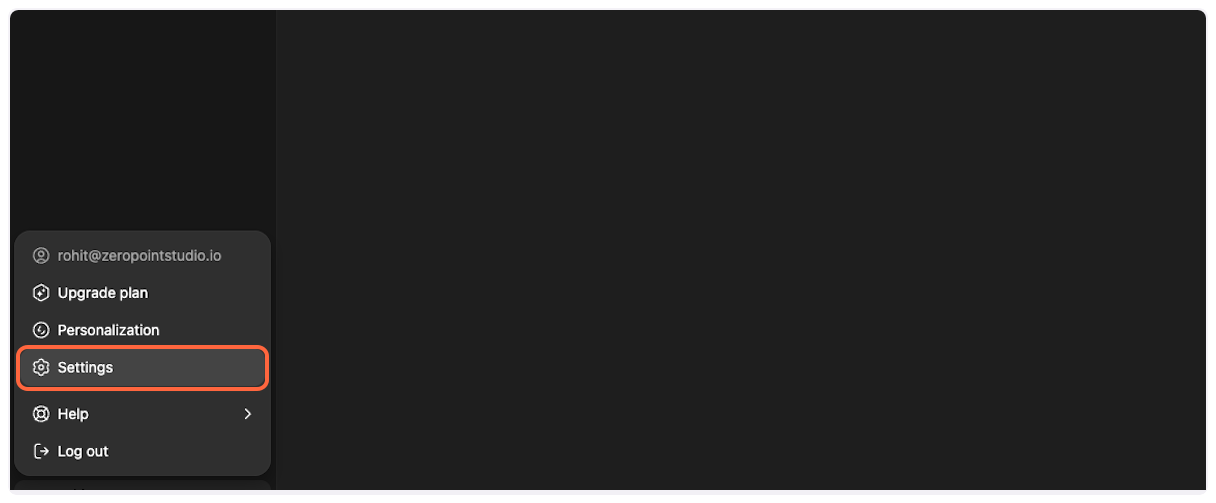
2. **Open Settings**
From the profile menu, click on “Settings” to access your account preferences.
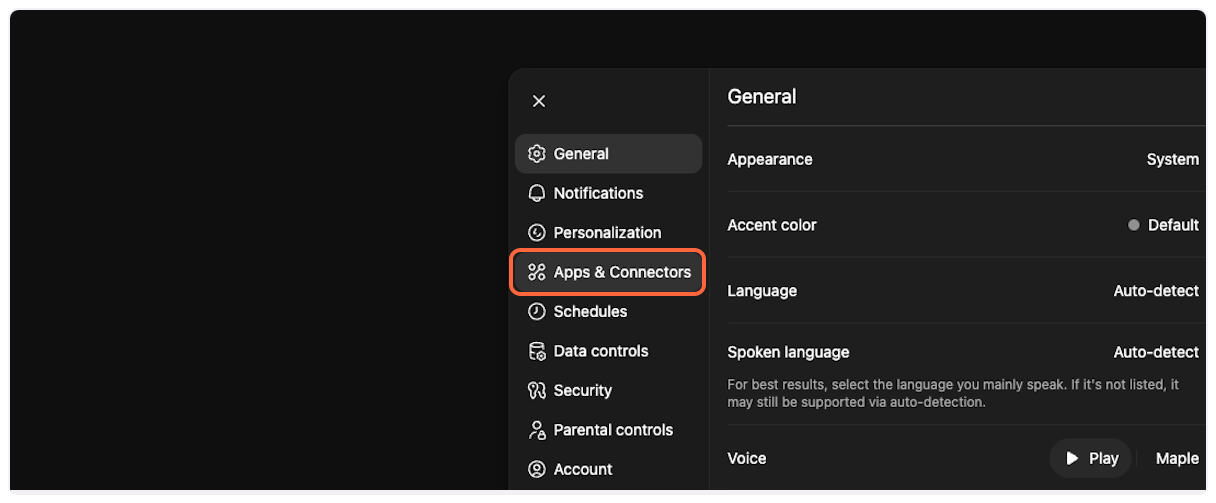
3. **Navigate to Apps & Connectors**
In the settings panel, click on “Apps & Connectors” to access the connector configuration.
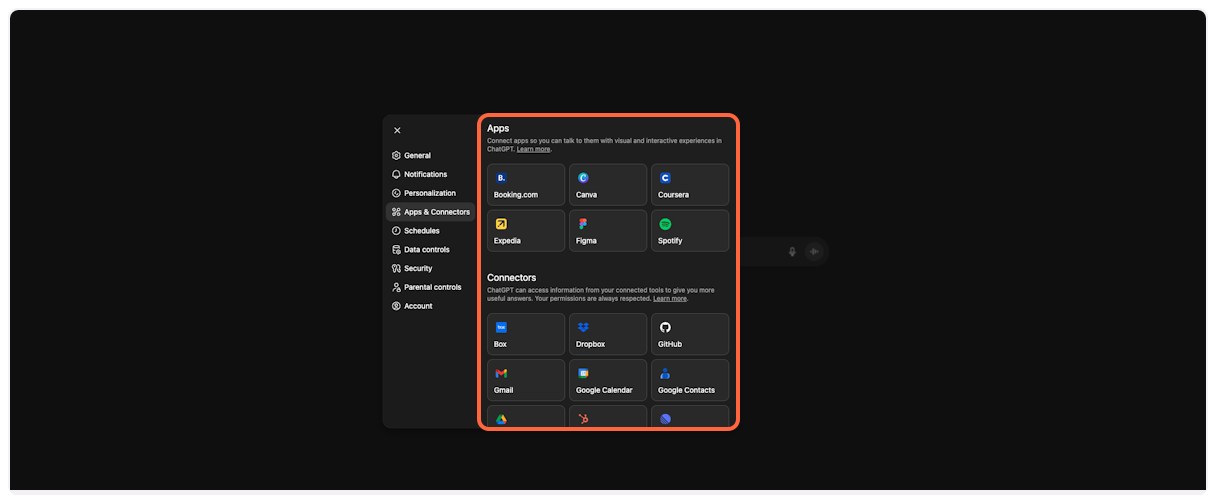
4. **Scroll to Advanced settings**
Scroll down in the Apps & Connectors section to find additional options.
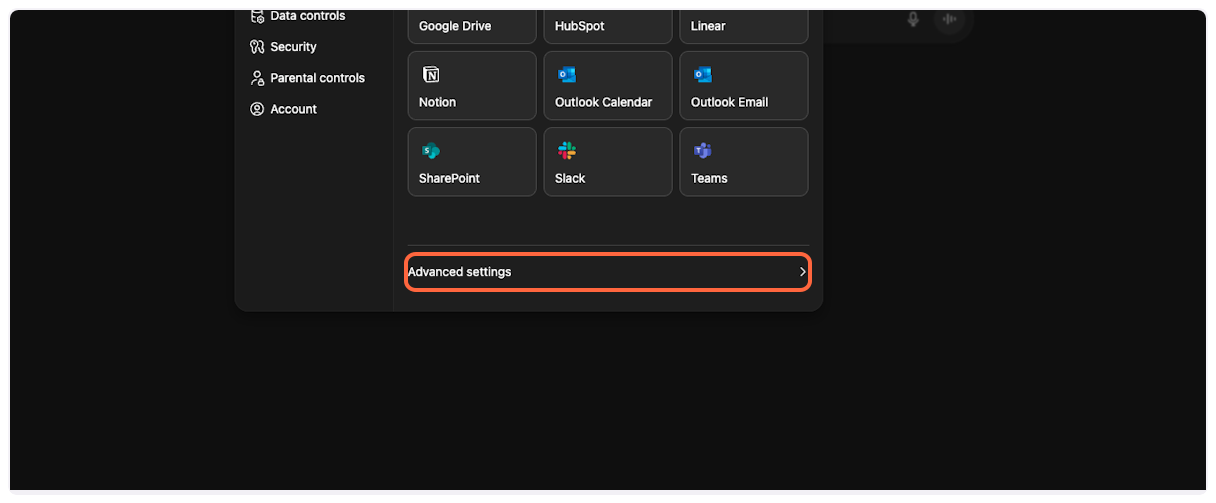
5. **Access Advanced settings**
Click on “Advanced settings” to reveal developer options.
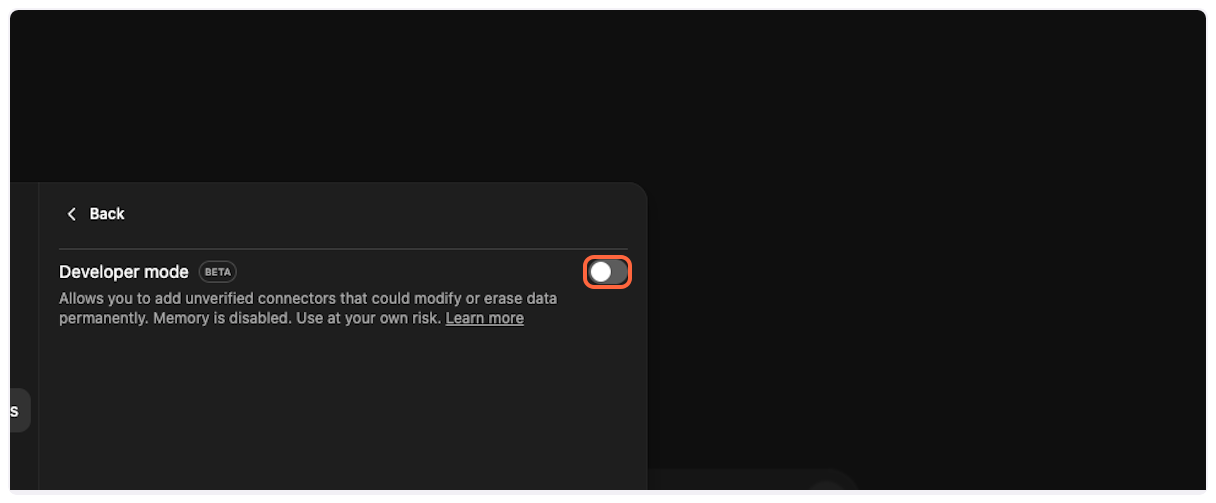
6. **Enable Developer Mode**
Toggle the “Developer mode” switch to enable MCP connector support. This allows you to add custom connectors like TranscriptAPI.
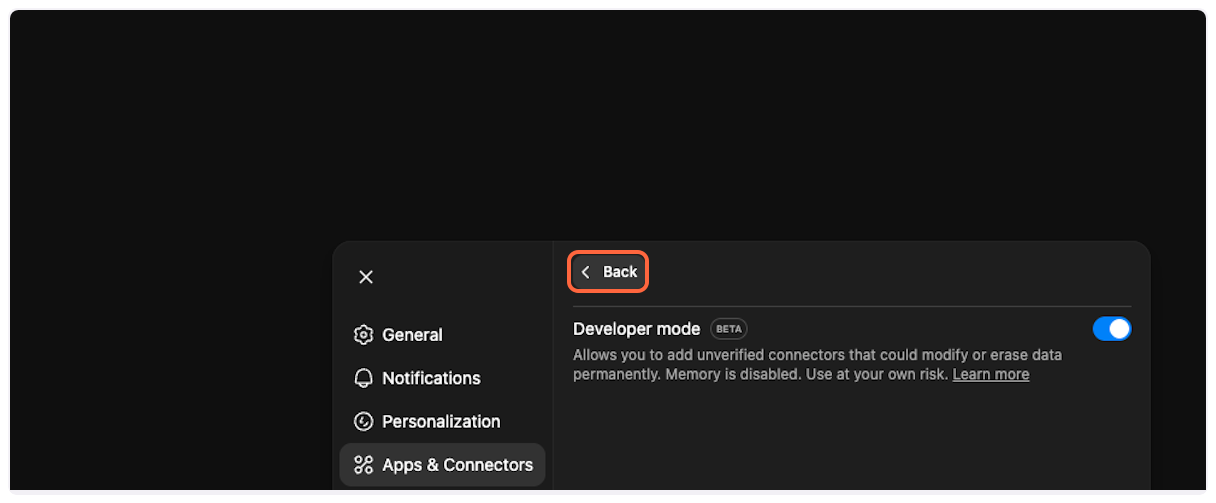
7. **Return to Apps & Connectors**
Click “Back” to return to the main Apps & Connectors page where you’ll add the TranscriptAPI connector.
## Part 2: Add TranscriptAPI Connector
[Section titled “Part 2: Add TranscriptAPI Connector”](#part-2-add-transcriptapi-connector)
Now that Developer Mode is enabled, you can add the TranscriptAPI MCP connector.
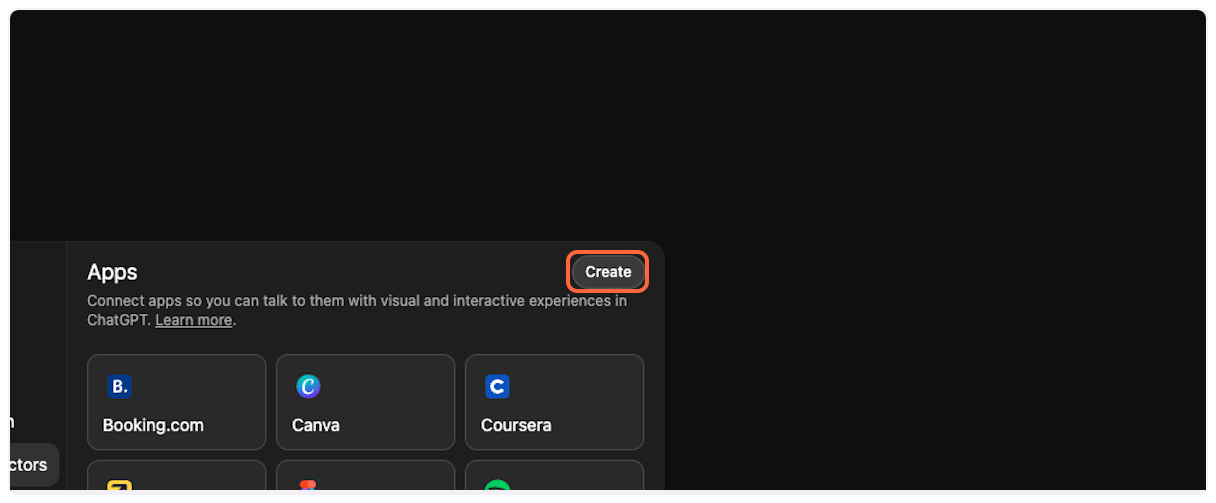
1. **Create a new connector**
Click on “Create” to start adding a new connector.
2. **Select New Connector**
Choose “New Connector…” from the dropdown menu.

3. **Get TranscriptAPI configuration**
Open [TranscriptAPI MCP Integration page](https://transcriptapi.com/dashboard/mcp-integration) in a new tab. You’ll need to copy configuration details from here.
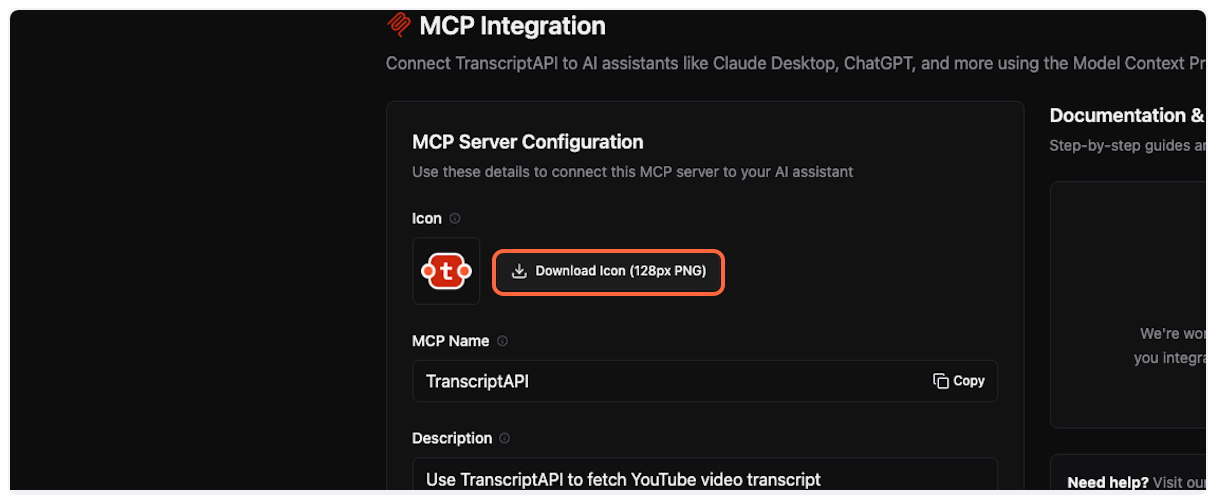
4. **Upload the connector icon**
Back in ChatGPT, click the icon selector and upload the TranscriptAPI logo you downloaded.
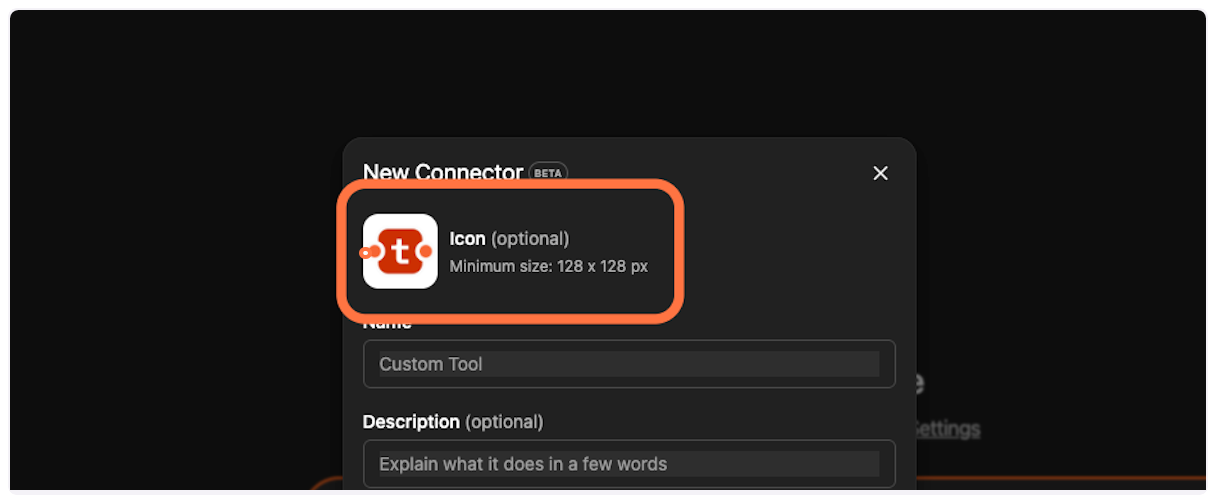
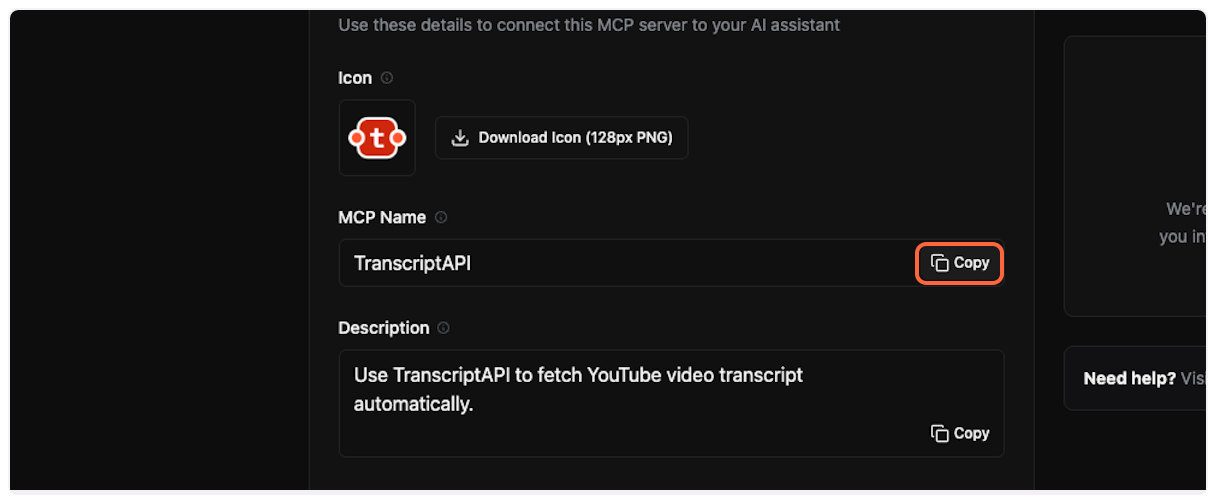
5. **Copy and paste the MCP name**
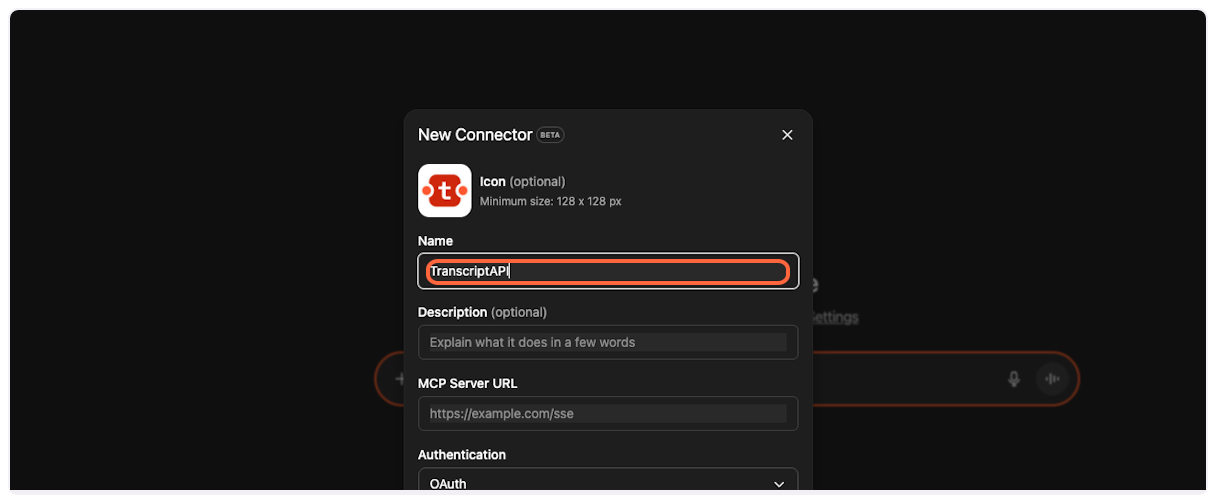
From the TranscriptAPI dashboard, copy the MCP name (usually “Transcript API”).
Paste it into the “Name” field in ChatGPT.
6. **Copy and paste the description**
Copy the MCP description from TranscriptAPI.
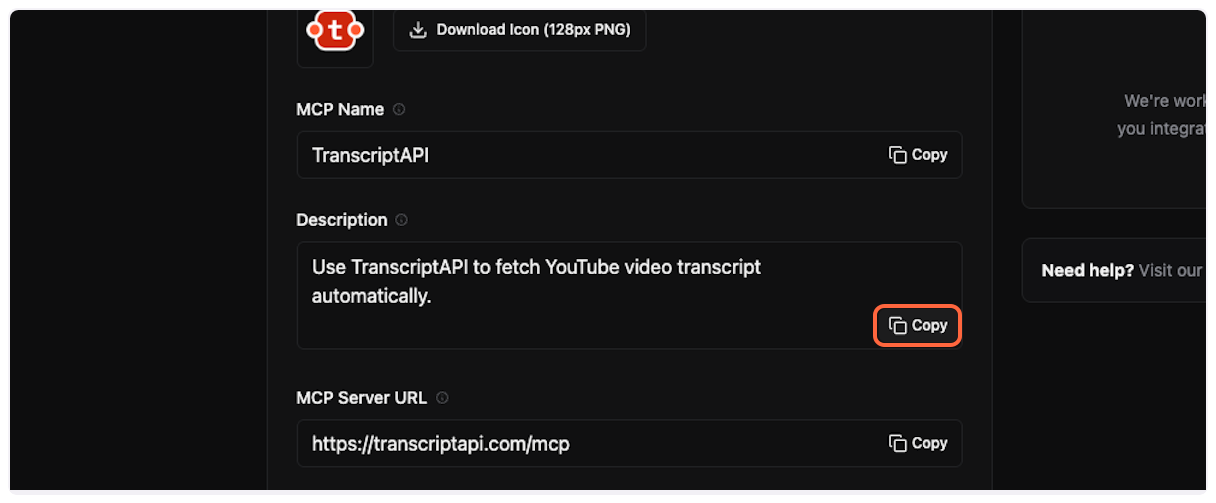
Paste it into the “Description” field in ChatGPT.
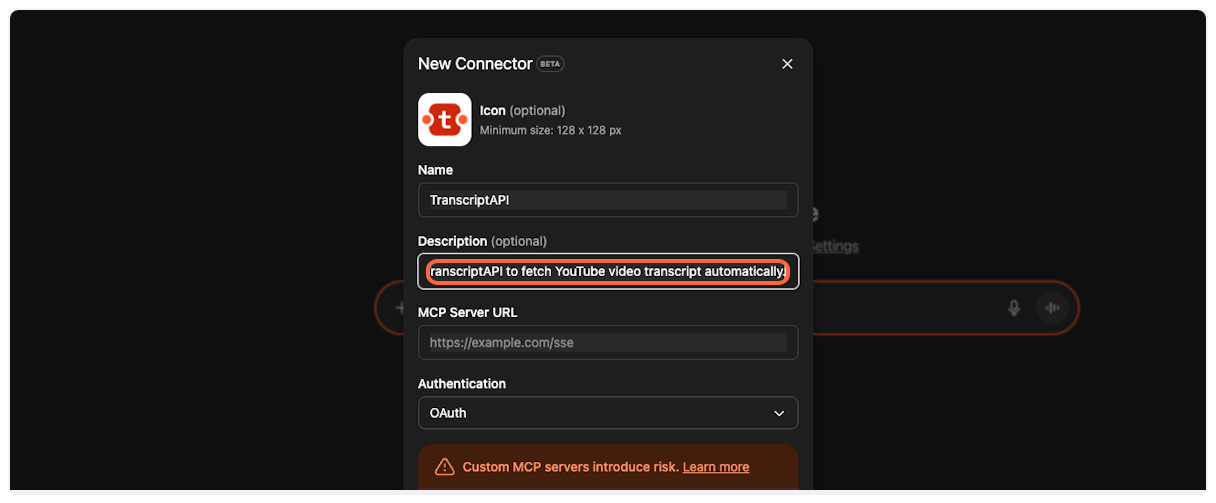
7. **Copy and paste the server URL**
This is the most important step. Copy the MCP Server URL from TranscriptAPI (it should be `https://transcriptapi.com/mcp`).
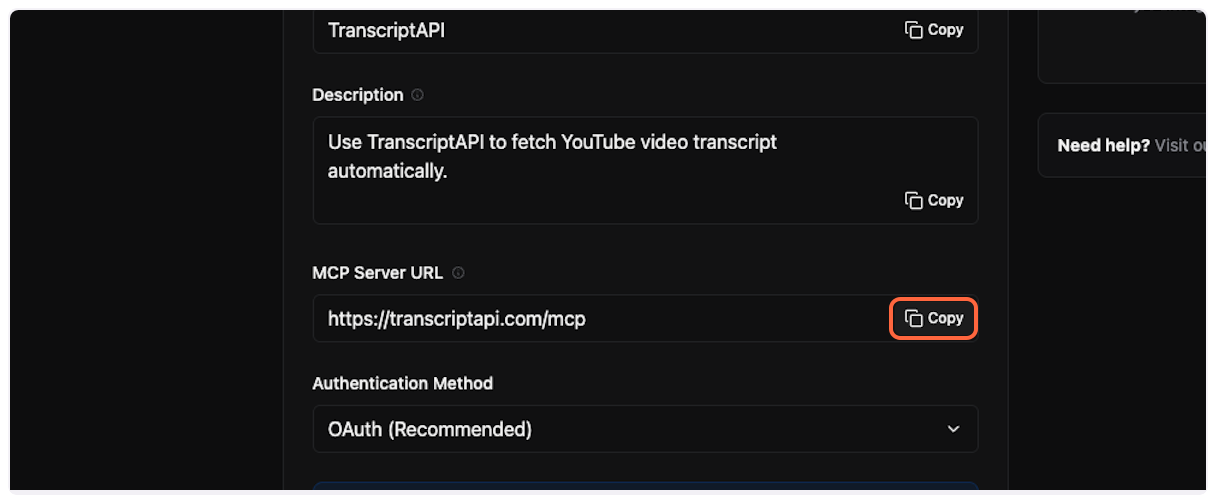
Paste it into the server URL field in ChatGPT.
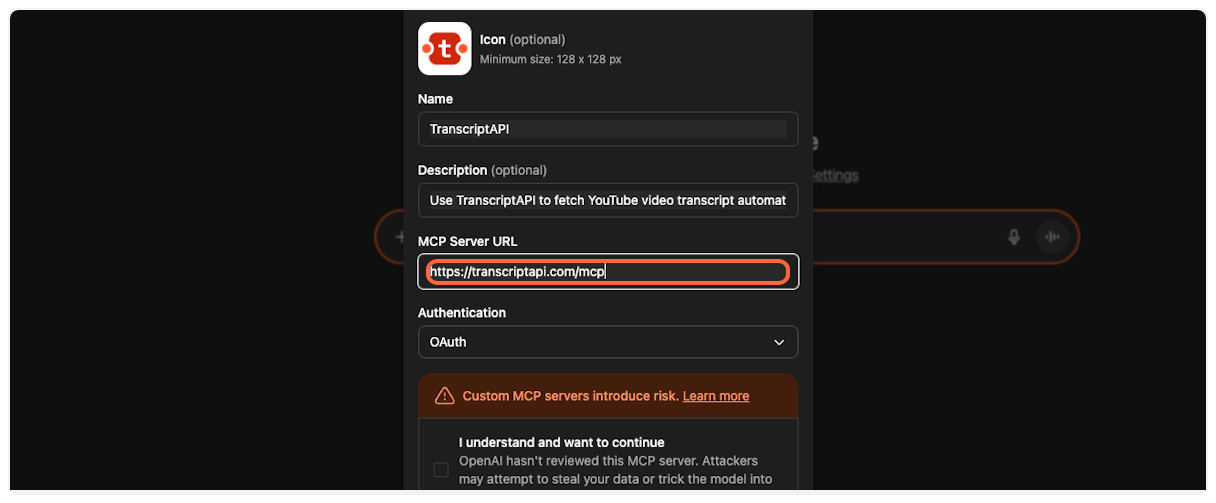
8. **Get your OAuth credentials**
ChatGPT requires Client ID and Client Secret for OAuth authentication. On the TranscriptAPI MCP Integration page, make sure “OAuth (Recommended)” is selected in the Authentication Method dropdown.
If you don’t have credentials yet, click “Generate Credentials” to create your Client ID and Client Secret.
Copy both the **Client ID** and **Client Secret** from the TranscriptAPI dashboard. You’ll need these in the next step.
Save Your Credentials
The Client Secret is only shown once when first generated or regenerated. Make sure to copy it immediately and store it securely. If you lose it, you can regenerate a new secret, but the old one will stop working.
9. **Add Client ID and Client Secret to ChatGPT**
Back in ChatGPT, paste your **Client ID** into the Client ID field and your **Client Secret** into the Client Secret field.
Security Best Practice
Never share your Client Secret publicly. It’s tied to your TranscriptAPI account and allows access to your API credits.
10. **Acknowledge the terms**
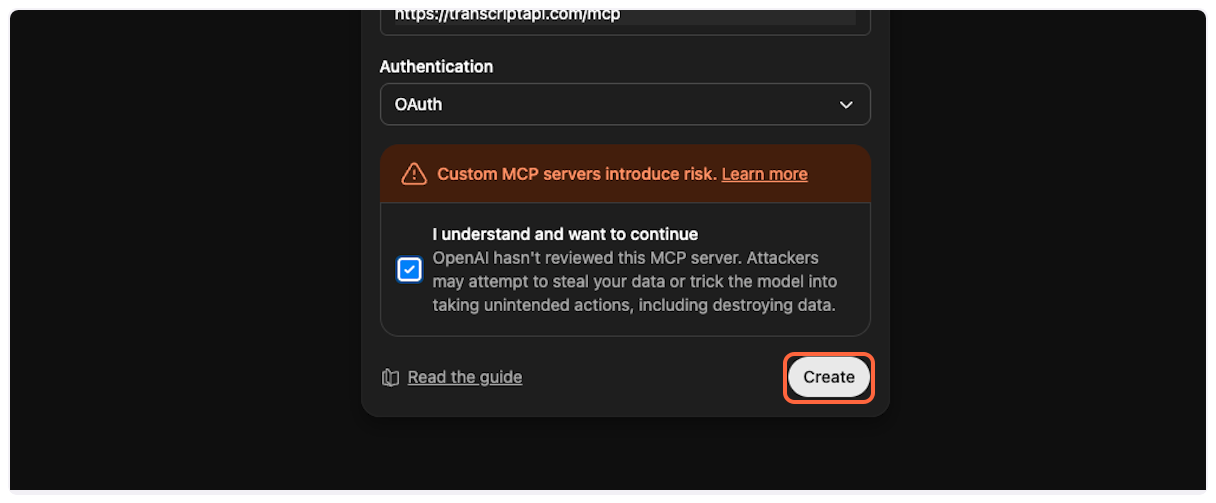
Check the box that says “I understand and want to continue…” to acknowledge that you’re connecting to an external service.
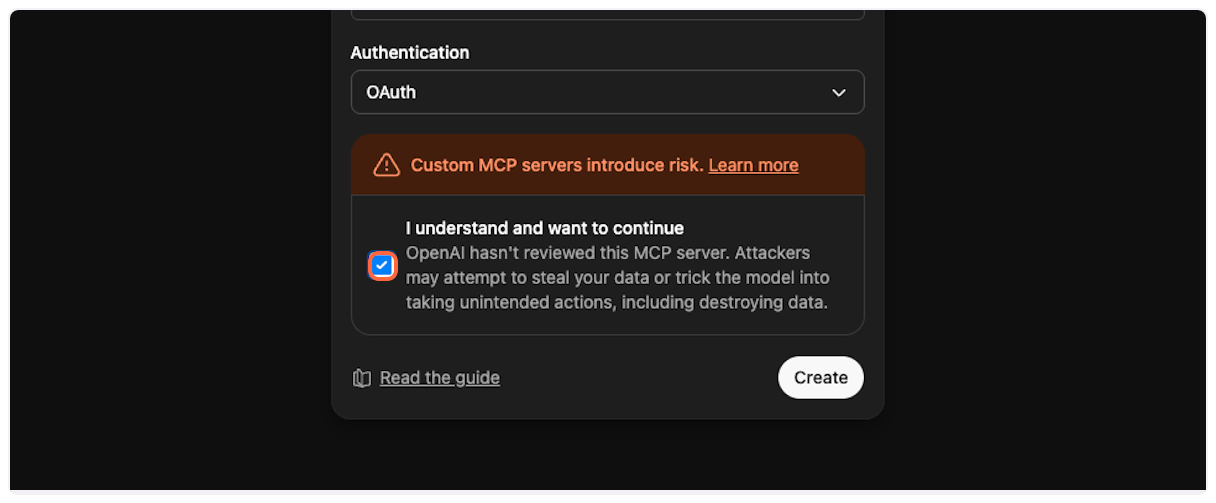
11. **Create the connector**
Click “Create” to add the TranscriptAPI connector to your ChatGPT account.
## Part 3: Authorize Connection
[Section titled “Part 3: Authorize Connection”](#part-3-authorize-connection)
OAuth Flow
With Client ID and Client Secret configured, ChatGPT will handle the OAuth authorization flow automatically. You may still be redirected to TranscriptAPI to authorize access, but the credentials you provided ensure ChatGPT can complete the authentication process.
After creating the connector, you’ll need to authorize it to access your TranscriptAPI account.
1. **TranscriptAPI authorization page**
You’ll be redirected to TranscriptAPI’s authorization page. If you’re not already logged in, you’ll need to sign in first.

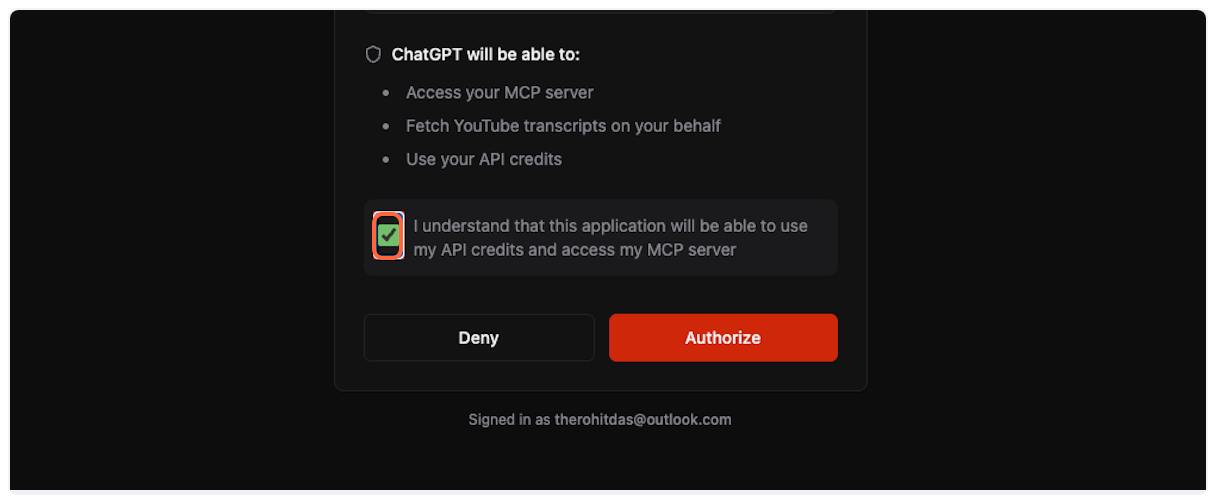
2. **Review permissions**
Check the box to acknowledge that ChatGPT will be able to use your API credits and access the MCP server.
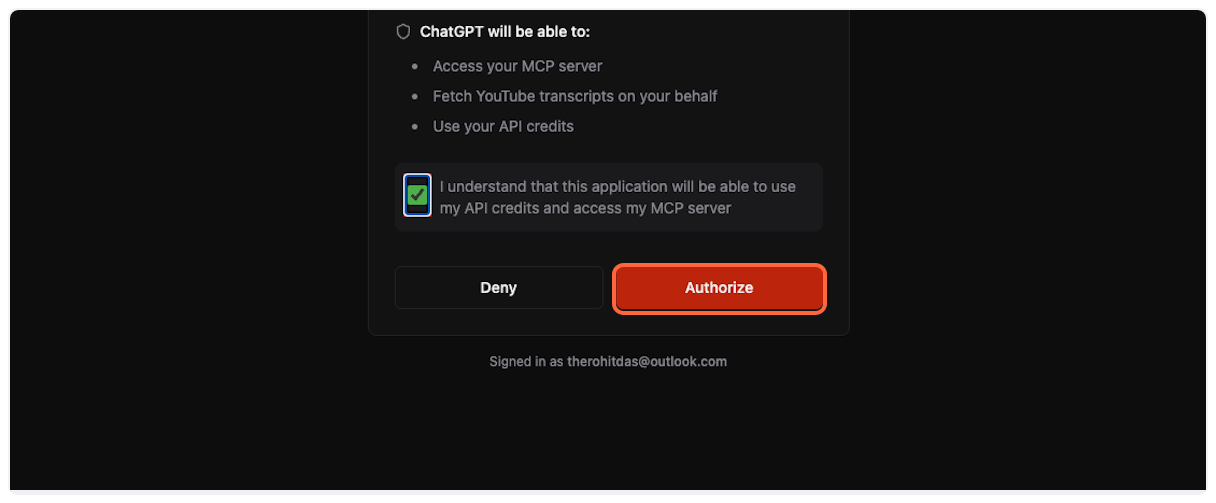
3. **Complete authorization**
Click “Authorize” to grant ChatGPT access to TranscriptAPI through OAuth.
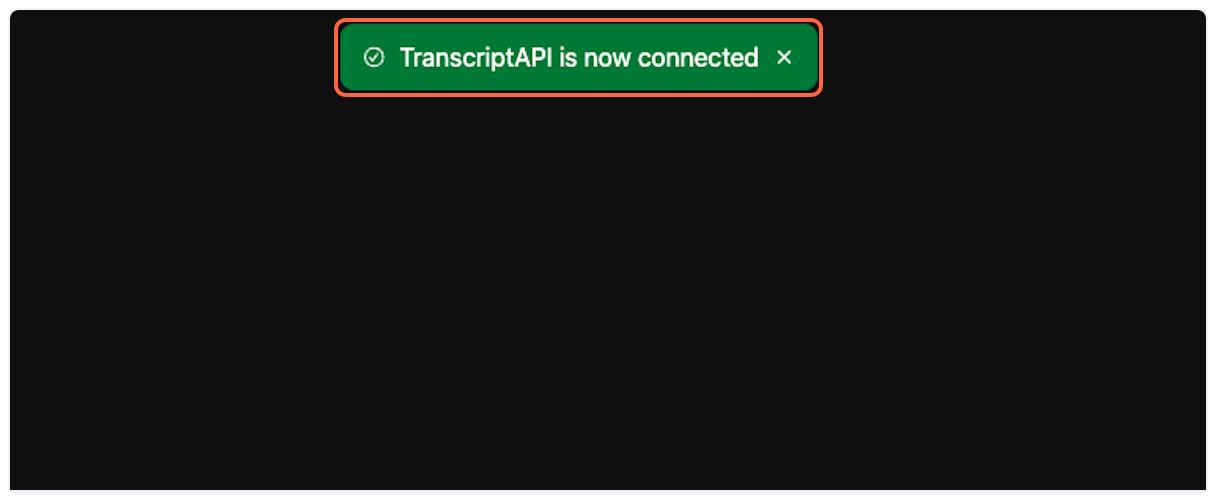
4. **Connection successful**
You’ll see a success message confirming that TranscriptAPI is now connected to your ChatGPT account.
## Part 4: Using the YouTube Transcript MCP
[Section titled “Part 4: Using the YouTube Transcript MCP”](#part-4-using-the-youtube-transcript-mcp)
Now you’re ready to fetch YouTube transcripts directly in ChatGPT!
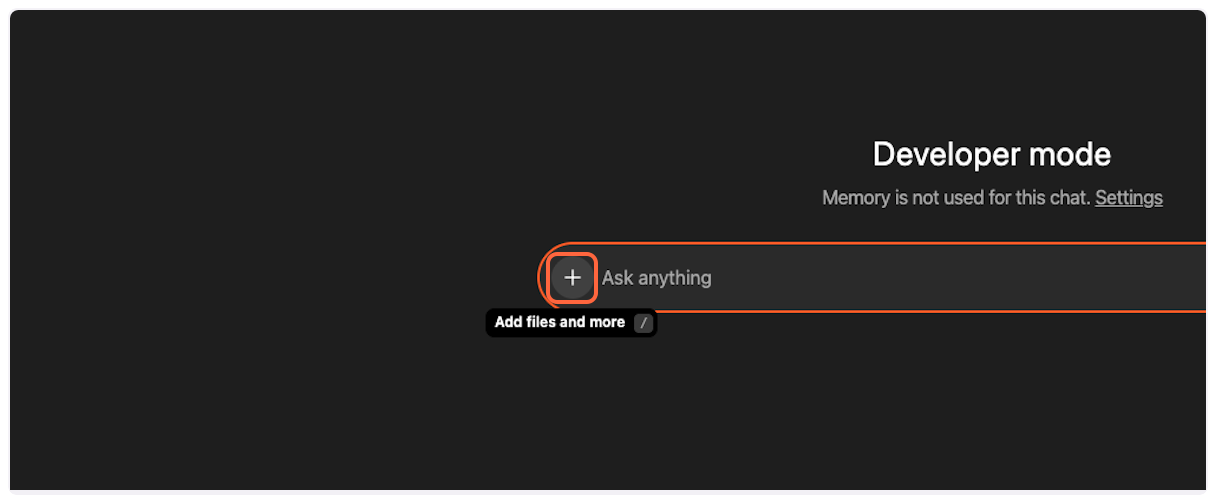
1. **Access the MCP tool**
In a new ChatGPT conversation, click the “Add files and more” button (paperclip icon).
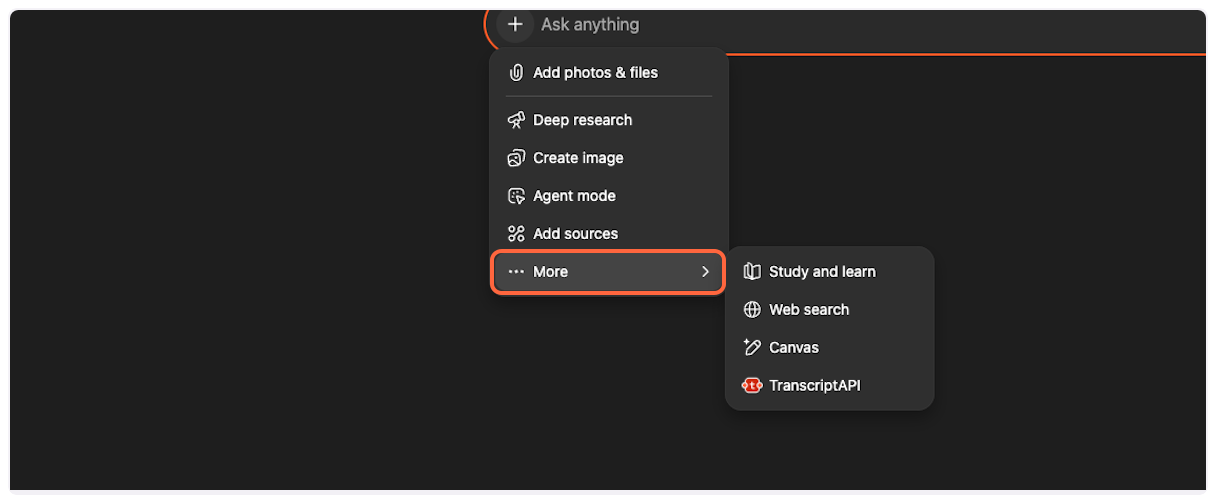
2. **Open more options**
Click “More” to see additional tool options.
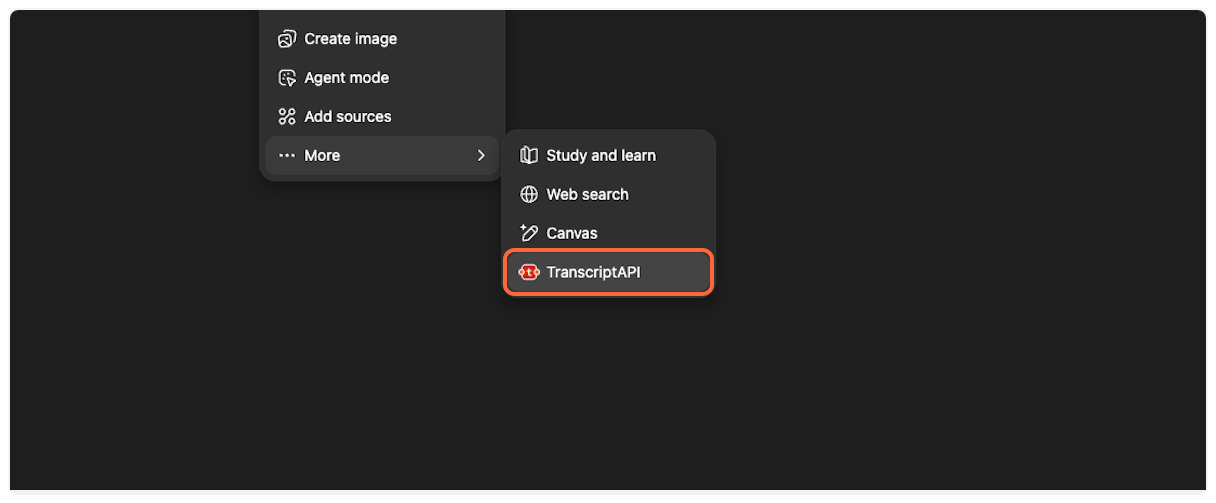
3. **Select TranscriptAPI**
Click on “TranscriptAPI” from the list of available tools.
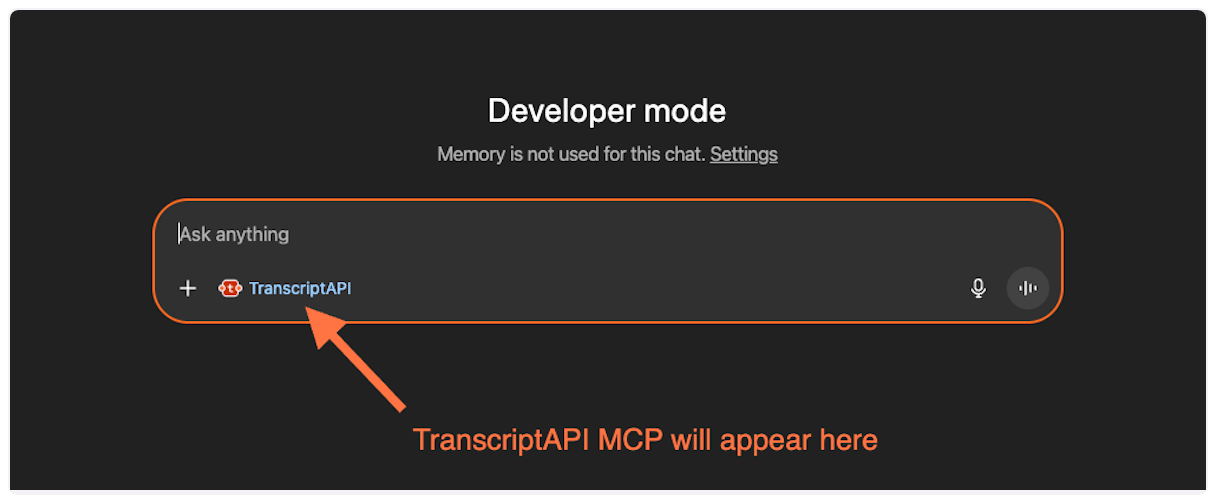
4. **Start a new conversation**
You’ll see the TranscriptAPI tool is now active in your conversation. The interface may show “ChatGPT 5” or similar version indicator.
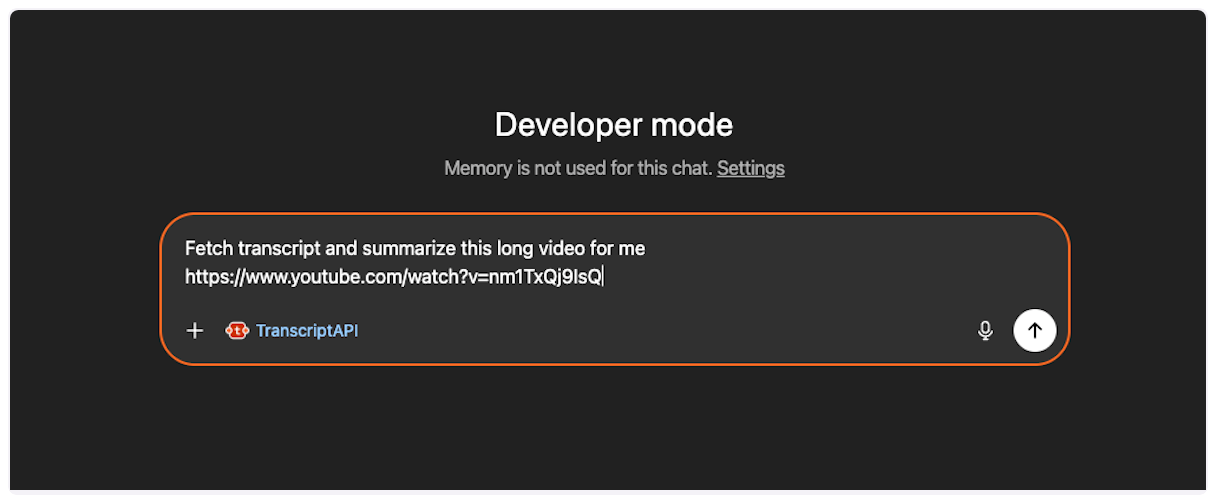
5. **Request a transcript**
Paste a prompt like: “Fetch transcript and summarize this long video for me ”
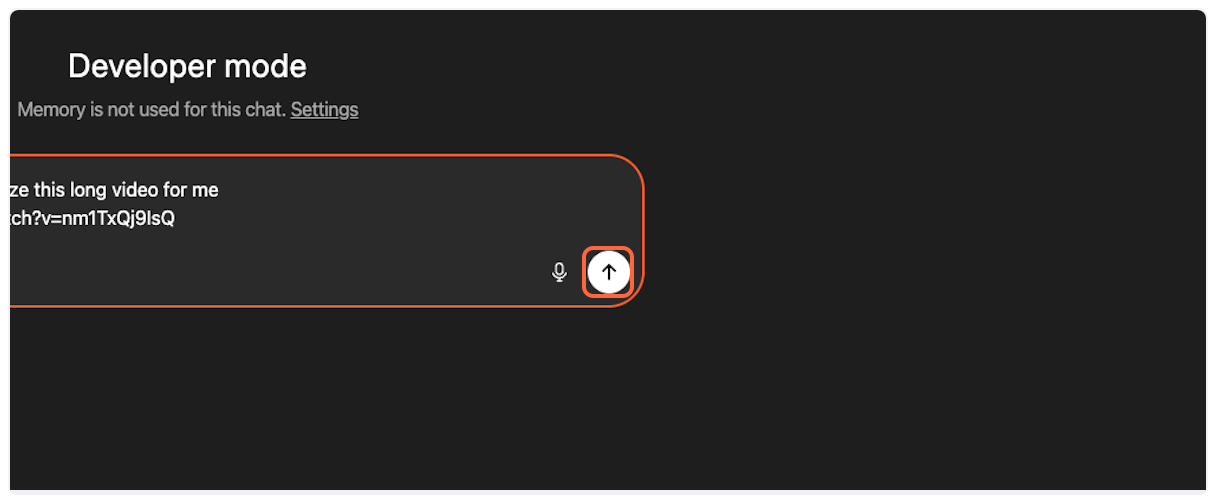
6. **Send your request**
Click the send button to submit your transcript request.
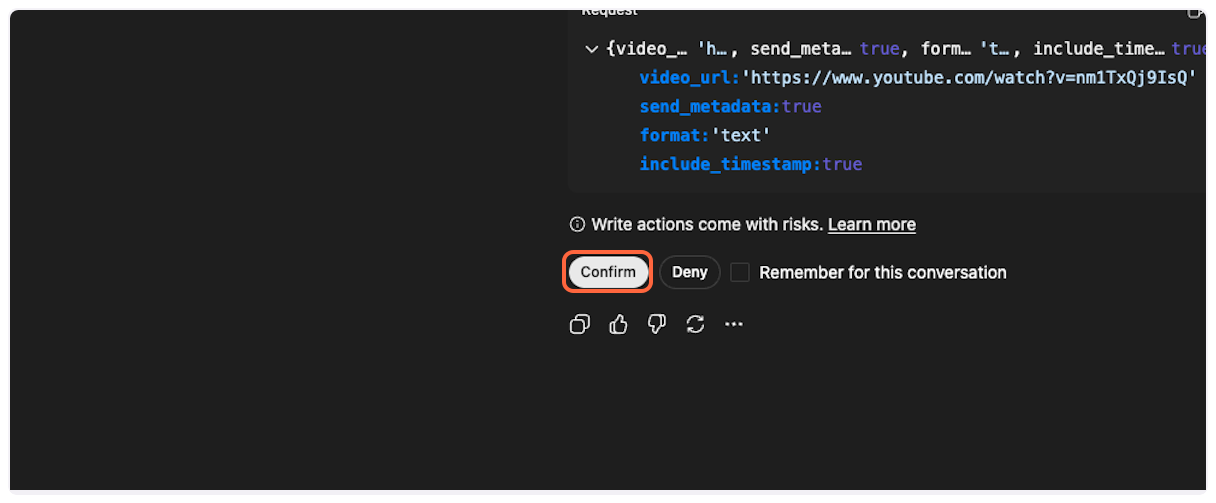
7. **Confirm tool usage**
ChatGPT will ask you to confirm the use of the TranscriptAPI tool. Click “Confirm” to proceed.
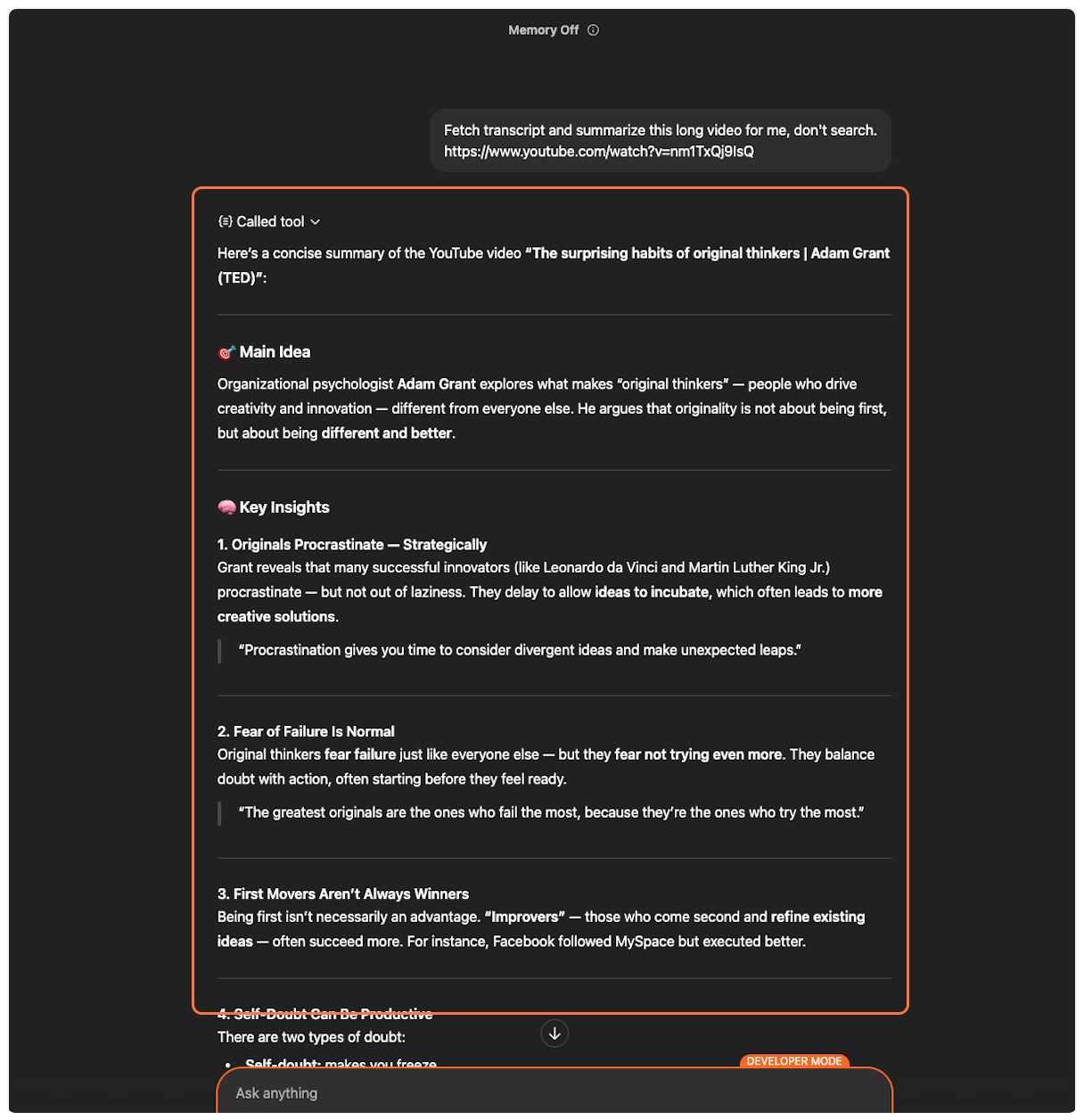
8. **Success! Transcript fetched**
The MCP will successfully fetch the YouTube transcript, and ChatGPT will process it according to your request (summarize, analyze, translate, etc.).
## Example Prompts
[Section titled “Example Prompts”](#example-prompts)
Here are some effective ways to use TranscriptAPI in ChatGPT:
### Summarize a Video
[Section titled “Summarize a Video”](#summarize-a-video)
```plaintext
Fetch the transcript and summarize this TED talk for me:
https://www.youtube.com/watch?v=UF8uR6Z6KLc
```
### Translate a Transcript
[Section titled “Translate a Transcript”](#translate-a-transcript)
```plaintext
Get the transcript from this video and translate it to Spanish:
https://www.youtube.com/watch?v=UF8uR6Z6KLc
```
### Search YouTube
[Section titled “Search YouTube”](#search-youtube)
```plaintext
Search YouTube for "quantum computing explained" and
tell me what the top results cover.
```
### Browse a Channel
[Section titled “Browse a Channel”](#browse-a-channel)
```plaintext
Show me the latest videos from @natgeo and summarize
the 3 most recent ones.
```
### Search Within a Channel
[Section titled “Search Within a Channel”](#search-within-a-channel)
```plaintext
Search @TED for videos about education. List what you find.
```
### Process a Playlist
[Section titled “Process a Playlist”](#process-a-playlist)
```plaintext
List the videos in this playlist:
https://www.youtube.com/playlist?list=PLOGi5-fAu8bFIs_Lbp-MNwPKpPjBJGUzr
Get the transcript for the first video and create study notes.
```
## Troubleshooting
[Section titled “Troubleshooting”](#troubleshooting)
### Common ChatGPT Beta Issues
[Section titled “Common ChatGPT Beta Issues”](#common-chatgpt-beta-issues)
Beta Limitations
Due to ChatGPT’s beta status, you may encounter these issues:
#### “Unable to fetch transcript” (but it actually worked)
[Section titled ““Unable to fetch transcript” (but it actually worked)”](#unable-to-fetch-transcript-but-it-actually-worked)
**Symptom**: ChatGPT says it couldn’t fetch the transcript, but if you ask again, it has the content.
**Solution**: This happens when ChatGPT runs a parallel search that overrides the MCP response. Simply ask ChatGPT to use the transcript it already fetched.
#### ”MCP tool cannot be called” errors
[Section titled “”MCP tool cannot be called” errors”](#mcp-tool-cannot-be-called-errors)
**Symptom**: Random errors about the MCP tool being unavailable.
**Solution**:
1. Go back to Apps & Connectors in settings
2. Click on the TranscriptAPI connector
3. Select “Refresh tools” or “Reauthorize”
4. Try your request again
#### Connection timeout or slow responses
[Section titled “Connection timeout or slow responses”](#connection-timeout-or-slow-responses)
**Symptom**: The tool takes a long time or times out.
**Solution**:
* For very long videos (>2 hours), the transcript fetch may take longer
* Try again with a shorter video first to test the connection
* Check your TranscriptAPI credit balance
### TranscriptAPI-Specific Issues
[Section titled “TranscriptAPI-Specific Issues”](#transcriptapi-specific-issues)
#### No credits remaining
[Section titled “No credits remaining”](#no-credits-remaining)
**Symptom**: Error message about payment required or no credits.
**Solution**: [Purchase more credits](https://transcriptapi.com/dashboard/billing) in your TranscriptAPI dashboard.
#### Video has no transcript available
[Section titled “Video has no transcript available”](#video-has-no-transcript-available)
**Symptom**: 404 error or “transcript not available” message.
**Solution**: The video may:
* Not have captions enabled
* Be private or age-restricted
* Be deleted or unavailable in your region
### Need More Help?
[Section titled “Need More Help?”](#need-more-help)
If you continue experiencing issues:
1. **For ChatGPT beta issues**: Consider using [Claude](/docs/mcp/claude) for a more stable MCP experience
2. **For TranscriptAPI issues**: [Contact support](/contact) with your specific error message
3. **For general MCP questions**: See our [MCP documentation](/docs/mcp)
## Next Steps
[Section titled “Next Steps”](#next-steps)
Now that you’ve successfully connected TranscriptAPI to ChatGPT, explore these resources:
* Learn about [MCP authentication options](/docs/mcp#authentication) for different platforms
* Discover [all available MCP parameters](/docs/mcp#available-tools) for advanced usage
* Check your [credit usage and limits](/docs/mcp#credit-usage--rate-limits)
* Try TranscriptAPI with [other AI platforms](/docs/mcp#platform-integration)
## Related
[Section titled “Related”](#related)
[MCP Overview ](/docs/mcp)Learn about Model Context Protocol and TranscriptAPI integration.
[Claude Guide ](/docs/mcp/claude)Connect TranscriptAPI to Claude for a stable MCP experience.
[API Reference ](/docs/api)Explore the REST API for programmatic access.
# Connect TranscriptAPI to Claude (Step-by-Step Guide 2025)
> YouTube Transcript MCP integration with Claude - comprehensive guide to fetch YouTube transcripts directly in Claude with natural conversation flow and multi-video analysis.
Learn how to connect TranscriptAPI’s YouTube Transcript MCP to Claude for a seamless, natural conversation experience with YouTube videos. This comprehensive guide walks you through setup and showcases Claude’s powerful multi-video analysis capabilities.
[How to Connect TranscriptAPI to Claude - Step by Step Tutorial](https://www.youtube-nocookie.com/embed/9NzvVKMfGxo)
## What You Can Do with Claude + TranscriptAPI
[Section titled “What You Can Do with Claude + TranscriptAPI”](#what-you-can-do-with-claude--transcriptapi)
Claude’s MCP integration with TranscriptAPI transforms how you interact with YouTube content. Unlike other platforms, Claude offers a truly natural experience where the YouTube Transcript MCP works seamlessly in the background.
### Key Capabilities
[Section titled “Key Capabilities”](#key-capabilities)
**Natural Conversations**: Simply paste YouTube links and chat naturally - no manual tool selection needed. Claude automatically fetches transcripts when it detects video URLs.
**Multi-Video Analysis**: Claude excels at working with multiple videos simultaneously. Compare perspectives across creators, identify patterns in video series, or synthesize information from entire playlists into comprehensive resources.
**Seamless Integration**: Once connected, TranscriptAPI works invisibly in the background. Just share video links and ask questions - Claude handles the rest.
## Prerequisites
[Section titled “Prerequisites”](#prerequisites)
Before getting started, ensure you have:
* A Claude.ai account (Free or Pro)
* A TranscriptAPI account ([sign up free](https://transcriptapi.com))
* 10 minutes to complete the setup
Claude MCP Integration Quality
While Claude’s connector integration is technically in beta, it provides an exceptionally smooth experience that works flawlessly on both desktop and browser. The natural tool usage feels native to Claude’s interface, making it our recommended platform for YouTube transcript analysis.
## Part 1: Add TranscriptAPI Connector
[Section titled “Part 1: Add TranscriptAPI Connector”](#part-1-add-transcriptapi-connector)
Let’s begin by adding TranscriptAPI as a custom connector in Claude.
1. **Open Claude Settings**
Navigate to [Claude.ai Settings](https://claude.ai/settings/connectors) and look for the “Add custom connector” option.
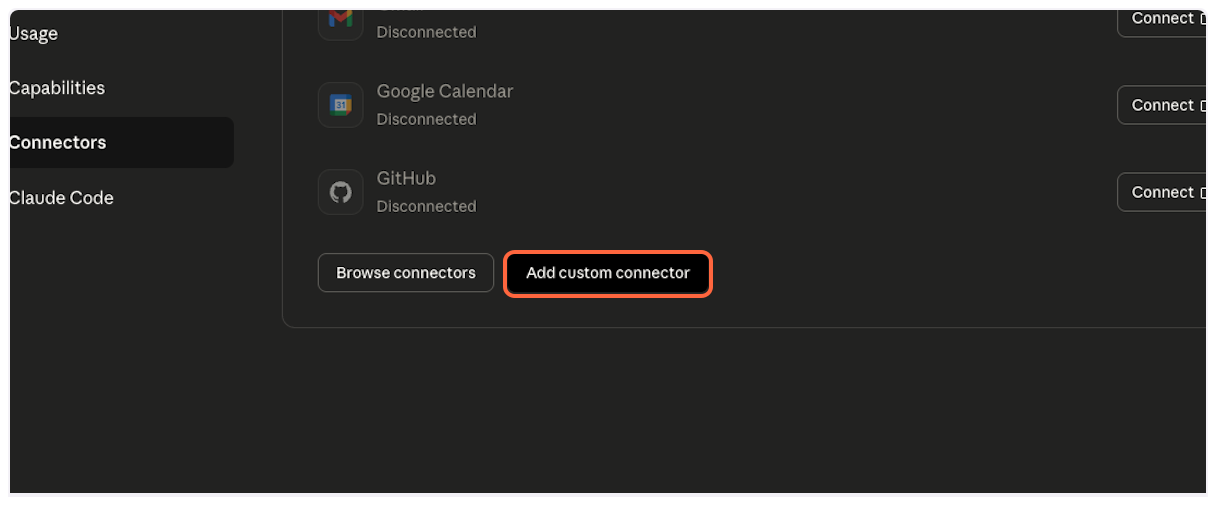
2. **Get TranscriptAPI Configuration**
Open the [TranscriptAPI MCP Integration page](https://transcriptapi.com/dashboard/mcp-integration) in a new tab. You’ll need to copy the MCP name from here.
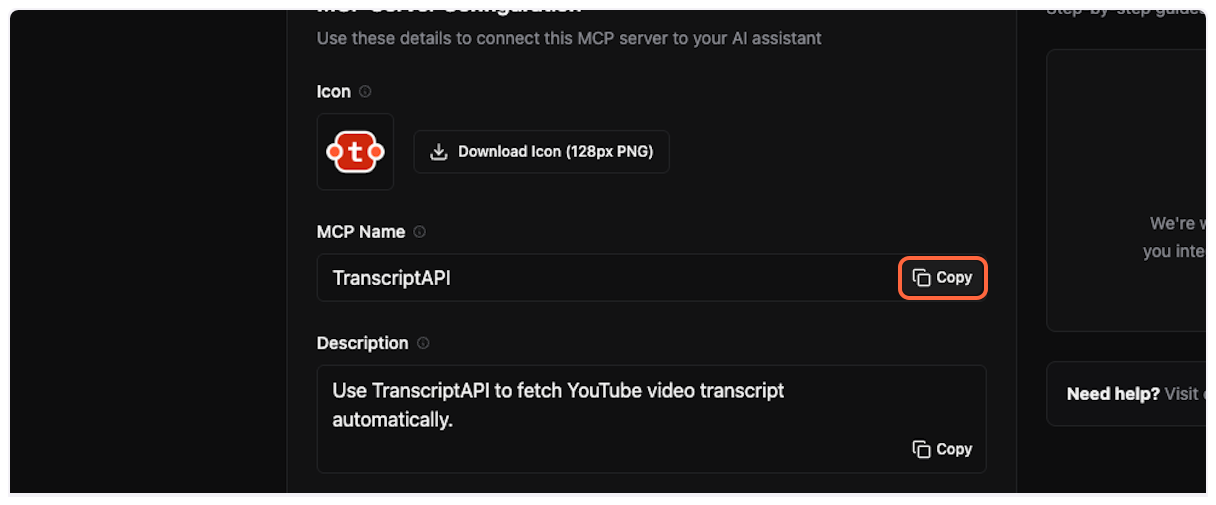
3. **Enter Connector Name**
Back in Claude, paste “TranscriptAPI” into the name field.
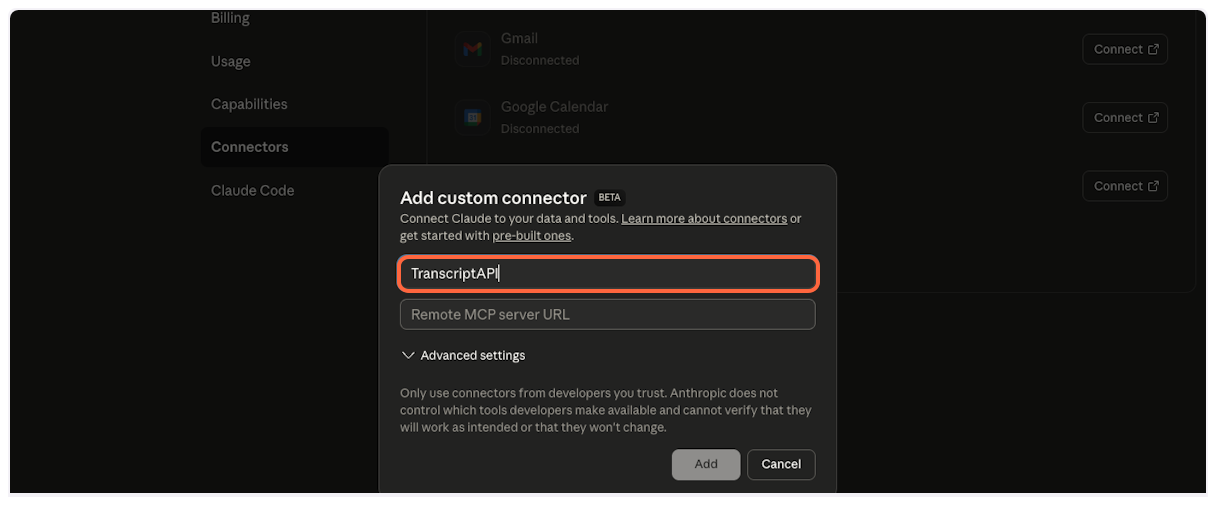
4. **Copy MCP Server URL**
This is the most important step. From the TranscriptAPI dashboard, copy the MCP Server URL. It should be `https://transcriptapi.com/mcp`.
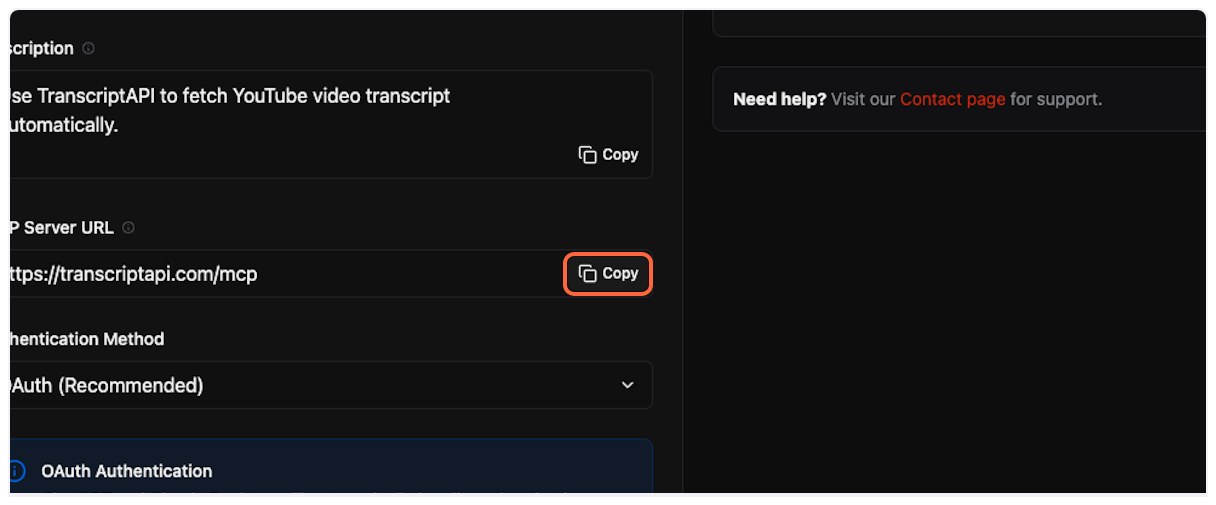
5. **Paste Server URL**
Paste the server URL into Claude’s configuration field.
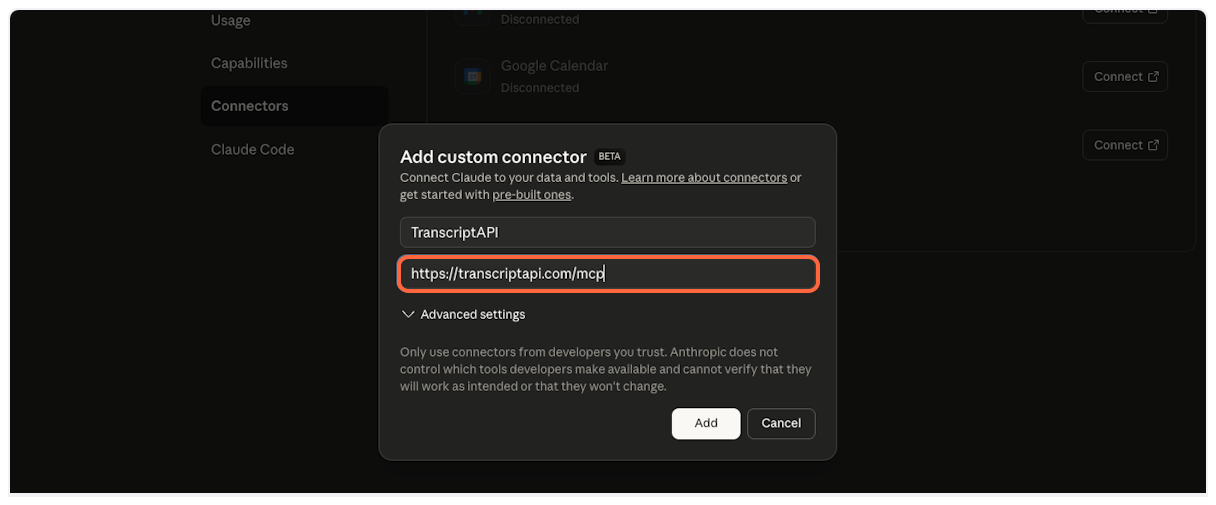
6. **Add the Connector**
Click “Add” to create the TranscriptAPI connector.
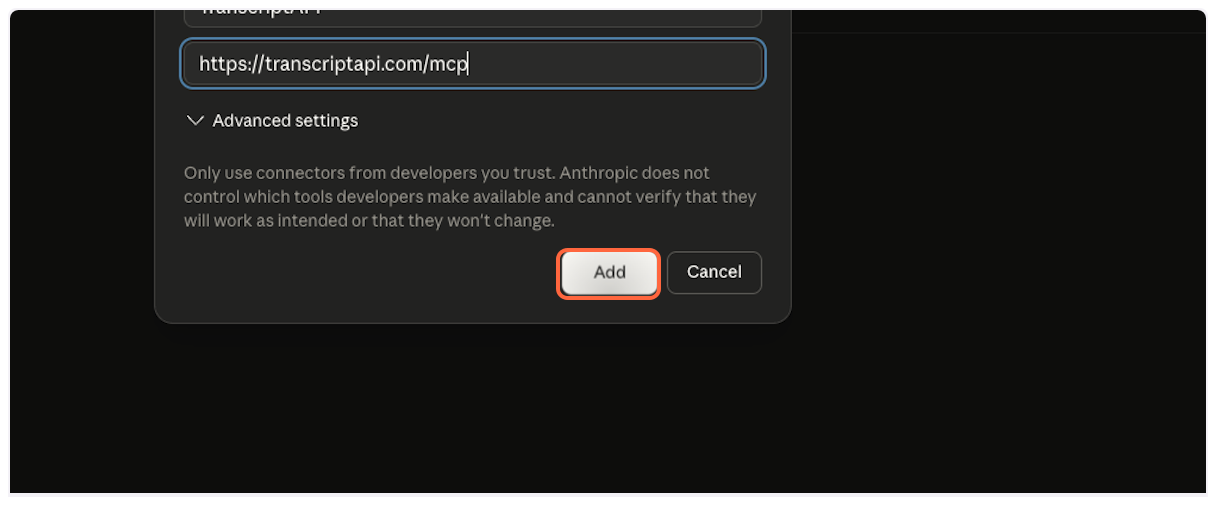
7. **Verify Connector Added**
TranscriptAPI will now appear in your list of connectors. You’ll need to configure and authorize it next.
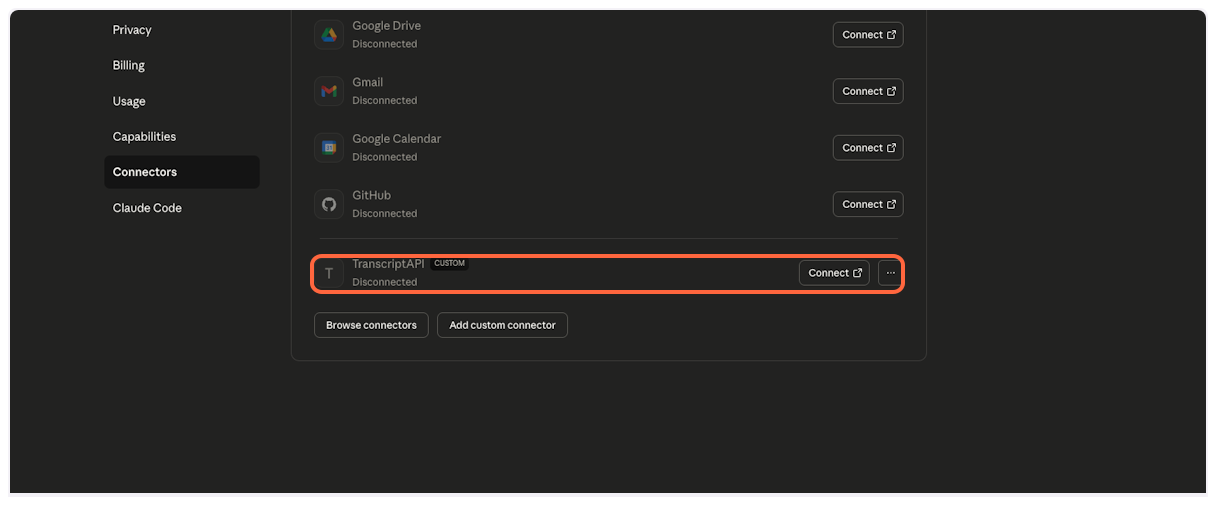
8. **Connect to TranscriptAPI**
Click “Connect” to begin the authorization process.
## Part 2: Authorize Connection
[Section titled “Part 2: Authorize Connection”](#part-2-authorize-connection)
Now you’ll authorize Claude to access your TranscriptAPI account.
1. **TranscriptAPI Authorization Page**
You’ll be redirected to TranscriptAPI’s secure OAuth authorization page. If you’re not logged in, sign in to your TranscriptAPI account first.
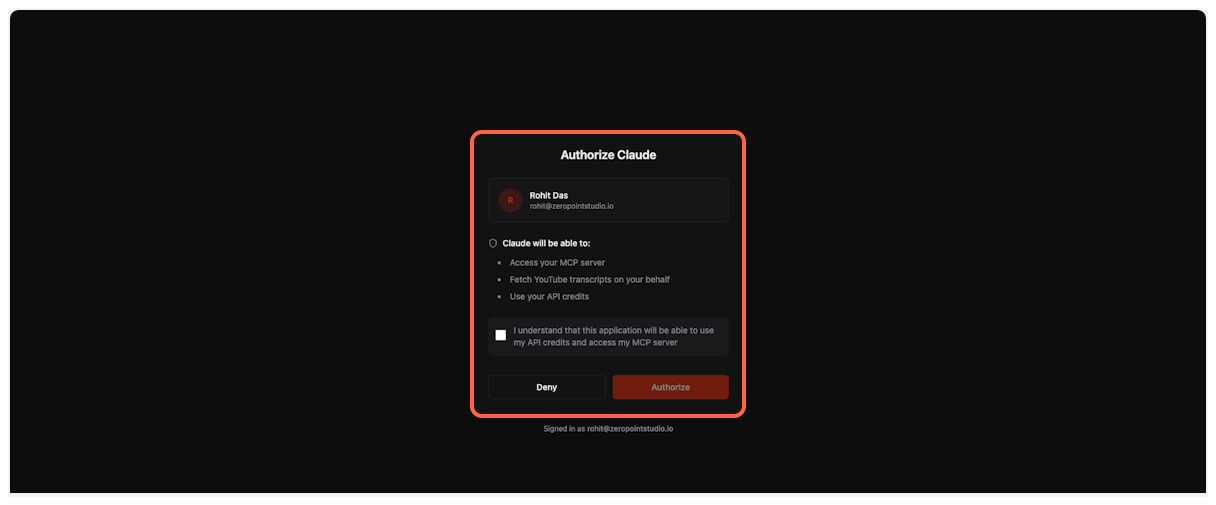
2. **Acknowledge API Credit Usage**
Check the box to confirm you understand that Claude will use your API credits when fetching transcripts.
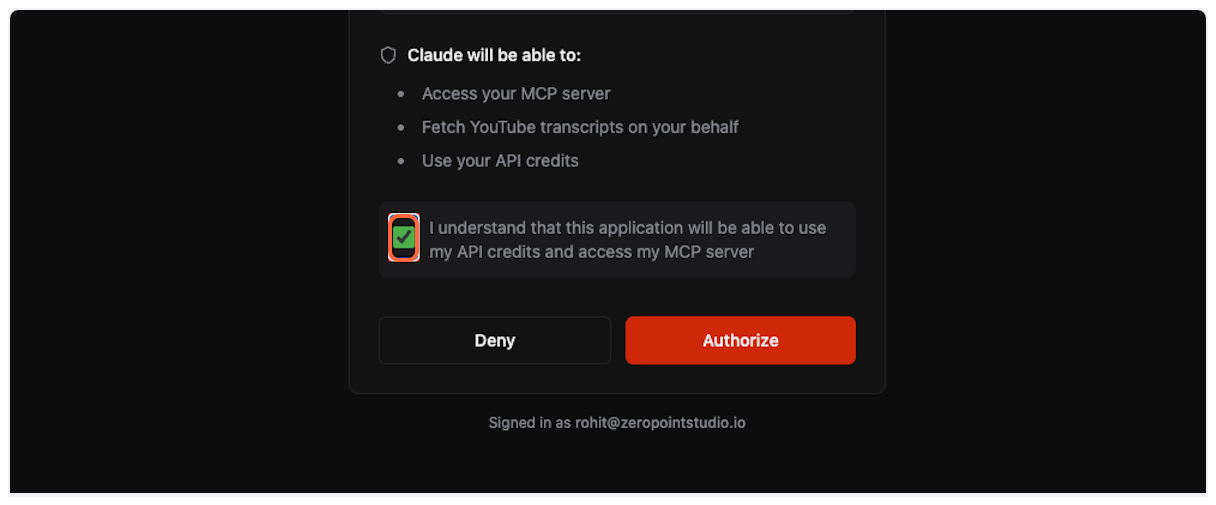
3. **Complete Authorization**
Click “Authorize” to grant Claude access to TranscriptAPI.
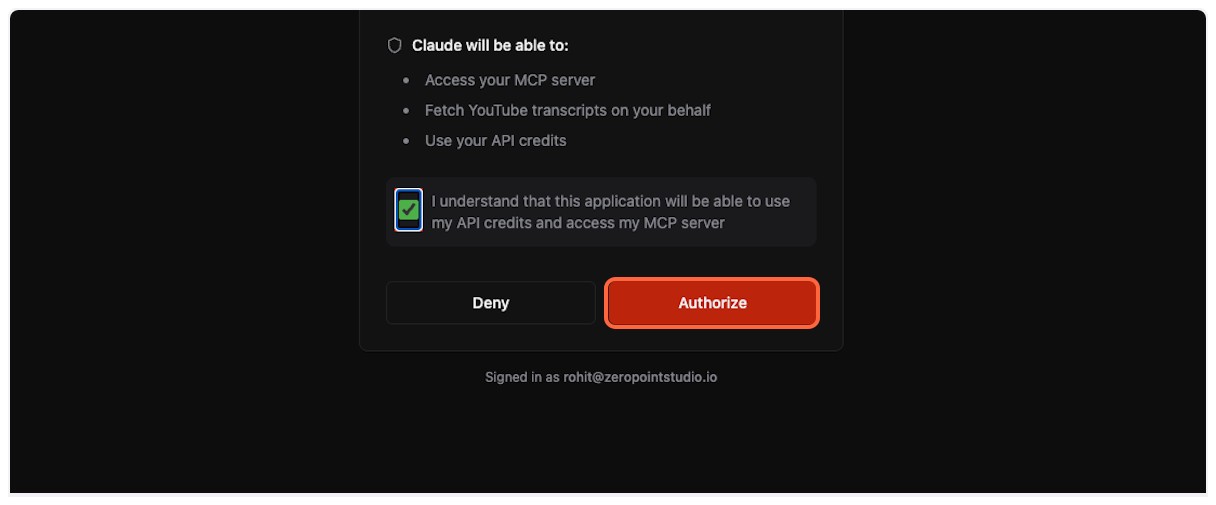
## Part 3: Configure Permissions (Recommended)
[Section titled “Part 3: Configure Permissions (Recommended)”](#part-3-configure-permissions-recommended)
For the best experience, configure TranscriptAPI to work without requiring approval for each use.
1. **Open Configuration**
After successful connection, click “Configure” to adjust permissions.
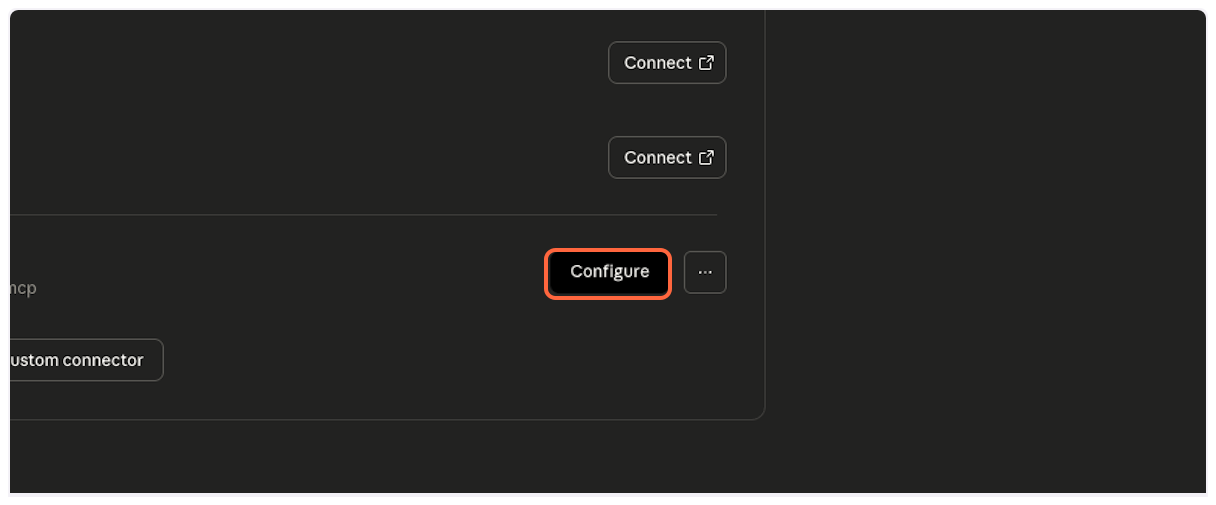
2. **Access Permission Settings**
Click on “Always ask permission” dropdown to see available options.
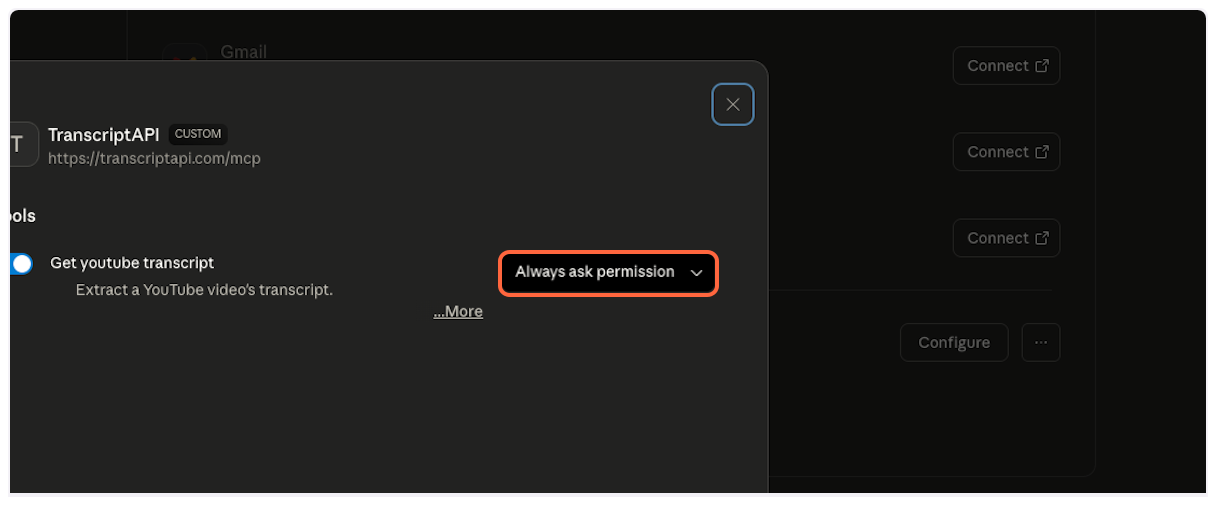
3. **Enable Unsupervised Access**
Select “Allow unsupervised…” to let Claude use TranscriptAPI automatically when needed. This provides the most seamless experience.
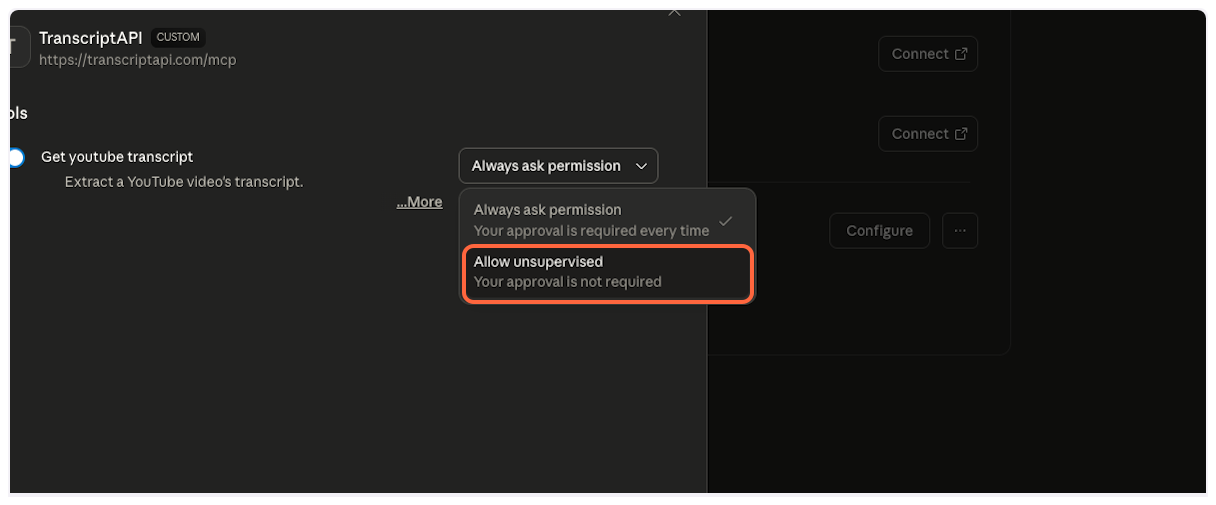
## Part 4: Using the YouTube Transcript MCP
[Section titled “Part 4: Using the YouTube Transcript MCP”](#part-4-using-the-youtube-transcript-mcp)
With setup complete, you’re ready to start analyzing YouTube videos with Claude!
1. **Start a New Chat**
Click “New chat” to begin a fresh conversation.
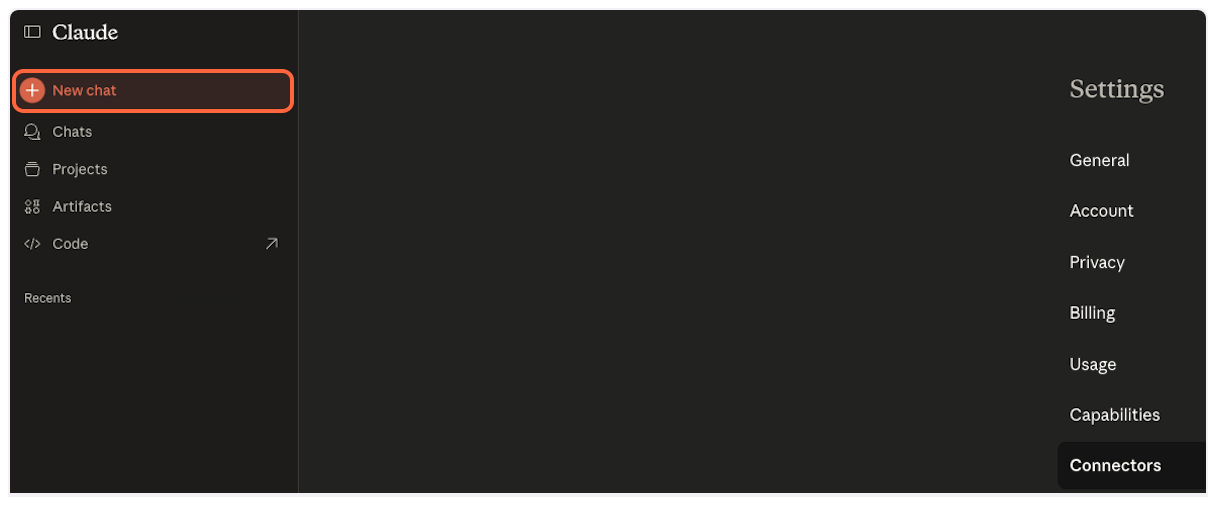
2. **Open Tools Menu**
Click the tools icon to verify TranscriptAPI is available.

3. **Verify TranscriptAPI is Enabled**
Confirm that TranscriptAPI appears in your available tools and is enabled.
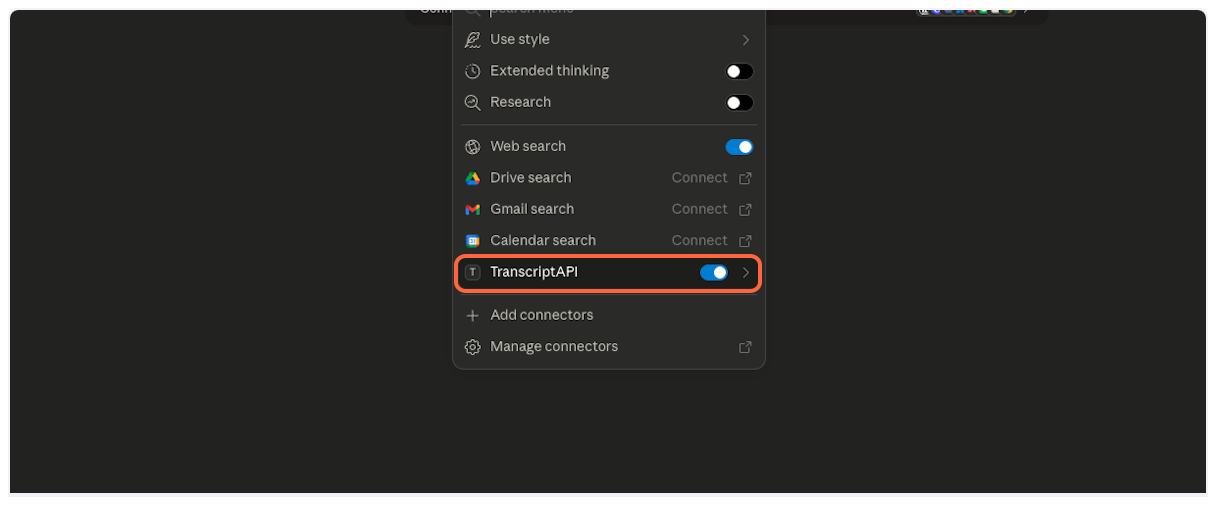
4. **Share YouTube Videos Naturally**
Simply paste YouTube URLs in your message. Claude will automatically detect them and fetch transcripts as needed.
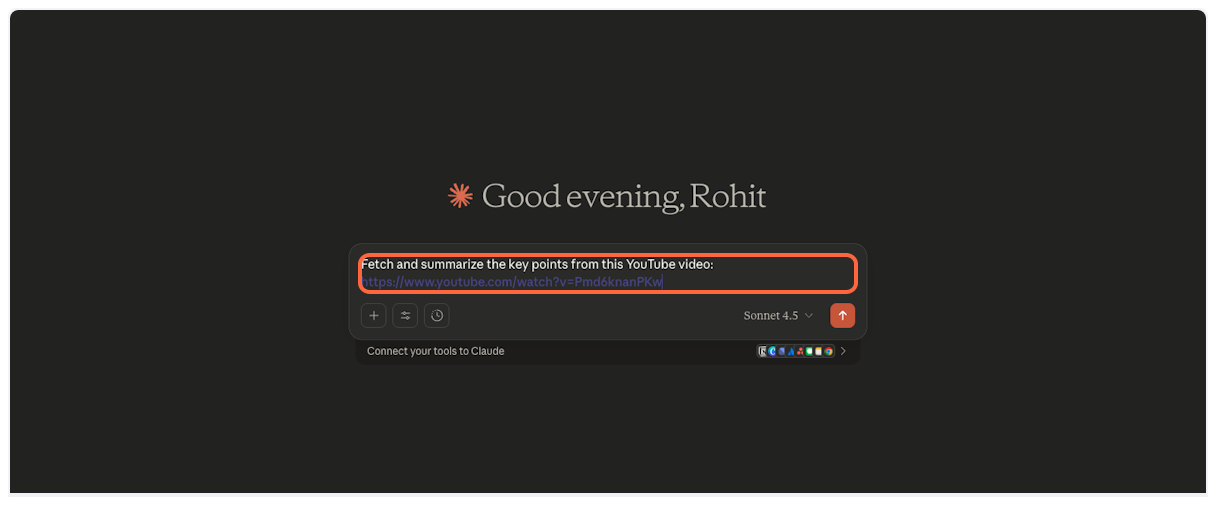
5. **Send Your Request**
Click send or press Enter to submit your message.

6. **Claude Fetches Transcript Automatically**
Watch as Claude seamlessly calls the TranscriptAPI tool to retrieve the video transcript.
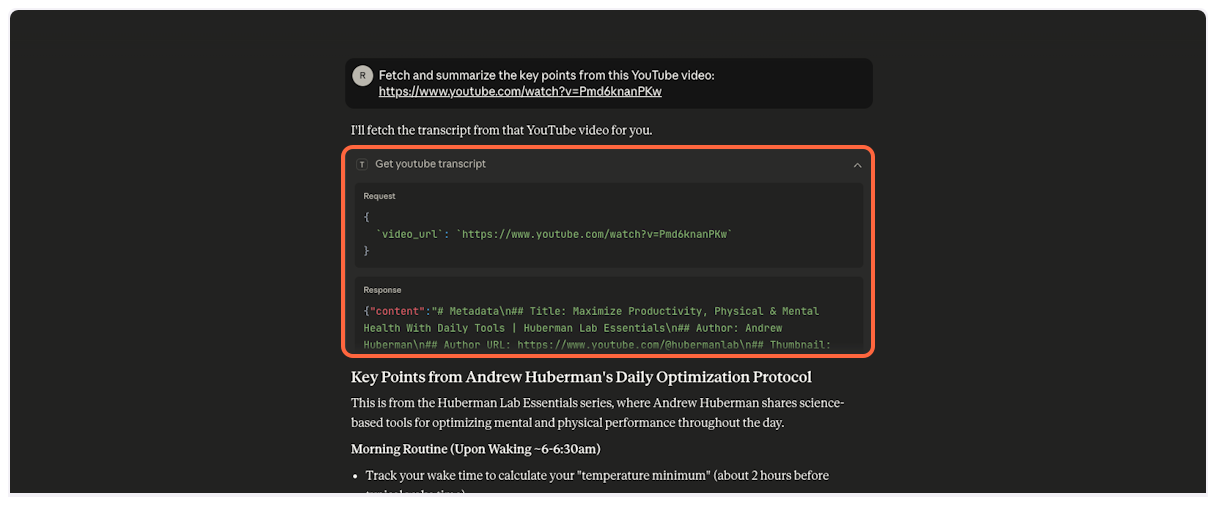
7. **Success! Natural Conversation Begins**
Claude now has the full transcript and can engage in detailed discussion about the video content. No manual tool selection required!
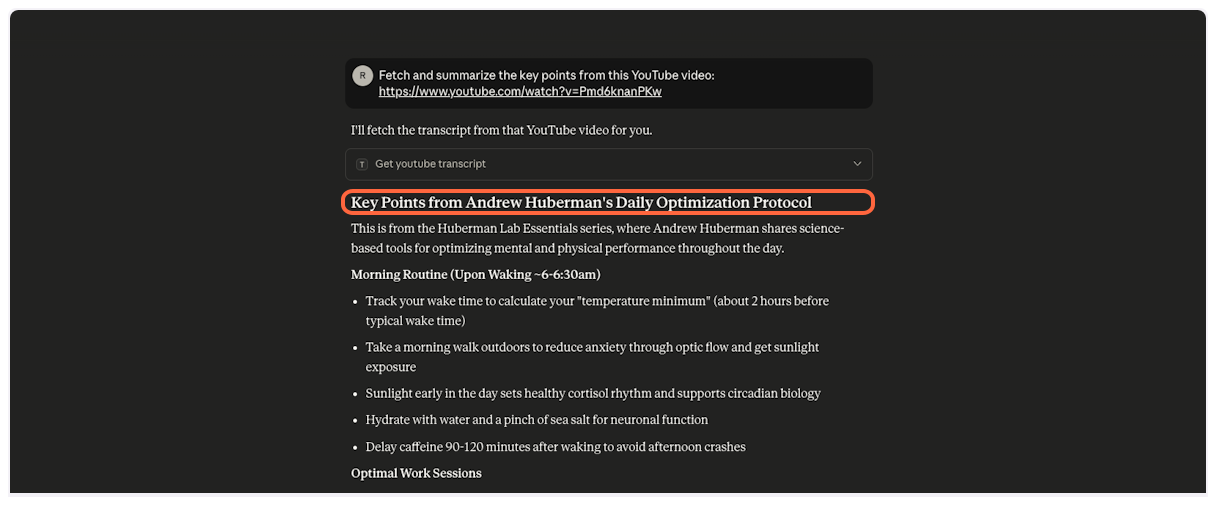
## Example Prompts & Best Practices
[Section titled “Example Prompts & Best Practices”](#example-prompts--best-practices)
Master Claude’s YouTube transcript capabilities with these proven approaches:
### Single Video Analysis
[Section titled “Single Video Analysis”](#single-video-analysis)
Be specific about what insights you need.
```plaintext
Summarize the key points from this TED talk and list
the 3 most actionable takeaways:
https://www.youtube.com/watch?v=UF8uR6Z6KLc
```
### Multi-Video Comparison
[Section titled “Multi-Video Comparison”](#multi-video-comparison)
Claude can handle multiple videos in one request. Paste all URLs together for efficient analysis.
```plaintext
Compare how these two channels explain black holes and
tell me which is better for a beginner:
https://www.youtube.com/watch?v=e-P5IFTqB98
https://www.youtube.com/watch?v=QqsLTNkzvaY
```
### Search & Discover
[Section titled “Search & Discover”](#search--discover)
Use YouTube search to find the best content on a topic, then go deeper.
```plaintext
Search YouTube for "climate change explained" and show me
the top 5 results. Then get the transcript from the best one
and create a one-page summary.
```
### Channel Browse
[Section titled “Channel Browse”](#channel-browse)
Check a channel’s latest uploads for free, then selectively fetch transcripts.
```plaintext
Show me the latest videos from @NASA.
Pick the most interesting one and summarize it for me.
```
### Channel Deep Dive
[Section titled “Channel Deep Dive”](#channel-deep-dive)
Search within a specific channel’s library for a topic.
```plaintext
Search @TED for videos about artificial intelligence.
Get transcripts for the top 3 and create a combined
summary of TED's AI coverage.
```
### Playlist Analysis
[Section titled “Playlist Analysis”](#playlist-analysis)
List playlist contents, then selectively fetch transcripts for the most relevant videos.
```plaintext
List all videos in this playlist:
https://www.youtube.com/playlist?list=PLOGi5-fAu8bFIs_Lbp-MNwPKpPjBJGUzr
Get transcripts for the first 3 and create study notes.
```
### Advanced Tips
[Section titled “Advanced Tips”](#advanced-tips)
**Free Channel Checks**: Browsing a channel’s latest videos costs no credits — use it to scout before spending credits on transcripts.
**Batch Processing**: Paste all URLs at once instead of one by one. Claude fetches multiple transcripts simultaneously.
**Focused Questions**: Instead of “summarize these videos,” try “identify the three main disagreements between these perspectives.”
**Output Formats**: Specify tables, bullet points, or narrative summaries. Claude adapts to your preferred format.
**Long Videos**: For videos over 2 hours, ask for analysis of specific sections rather than full summaries.
## Troubleshooting
[Section titled “Troubleshooting”](#troubleshooting)
### Connection Issues
[Section titled “Connection Issues”](#connection-issues)
#### ”Failed to connect” error
[Section titled “”Failed to connect” error”](#failed-to-connect-error)
**Solution**:
1. Ensure you’re logged into TranscriptAPI
2. Check that the server URL is exactly `https://transcriptapi.com/mcp`
3. Try removing and re-adding the connector
#### ”Unauthorized” error
[Section titled “”Unauthorized” error”](#unauthorized-error)
**Solution**:
1. Verify your TranscriptAPI account is active
2. Re-authorize the connection in Claude settings
3. Check your API credit balance
### Usage Issues
[Section titled “Usage Issues”](#usage-issues)
#### Claude doesn’t fetch transcripts automatically
[Section titled “Claude doesn’t fetch transcripts automatically”](#claude-doesnt-fetch-transcripts-automatically)
**Solution**:
1. Verify TranscriptAPI is enabled in the tools menu
2. Ensure you’ve set permissions to “Allow unsupervised”
3. Try explicitly asking Claude to “fetch the transcript"
#### "No transcript available” for a video
[Section titled “"No transcript available” for a video”](#no-transcript-available-for-a-video)
**Solution**: The video may:
* Not have captions enabled
* Be private or age-restricted
* Be region-locked
* Have disabled embedding
### Performance Tips
[Section titled “Performance Tips”](#performance-tips)
#### For long videos (>2 hours)
[Section titled “For long videos (>2 hours)”](#for-long-videos-2-hours)
* Transcript fetching may take 10-30 seconds
* Consider asking for specific sections first
* Claude handles long transcripts well once fetched
#### For multiple videos
[Section titled “For multiple videos”](#for-multiple-videos)
* Claude can fetch up to 10 transcripts efficiently
* For larger batches, consider grouping by topic
* Use specific questions to focus the analysis
## Next Steps
[Section titled “Next Steps”](#next-steps)
Now that you’ve connected TranscriptAPI to Claude, explore these powerful capabilities:
* **Multi-Video Projects**: Create comprehensive resources by analyzing entire playlists or channels
* **Research & Analysis**: Compare different perspectives on topics across multiple creators
* **Content Creation**: Generate summaries, study guides, or articles from video content
* **Learning Enhancement**: Transform video courses into personalized study materials
## Related
[Section titled “Related”](#related)
[MCP Overview ](/docs/mcp)Learn about Model Context Protocol and advanced TranscriptAPI features.
[ChatGPT Guide ](/docs/mcp/chatgpt)Connect TranscriptAPI to ChatGPT for alternative integration.
[API Reference ](/docs/api)Explore the REST API for programmatic access.
# Connect TranscriptAPI to OpenAI Agent Builder
> Step-by-step guide to integrate YouTube Transcript MCP with OpenAI Agent Builder for fetching YouTube transcripts in your AI workflows.
Learn how to integrate TranscriptAPI’s YouTube Transcript MCP with OpenAI Agent Builder to fetch YouTube video transcripts directly in your AI agent workflows. This guide provides step-by-step instructions with screenshots.
## What is OpenAI Agent Builder?
[Section titled “What is OpenAI Agent Builder?”](#what-is-openai-agent-builder)
OpenAI Agent Builder is a visual, no-code platform for creating and deploying AI agents with complex workflows. It features a drag-and-drop interface that lets you connect various tools and services without writing code. The platform’s Model Context Protocol (MCP) support makes it ideal for integrating external services like TranscriptAPI.
Better Beta Experience
Unlike ChatGPT’s beta MCP implementation which can have stability issues, OpenAI Agent Builder’s beta provides a more reliable experience for MCP tools. The platform handles tool calls consistently and provides clear error messages when issues occur.
## Prerequisites
[Section titled “Prerequisites”](#prerequisites)
Before starting, ensure you have:
* An OpenAI account with access to Agent Builder (available with API access)
* A TranscriptAPI account ([sign up free](https://transcriptapi.com))
* An active TranscriptAPI API key from your [dashboard](https://transcriptapi.com/dashboard/api-keys)
* A YouTube video URL to test with
## Part 1: Create Your Agent Workflow
[Section titled “Part 1: Create Your Agent Workflow”](#part-1-create-your-agent-workflow)
Let’s start by creating a new workflow in OpenAI Agent Builder.
1. **Access OpenAI Agent Builder**
Navigate to the [OpenAI Agent Builder platform](https://platform.openai.com/agent-builder) and sign in with your OpenAI credentials.
2. **Configure the Agent Node**
Click on the default Agent node that appears in your workflow canvas. This is where you’ll add the TranscriptAPI MCP integration.
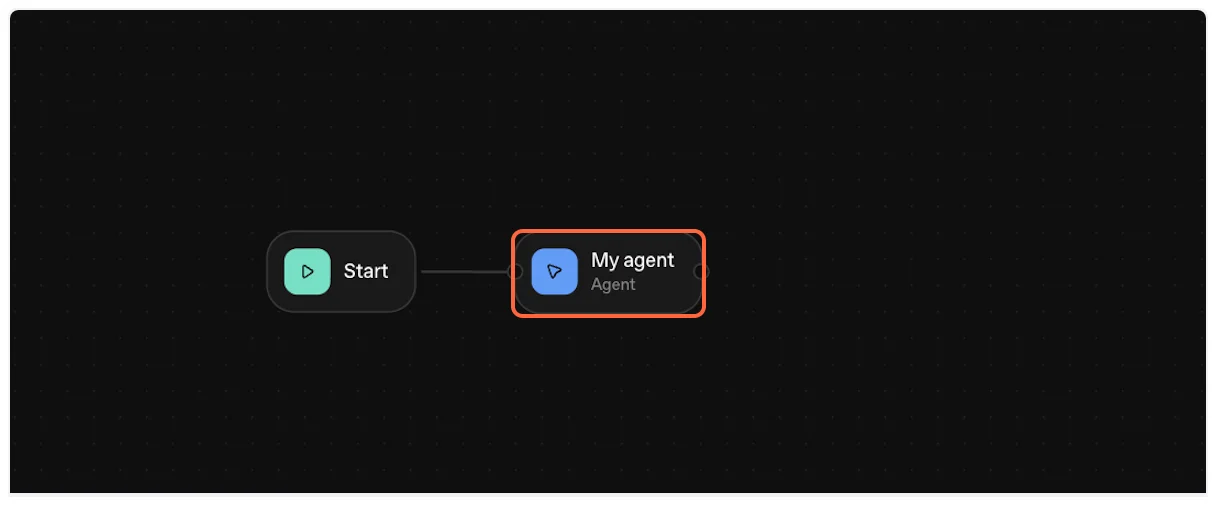
## Part 2: Add TranscriptAPI MCP Server
[Section titled “Part 2: Add TranscriptAPI MCP Server”](#part-2-add-transcriptapi-mcp-server)
Now we’ll add the TranscriptAPI MCP server to your agent.
1. **Open Tools Configuration**
In the agent configuration panel, locate the “Tools” section and click the ”+” icon to add a new tool.
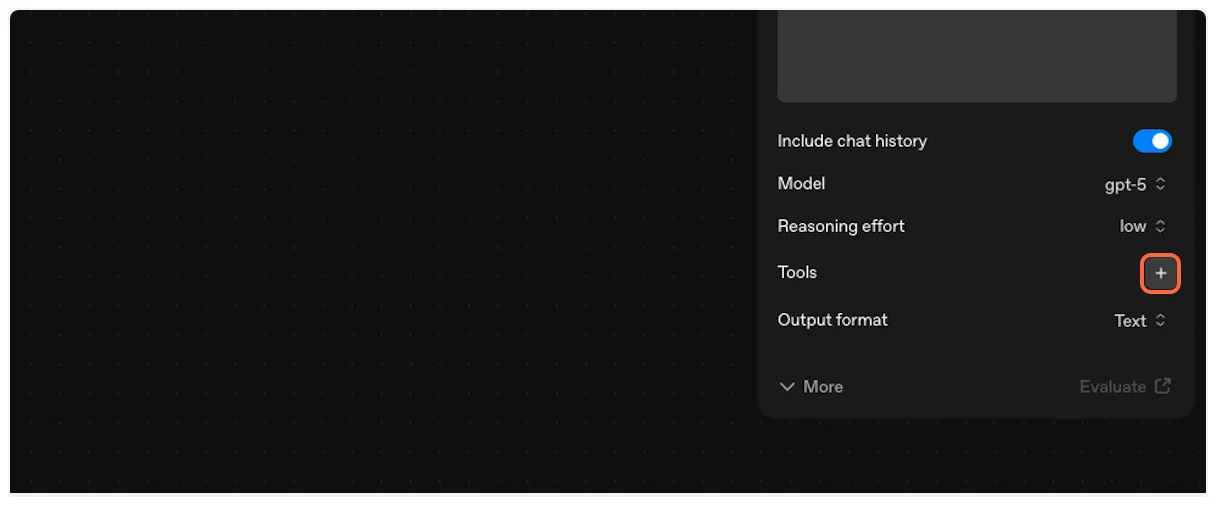
2. **Select MCP Server**
From the tool options, choose “MCP server” to add an MCP integration.
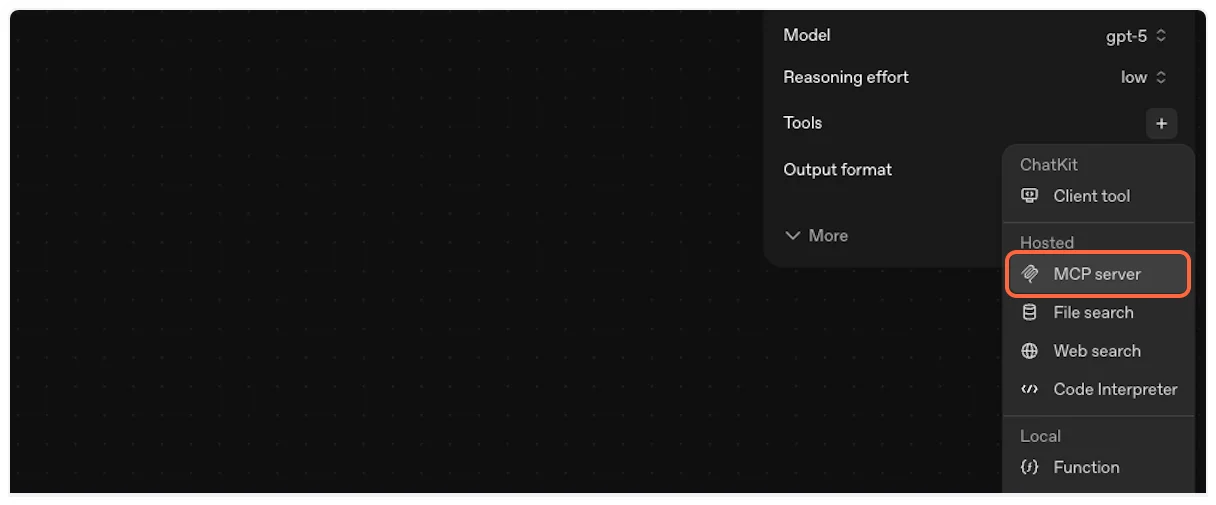
3. **Configure Server Details**
Click on the “Server” field to begin configuring the MCP connection.
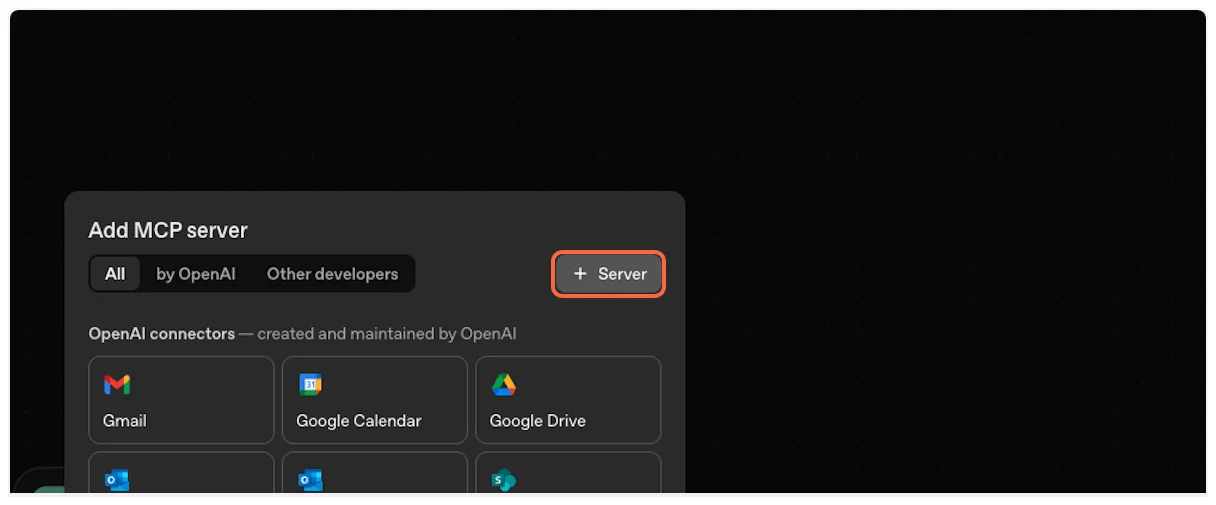
## Part 3: Configure TranscriptAPI Connection
[Section titled “Part 3: Configure TranscriptAPI Connection”](#part-3-configure-transcriptapi-connection)
Let’s set up the connection details for TranscriptAPI. You’ll need information from your TranscriptAPI dashboard.
1. **Get Configuration Details**
Open the [TranscriptAPI MCP Integration page](https://transcriptapi.com/dashboard/mcp-integration) in a new tab. You’ll copy configuration details from here.
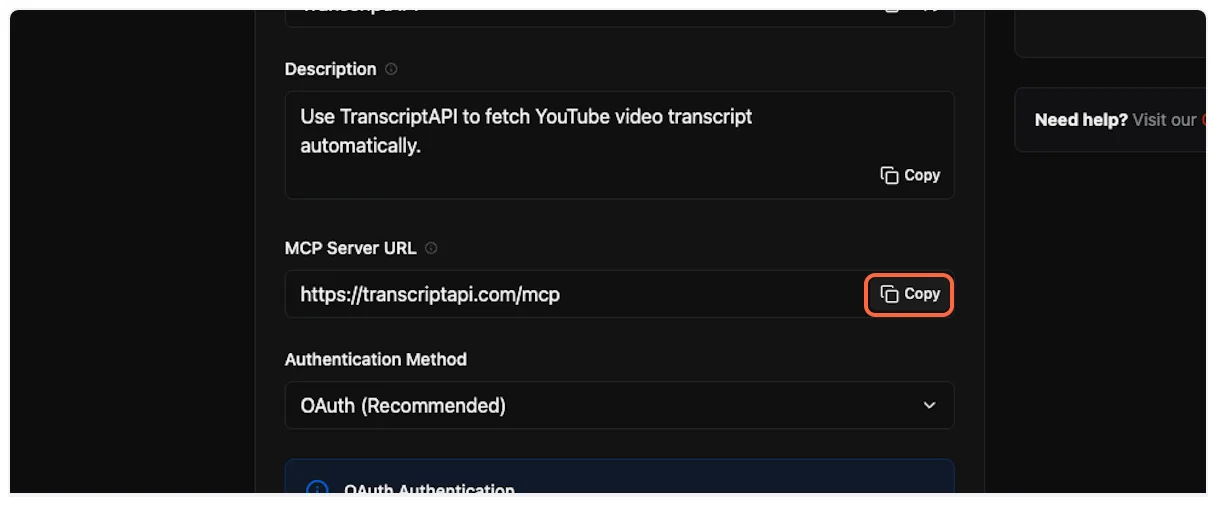
2. **Enter Server URL**
Paste the MCP server URL: `https://transcriptapi.com/mcp`
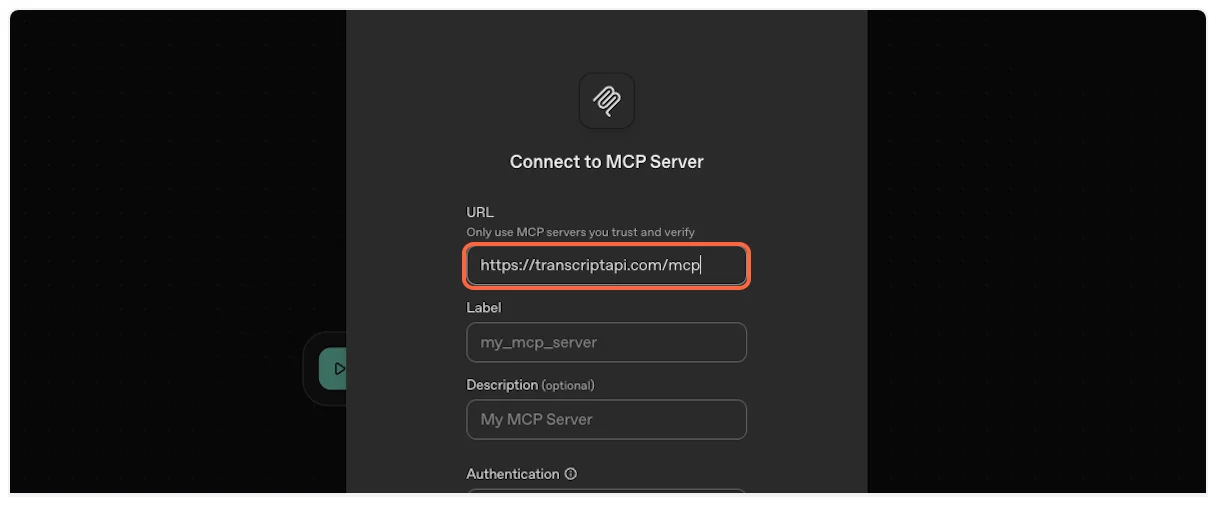
3. **Copy and Enter MCP Name**
Copy the MCP name from TranscriptAPI (typically “TranscriptAPI”).

Enter it in the name field.
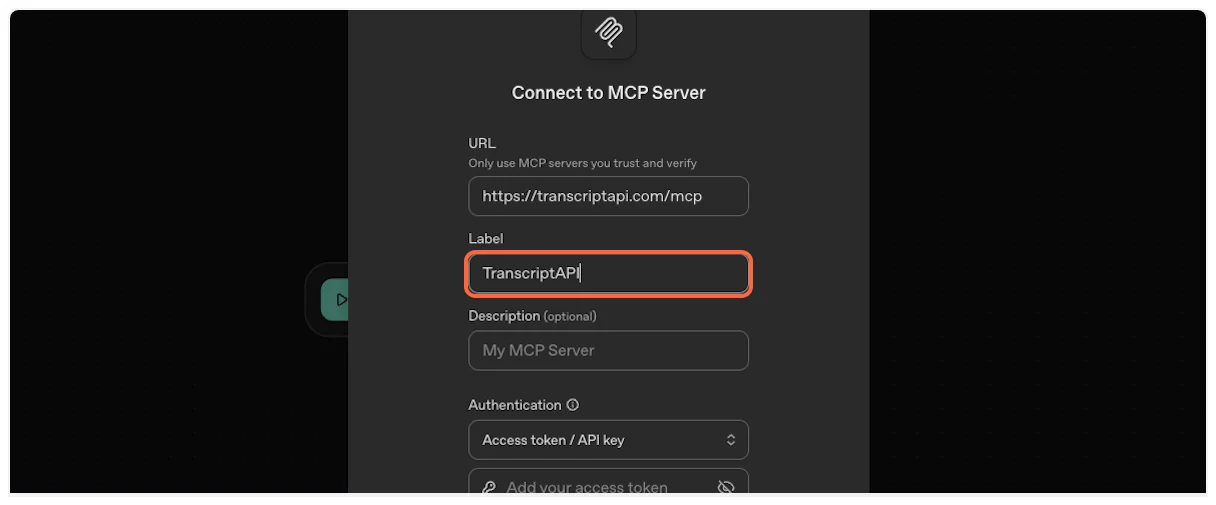
4. **Copy and Enter Description**
Copy the MCP description from your dashboard.
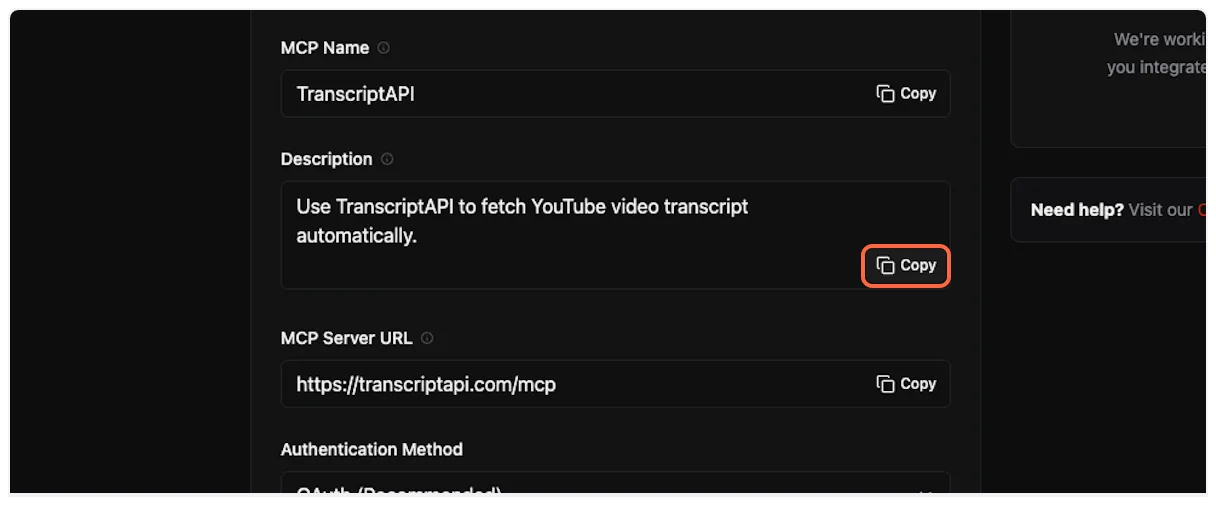
Paste it into the description field.
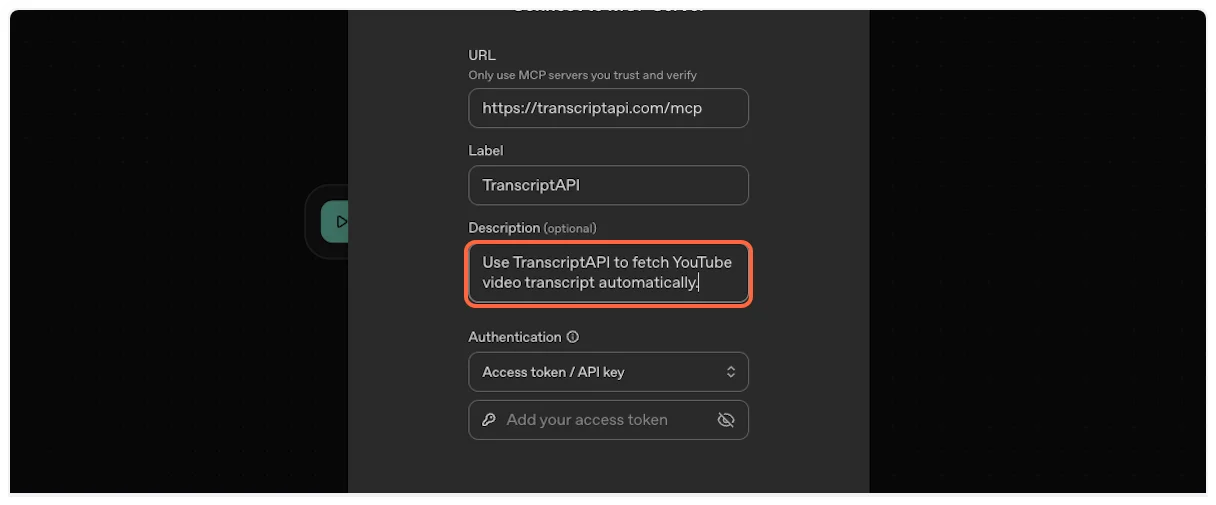
## Part 4: Set Up API Key Authentication
[Section titled “Part 4: Set Up API Key Authentication”](#part-4-set-up-api-key-authentication)
OpenAI Agent Builder requires API key authentication for MCP servers. OAuth is not currently supported.
1. **View Authentication Options**
You’ll see both OAuth and API Key options. OAuth is recommended for supported platforms, but Agent Builder requires API Key authentication.
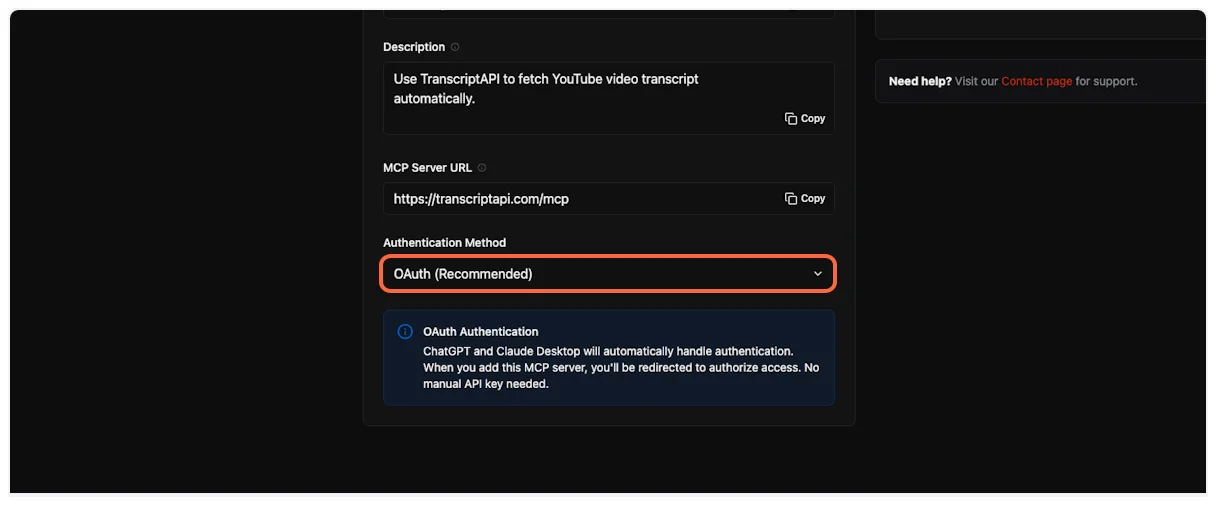
2. **Select API Key Authentication**
Click on “API Key / Access Token” to use the required authentication method.
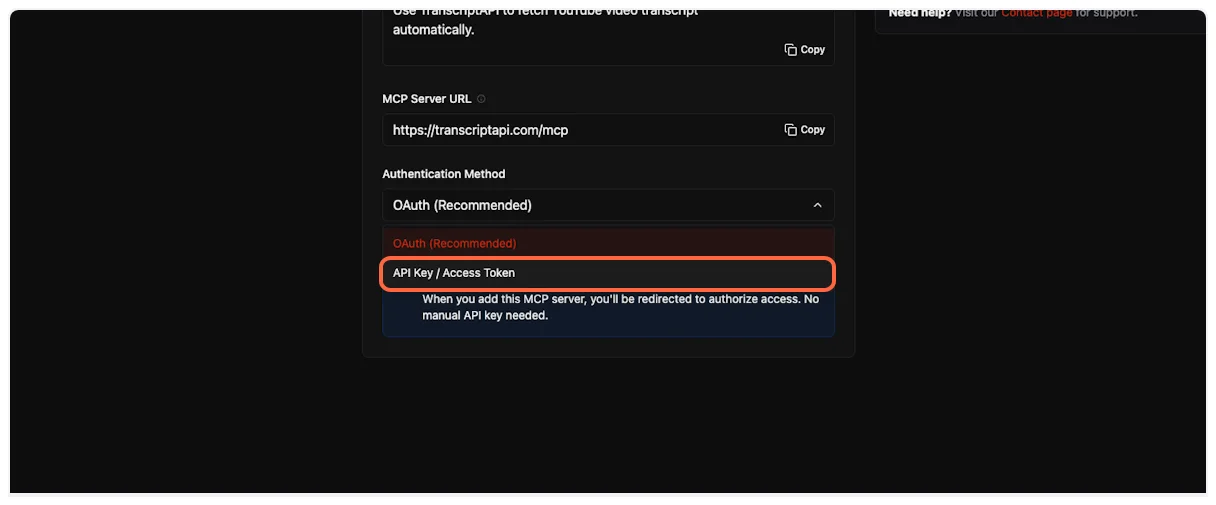
3. **Copy Your API Key**
From the TranscriptAPI dashboard, click the copy button to get your API key.
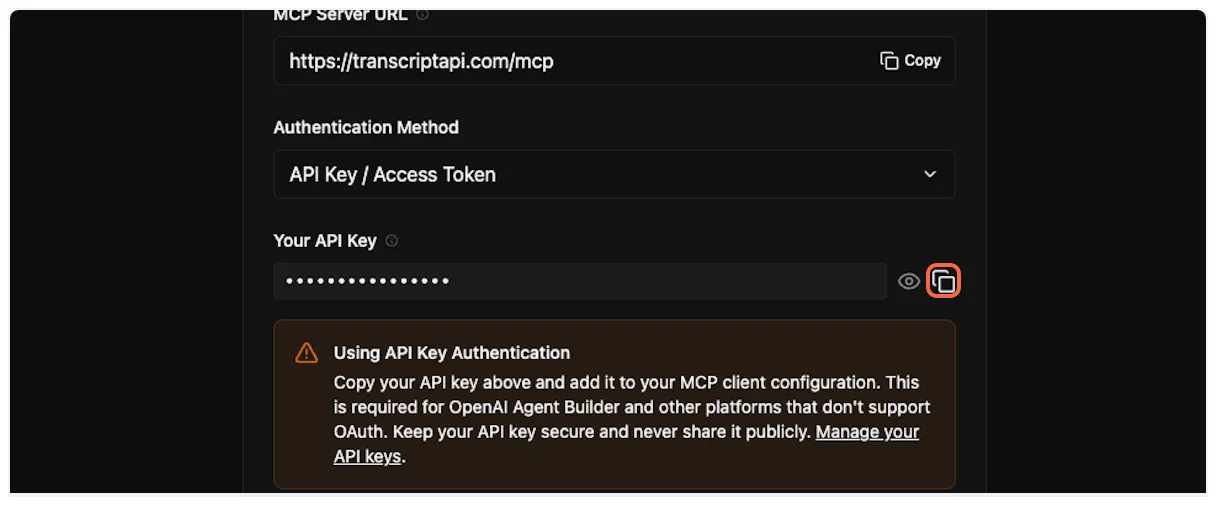
4. **Enter API Key**
Paste your API key into the authentication field in Agent Builder.
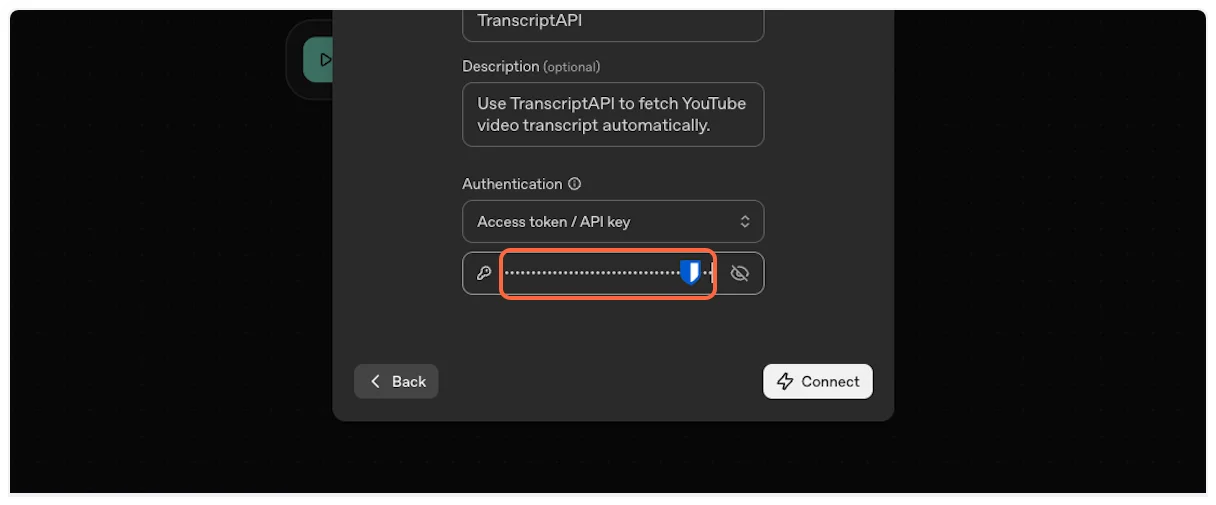
5. **Connect to TranscriptAPI**
Click the “Connect” button to establish the connection.

6. **Authentication Success**
Agent Builder will authenticate with TranscriptAPI and load the available MCP tools.
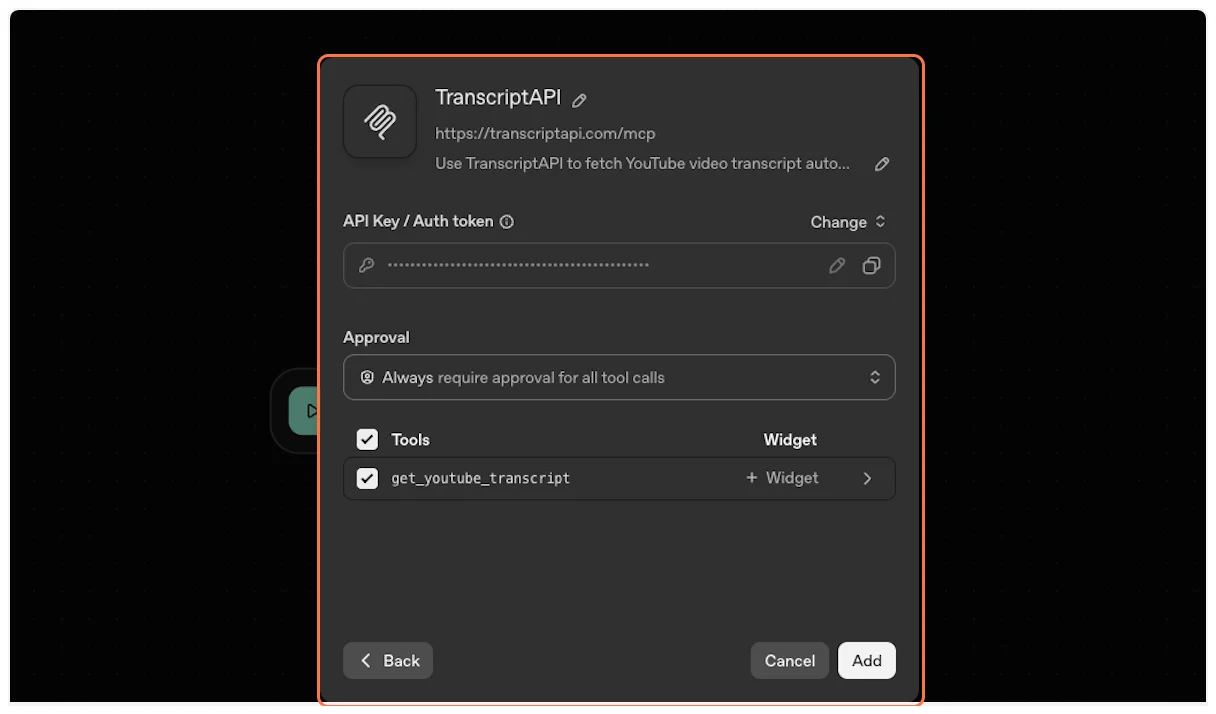
7. **Add the Tool**
Click “Add” to include the TranscriptAPI MCP in your agent’s toolset.
## Part 5: Configure Agent Instructions
[Section titled “Part 5: Configure Agent Instructions”](#part-5-configure-agent-instructions)
Now configure your agent to use the TranscriptAPI MCP effectively.
1. **Add Agent Instructions**
In the agent’s instruction field, add clear guidance about when to use the YouTube Transcript MCP. For example:
> “When you see a YouTube video link, use the TranscriptAPI MCP tool (get\_youtube\_transcript) to fetch the video transcript. Then process the transcript according to the user’s request (summarize, analyze, translate, etc.).”
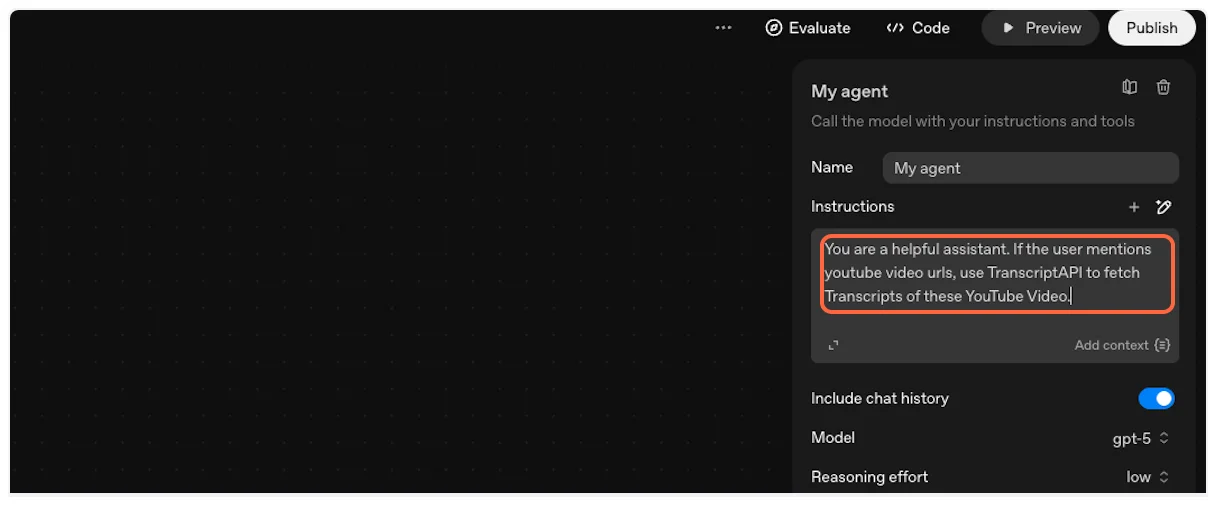
2. **Name Your Agent**
Give your agent a descriptive name like “TranscriptAPI Agent” or “YouTube Transcript Assistant”.
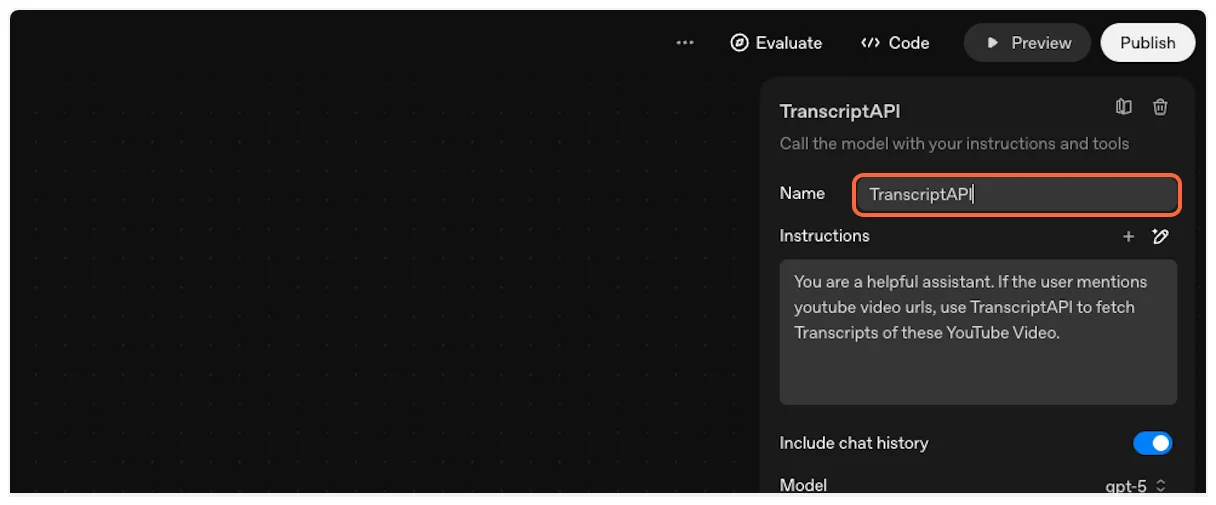
## Part 6: Test Your Integration
[Section titled “Part 6: Test Your Integration”](#part-6-test-your-integration)
Let’s test the YouTube Transcript MCP integration to ensure everything works correctly.
1. **Enter Preview Mode**
Click the “Preview” button to test your agent workflow.
2. **Preview Interface**
The workflow preview interface will open, allowing you to interact with your agent.

3. **Test with a YouTube URL**
Paste a test request like:
> “ Summarize this video for me.”
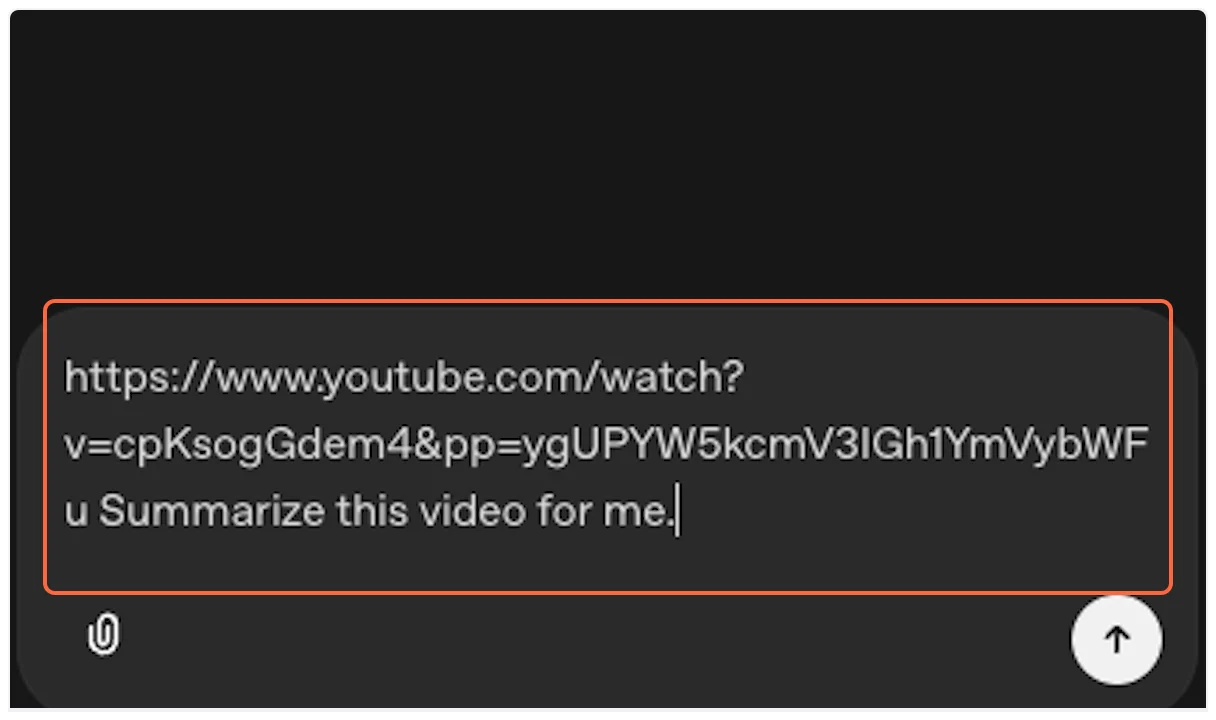
4. **Run the Test**
Click the “Run” button to execute your request.
5. **Approve MCP Usage**
OpenAI Agent Builder will request permission to use the MCP tool. This ensures transparency about external API usage.
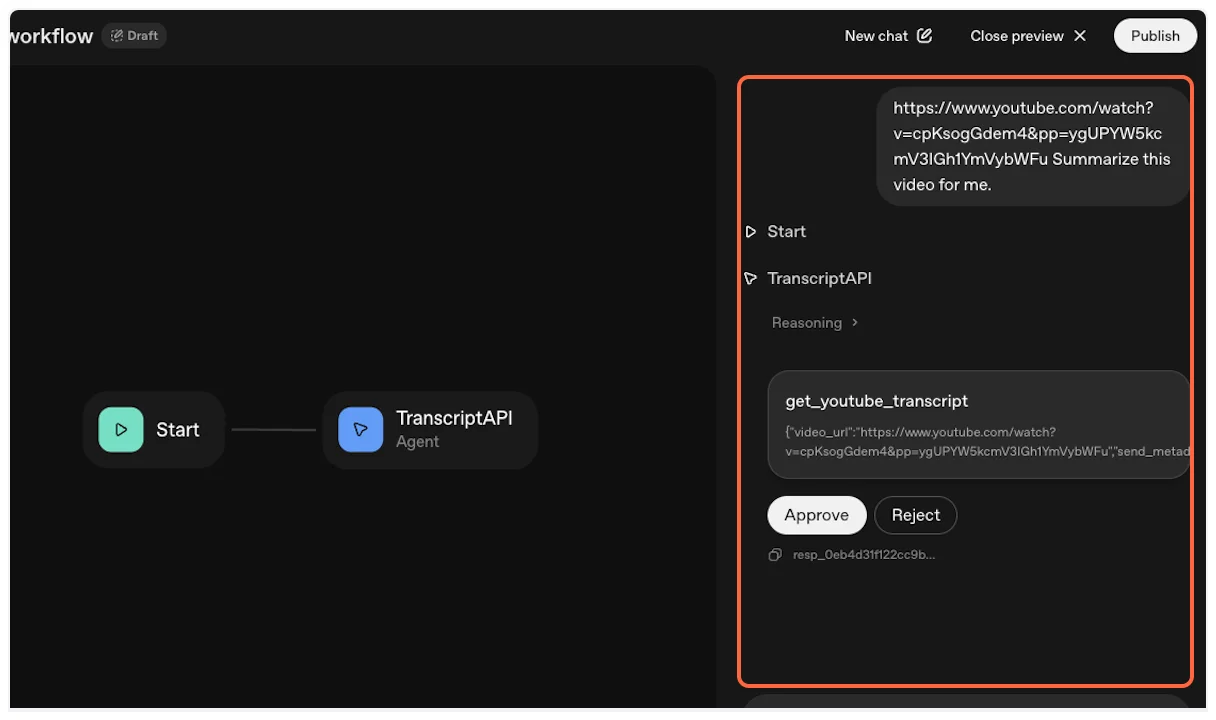
6. **Grant Permission**
Click “Approve” to allow the agent to fetch the YouTube transcript.
7. **Success!**
The agent will fetch the transcript using TranscriptAPI and process it according to your instructions.
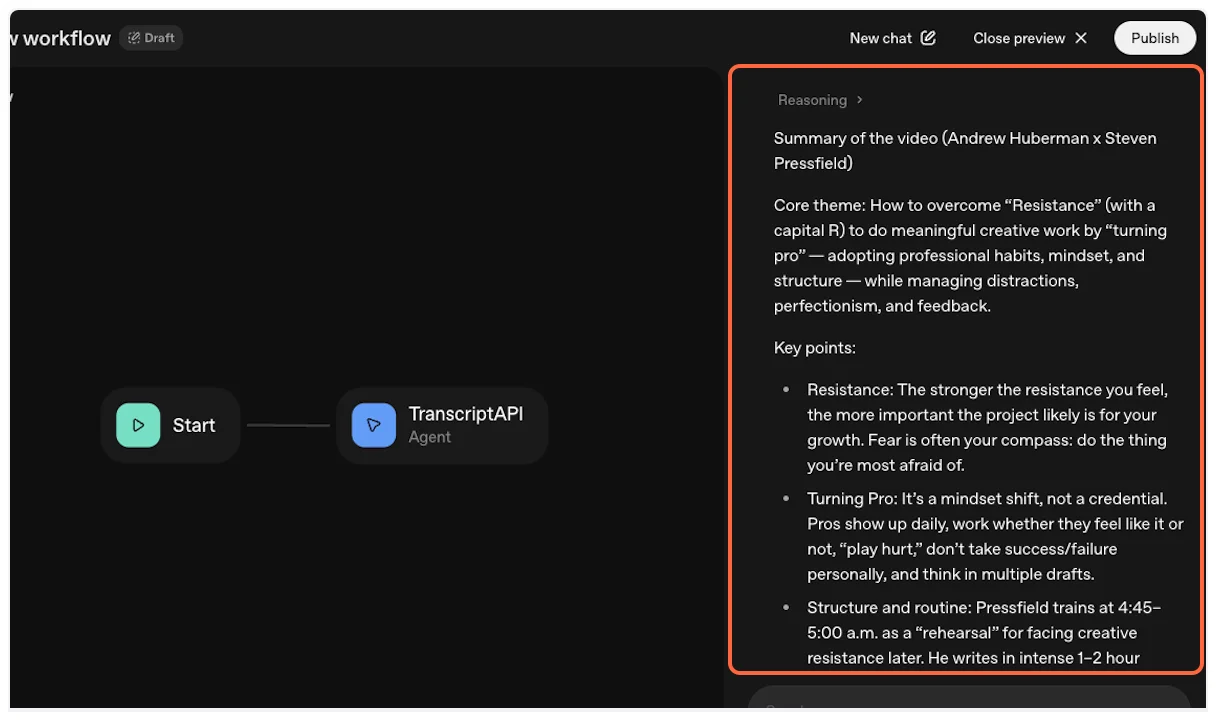
## Advanced Configuration
[Section titled “Advanced Configuration”](#advanced-configuration)
### Available Tools
[Section titled “Available Tools”](#available-tools)
Your agent has access to these TranscriptAPI tools:
* **`get_youtube_transcript`** — Fetch transcript as text or JSON. 1 credit.
* **`search_youtube`** — Paginated search for videos or channels. 1 credit/page.
* **`get_channel_latest_videos`** — Latest \~15 videos via RSS. Free.
* **`search_channel_videos`** — Paginated search within a specific channel. 1 credit/page.
* **`list_channel_videos`** — Paginated channel uploads. 1 credit/page.
* **`list_playlist_videos`** — Paginated playlist videos. 1 credit/page.
See [Available Tools](/docs/mcp#available-tools) for full parameter reference and examples.
### Agent Instructions Example
[Section titled “Agent Instructions Example”](#agent-instructions-example)
Update your agent instructions to take advantage of the full tool suite:
> “You have access to TranscriptAPI tools. You can search YouTube, browse channels, list playlists, and fetch transcripts. When a user asks about a topic, search for relevant videos first, then fetch transcripts for the most promising results.”
### Setting Response Formats
[Section titled “Setting Response Formats”](#setting-response-formats)
You can configure how the transcript tool returns data by using its parameters:
* **`format`**: Choose between `"text"` (markdown) or `"json"` (structured data)
* **`include_timestamp`**: Set to `true` or `false` for timestamp inclusion
* **`send_metadata`**: Include video title, author, and thumbnail information
## Troubleshooting
[Section titled “Troubleshooting”](#troubleshooting)
### Authentication Issues
[Section titled “Authentication Issues”](#authentication-issues)
**Problem**: “Invalid API key” error
**Solution**:
* Verify your API key starts with `sk_`
* Check for extra spaces when copying
* Ensure the key is active in your [TranscriptAPI dashboard](https://transcriptapi.com/dashboard/api-keys)
### Credit Errors
[Section titled “Credit Errors”](#credit-errors)
**Problem**: “Payment required - no credits remaining”
**Solution**: [Purchase credits](https://transcriptapi.com/dashboard/billing) or upgrade your plan
### Transcript Not Available
[Section titled “Transcript Not Available”](#transcript-not-available)
**Problem**: “404 - Transcript not found”
**Possible Causes**:
* Video has no captions/subtitles
* Video is private or age-restricted
* Video was recently uploaded (captions pending)
* Regional restrictions apply
### Rate Limiting
[Section titled “Rate Limiting”](#rate-limiting)
**Problem**: “429 - Too many requests”
**Solution**:
* Wait 60 seconds before retrying
* Implement delays between batch requests
* Check your rate limit status in the dashboard
## Next Steps
[Section titled “Next Steps”](#next-steps)
Now that you’ve successfully integrated TranscriptAPI with OpenAI Agent Builder:
1. **Explore Advanced Features**: Try different parameter combinations for optimal results
2. **Build Complex Workflows**: Combine transcript fetching with other AI capabilities
3. **Monitor Usage**: Track your credit consumption and API performance
4. **Join the Community**: Share your workflows and learn from others
Ready to build more sophisticated agents? Check out our [API documentation](/docs/api) for advanced integration options.
## Related
[Section titled “Related”](#related)
[MCP Overview ](/docs/mcp)Learn about Model Context Protocol and TranscriptAPI integration options.
[API Reference ](/docs/api)Complete REST API documentation for direct integration.
[ChatGPT Guide ](/docs/mcp/chatgpt)Compare with ChatGPT's MCP implementation (OAuth-based).