Connect TranscriptAPI to ChatGPT (Step-by-Step Guide 2026)
Learn how to connect TranscriptAPI’s YouTube Transcript MCP to ChatGPT and fetch YouTube video transcripts directly in your conversations. This step-by-step guide walks you through enabling Developer Mode, adding the connector, and using it effectively.
What is the TranscriptAPI MCP connector?
Section titled “What is the TranscriptAPI MCP connector?”TranscriptAPI’s MCP connector lets ChatGPT call TranscriptAPI’s hosted YouTube transcript API directly from a conversation, using the Model Context Protocol (MCP) — the same open standard TranscriptAPI also supports for Claude and OpenAI Agent Builder. Once connected, ChatGPT can fetch a video’s transcript, search YouTube, browse a channel’s videos, or page through a playlist, without you copying captions in by hand. For a general explanation of what a YouTube transcript API does under the hood, see the YouTube Transcript API developer guide.
Prerequisites
Section titled “Prerequisites”Before getting started, ensure you have:
- A ChatGPT Plus or Team subscription (required for Developer Mode)
- A TranscriptAPI account (sign up free)
- 10 minutes to complete the setup
Part 1: Enable Developer Mode
Section titled “Part 1: Enable Developer Mode”First, you’ll need to enable Developer Mode in ChatGPT to access MCP connectors.
-
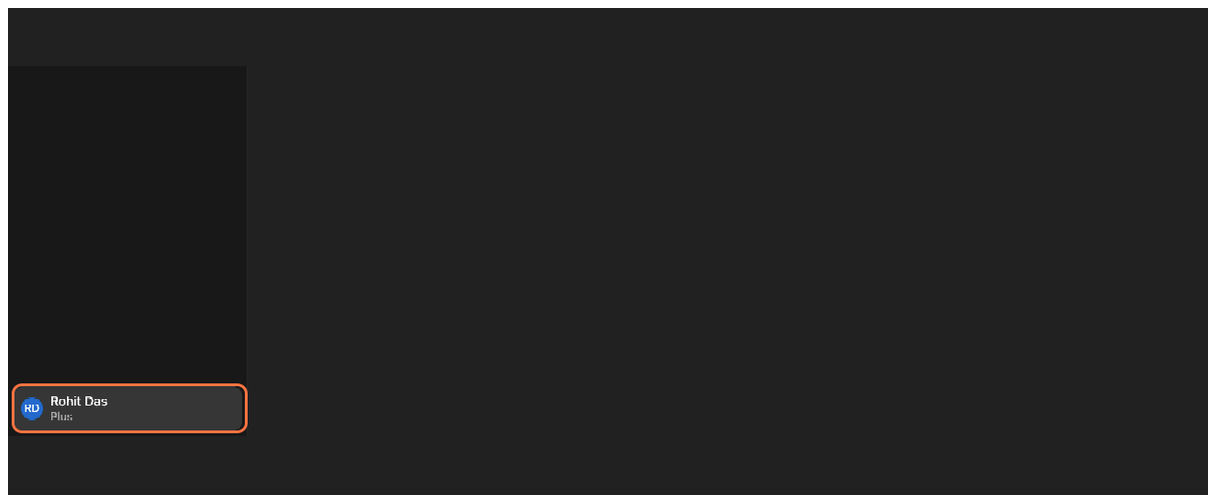
Open ChatGPT and access your profile
Navigate to ChatGPT and click on your profile icon in the bottom left corner of the screen.
-
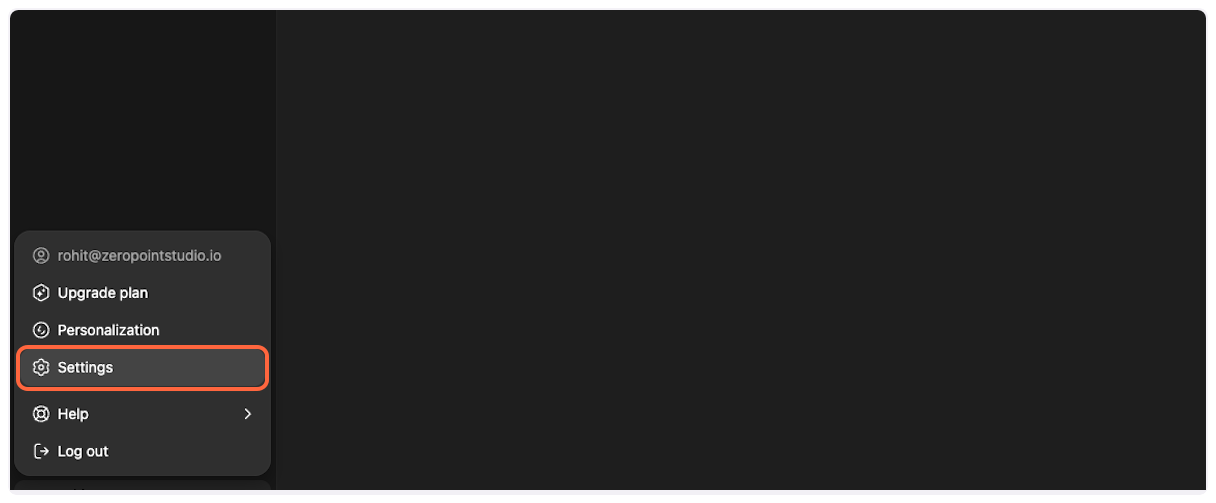
Open Settings
From the profile menu, click on “Settings” to access your account preferences.
-
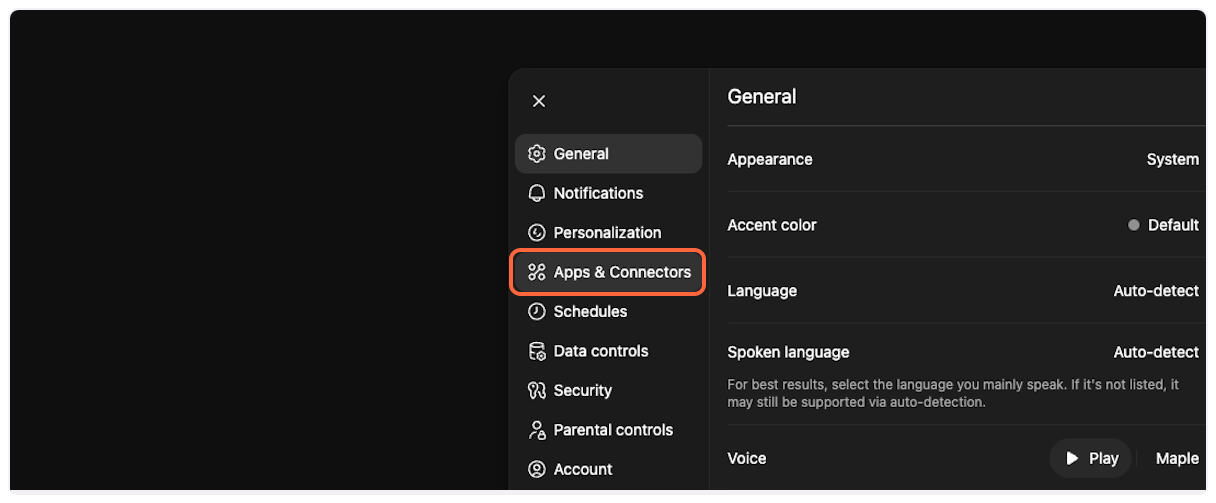
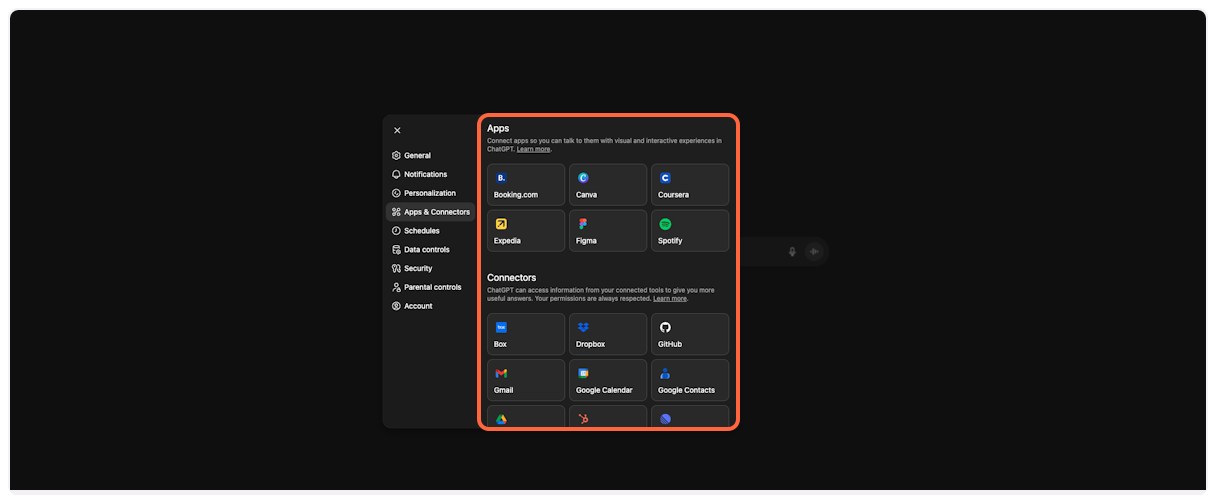
Navigate to Apps & Connectors
In the settings panel, click on “Apps & Connectors” to access the connector configuration.
-
Scroll to Advanced settings
Scroll down in the Apps & Connectors section to find additional options.
-
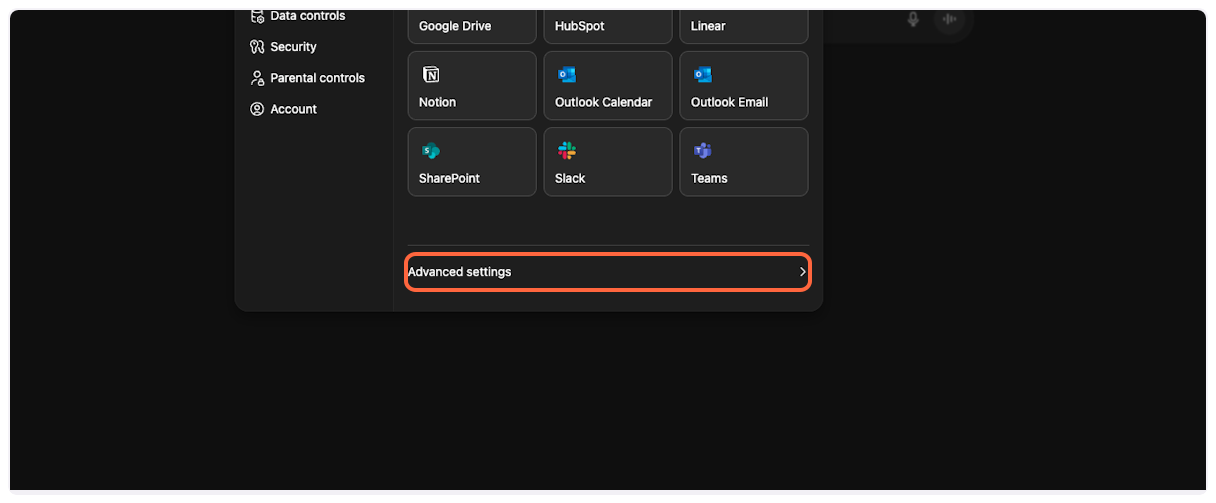
Access Advanced settings
Click on “Advanced settings” to reveal developer options.
-
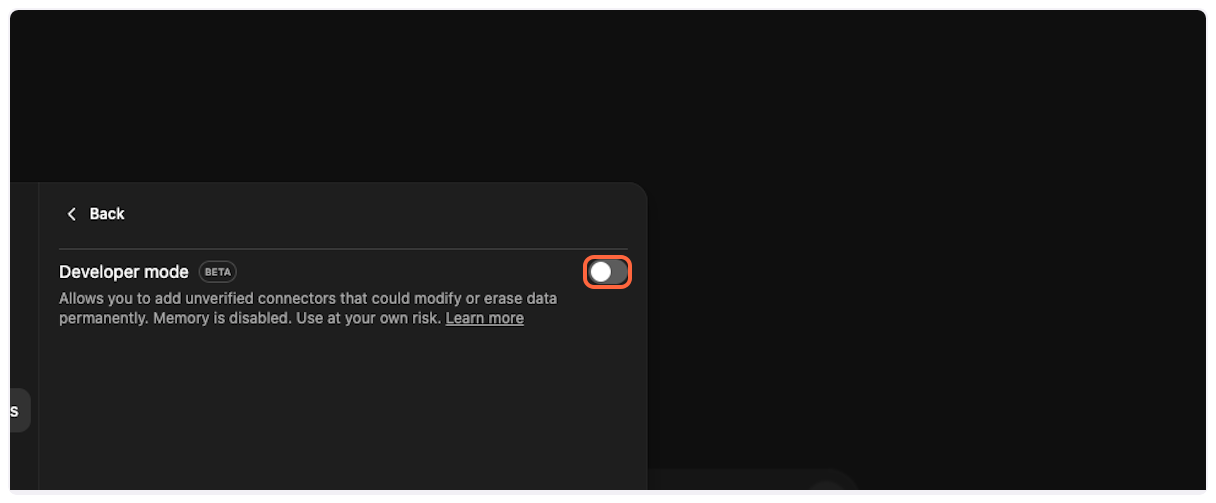
Enable Developer Mode
Toggle the “Developer mode” switch to enable MCP connector support. This allows you to add custom connectors like TranscriptAPI.
-
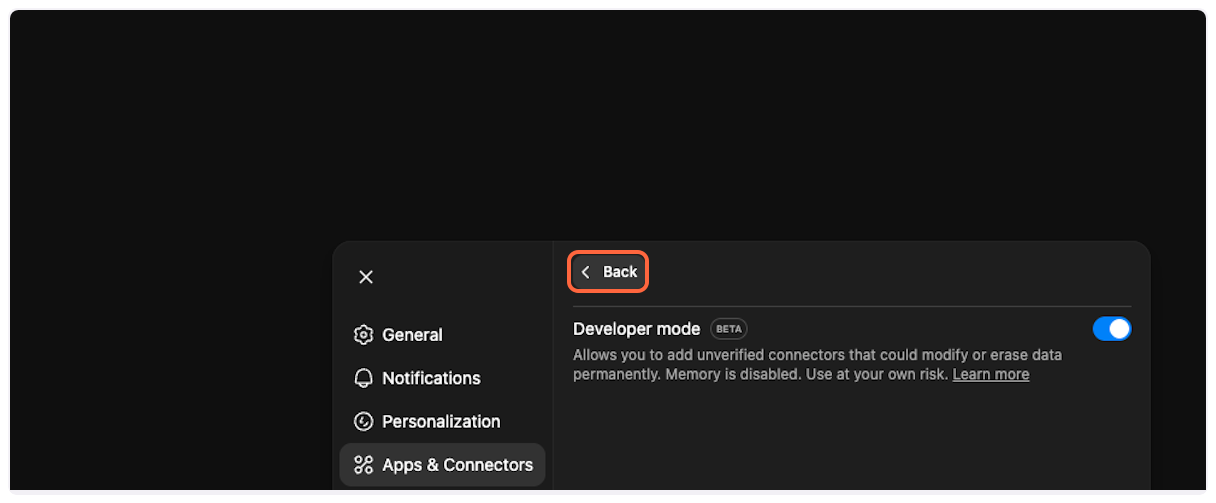
Return to Apps & Connectors
Click “Back” to return to the main Apps & Connectors page where you’ll add the TranscriptAPI connector.
Part 2: Add TranscriptAPI Connector
Section titled “Part 2: Add TranscriptAPI Connector”Now that Developer Mode is enabled, you can add the TranscriptAPI MCP connector.
-
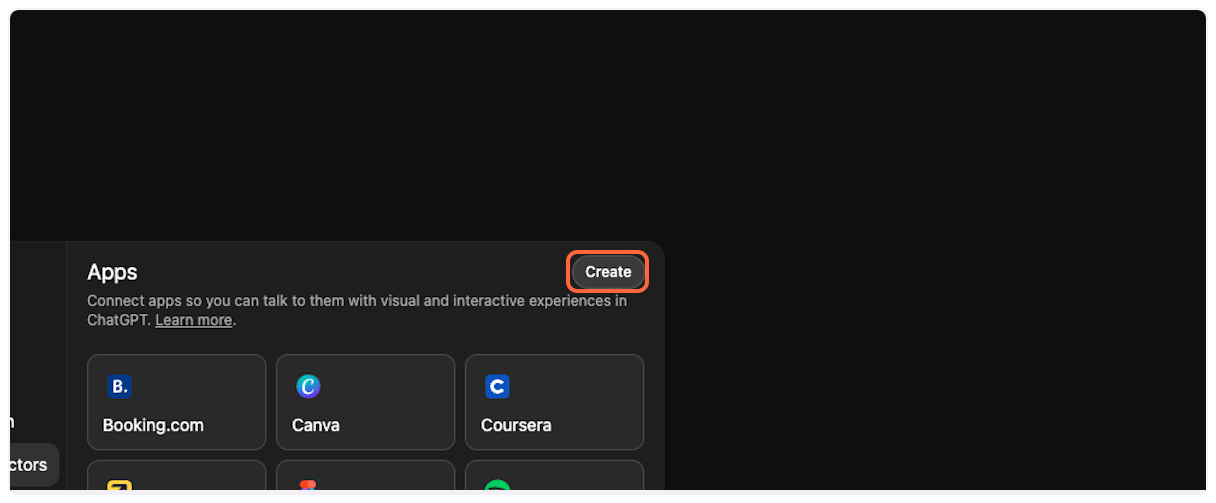
Create a new connector
Click on “Create” to start adding a new connector.
-
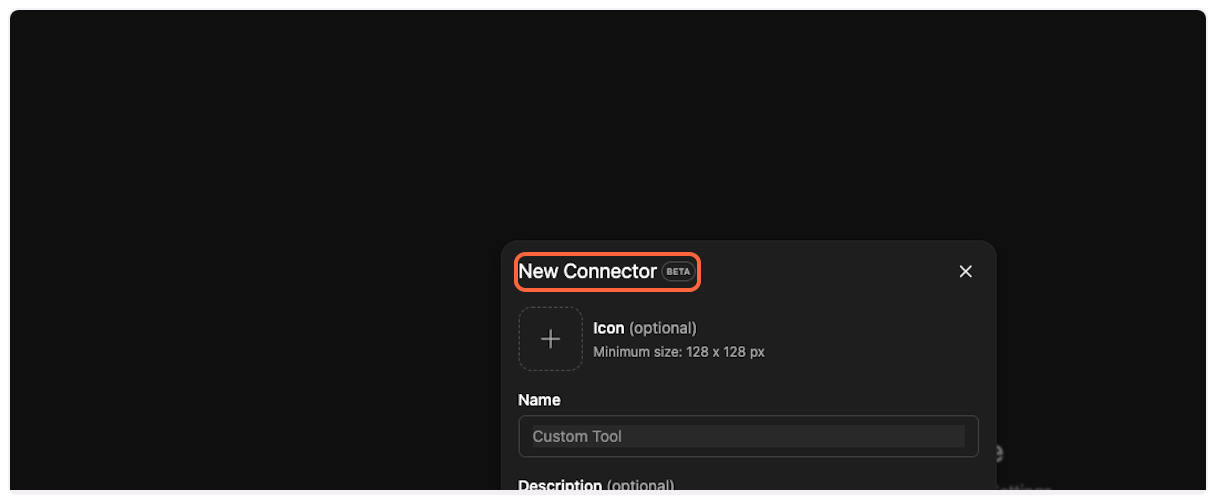
Select New Connector
Choose “New Connector…” from the dropdown menu.
-
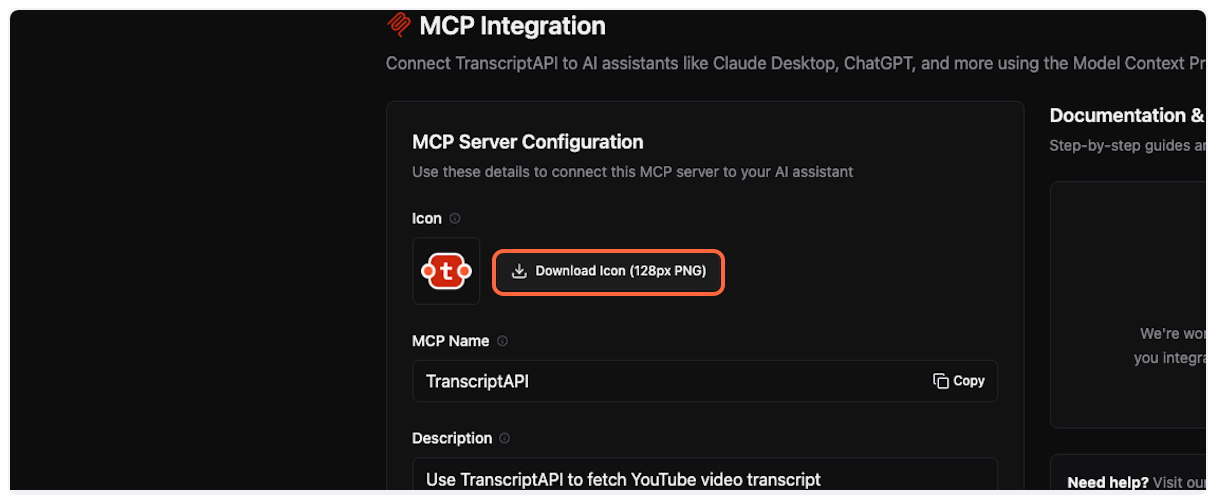
Get TranscriptAPI configuration
Open TranscriptAPI MCP Integration page in a new tab. You’ll need to copy configuration details from here.
-
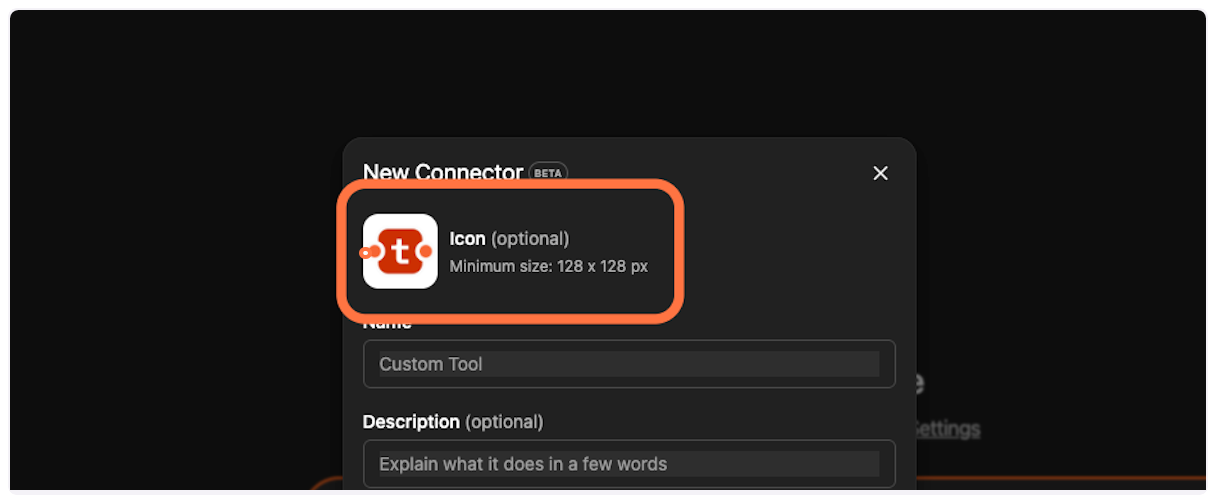
Upload the connector icon
Back in ChatGPT, click the icon selector and upload the TranscriptAPI logo you downloaded.
-
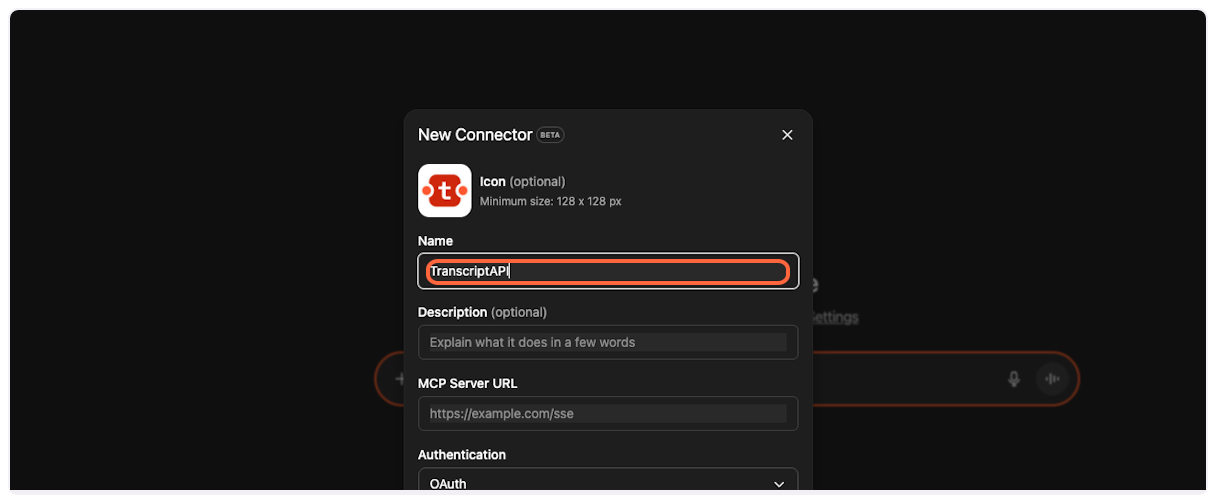
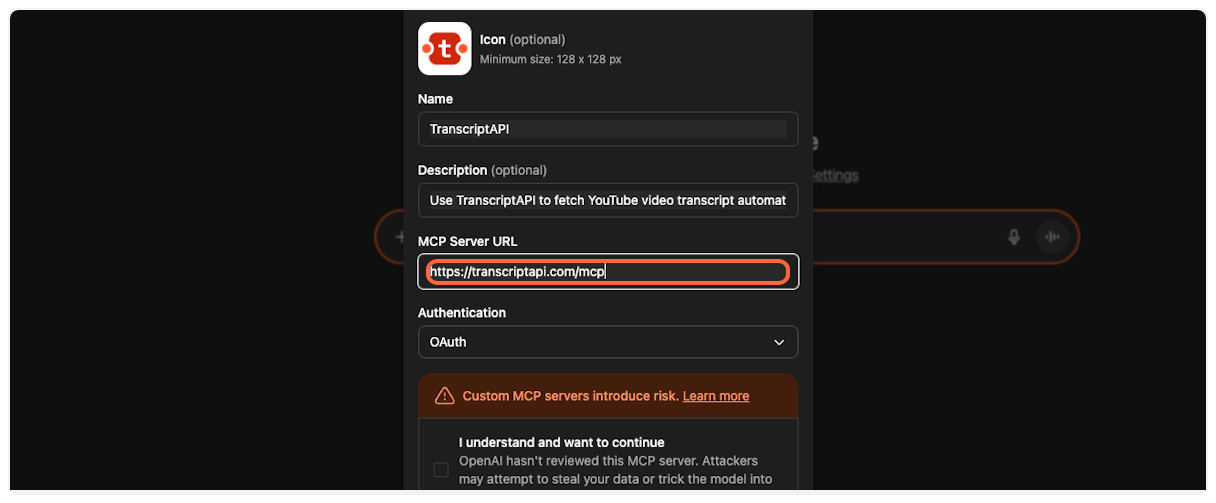
Copy and paste the MCP name
From the TranscriptAPI dashboard, copy the MCP name (usually “Transcript API”).
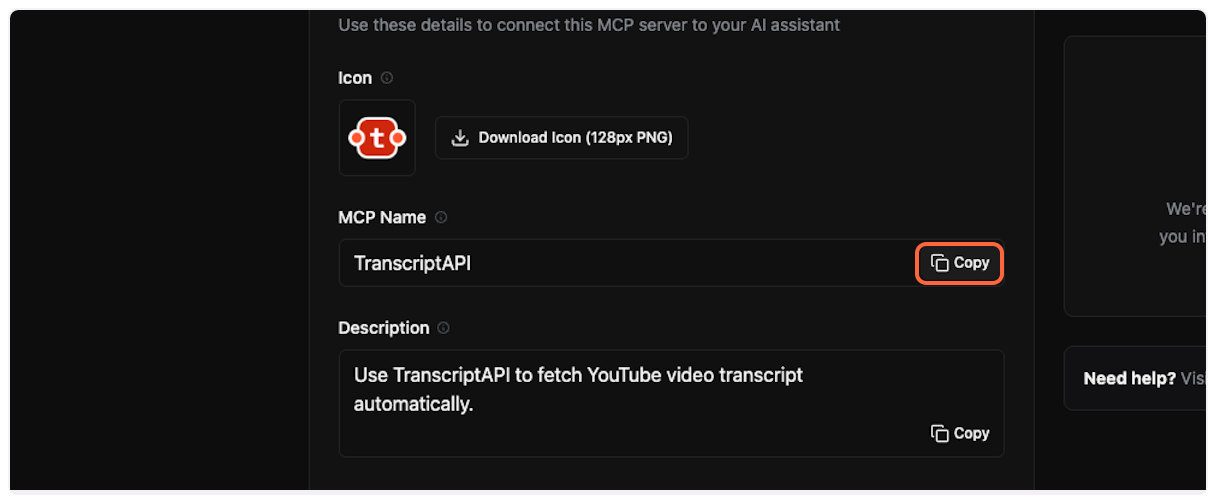
Paste it into the “Name” field in ChatGPT.
-
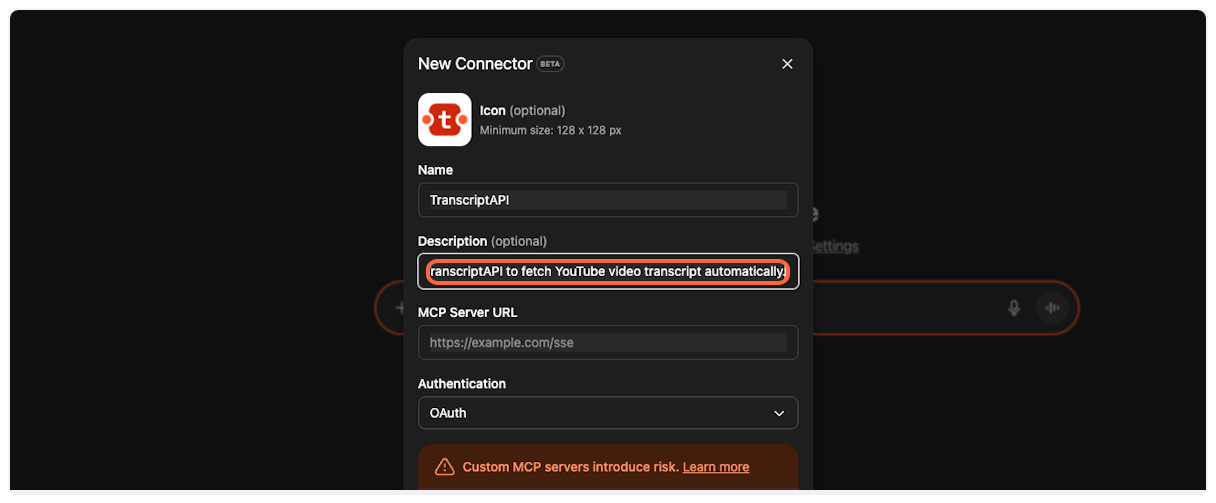
Copy and paste the description
Copy the MCP description from TranscriptAPI.
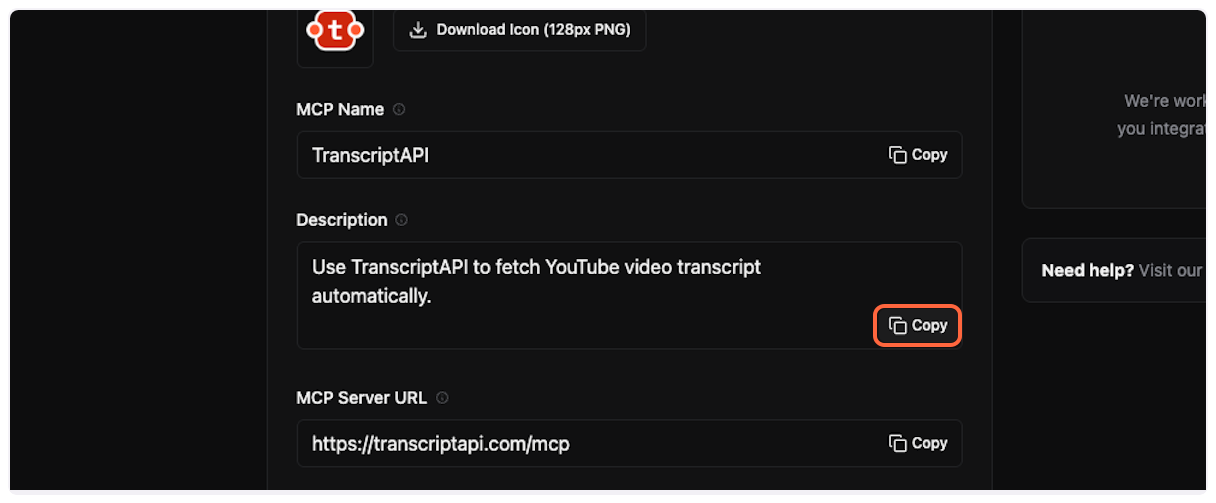
Paste it into the “Description” field in ChatGPT.
-
Copy and paste the server URL
This is the most important step. Copy the MCP Server URL from TranscriptAPI (it should be
https://transcriptapi.com/mcp).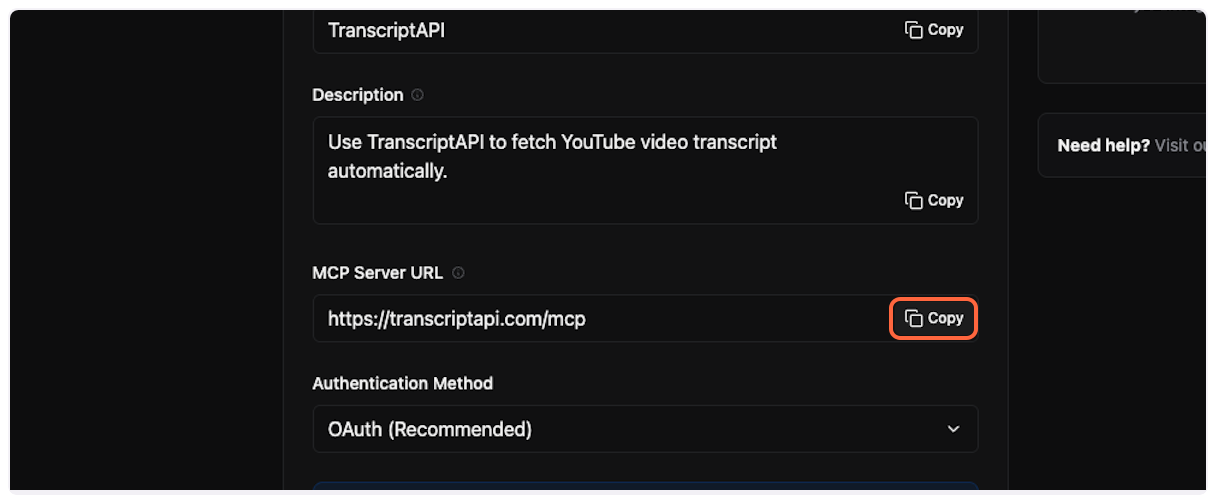
Paste it into the server URL field in ChatGPT.
-
Get your OAuth credentials
ChatGPT requires Client ID and Client Secret for OAuth authentication. On the TranscriptAPI MCP Integration page, make sure “OAuth (Recommended)” is selected in the Authentication Method dropdown.
If you don’t have credentials yet, click “Generate Credentials” to create your Client ID and Client Secret.
Copy both the Client ID and Client Secret from the TranscriptAPI dashboard. You’ll need these in the next step.
-
Add Client ID and Client Secret to ChatGPT
Back in ChatGPT, paste your Client ID into the Client ID field and your Client Secret into the Client Secret field.
-
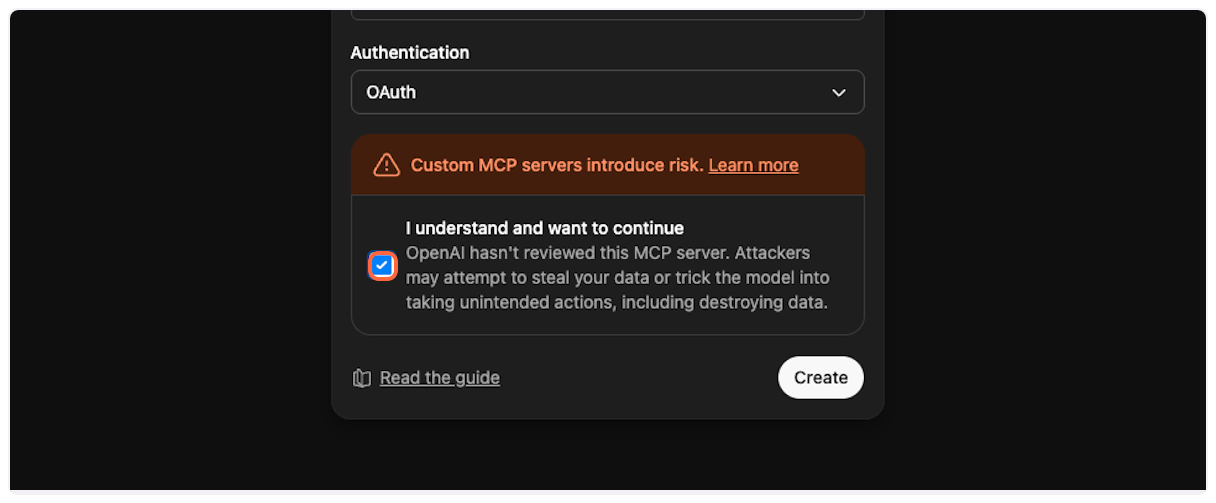
Acknowledge the terms
Check the box that says “I understand and want to continue…” to acknowledge that you’re connecting to an external service.
-
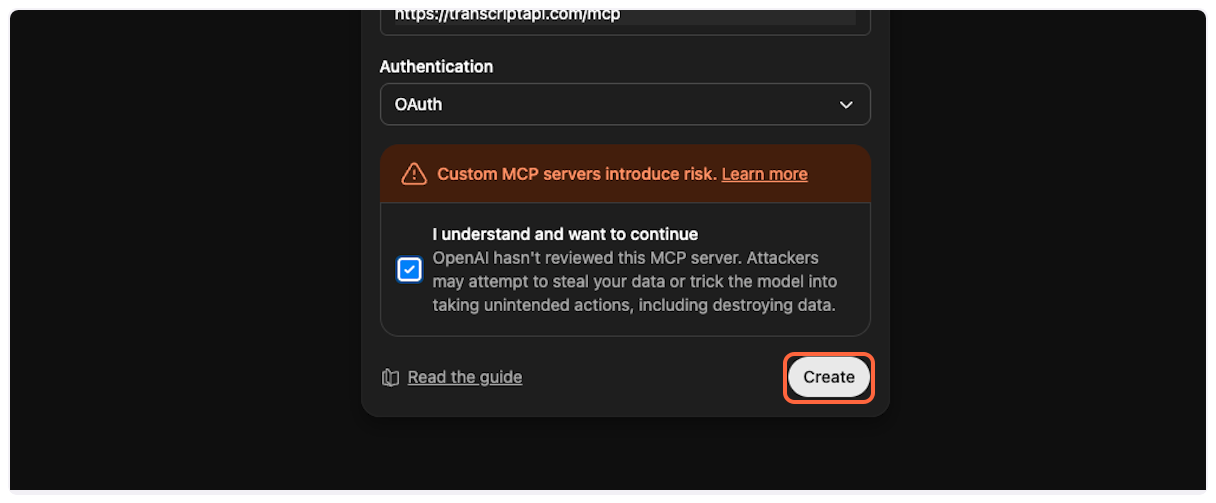
Create the connector
Click “Create” to add the TranscriptAPI connector to your ChatGPT account.
Part 3: Authorize Connection
Section titled “Part 3: Authorize Connection”After creating the connector, you’ll need to authorize it to access your TranscriptAPI account.
-
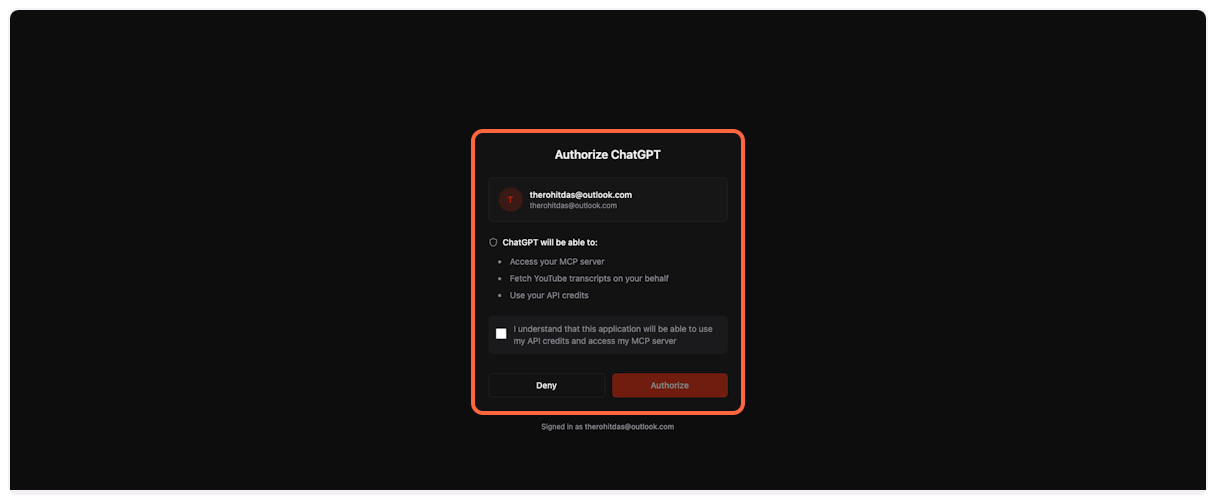
TranscriptAPI authorization page
You’ll be redirected to TranscriptAPI’s authorization page. If you’re not already logged in, you’ll need to sign in first.
-
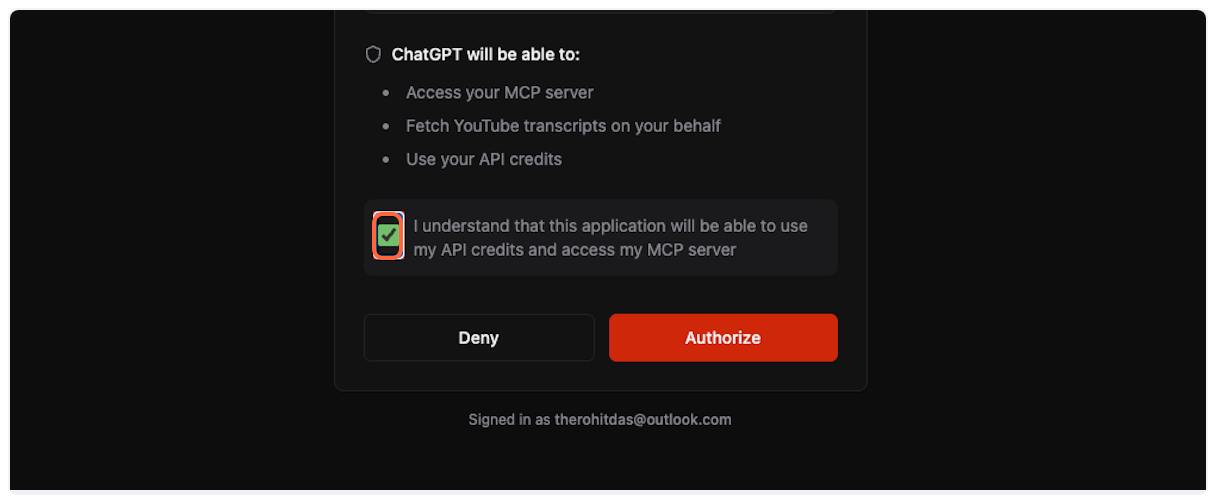
Review permissions
Check the box to acknowledge that ChatGPT will be able to use your API credits and access the MCP server.
-
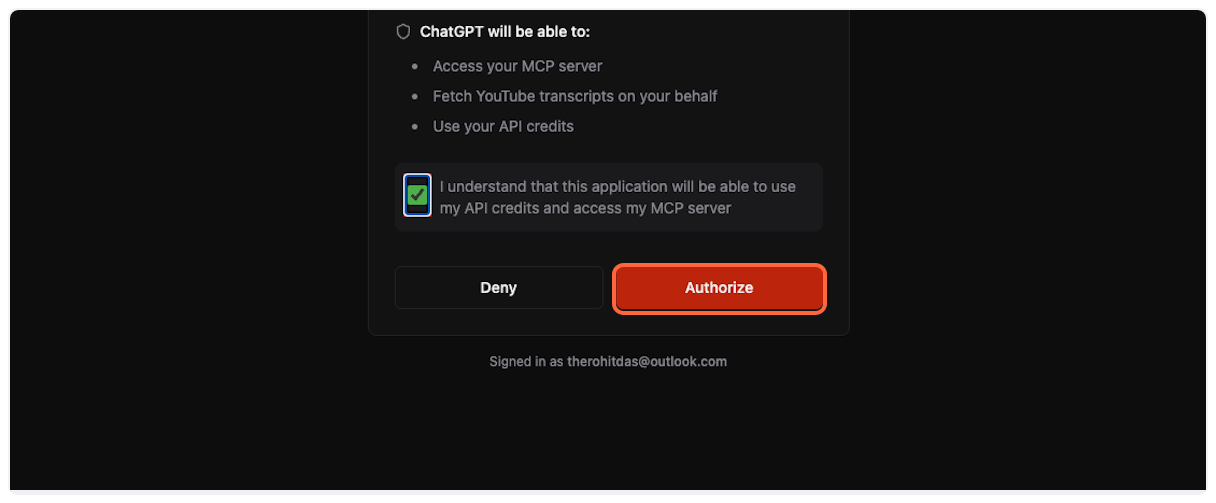
Complete authorization
Click “Authorize” to grant ChatGPT access to TranscriptAPI through OAuth.
-
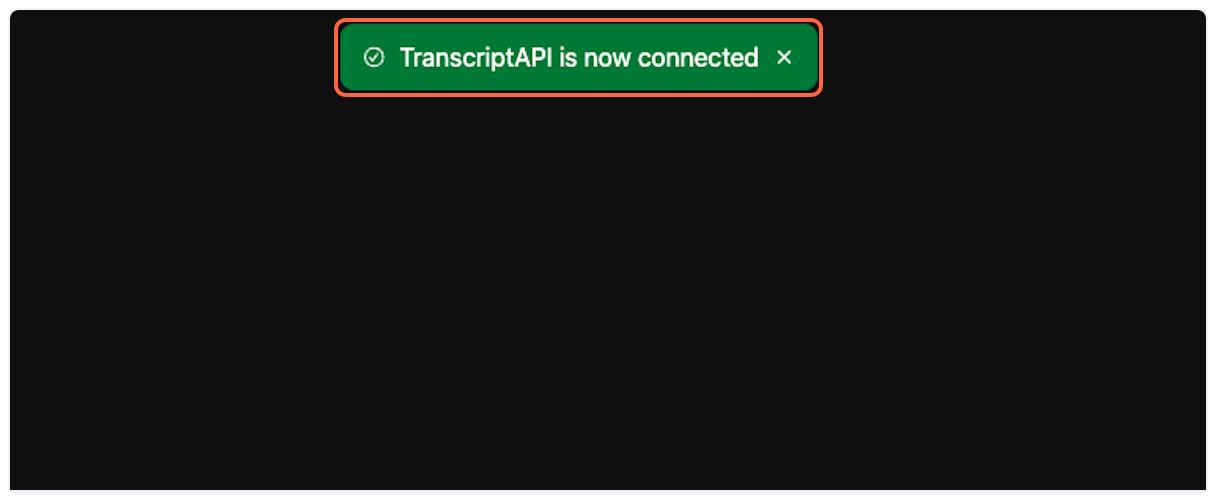
Connection successful
You’ll see a success message confirming that TranscriptAPI is now connected to your ChatGPT account.
Part 4: Using the YouTube Transcript MCP
Section titled “Part 4: Using the YouTube Transcript MCP”Now you’re ready to fetch YouTube transcripts directly in ChatGPT!
-
Access the MCP tool
In a new ChatGPT conversation, click the “Add files and more” button (paperclip icon).
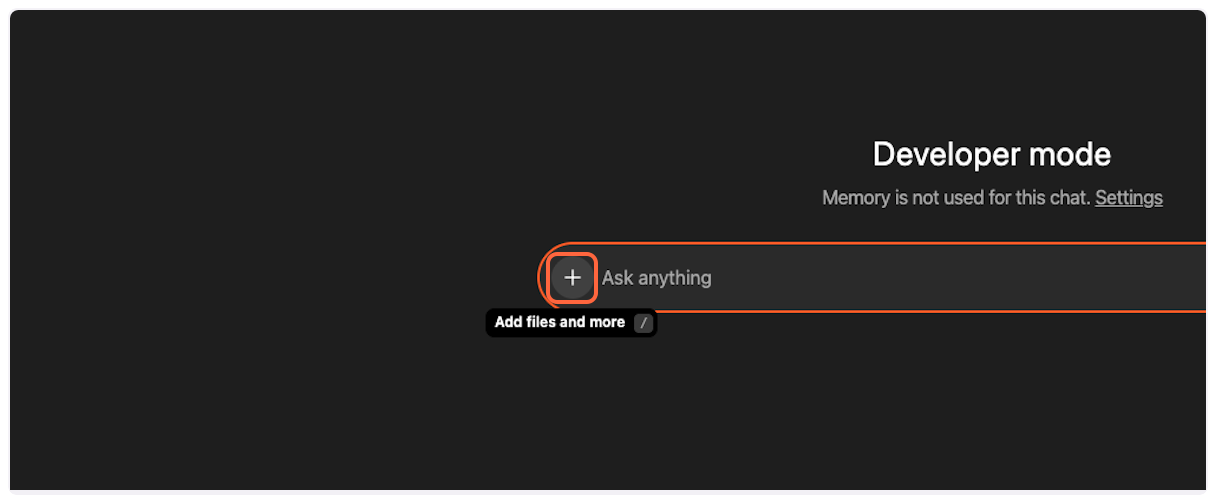
-
Open more options
Click “More” to see additional tool options.
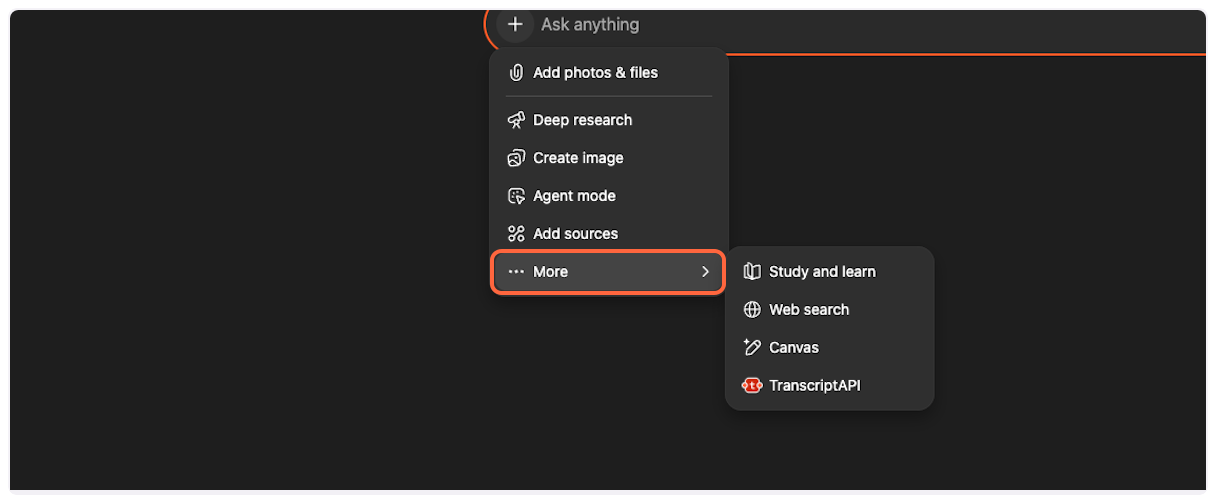
-
Select TranscriptAPI
Click on “TranscriptAPI” from the list of available tools.
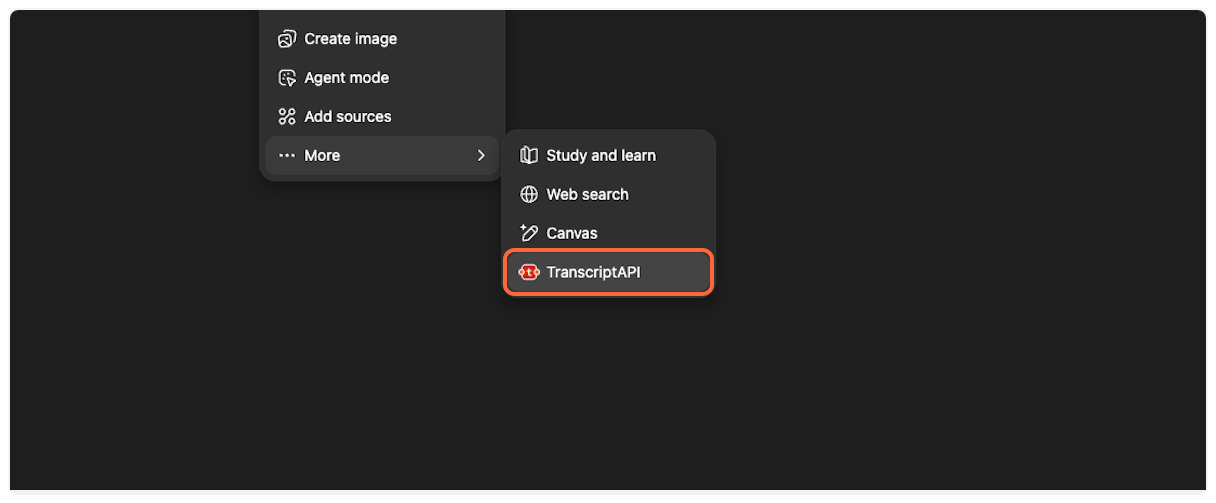
-
Start a new conversation
You’ll see the TranscriptAPI tool is now active in your conversation. The interface may show “ChatGPT 5” or similar version indicator.
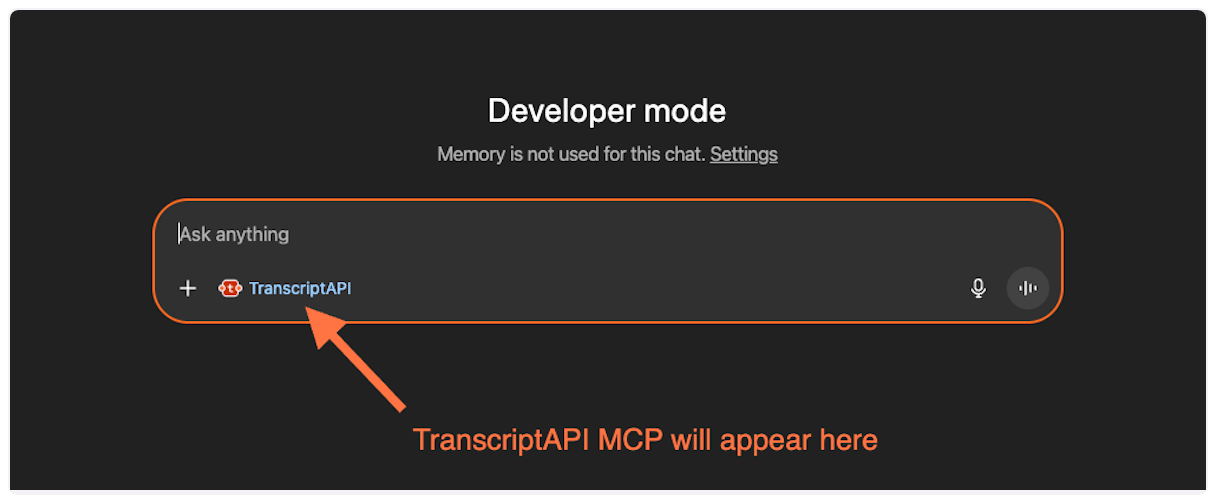
-
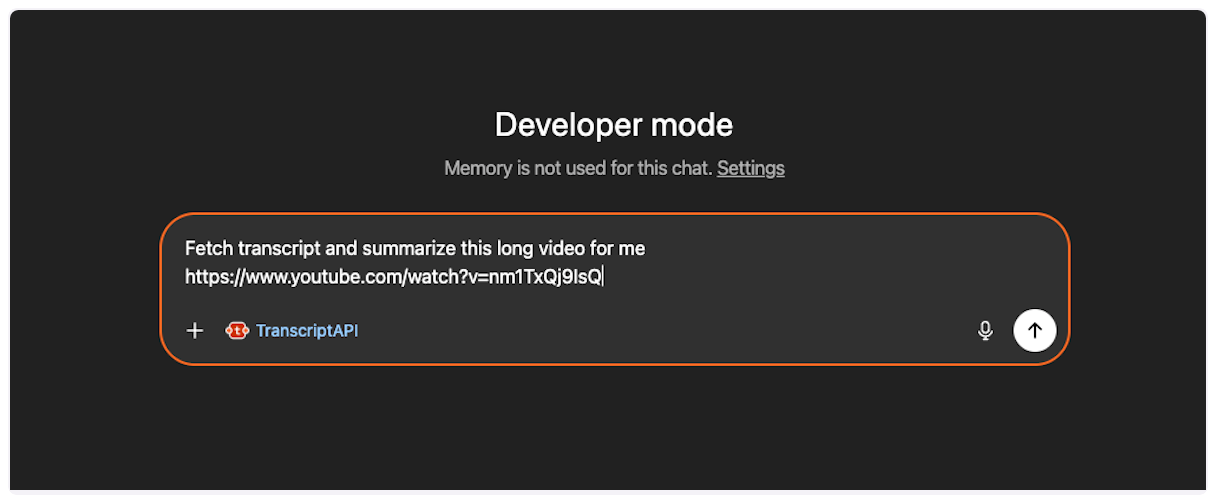
Request a transcript
Paste a prompt like: “Fetch transcript and summarize this long video for me https://www.youtube.com/watch?v=VIDEO_ID”
-
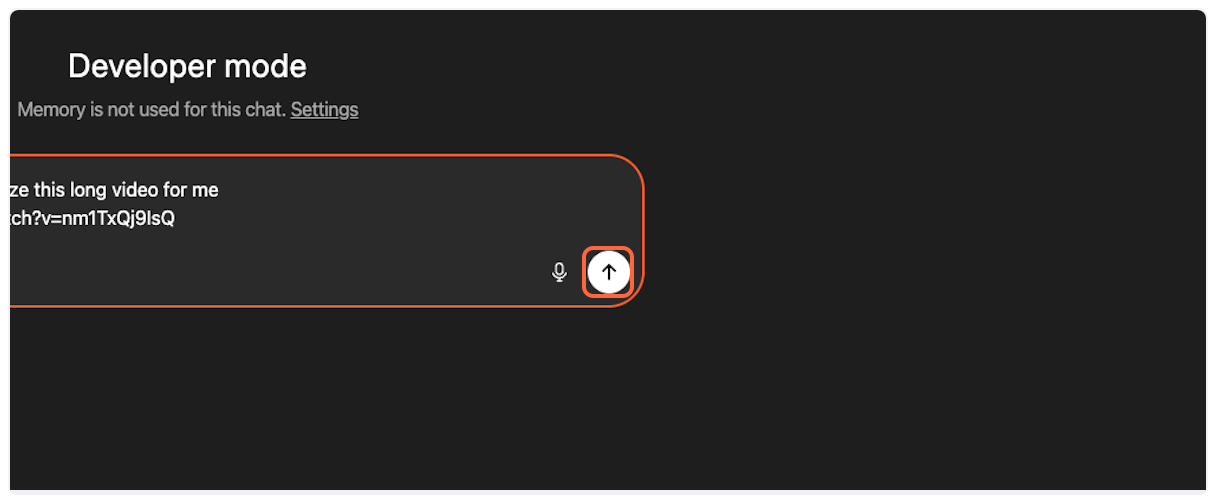
Send your request
Click the send button to submit your transcript request.
-
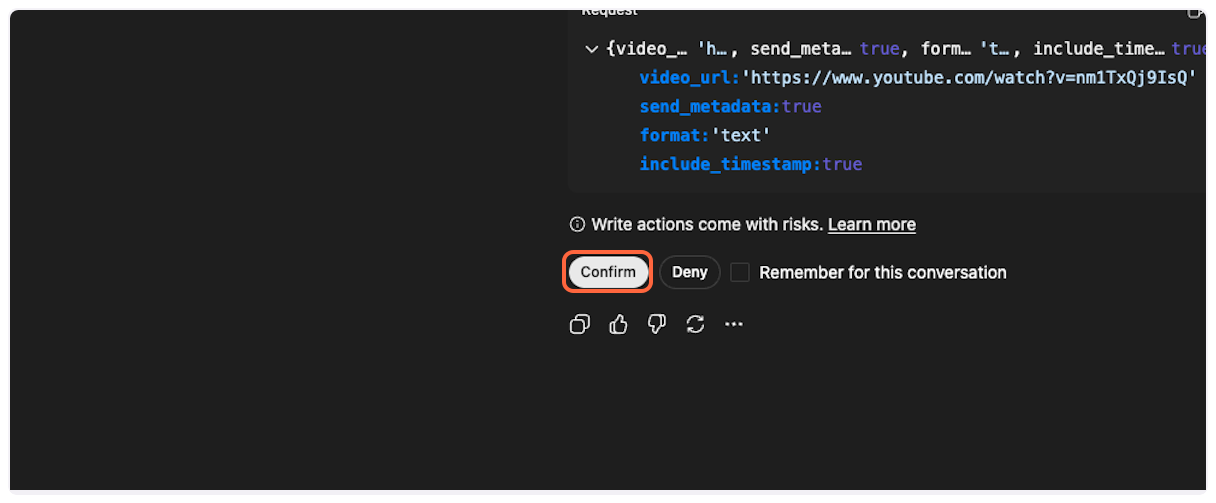
Confirm tool usage
ChatGPT will ask you to confirm the use of the TranscriptAPI tool. Click “Confirm” to proceed.
-
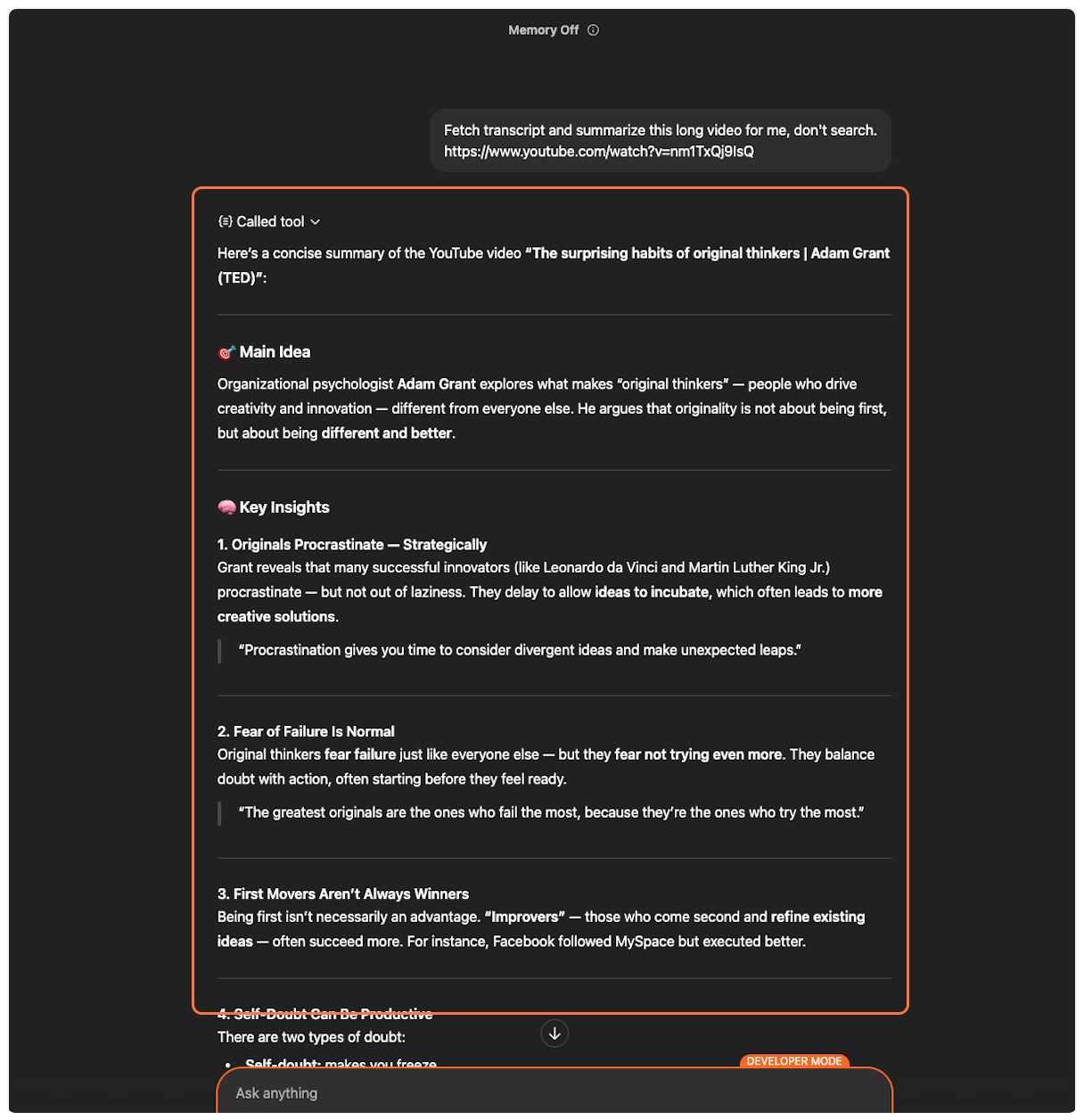
Success! Transcript fetched
The MCP will successfully fetch the YouTube transcript, and ChatGPT will process it according to your request (summarize, analyze, translate, etc.).
Example Prompts
Section titled “Example Prompts”Here are some effective ways to use TranscriptAPI in ChatGPT:
Summarize a Video
Section titled “Summarize a Video”Fetch the transcript and summarize this TED talk for me:https://www.youtube.com/watch?v=UF8uR6Z6KLcTranslate a Transcript
Section titled “Translate a Transcript”Get the transcript from this video and translate it to Spanish:https://www.youtube.com/watch?v=UF8uR6Z6KLcSearch YouTube
Section titled “Search YouTube”Search YouTube for "quantum computing explained" andtell me what the top results cover.Browse a Channel
Section titled “Browse a Channel”Show me the latest videos from @natgeo and summarizethe 3 most recent ones.Search Within a Channel
Section titled “Search Within a Channel”Search @TED for videos about education. List what you find.Process a Playlist
Section titled “Process a Playlist”List the videos in this playlist:https://www.youtube.com/playlist?list=PLOGi5-fAu8bFIs_Lbp-MNwPKpPjBJGUzr
Get the transcript for the first video and create study notes.How this compares to other ways to get YouTube transcripts
Section titled “How this compares to other ways to get YouTube transcripts”The MCP connector is one of several ways to get transcript text out of YouTube. Here’s an honest comparison:
| Approach | What it is | Strengths | Trade-offs |
|---|---|---|---|
| TranscriptAPI MCP connector | A hosted YouTube transcript API exposed to ChatGPT as an MCP tool | Nothing to install or host; OAuth-based setup (this guide); same infrastructure as TranscriptAPI’s REST API (49ms median response time, 15M+ transcripts/month); also adds search, channel, and playlist tools | Requires a TranscriptAPI account and credits after the free tier; requires ChatGPT Plus or Team for Developer Mode (currently beta) |
youtube-transcript-api (Python) | A free, open-source Python package that reads YouTube’s own caption tracks | No signup or API key; quick to try locally; works without a headless browser | Runs on your own servers, so it inherits YouTube’s cloud-IP blocking; Python-only; no channel, playlist, or search endpoints; no built-in MCP support — connecting it to ChatGPT means writing and hosting your own MCP wrapper |
| DIY yt-dlp scraping | A free, open-source command-line tool for downloading YouTube video/audio, which can also save caption files | Extremely flexible; large, active community; not limited to transcripts | Not an API or an MCP connector — output is subtitle files (VTT/SRT) you parse yourself; same YouTube anti-scraping exposure as any direct-scraping approach; you own the hosting, scheduling, and keeping it updated as YouTube changes |
| Generic web-scraping APIs / actor platforms | General-purpose scraping infrastructure (e.g., actor-based platforms) pointed at YouTube pages | Flexible for one-off jobs and mixed data beyond transcripts (comments, page metadata) | Not transcript-specialized — pricing, latency, and output schema vary by job/actor; typically no dedicated MCP surface for AI assistants; more setup than a purpose-built transcript API |
If you’re already using the Python youtube-transcript-api package and hitting IP blocks or parser errors, see the migration guide. For a broader look at hosted transcript API options, see Best YouTube Transcript APIs Compared.
Troubleshooting
Section titled “Troubleshooting”Common ChatGPT Beta Issues
Section titled “Common ChatGPT Beta Issues”“Unable to fetch transcript” (but it actually worked)
Section titled ““Unable to fetch transcript” (but it actually worked)”Symptom: ChatGPT says it couldn’t fetch the transcript, but if you ask again, it has the content.
Solution: This happens when ChatGPT runs a parallel search that overrides the MCP response. Simply ask ChatGPT to use the transcript it already fetched.
”MCP tool cannot be called” errors
Section titled “”MCP tool cannot be called” errors”Symptom: Random errors about the MCP tool being unavailable.
Solution:
- Go back to Apps & Connectors in settings
- Click on the TranscriptAPI connector
- Select “Refresh tools” or “Reauthorize”
- Try your request again
Connection timeout or slow responses
Section titled “Connection timeout or slow responses”Symptom: The tool takes a long time or times out.
Solution:
- For very long videos (>2 hours), the transcript fetch may take longer
- Try again with a shorter video first to test the connection
- Check your TranscriptAPI credit balance
TranscriptAPI-Specific Issues
Section titled “TranscriptAPI-Specific Issues”No credits remaining
Section titled “No credits remaining”Symptom: Error message about payment required or no credits.
Solution: Purchase more credits in your TranscriptAPI dashboard.
Video has no transcript available
Section titled “Video has no transcript available”Symptom: 404 error or “transcript not available” message.
Solution: The video may:
- Not have captions enabled
- Be private or age-restricted
- Be deleted or unavailable in your region
Need More Help?
Section titled “Need More Help?”If you continue experiencing issues:
- For ChatGPT beta issues: Consider using Claude for a more stable MCP experience
- For TranscriptAPI issues: Contact support with your specific error message
- For general MCP questions: See our MCP documentation
Next Steps
Section titled “Next Steps”Now that you’ve successfully connected TranscriptAPI to ChatGPT, explore these resources:
- Learn about MCP authentication options for different platforms
- Discover all available MCP parameters for advanced usage
- Check your credit usage and limits
- Try TranscriptAPI with other AI platforms
Frequently Asked Questions
Section titled “Frequently Asked Questions”Do I need to install anything to use TranscriptAPI in ChatGPT?
No. The MCP connector runs on TranscriptAPI’s servers — you only add the connector URL and authorize it in ChatGPT’s settings (see Part 2 and Part 3 above). No local libraries, scrapers, or servers to run.
Is a “YouTube captions API” the same thing as a transcript API?
The terms are often used interchangeably. TranscriptAPI’s MCP connector returns the same underlying caption data (manual or auto-generated) as TranscriptAPI’s REST API. See captions vs. transcripts vs. subtitles for the terminology breakdown.
Can I use the same TranscriptAPI account for LLM apps outside ChatGPT?
Yes. The MCP connector and the REST API share the same account, credits, and rate limits, so you can also call TranscriptAPI directly from your own LLM app or agent. See giving AI agents access to YouTube data via MCP.
Do I need a paid ChatGPT plan?
Yes — ChatGPT’s Developer Mode, which is required to add custom MCP connectors, is currently available on ChatGPT Plus and Team plans only (see Prerequisites above).
Does the connector cost anything beyond my ChatGPT subscription?
TranscriptAPI is metered separately from ChatGPT: new accounts get 100 free credits, and paid plans start at $5/month. Fetching a transcript costs 1 credit; listing a channel’s latest videos is free. See MCP credit usage and rate limits for the full breakdown.