
Connect TranscriptAPI to Claude (Step-by-Step Guide 2025)
Learn how to connect TranscriptAPI’s YouTube Transcript MCP to Claude for a seamless, natural conversation experience with YouTube videos. This comprehensive guide walks you through setup and showcases Claude’s powerful multi-video analysis capabilities.
What You Can Do with Claude + TranscriptAPI
Section titled “What You Can Do with Claude + TranscriptAPI”Claude’s MCP integration with TranscriptAPI transforms how you interact with YouTube content. Unlike other platforms, Claude offers a truly natural experience where the YouTube Transcript MCP works seamlessly in the background.
Key Capabilities
Section titled “Key Capabilities”Natural Conversations: Simply paste YouTube links and chat naturally - no manual tool selection needed. Claude automatically fetches transcripts when it detects video URLs.
Multi-Video Analysis: Claude excels at working with multiple videos simultaneously. Compare perspectives across creators, identify patterns in video series, or synthesize information from entire playlists into comprehensive resources.
Seamless Integration: Once connected, TranscriptAPI works invisibly in the background. Just share video links and ask questions - Claude handles the rest.
Prerequisites
Section titled “Prerequisites”Before getting started, ensure you have:
- A Claude.ai account (Free or Pro)
- A TranscriptAPI account (sign up free)
- 10 minutes to complete the setup
Part 1: Add TranscriptAPI Connector
Section titled “Part 1: Add TranscriptAPI Connector”Let’s begin by adding TranscriptAPI as a custom connector in Claude.
-
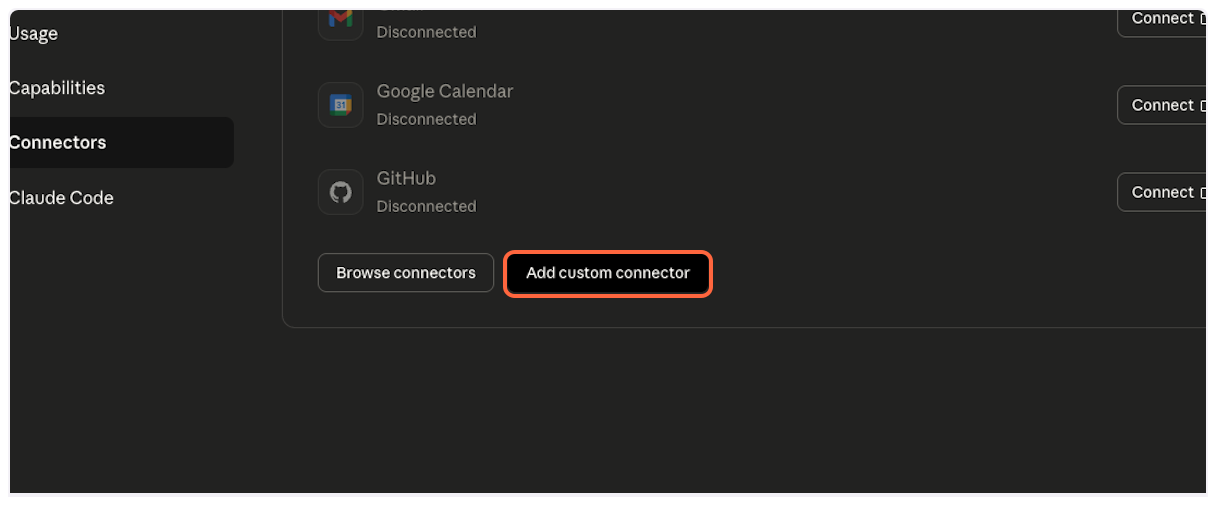
Open Claude Settings
Navigate to Claude.ai Settings and look for the “Add custom connector” option.
-
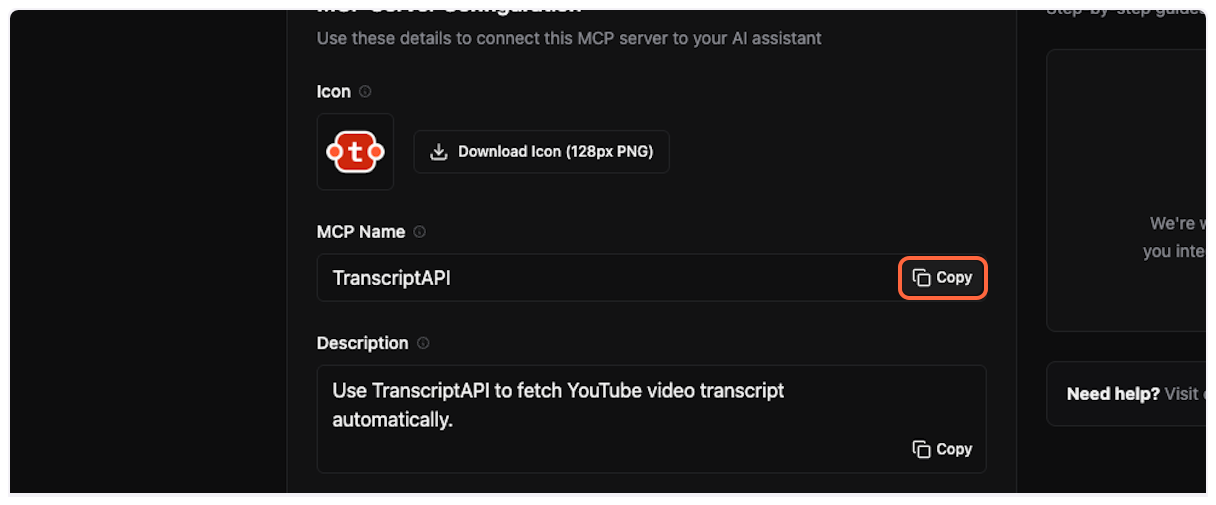
Get TranscriptAPI Configuration
Open the TranscriptAPI MCP Integration page in a new tab. You’ll need to copy the MCP name from here.
-
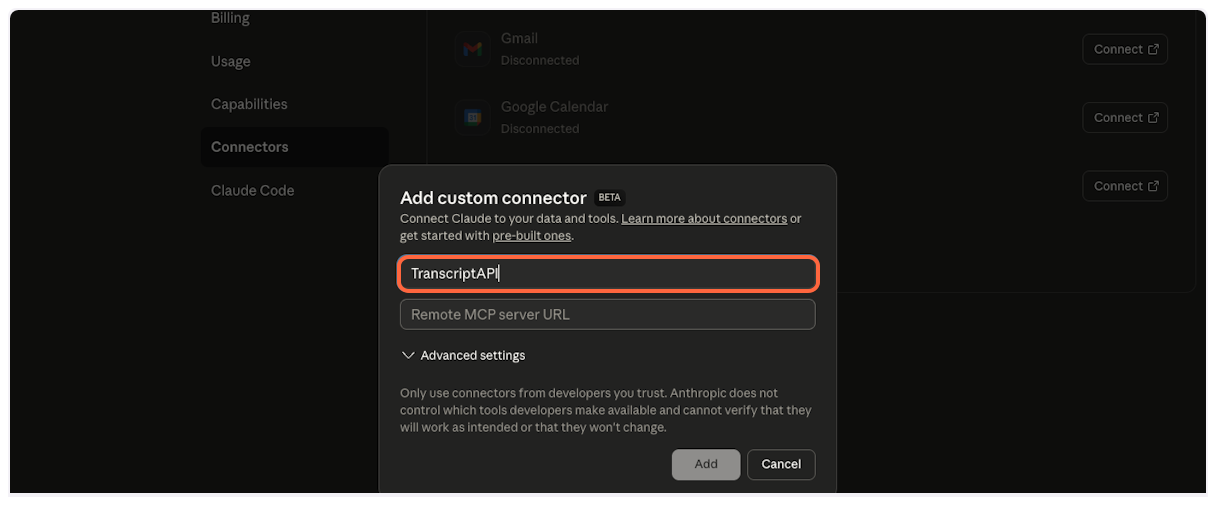
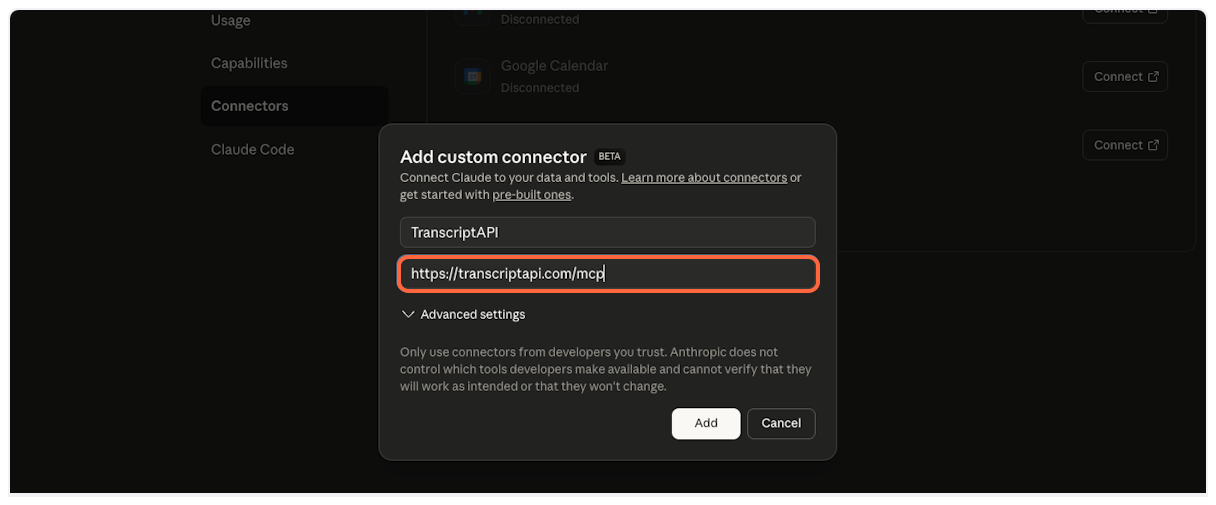
Enter Connector Name
Back in Claude, paste “TranscriptAPI” into the name field.
-
Copy MCP Server URL
This is the most important step. From the TranscriptAPI dashboard, copy the MCP Server URL. It should be
https://transcriptapi.com/mcp.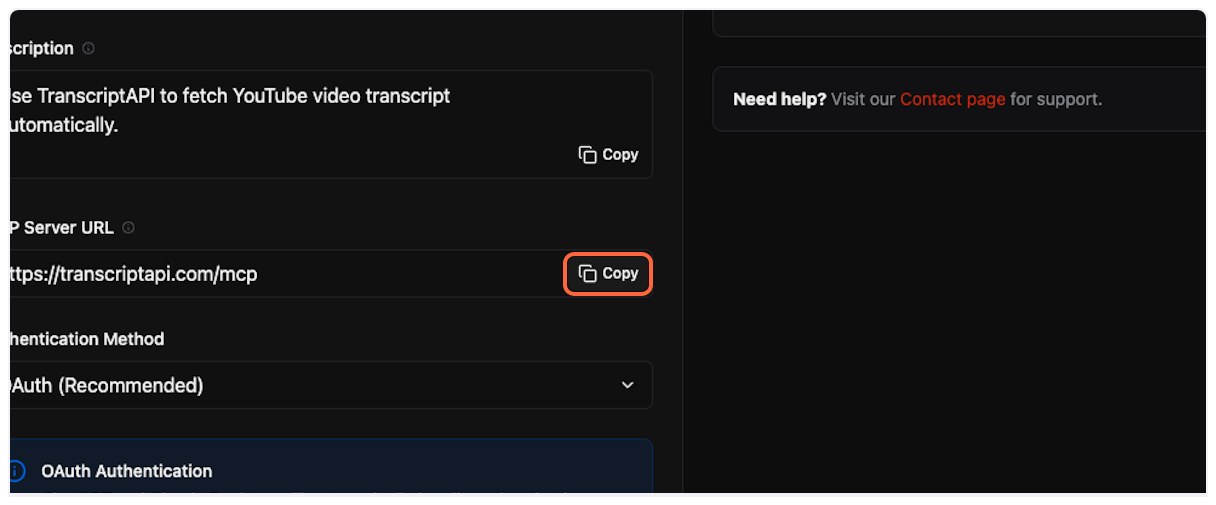
-
Paste Server URL
Paste the server URL into Claude’s configuration field.
-
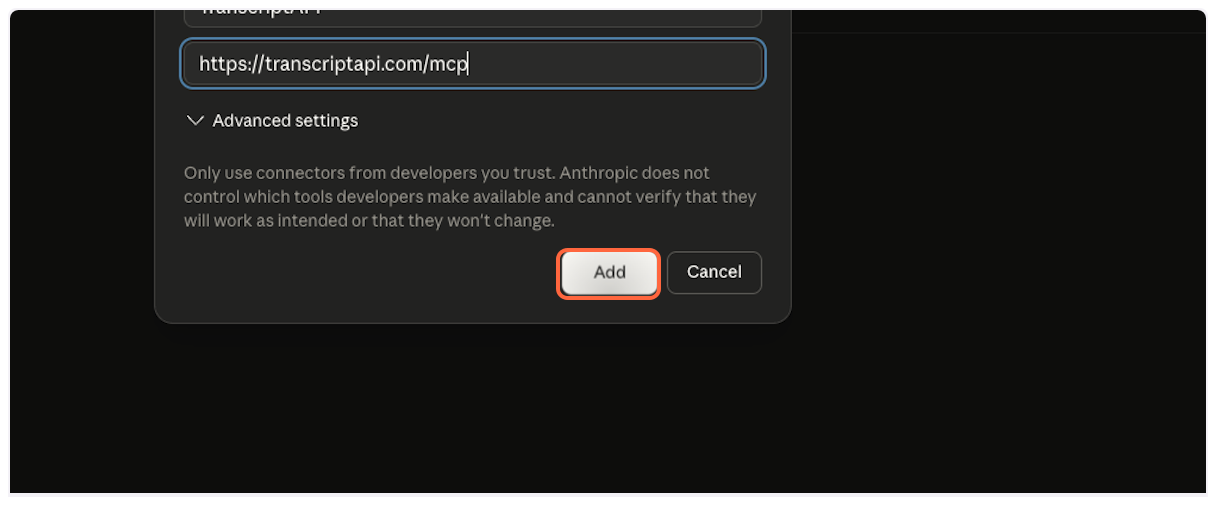
Add the Connector
Click “Add” to create the TranscriptAPI connector.
-
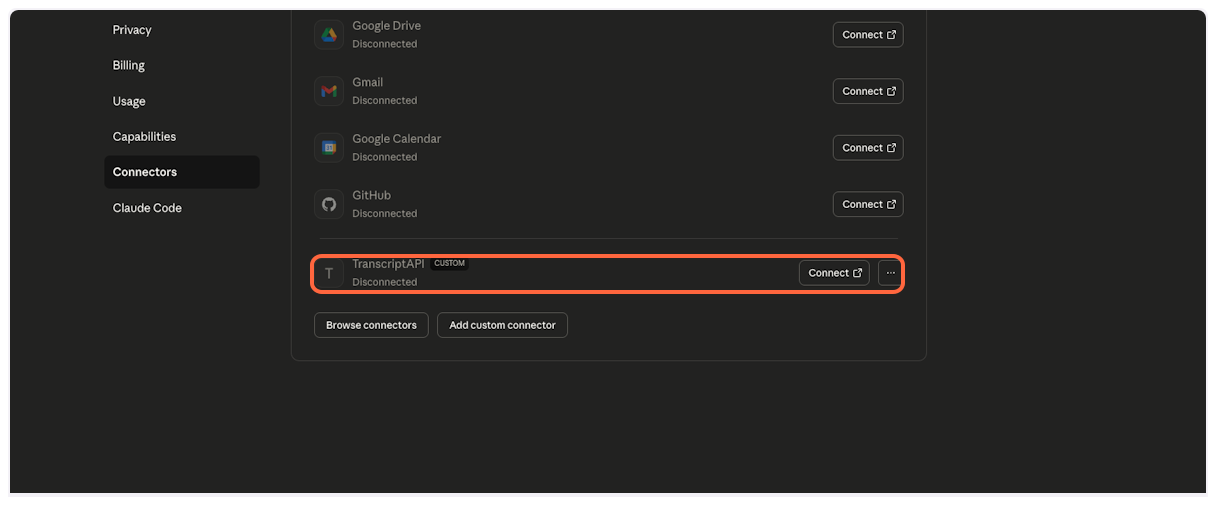
Verify Connector Added
TranscriptAPI will now appear in your list of connectors. You’ll need to configure and authorize it next.
-
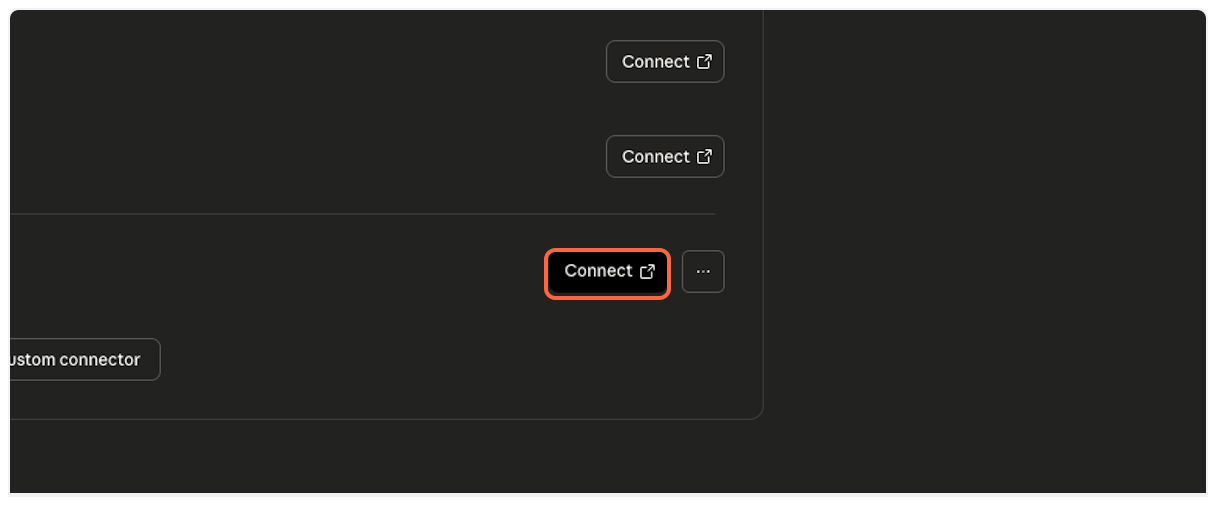
Connect to TranscriptAPI
Click “Connect” to begin the authorization process.
Part 2: Authorize Connection
Section titled “Part 2: Authorize Connection”Now you’ll authorize Claude to access your TranscriptAPI account.
-
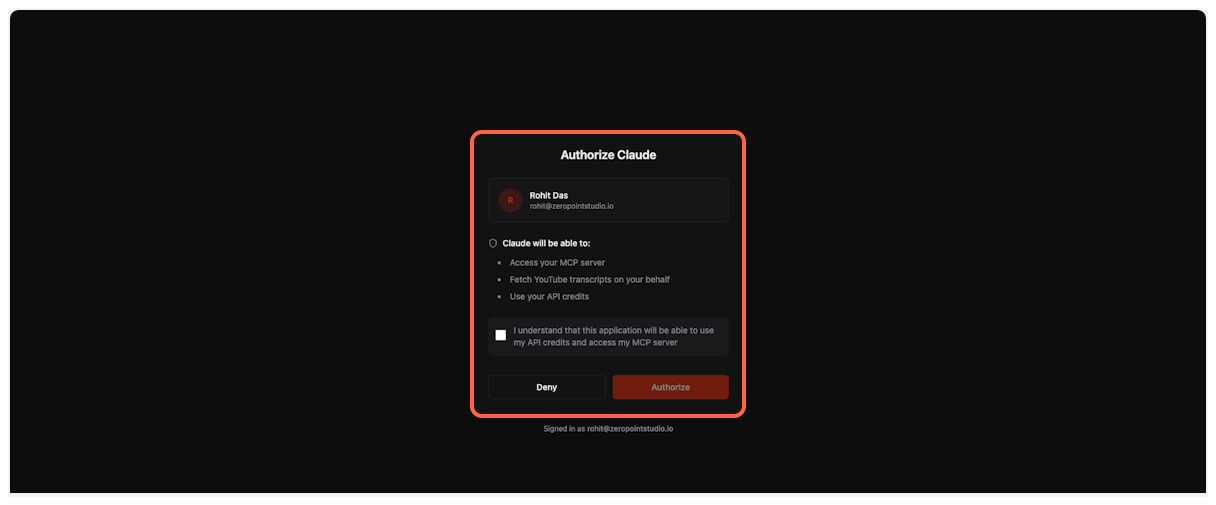
TranscriptAPI Authorization Page
You’ll be redirected to TranscriptAPI’s secure OAuth authorization page. If you’re not logged in, sign in to your TranscriptAPI account first.
-
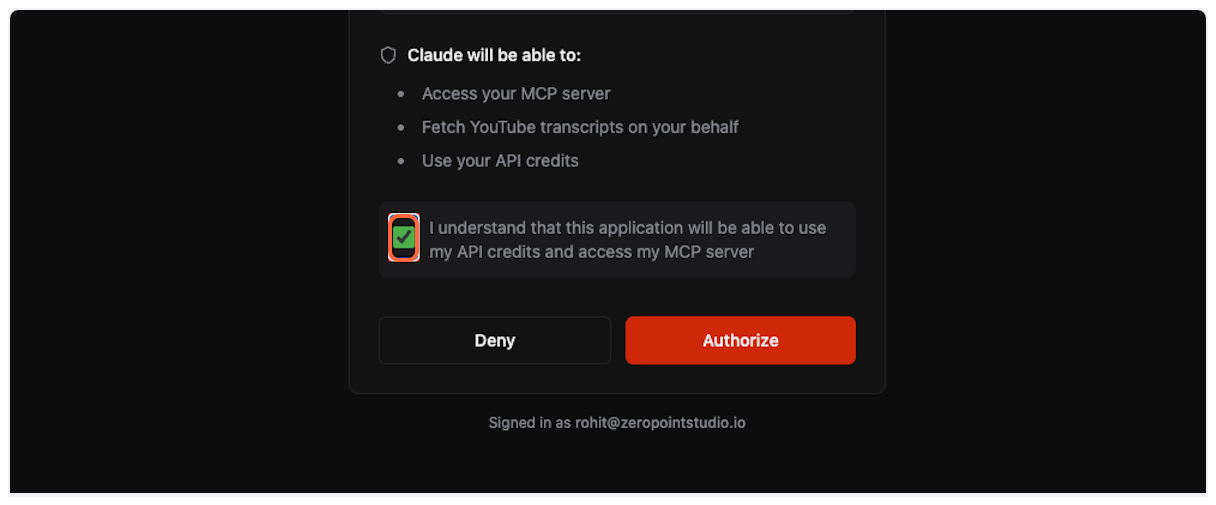
Acknowledge API Credit Usage
Check the box to confirm you understand that Claude will use your API credits when fetching transcripts.
-
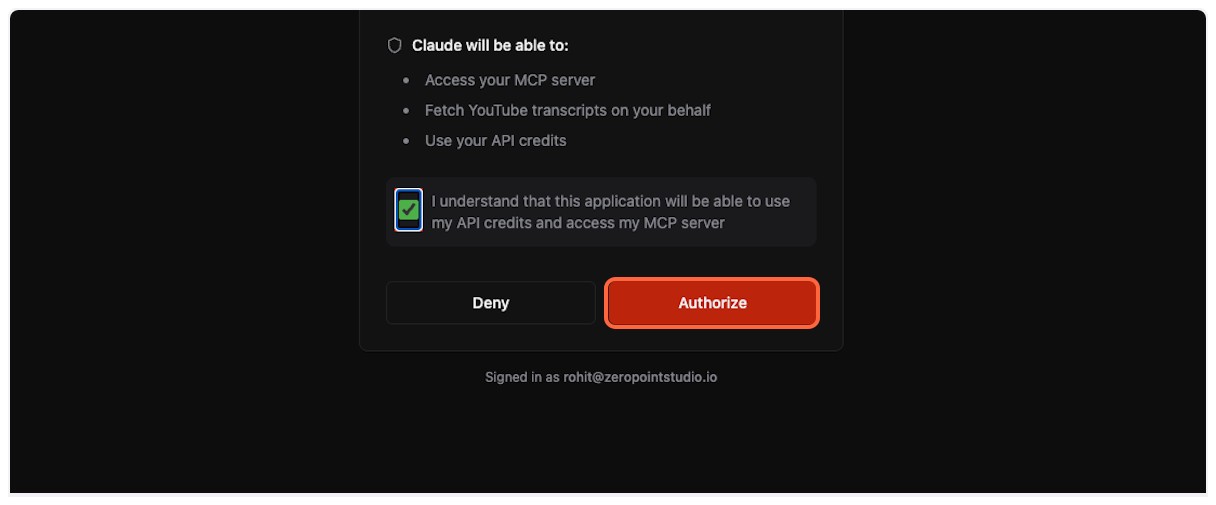
Complete Authorization
Click “Authorize” to grant Claude access to TranscriptAPI.
Part 3: Configure Permissions (Recommended)
Section titled “Part 3: Configure Permissions (Recommended)”For the best experience, configure TranscriptAPI to work without requiring approval for each use.
-
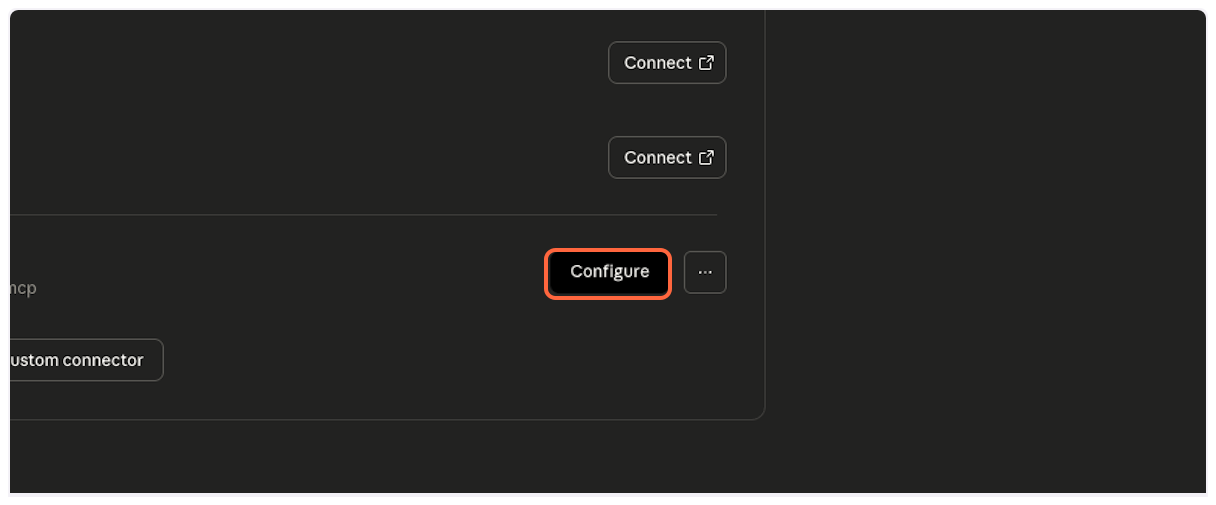
Open Configuration
After successful connection, click “Configure” to adjust permissions.
-
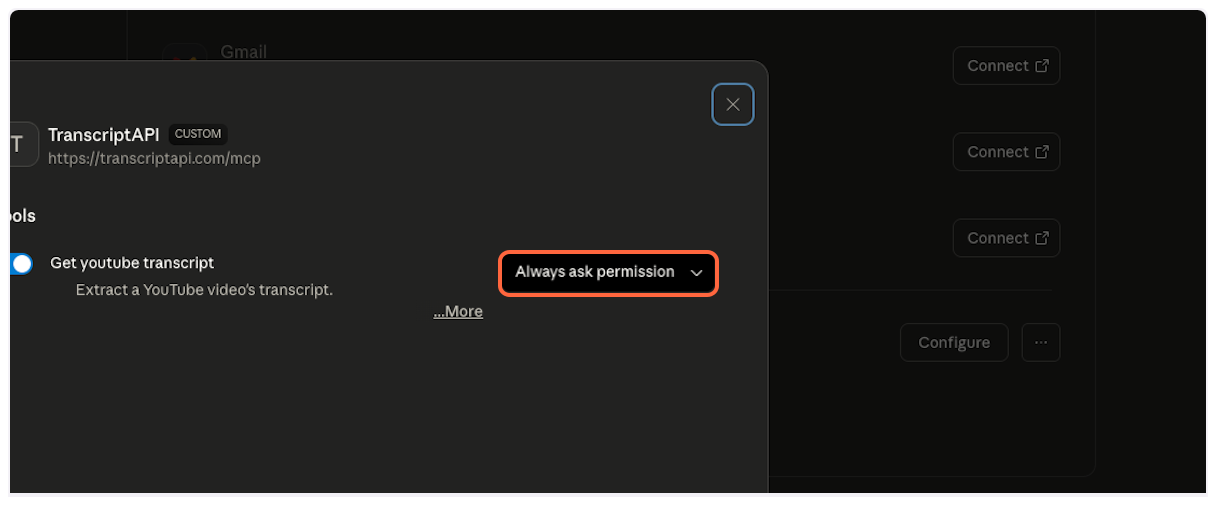
Access Permission Settings
Click on “Always ask permission” dropdown to see available options.
-
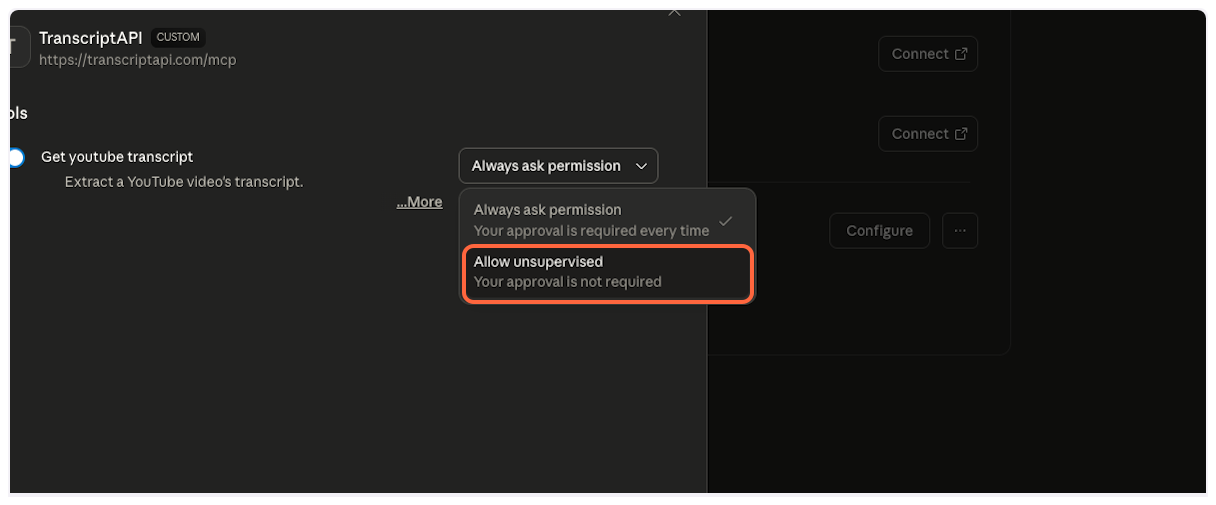
Enable Unsupervised Access
Select “Allow unsupervised…” to let Claude use TranscriptAPI automatically when needed. This provides the most seamless experience.
Part 4: Using the YouTube Transcript MCP
Section titled “Part 4: Using the YouTube Transcript MCP”With setup complete, you’re ready to start analyzing YouTube videos with Claude!
-
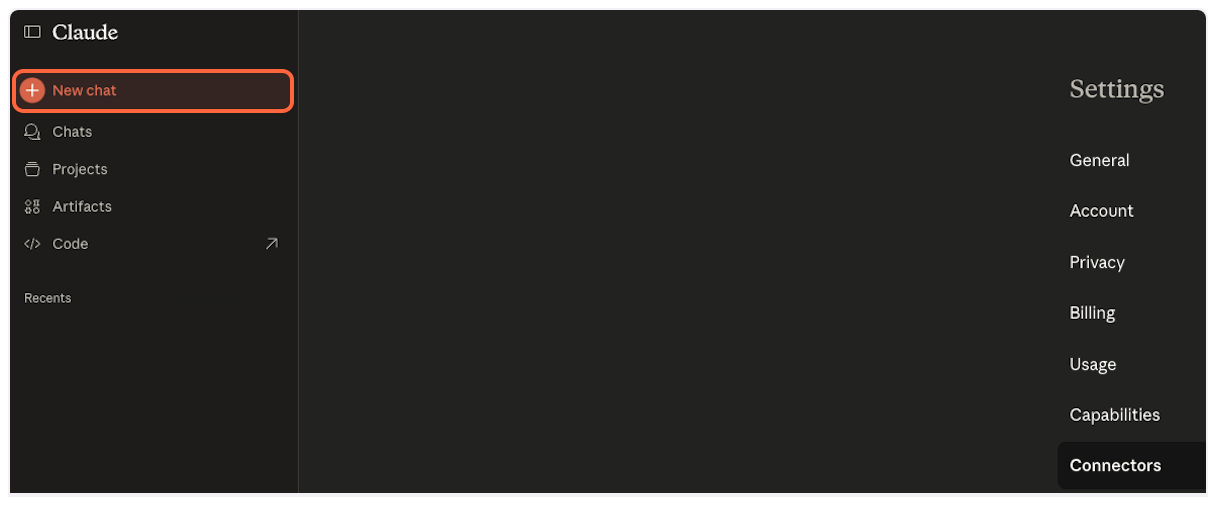
Start a New Chat
Click “New chat” to begin a fresh conversation.
-
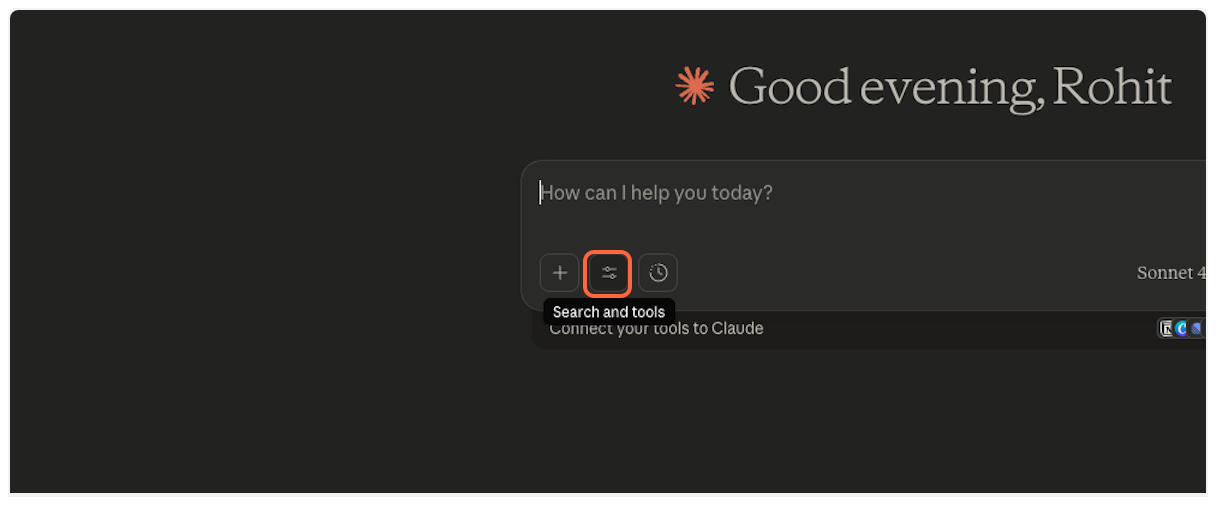
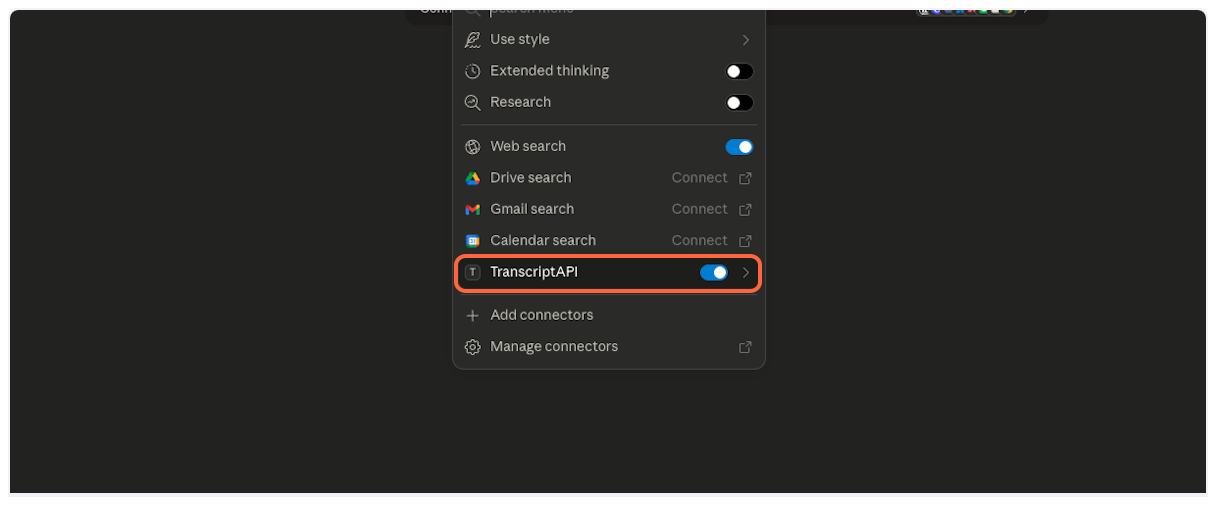
Open Tools Menu
Click the tools icon to verify TranscriptAPI is available.
-
Verify TranscriptAPI is Enabled
Confirm that TranscriptAPI appears in your available tools and is enabled.
-
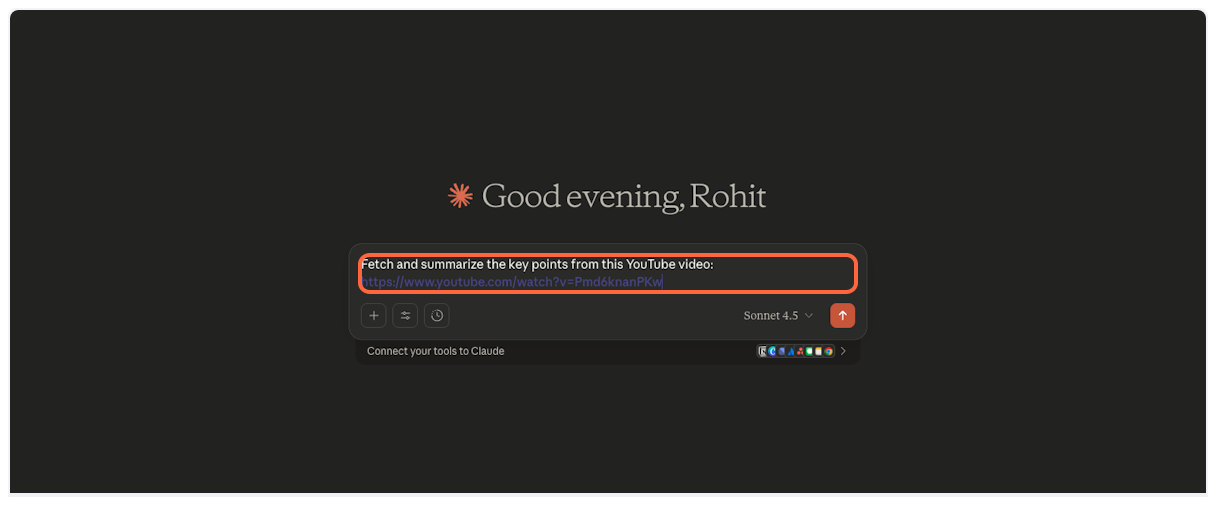
Share YouTube Videos Naturally
Simply paste YouTube URLs in your message. Claude will automatically detect them and fetch transcripts as needed.
-
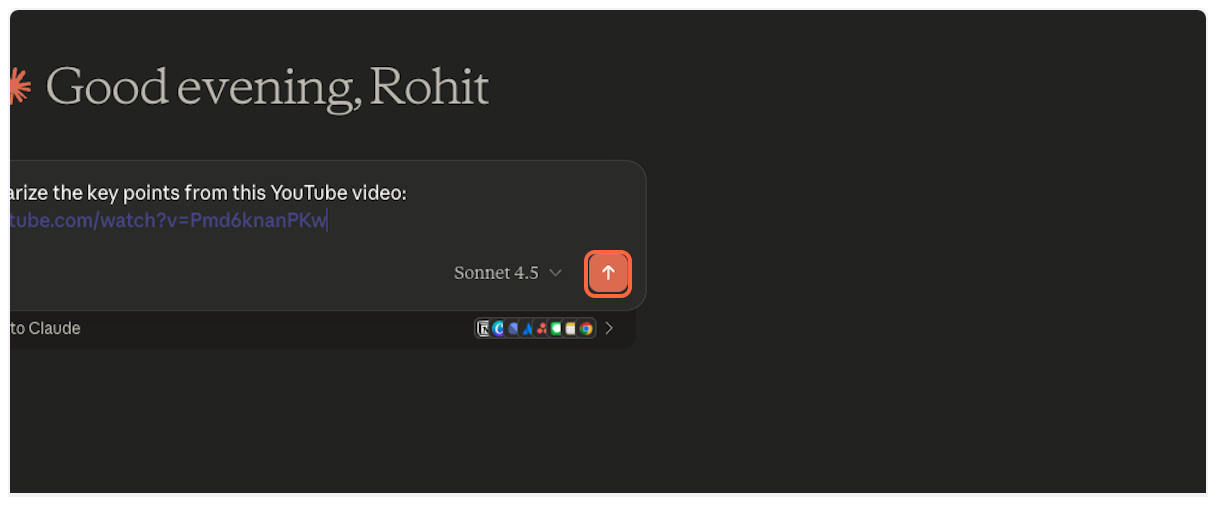
Send Your Request
Click send or press Enter to submit your message.
-
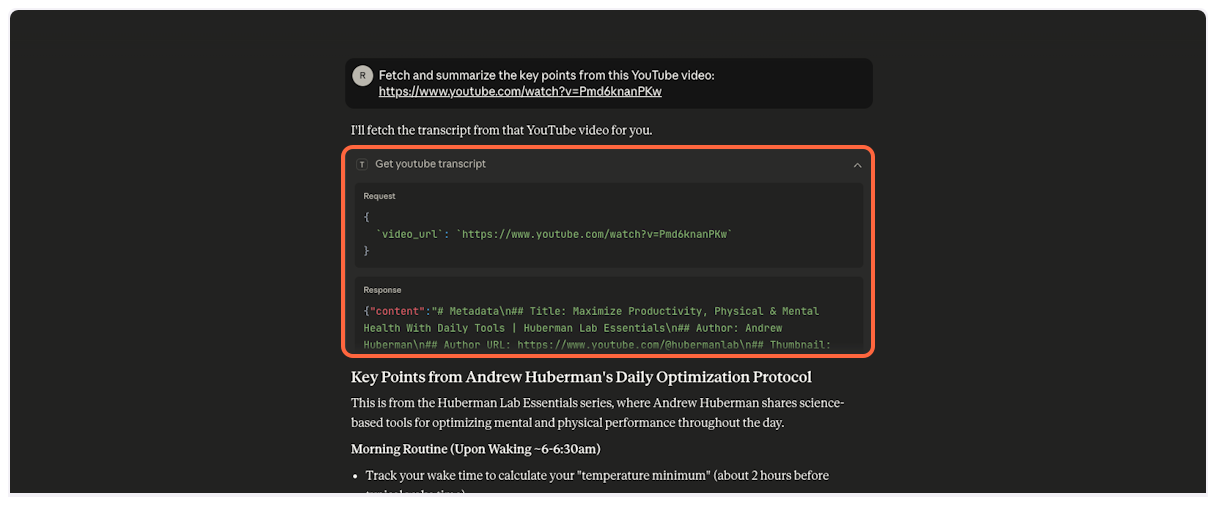
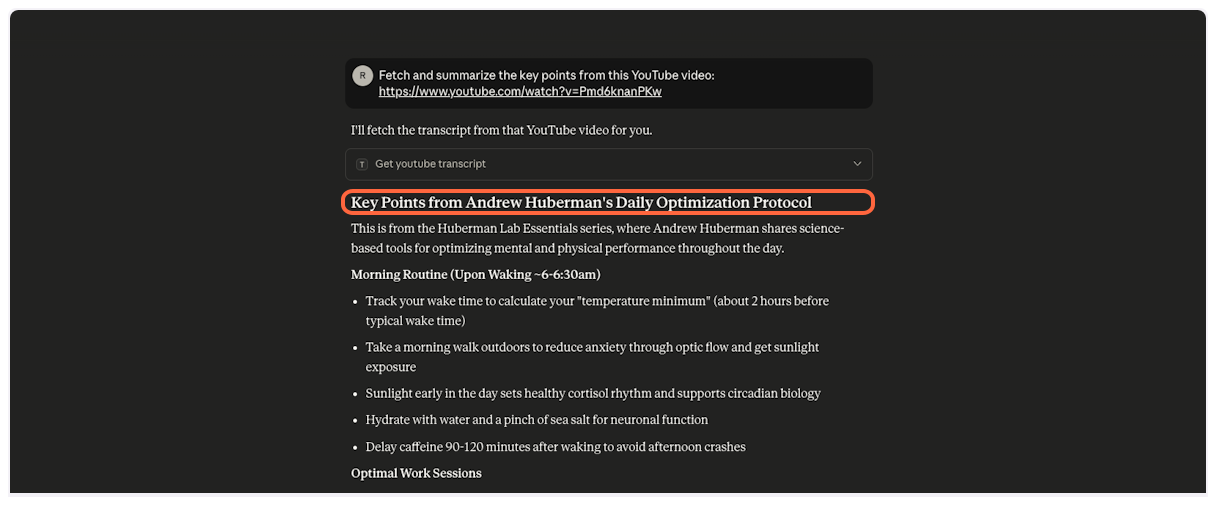
Claude Fetches Transcript Automatically
Watch as Claude seamlessly calls the TranscriptAPI tool to retrieve the video transcript.
-
Success! Natural Conversation Begins
Claude now has the full transcript and can engage in detailed discussion about the video content. No manual tool selection required!
Example Prompts & Best Practices
Section titled “Example Prompts & Best Practices”Master Claude’s YouTube transcript capabilities with these proven approaches:
Single Video Analysis
Section titled “Single Video Analysis”Be specific about what insights you need.
Summarize the key points from this TED talk and listthe 3 most actionable takeaways:https://www.youtube.com/watch?v=UF8uR6Z6KLcMulti-Video Comparison
Section titled “Multi-Video Comparison”Claude can handle multiple videos in one request. Paste all URLs together for efficient analysis.
Compare how these two channels explain black holes andtell me which is better for a beginner:https://www.youtube.com/watch?v=e-P5IFTqB98https://www.youtube.com/watch?v=QqsLTNkzvaYSearch & Discover
Section titled “Search & Discover”Use YouTube search to find the best content on a topic, then go deeper.
Search YouTube for "climate change explained" and show methe top 5 results. Then get the transcript from the best oneand create a one-page summary.Channel Browse
Section titled “Channel Browse”Check a channel’s latest uploads for free, then selectively fetch transcripts.
Show me the latest videos from @NASA.Pick the most interesting one and summarize it for me.Channel Deep Dive
Section titled “Channel Deep Dive”Search within a specific channel’s library for a topic.
Search @TED for videos about artificial intelligence.Get transcripts for the top 3 and create a combinedsummary of TED's AI coverage.Playlist Analysis
Section titled “Playlist Analysis”List playlist contents, then selectively fetch transcripts for the most relevant videos.
List all videos in this playlist:https://www.youtube.com/playlist?list=PLOGi5-fAu8bFIs_Lbp-MNwPKpPjBJGUzr
Get transcripts for the first 3 and create study notes.
Advanced Tips
Section titled “Advanced Tips”Free Channel Checks: Browsing a channel’s latest videos costs no credits — use it to scout before spending credits on transcripts.
Batch Processing: Paste all URLs at once instead of one by one. Claude fetches multiple transcripts simultaneously.
Focused Questions: Instead of “summarize these videos,” try “identify the three main disagreements between these perspectives.”
Output Formats: Specify tables, bullet points, or narrative summaries. Claude adapts to your preferred format.
Long Videos: For videos over 2 hours, ask for analysis of specific sections rather than full summaries.
Troubleshooting
Section titled “Troubleshooting”Connection Issues
Section titled “Connection Issues””Failed to connect” error
Section titled “”Failed to connect” error”Solution:
- Ensure you’re logged into TranscriptAPI
- Check that the server URL is exactly
https://transcriptapi.com/mcp - Try removing and re-adding the connector
”Unauthorized” error
Section titled “”Unauthorized” error”Solution:
- Verify your TranscriptAPI account is active
- Re-authorize the connection in Claude settings
- Check your API credit balance
Usage Issues
Section titled “Usage Issues”Claude doesn’t fetch transcripts automatically
Section titled “Claude doesn’t fetch transcripts automatically”Solution:
- Verify TranscriptAPI is enabled in the tools menu
- Ensure you’ve set permissions to “Allow unsupervised”
- Try explicitly asking Claude to “fetch the transcript"
"No transcript available” for a video
Section titled “"No transcript available” for a video”Solution: The video may:
- Not have captions enabled
- Be private or age-restricted
- Be region-locked
- Have disabled embedding
Performance Tips
Section titled “Performance Tips”For long videos (>2 hours)
Section titled “For long videos (>2 hours)”- Transcript fetching may take 10-30 seconds
- Consider asking for specific sections first
- Claude handles long transcripts well once fetched
For multiple videos
Section titled “For multiple videos”- Claude can fetch up to 10 transcripts efficiently
- For larger batches, consider grouping by topic
- Use specific questions to focus the analysis
Next Steps
Section titled “Next Steps”Now that you’ve connected TranscriptAPI to Claude, explore these powerful capabilities:
- Multi-Video Projects: Create comprehensive resources by analyzing entire playlists or channels
- Research & Analysis: Compare different perspectives on topics across multiple creators
- Content Creation: Generate summaries, study guides, or articles from video content
- Learning Enhancement: Transform video courses into personalized study materials