
Connect TranscriptAPI to OpenAI Agent Builder
Learn how to integrate TranscriptAPI’s YouTube Transcript MCP with OpenAI Agent Builder to fetch YouTube video transcripts directly in your AI agent workflows. This guide provides step-by-step instructions with screenshots.
What is OpenAI Agent Builder?
Section titled “What is OpenAI Agent Builder?”OpenAI Agent Builder is a visual, no-code platform for creating and deploying AI agents with complex workflows. It features a drag-and-drop interface that lets you connect various tools and services without writing code. The platform’s Model Context Protocol (MCP) support makes it ideal for integrating external services like TranscriptAPI.
Prerequisites
Section titled “Prerequisites”Before starting, ensure you have:
- An OpenAI account with access to Agent Builder (available with API access)
- A TranscriptAPI account (sign up free)
- An active TranscriptAPI API key from your dashboard
- A YouTube video URL to test with
Part 1: Create Your Agent Workflow
Section titled “Part 1: Create Your Agent Workflow”Let’s start by creating a new workflow in OpenAI Agent Builder.
-
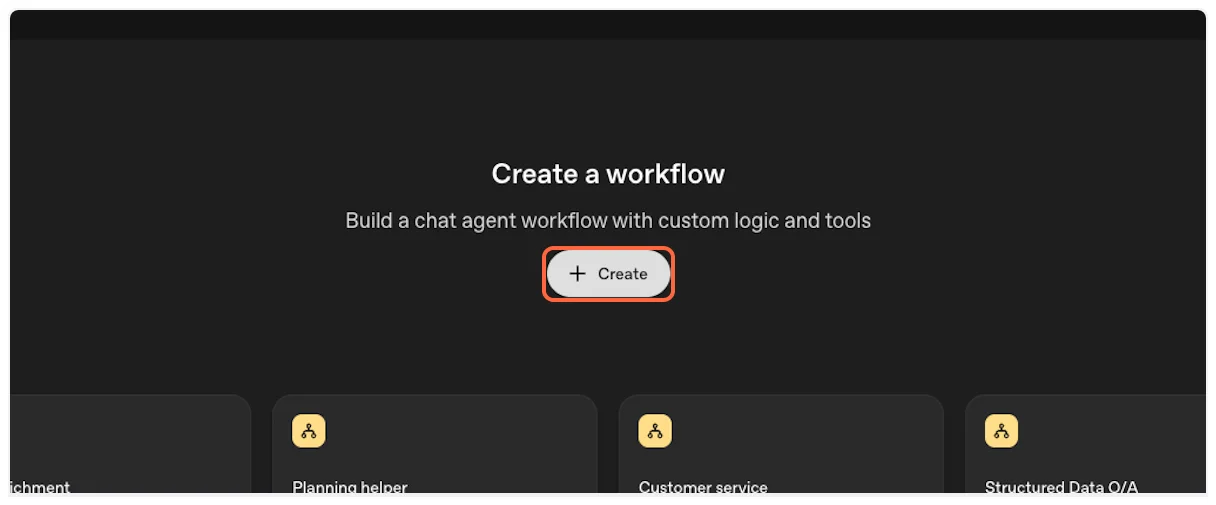
Access OpenAI Agent Builder
Navigate to the OpenAI Agent Builder platform and sign in with your OpenAI credentials.
-
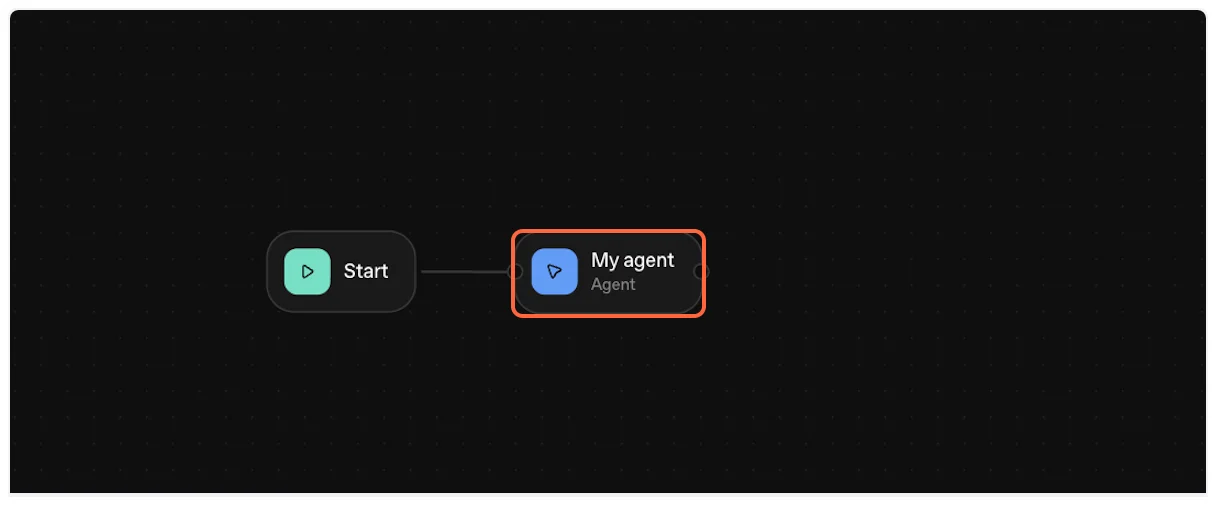
Configure the Agent Node
Click on the default Agent node that appears in your workflow canvas. This is where you’ll add the TranscriptAPI MCP integration.
Part 2: Add TranscriptAPI MCP Server
Section titled “Part 2: Add TranscriptAPI MCP Server”Now we’ll add the TranscriptAPI MCP server to your agent.
-
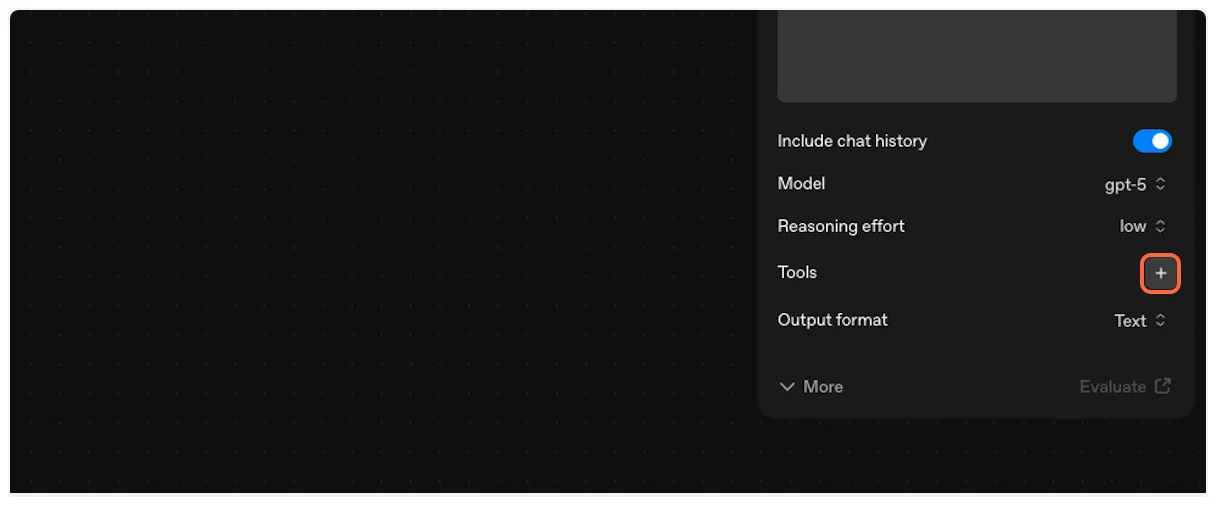
Open Tools Configuration
In the agent configuration panel, locate the “Tools” section and click the ”+” icon to add a new tool.
-
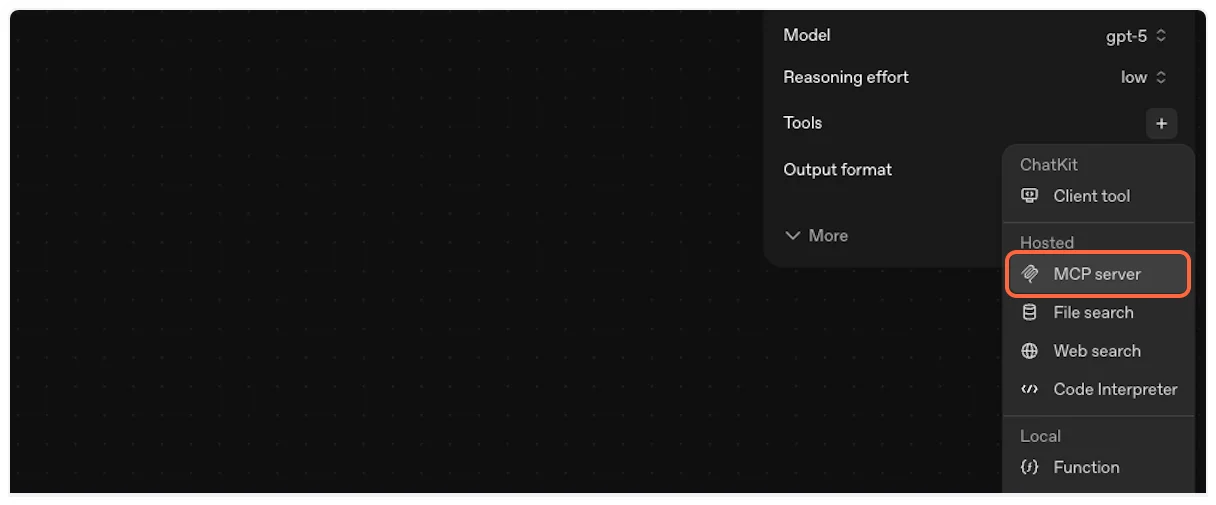
Select MCP Server
From the tool options, choose “MCP server” to add an MCP integration.
-
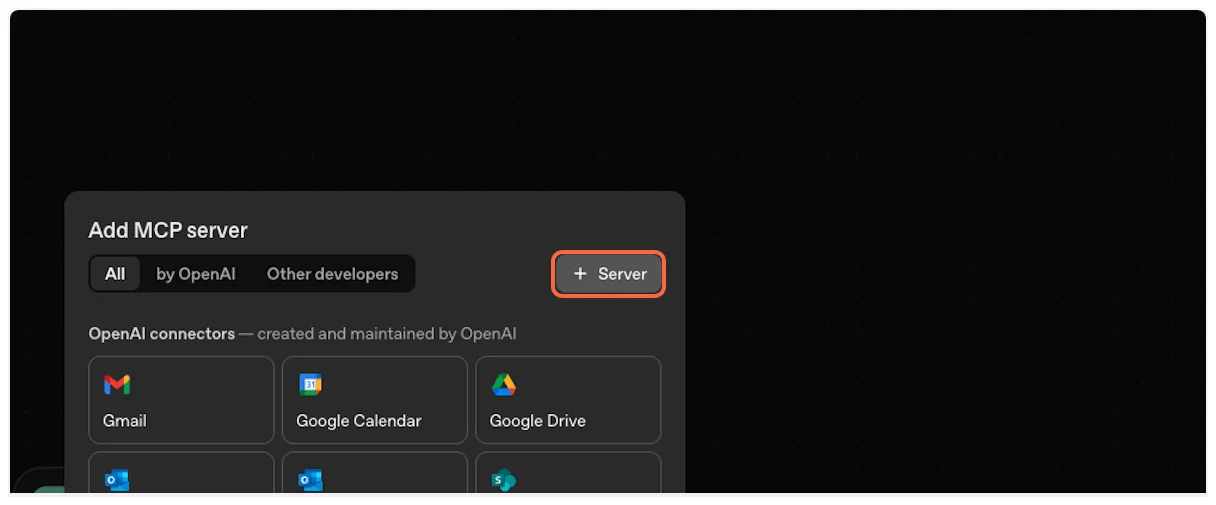
Configure Server Details
Click on the “Server” field to begin configuring the MCP connection.
Part 3: Configure TranscriptAPI Connection
Section titled “Part 3: Configure TranscriptAPI Connection”Let’s set up the connection details for TranscriptAPI. You’ll need information from your TranscriptAPI dashboard.
-
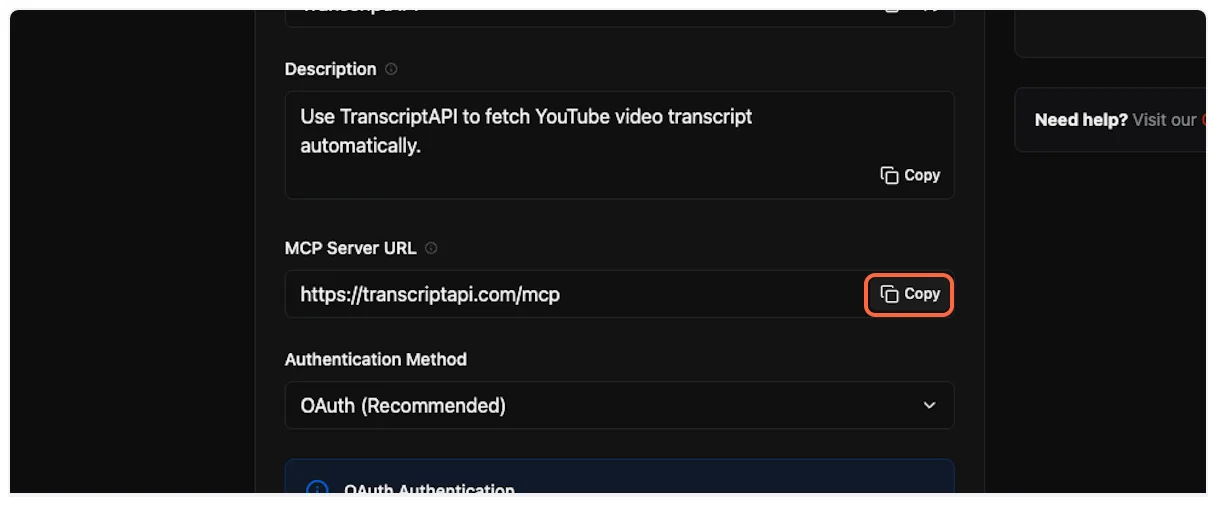
Get Configuration Details
Open the TranscriptAPI MCP Integration page in a new tab. You’ll copy configuration details from here.
-
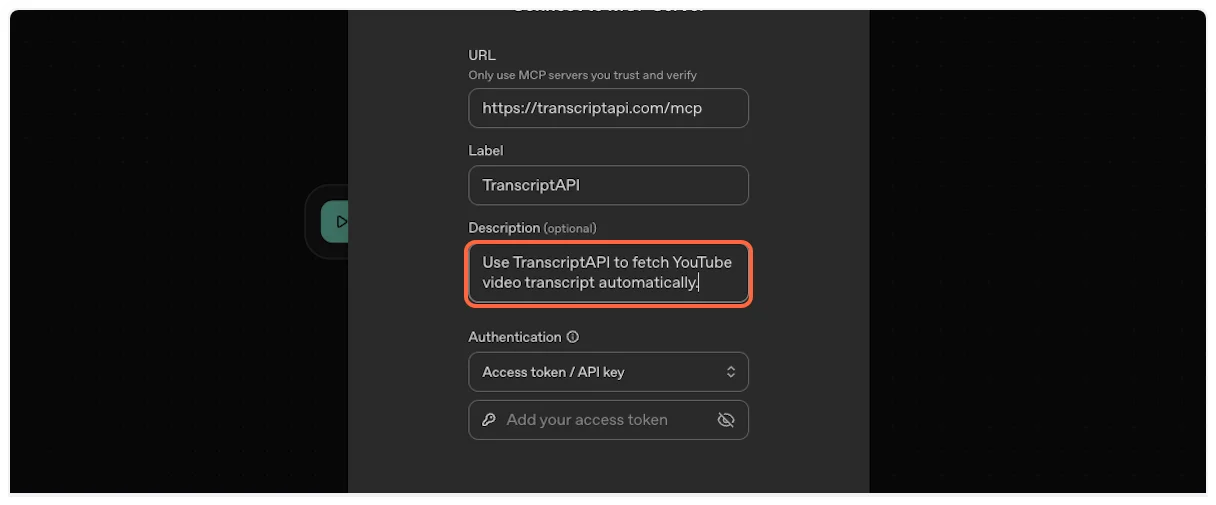
Enter Server URL
Paste the MCP server URL:
https://transcriptapi.com/mcp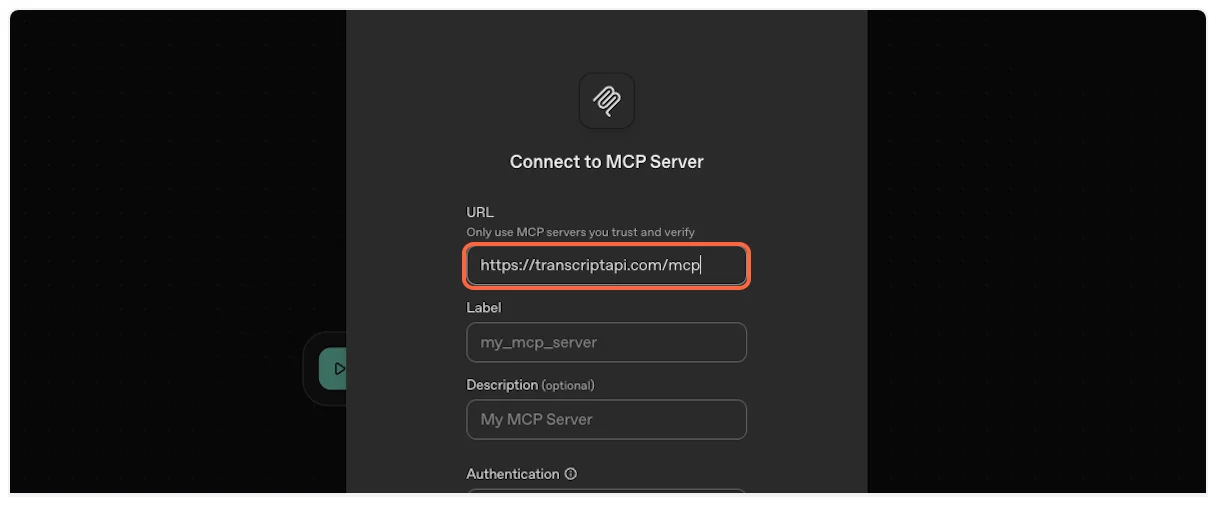
-
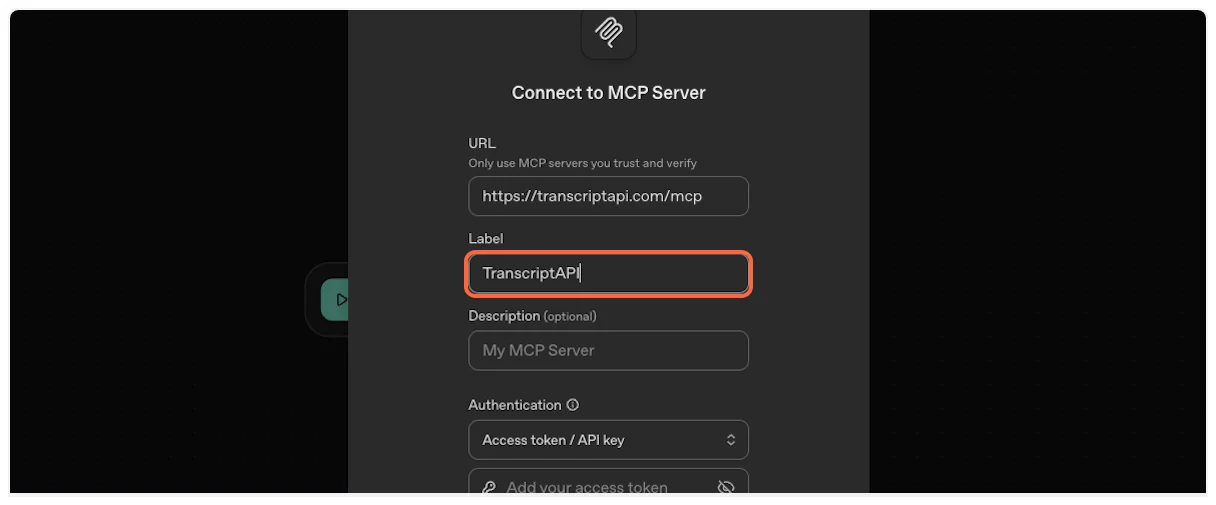
Copy and Enter MCP Name
Copy the MCP name from TranscriptAPI (typically “TranscriptAPI”).

Enter it in the name field.
-
Copy and Enter Description
Copy the MCP description from your dashboard.
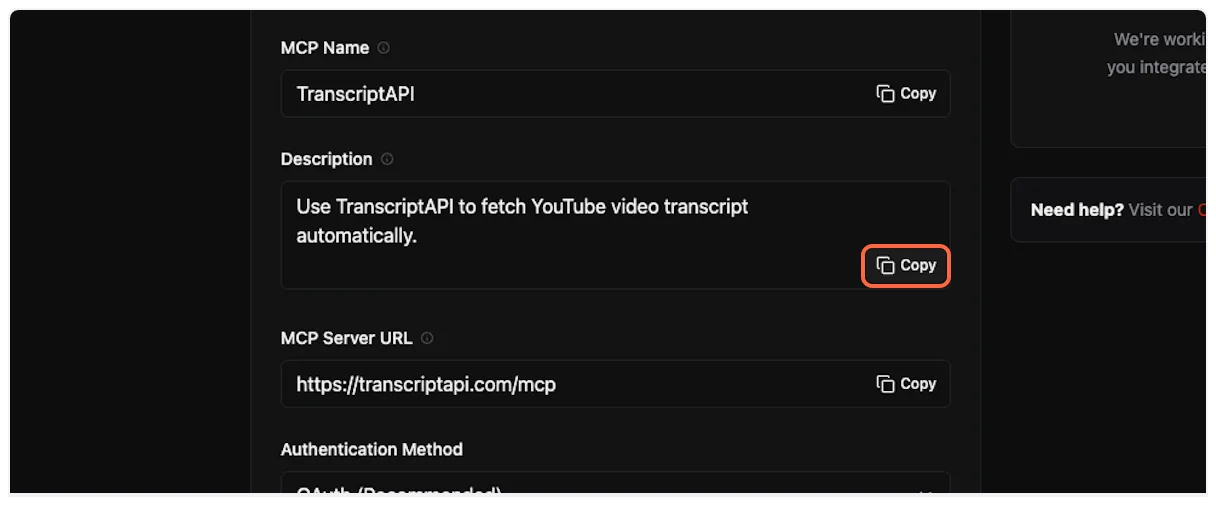
Paste it into the description field.
Part 4: Set Up API Key Authentication
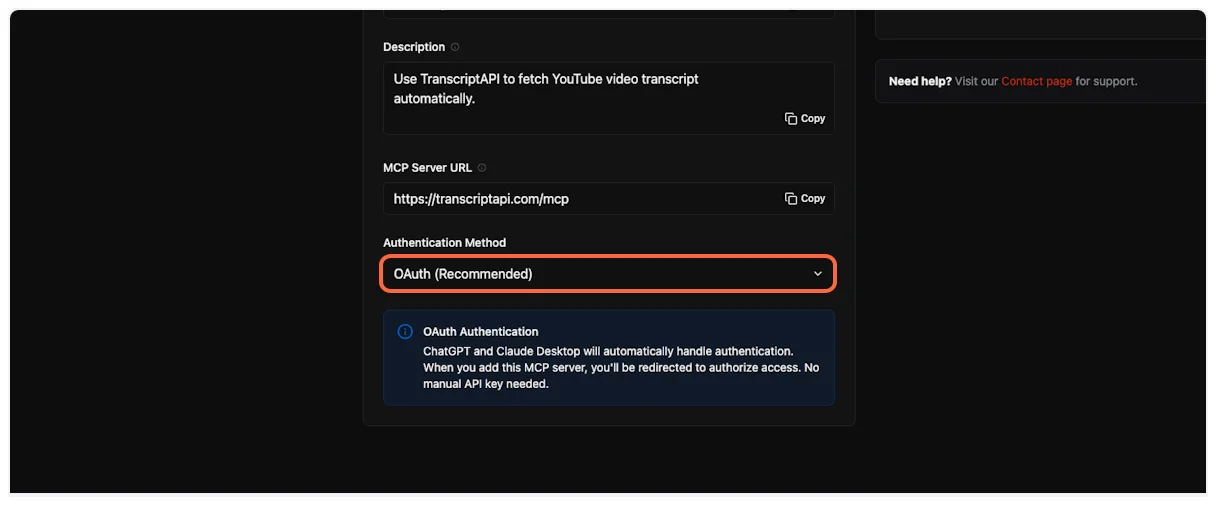
Section titled “Part 4: Set Up API Key Authentication”OpenAI Agent Builder requires API key authentication for MCP servers. OAuth is not currently supported.
-
View Authentication Options
You’ll see both OAuth and API Key options. OAuth is recommended for supported platforms, but Agent Builder requires API Key authentication.
-
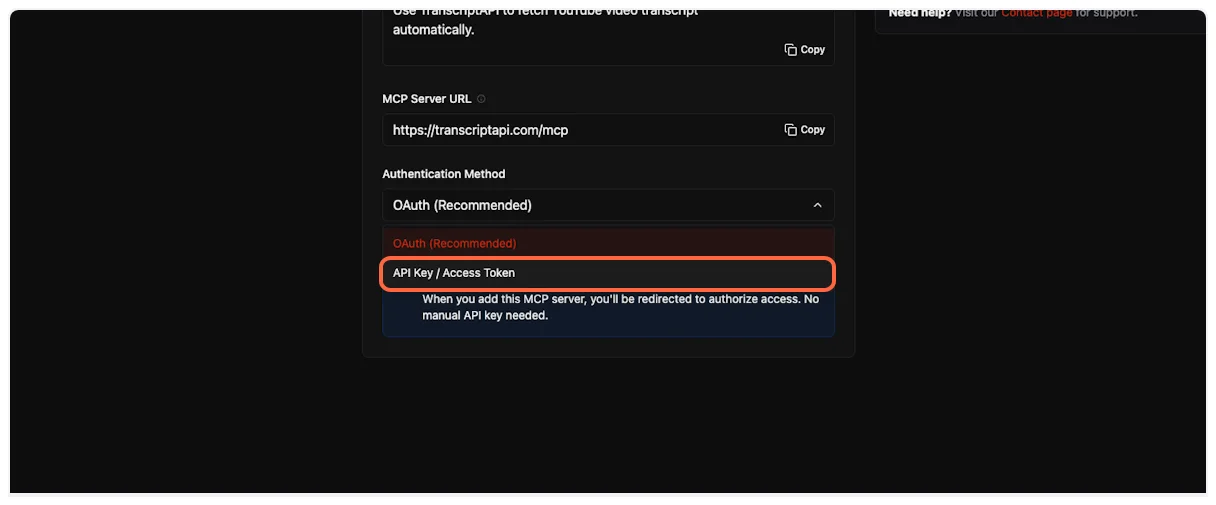
Select API Key Authentication
Click on “API Key / Access Token” to use the required authentication method.
-
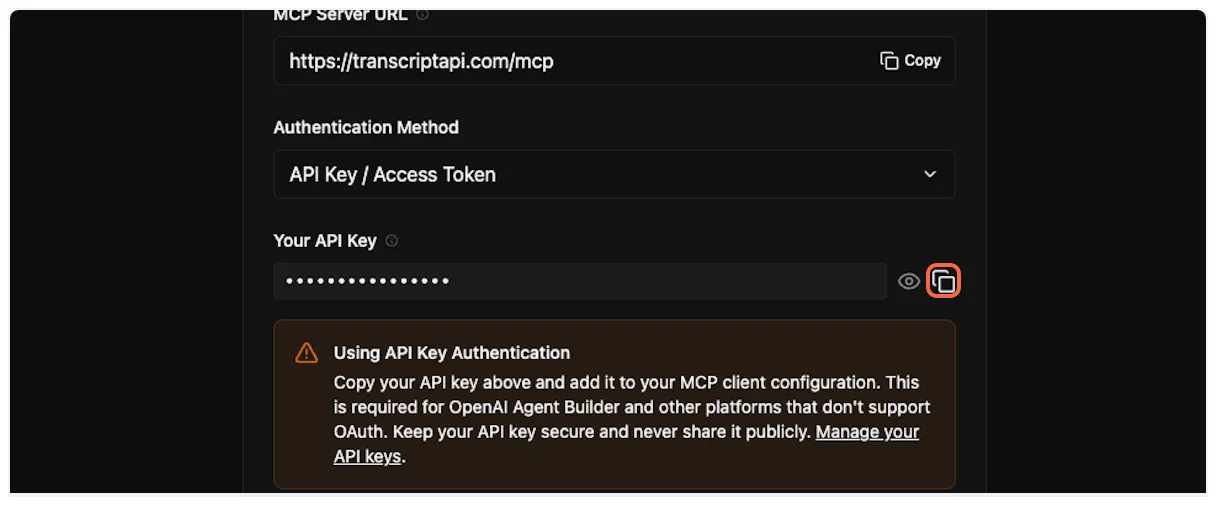
Copy Your API Key
From the TranscriptAPI dashboard, click the copy button to get your API key.
-
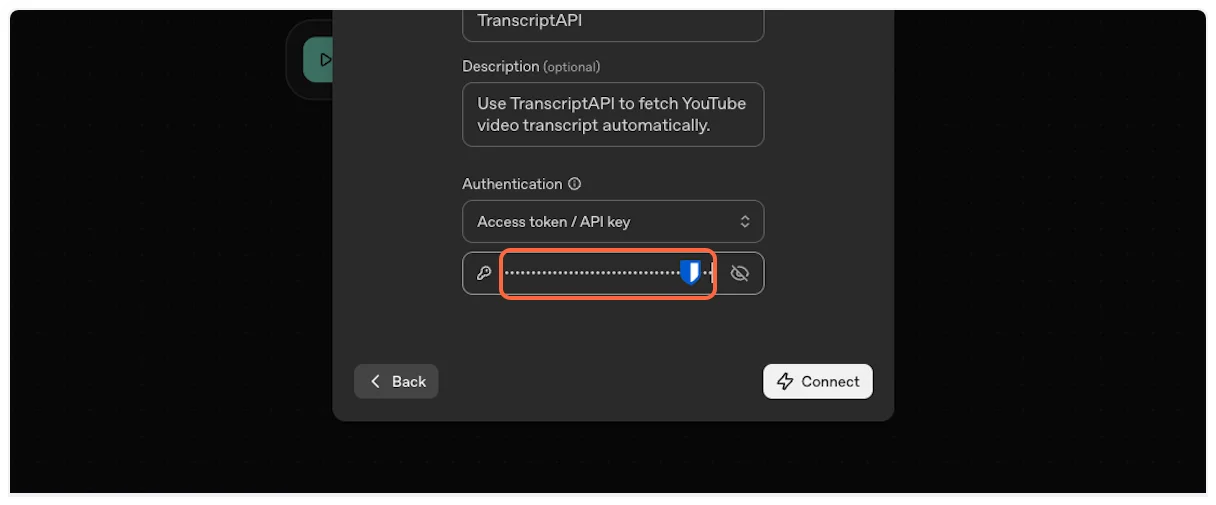
Enter API Key
Paste your API key into the authentication field in Agent Builder.
-
Connect to TranscriptAPI
Click the “Connect” button to establish the connection.

-
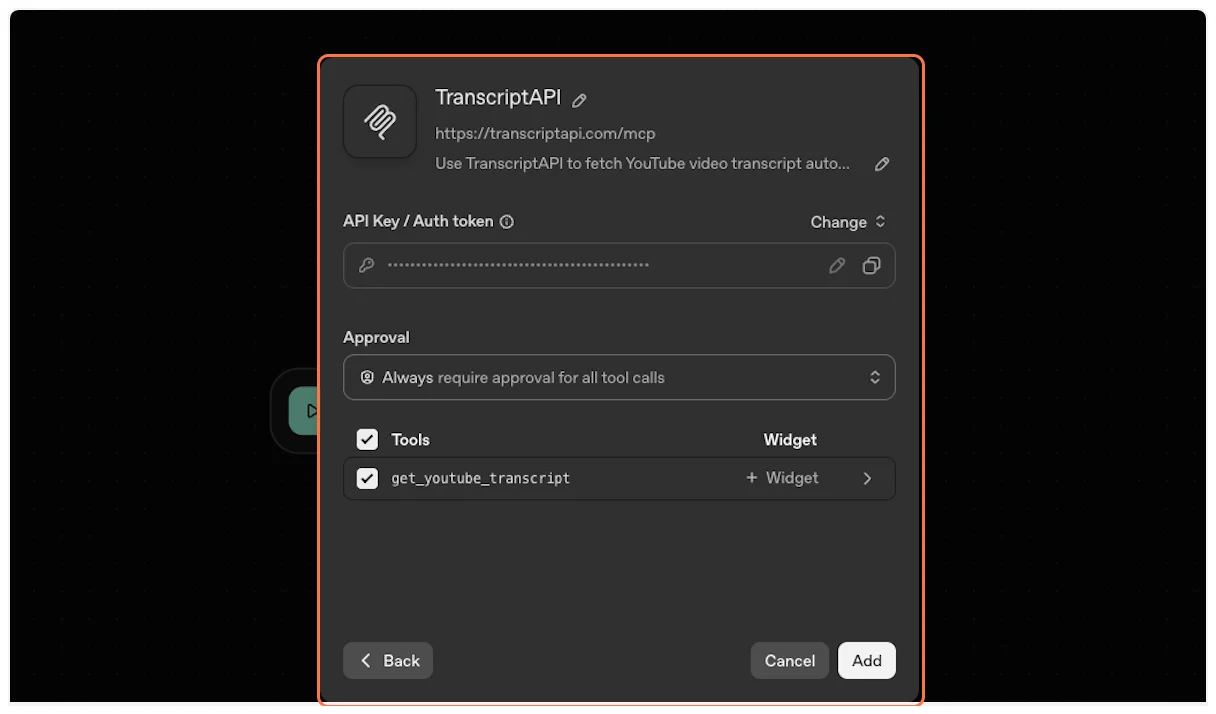
Authentication Success
Agent Builder will authenticate with TranscriptAPI and load the available MCP tools.
-
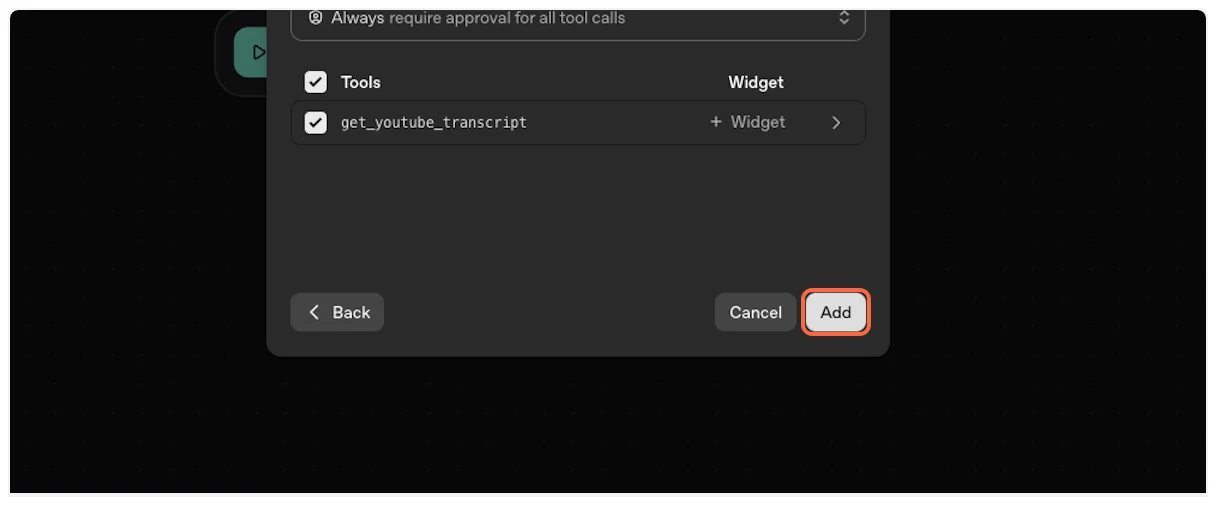
Add the Tool
Click “Add” to include the TranscriptAPI MCP in your agent’s toolset.
Part 5: Configure Agent Instructions
Section titled “Part 5: Configure Agent Instructions”Now configure your agent to use the TranscriptAPI MCP effectively.
-
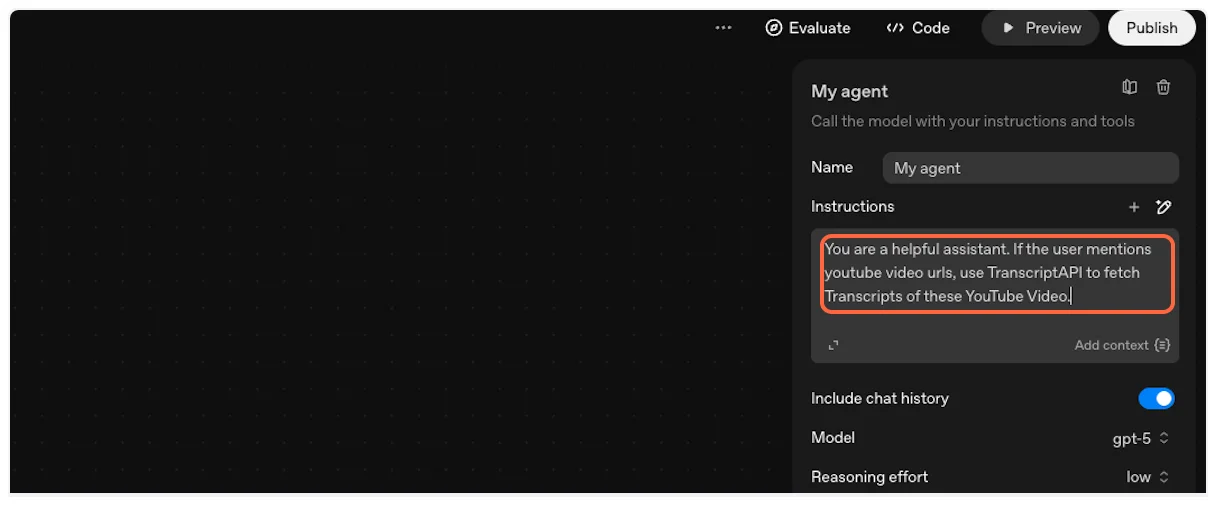
Add Agent Instructions
In the agent’s instruction field, add clear guidance about when to use the YouTube Transcript MCP. For example:
“When you see a YouTube video link, use the TranscriptAPI MCP tool (get_youtube_transcript) to fetch the video transcript. Then process the transcript according to the user’s request (summarize, analyze, translate, etc.).”
-
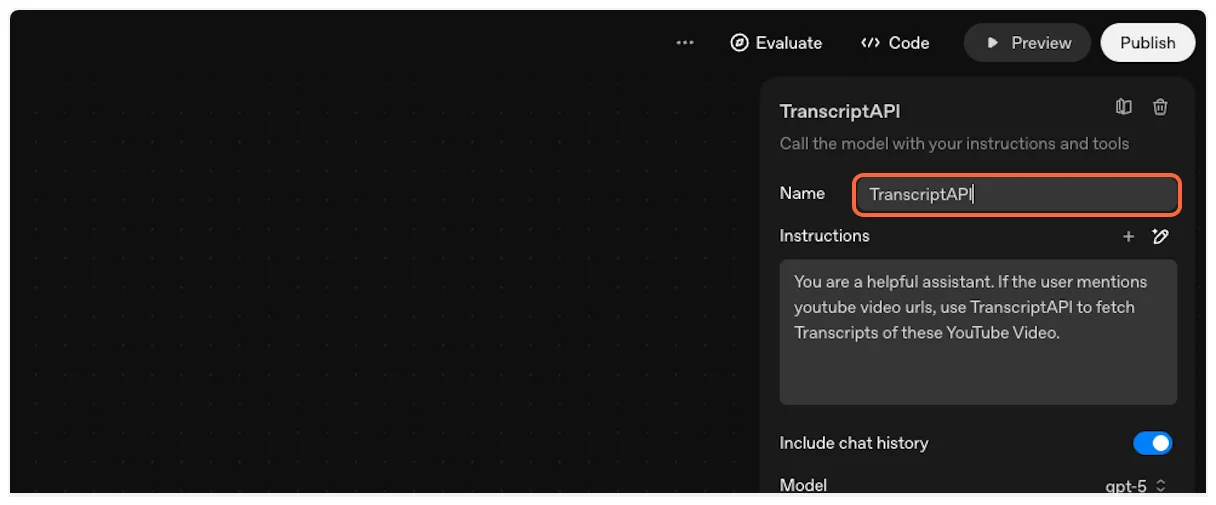
Name Your Agent
Give your agent a descriptive name like “TranscriptAPI Agent” or “YouTube Transcript Assistant”.
Part 6: Test Your Integration
Section titled “Part 6: Test Your Integration”Let’s test the YouTube Transcript MCP integration to ensure everything works correctly.
-
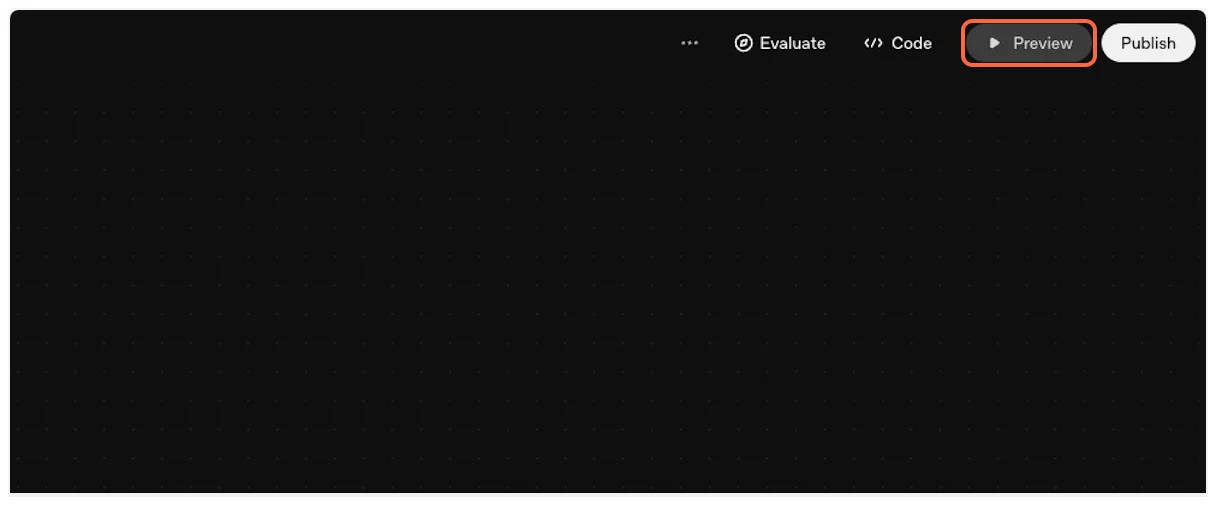
Enter Preview Mode
Click the “Preview” button to test your agent workflow.
-
Preview Interface
The workflow preview interface will open, allowing you to interact with your agent.

-
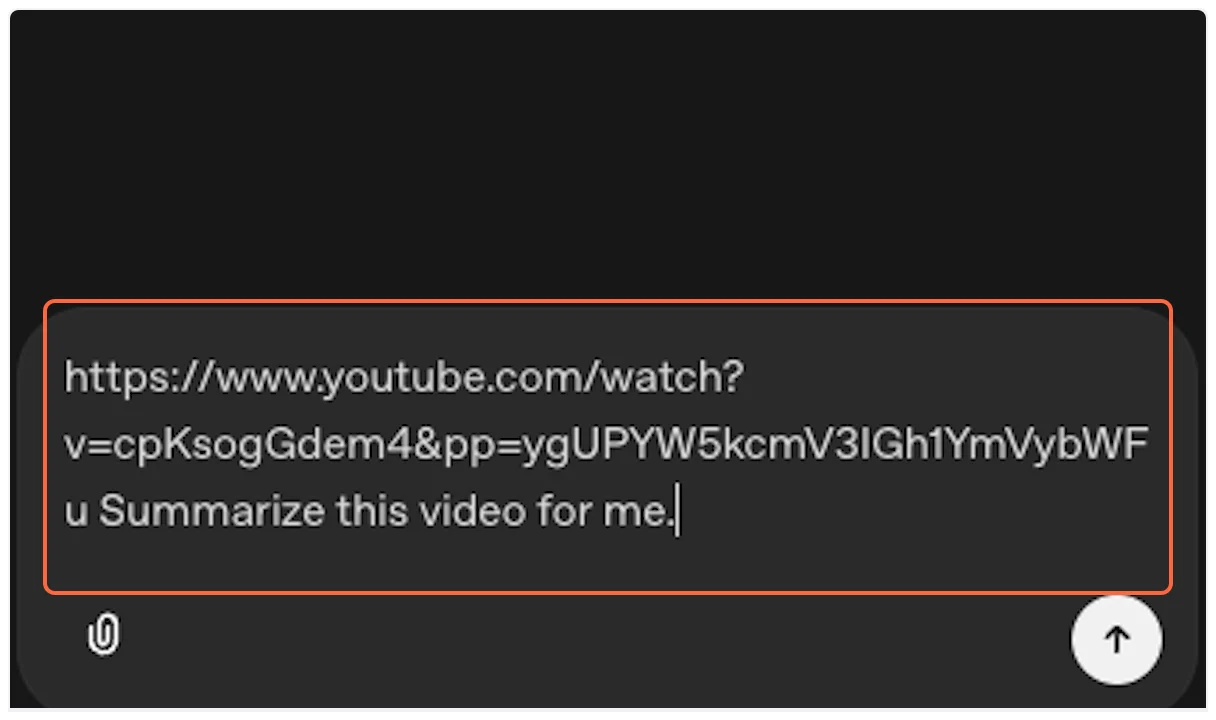
Test with a YouTube URL
Paste a test request like:
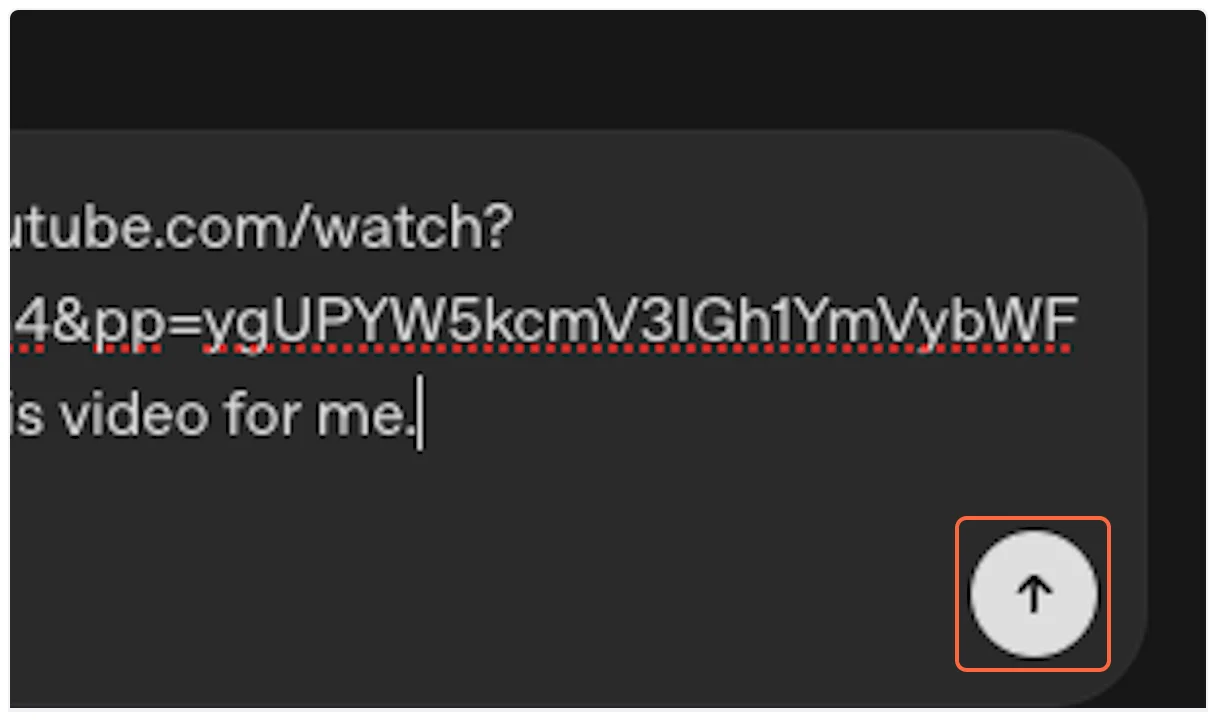
“https://www.youtube.com/watch?v=cpKsogGdem4&pp=ygUPYW5kcmV3IGh1YmVybWFu Summarize this video for me.”
-
Run the Test
Click the “Run” button to execute your request.
-
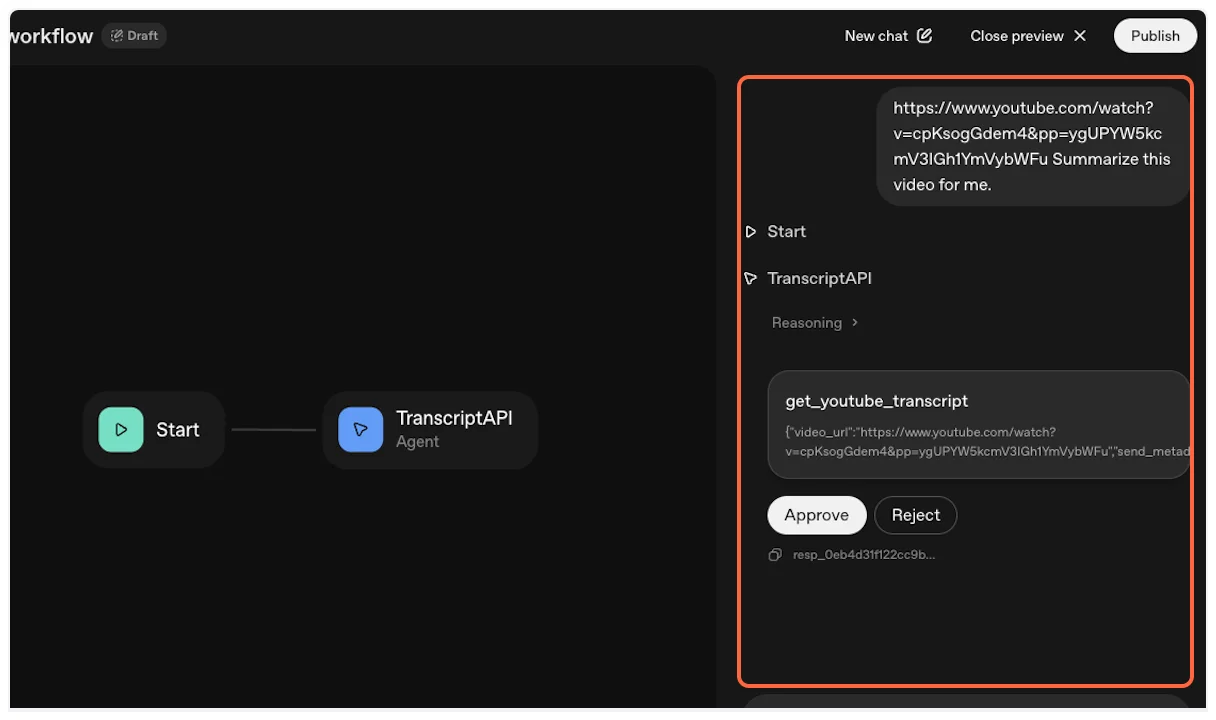
Approve MCP Usage
OpenAI Agent Builder will request permission to use the MCP tool. This ensures transparency about external API usage.
-
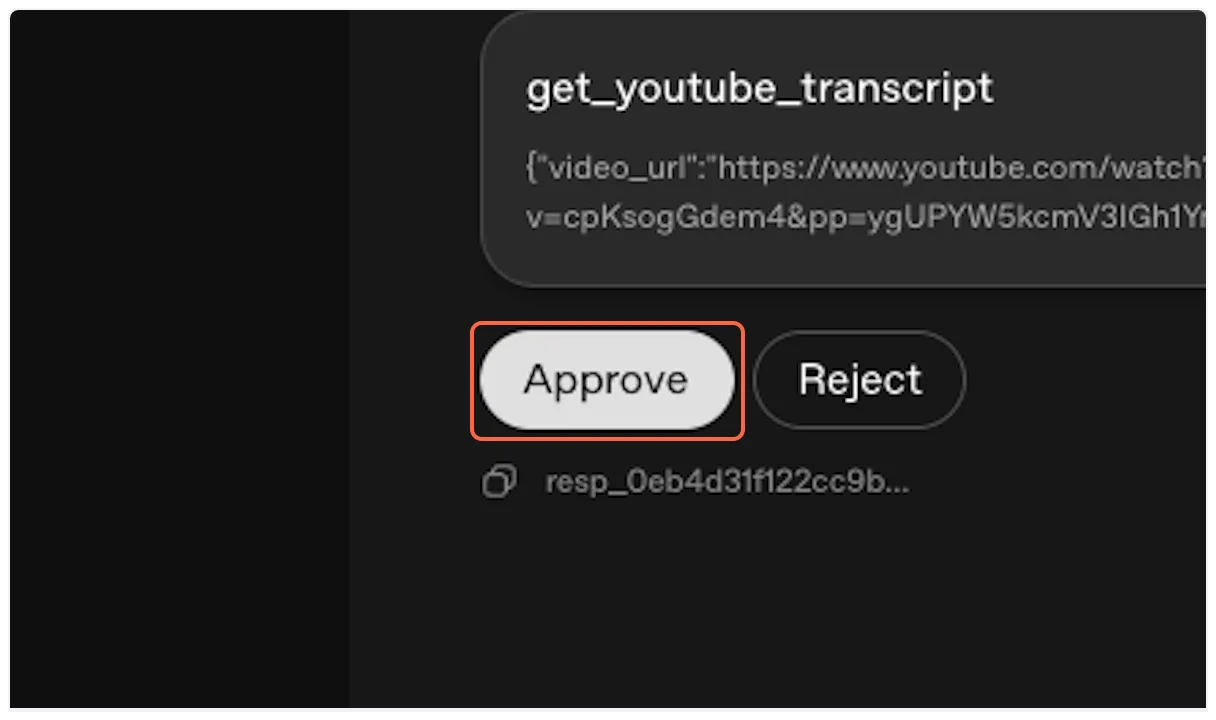
Grant Permission
Click “Approve” to allow the agent to fetch the YouTube transcript.
-
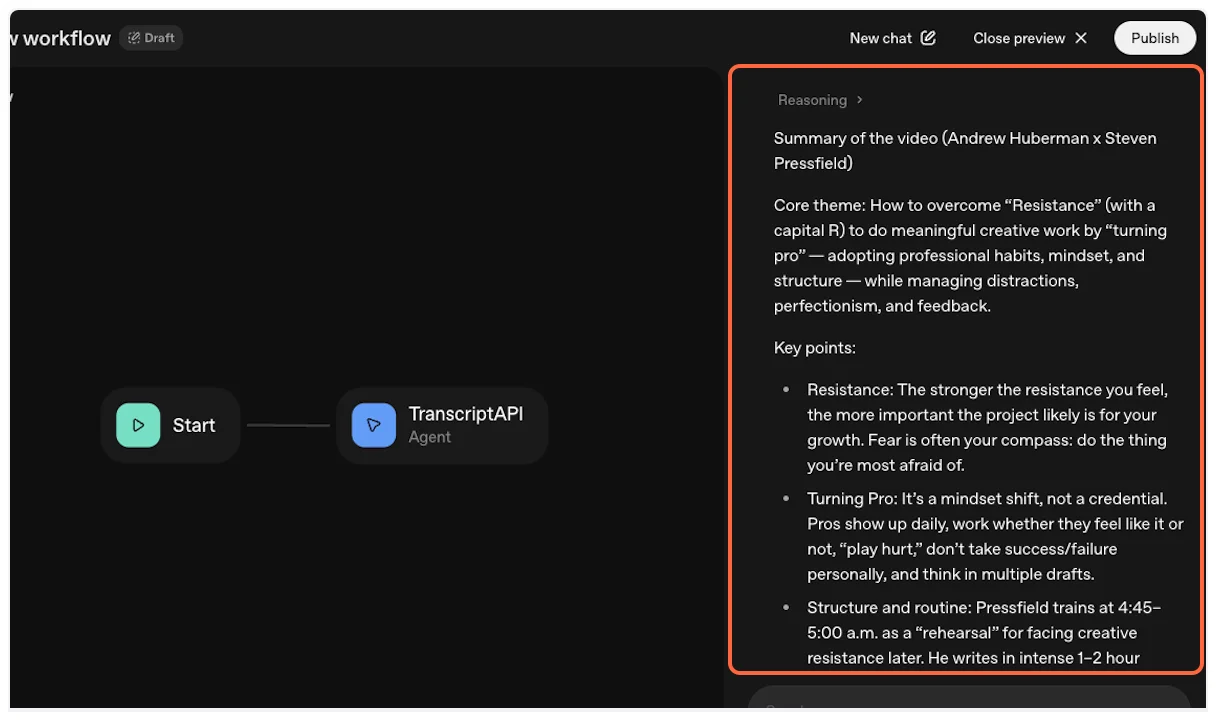
Success!
The agent will fetch the transcript using TranscriptAPI and process it according to your instructions.
Advanced Configuration
Section titled “Advanced Configuration”Available Tools
Section titled “Available Tools”Your agent has access to these TranscriptAPI tools:
get_youtube_transcript— Fetch transcript as text or JSON. 1 credit.search_youtube— Paginated search for videos or channels. 1 credit/page.get_channel_latest_videos— Latest ~15 videos via RSS. Free.search_channel_videos— Paginated search within a specific channel. 1 credit/page.list_channel_videos— Paginated channel uploads. 1 credit/page.list_playlist_videos— Paginated playlist videos. 1 credit/page.
See Available Tools for full parameter reference and examples.
Agent Instructions Example
Section titled “Agent Instructions Example”Update your agent instructions to take advantage of the full tool suite:
“You have access to TranscriptAPI tools. You can search YouTube, browse channels, list playlists, and fetch transcripts. When a user asks about a topic, search for relevant videos first, then fetch transcripts for the most promising results.”
Setting Response Formats
Section titled “Setting Response Formats”You can configure how the transcript tool returns data by using its parameters:
format: Choose between"text"(markdown) or"json"(structured data)include_timestamp: Set totrueorfalsefor timestamp inclusionsend_metadata: Include video title, author, and thumbnail information
Troubleshooting
Section titled “Troubleshooting”Authentication Issues
Section titled “Authentication Issues”Problem: “Invalid API key” error
Solution:
- Verify your API key starts with
sk_ - Check for extra spaces when copying
- Ensure the key is active in your TranscriptAPI dashboard
Credit Errors
Section titled “Credit Errors”Problem: “Payment required - no credits remaining”
Solution: Purchase credits or upgrade your plan
Transcript Not Available
Section titled “Transcript Not Available”Problem: “404 - Transcript not found”
Possible Causes:
- Video has no captions/subtitles
- Video is private or age-restricted
- Video was recently uploaded (captions pending)
- Regional restrictions apply
Rate Limiting
Section titled “Rate Limiting”Problem: “429 - Too many requests”
Solution:
- Wait 60 seconds before retrying
- Implement delays between batch requests
- Check your rate limit status in the dashboard
Next Steps
Section titled “Next Steps”Now that you’ve successfully integrated TranscriptAPI with OpenAI Agent Builder:
- Explore Advanced Features: Try different parameter combinations for optimal results
- Build Complex Workflows: Combine transcript fetching with other AI capabilities
- Monitor Usage: Track your credit consumption and API performance
- Join the Community: Share your workflows and learn from others
Ready to build more sophisticated agents? Check out our API documentation for advanced integration options.