How to extract YouTube Transcripts with n8n Workflows
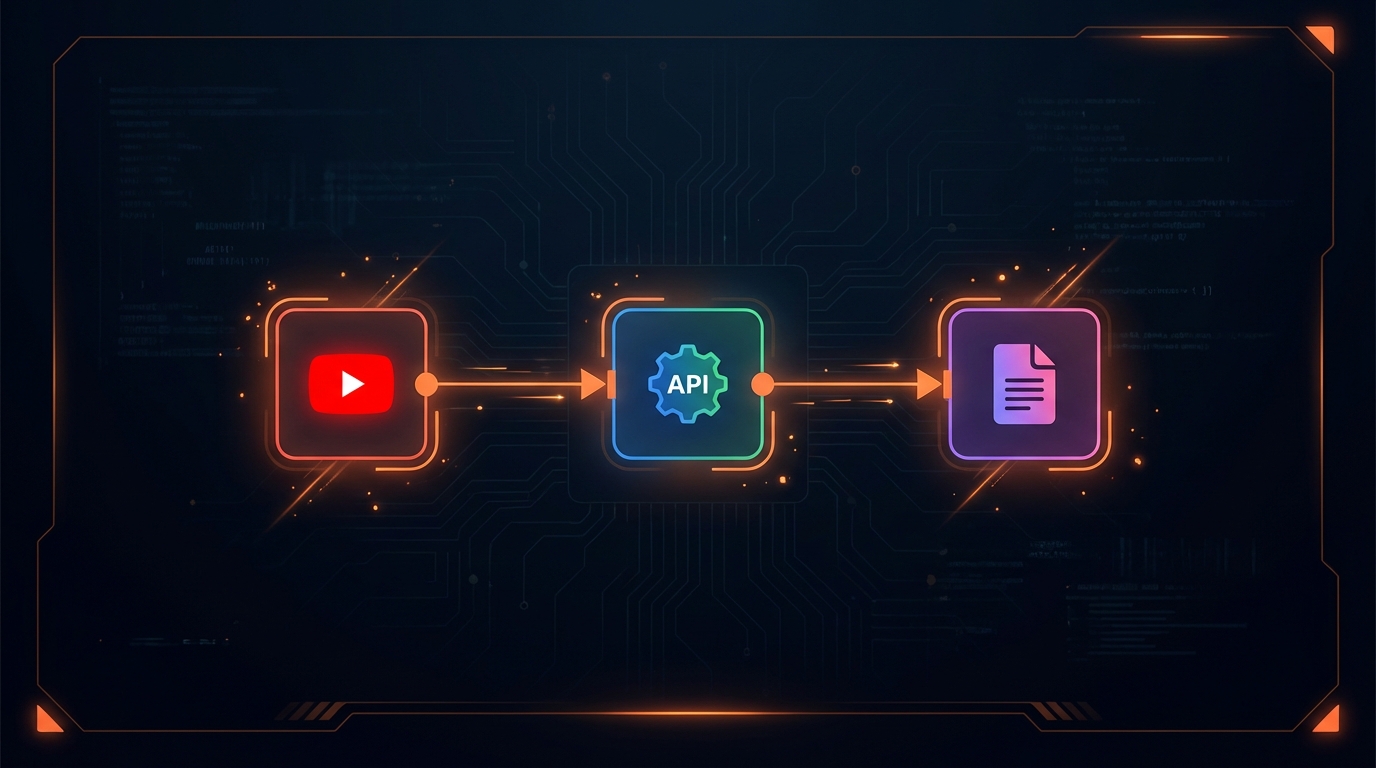
If you use n8n for workflow automation, you already know it can talk to almost any API. What you might not know is how fast you can wire it up to pull YouTube transcripts on demand, on a schedule, or in bulk.
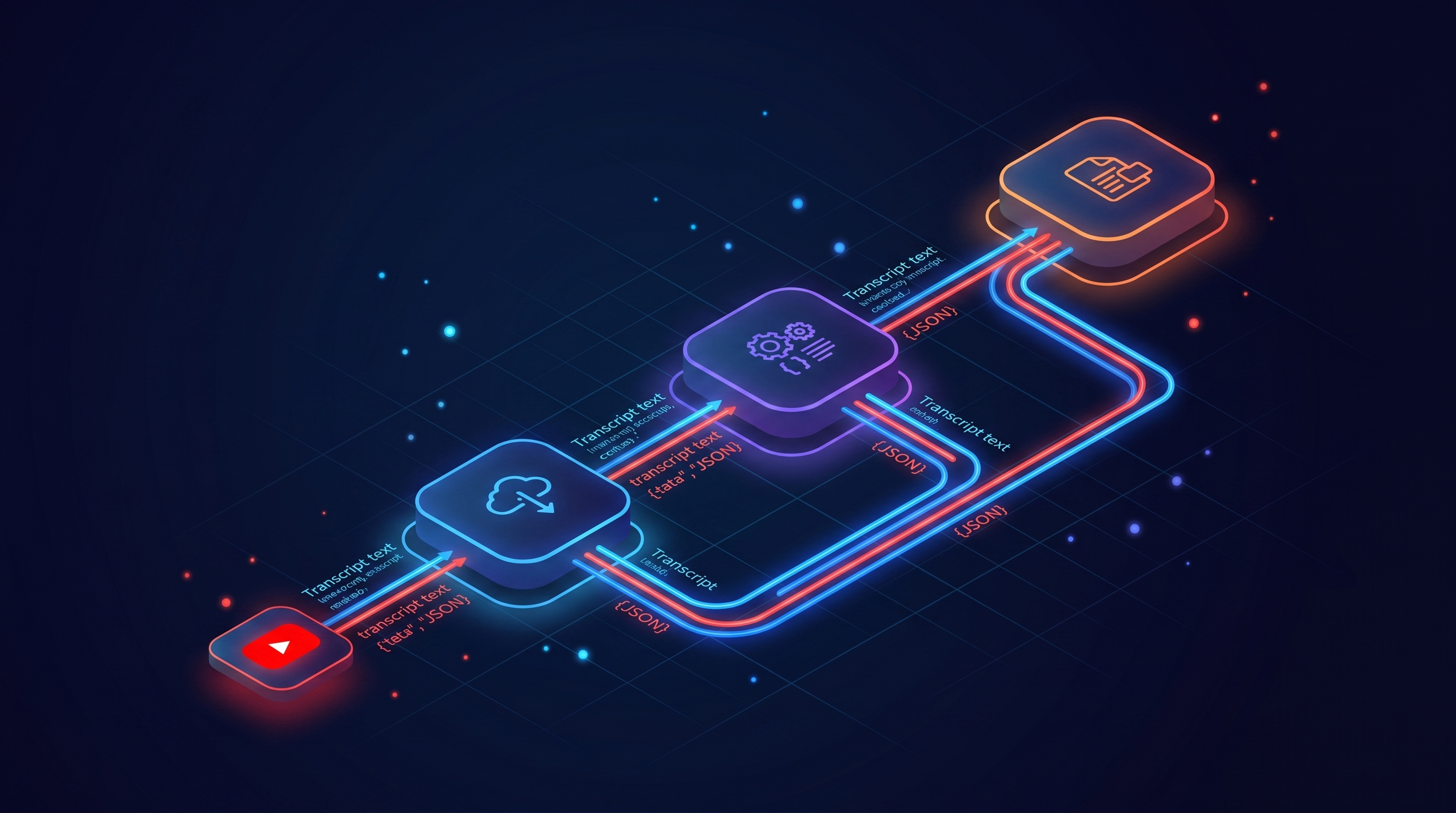
I'm going to walk you through three n8n workflows. The first grabs a single transcript. The second processes a whole spreadsheet of videos overnight. The third watches a channel and pulls transcripts the moment a new video drops.
All three use TranscriptAPI as the data source. One API call, one credit, one transcript. No scraping. No headless browser.
Ready? Let's build.
What you need before you start
Before touching the n8n canvas, make sure you have:
n8n installed. Self-hosted via Docker or an n8n.cloud account. Either works.
A TranscriptAPI API key. Sign up at transcriptapi.com and grab your key. You get 100 free credits. No credit card needed.
Basic n8n knowledge. You should know how to add nodes, connect them, and test a workflow.
That's it. No extra packages. No npm installs. Just HTTP requests.
Why use an API instead of a browser extension?
You might be thinking, "I'll just copy transcripts from YouTube manually."
That works for one video. Maybe five. But 200? No chance.
Browser extensions need a human clicking through videos one at a time. An API call runs in the background. TranscriptAPI returns a transcript in about 49 milliseconds. That means n8n can process hundreds of videos while you do something else.
No browser window open. No desktop required. No clicking.
Workflow 1: extract a single video transcript
This is the simplest version. One trigger, one API call, one output.
Add the HTTP request node
Open a blank n8n workflow and drop in a Manual Trigger node. Then add an HTTP Request node and connect them.
Configure the HTTP Request node like this:
Method: GET
URL:
https://transcriptapi.com/api/v2/youtube/transcriptAuthentication: None (we'll pass the key as a header)
Now add the parameters.
Under Query Parameters, add:
video_url = https://www.youtube.com/watch?v=dQw4w9WgXcQ
format = json
send_metadata = true
Under Headers, add:
Authorization = Bearer YOUR_API_KEY
Replace YOUR_API_KEY with your actual TranscriptAPI key.
Test the node
Click "Test step" on the HTTP Request node. You should see a JSON response with a transcript array, each item containing text, start, and duration fields.
If you turned on send_metadata, you'll also see title, author_name, and thumbnail_url.
That's your first transcript pulled through n8n. One node, one call.
Process the response
The raw response gives you individual transcript segments. Most of the time, you want the full text as a single string.
Add a Code node after the HTTP Request. Paste this JavaScript:
const segments = $input.first().json.transcript;
const fullText = segments.map(s => s.text).join(' ');

return [{
  json: {
    video_id: $input.first().json.video_id,
    title: $input.first().json.metadata.title,
    full_transcript: fullText,
    word_count: fullText.split(' ').length
  }
}];
Now you have clean, concatenated text ready to send wherever you want. Google Sheets, Notion, a database, email, Slack. Connect the output node of your choice.
Workflow 2: batch process videos from a spreadsheet
This is where n8n starts to shine. You have a Google Sheet with 50, 100, or 500 YouTube URLs. You want every transcript extracted and written back to the sheet.
Read video URLs from Google Sheets
Start with a Manual Trigger node (or a Schedule Trigger if you want this to run nightly).
Add a Google Sheets node. Set it to "Read Rows" and point it at your spreadsheet. Your sheet should have at least two columns:
video_urltranscripthttps://youtube.com/watch?v=abc123https://youtube.com/watch?v=def456
Each row becomes a separate item in the n8n pipeline. That's the key. n8n processes them one by one through the rest of the workflow.
Loop through and extract
Connect an HTTP Request node after the Google Sheets node. Configure it the same way as Workflow 1, but this time set the video_url query parameter to an expression:
{{ $json.video_url }}
This pulls the URL dynamically from each spreadsheet row.
Here's the thing most people miss: add a Wait node between iterations. Set it to 300-500 milliseconds. This keeps you well within TranscriptAPI's 200 RPM rate limit and avoids hammering the API.
Handle errors gracefully
Some videos won't have captions. Maybe the creator disabled them. Maybe the video was removed.
Add an IF node after the HTTP Request to check the response status. If the request failed, route to an error branch that logs the failure. If it succeeded, route to the processing branch.
Your error branch can write "no captions available" back to the spreadsheet in a status column. Your success branch concatenates the transcript text and writes it to the transcript column.
The whole workflow looks like this:
Schedule Trigger -> Google Sheets (Read) -> HTTP Request -> IF (success?)
  -> Yes: Code (concat text) -> Google Sheets (Update Row)
  -> No: Google Sheets (Update Status = "failed")
Run it overnight and wake up to a fully populated spreadsheet. I've used this pattern for batches of 300+ videos without issues.
Workflow 3: auto-extract when new videos are published
This is the one that runs forever in the background. A channel publishes a new video, and your workflow grabs the transcript automatically.
Set up the RSS trigger
TranscriptAPI has a free endpoint that returns the latest 15 videos from any channel. You can use that as your data source, or you can use YouTube's native RSS feed.
The YouTube RSS feed URL format is:
https://www.youtube.com/feeds/videos.xml?channel_id=CHANNEL_ID
Don't know the channel ID? Use TranscriptAPI's free channel resolve endpoint:
GET https://transcriptapi.com/api/v2/youtube/channel/resolve?input=@mkbhd
This returns the channel_id at zero credit cost.
Now add an RSS Feed Trigger node in n8n. Paste the RSS URL and set the polling interval. Every hour is a good starting point. Every 15 minutes if you need near-real-time.
Connect to transcript extraction
When the RSS trigger fires, it gives you the new video's URL and title. Connect it to an HTTP Request node pointed at TranscriptAPI's transcript endpoint.
Set the video_url parameter to the RSS item's link:
{{ $json.link }}
One thing to watch: brand new videos sometimes don't have captions yet. YouTube's auto-caption system can take 15-30 minutes after upload. If you get a 404, add a Wait node (5 minutes) and retry once.
Store the result
After extraction, send the transcript wherever it's useful:
Google Drive: Save as a text file in a shared folder.
Notion: Create a new page in a transcript database.
Slack: Post a notification with the video title and a summary.
PostgreSQL/MySQL: Insert into a transcripts table.
Add an error branch too. If a video has no captions at all, log it and move on. Don't let one failed video break the whole workflow.
Here's the complete flow:
RSS Trigger -> HTTP Request (transcript) -> IF (success?)
  -> Yes: Code (process) -> Google Sheets / Notion / DB
  -> No: Wait (5 min) -> HTTP Request (retry) -> IF (success?)
    -> Yes: process and store
    -> No: log failure
This workflow has been running for weeks on one of my test instances. It picks up new videos within an hour of publication.
Since this guide was published: TranscriptAPI now also ships a dedicated n8n community node, so you don't have to hand-build the HTTP Request calls from Workflows 1-3 above. If you're looking to get a YouTube transcript in n8n without hand-building the HTTP calls, or you'd rather start from a finished template than wire one from scratch, there's now a free library of 58 ready-to-import n8n workflows covering everything from a single-video summary to full RAG pipelines. Both are covered below — the manual HTTP Request approach above still works exactly as written if you prefer full control over the request.
Installing the TranscriptAPI node for n8n
If you'd rather not wire raw HTTP Request nodes every time, TranscriptAPI publishes n8n-nodes-transcriptapi as an n8n community node. It wraps the same API used in Workflows 1-3 above — transcript, search, channel, and playlist — behind purpose-built node fields, so you pick a resource and operation from a dropdown instead of building the request manually.
To install it on a self-hosted n8n instance:
Go to Settings → Community Nodes → Install.
Enter the package name:
n8n-nodes-transcriptapi.Accept the community-node risk prompt (this is standard for any n8n community node, not specific to this one).
Add your TranscriptAPI credential the same way you did for the HTTP Request node above — the same API key works for both.
Once installed, the node appears in your nodes panel with six operations: get transcript, search YouTube, get a channel's latest videos, search inside a channel, list channel videos, and list playlist videos. It's a drop-in replacement for the HTTP Request steps in this guide, not a different product — same API, same credits, same 100-credit free tier.
This is a community node (n8n's standard model for third-party integrations, install-only on self-hosted instances for now — not yet available from n8n Cloud's built-in node panel).
Free to try either way — the API key from your free TranscriptAPI account (100 credits, no card) works for both the HTTP Request approach above and the community node.
Start from a workflow template instead of wiring it yourself
Workflows 1-3 in this guide walk through building from a blank canvas. If you'd rather start from one of the n8n YouTube transcript workflows already built, TranscriptAPI maintains a free, open-source library of 58 ready-to-import n8n workflows on GitHub — MIT licensed and free to use and adapt.
A few examples that map directly onto what this guide covers:
Single Video → Transcript → AI Summary — the simplest starting point, close to Workflow 1 above but pre-built.
New-Upload Monitor → Key Points → Slack Digest — the same "watch a channel for new videos" pattern as Workflow 3 above, already wired to post a summary to Slack.
Single Video → Transcript → SEO Blog-Post Draft — turns a video into a structured blog draft (title, meta description, tags, Markdown body).
Playlist / Channel → Transcripts → RAG Chunks — for building a searchable knowledge base from a whole playlist or channel.
Every workflow in the library is import-tested before publishing, so you can pull the JSON straight into n8n and swap in your own credentials.
Browse the full set — all 58, filterable by use case (content, automation, AI/RAG, localization, marketing intel, and more) — at transcriptapi.com/workflows.
Real-world use cases for n8n + TranscriptAPI
What are people actually building with this combo? Here are three patterns I see often.
Content repurposing pipeline
A YouTube creator publishes a new video. The RSS workflow detects it, extracts the transcript, passes it to an OpenAI node that generates a blog draft, and saves the draft to Notion. The creator wakes up to a ready-to-edit blog post for every video they publish.
The n8n workflow chain looks like:
RSS Trigger -> HTTP Request (transcript) -> Code (clean text)
  -> OpenAI (summarize/rewrite) -> Notion (create page)
Total cost per video: 1 TranscriptAPI credit + whatever your LLM charges. Usually under $0.05 total.
Research and competitive analysis
A marketing team tracks 15 competitor YouTube channels. Every morning at 6 AM, a scheduled workflow checks each channel for new videos using the free channel/latest endpoint, extracts transcripts for any new uploads, and stores them in a Google Sheet with the channel name, date, video title, and full transcript text.
The team uses this for keyword research, topic analysis, and content gap identification. They went from manually checking channels once a week to having real-time competitive intelligence.
Training dataset creation
An AI startup needed transcripts from 3,000 educational YouTube videos. They loaded the video URLs into a Google Sheet, ran Workflow 2 overnight, and had all 3,000 transcripts by morning. Total extraction time: about 45 minutes. Total cost: $5 in TranscriptAPI credits plus a few hours of n8n compute.
Without automation, that project would have taken a full-time employee two weeks of manual copying.
Tips for production workflows
Error handling best practices
Every HTTP Request node in n8n has a built-in "Retry on Fail" option. Turn it on.
Set it to 3 retries with 5-second intervals. This handles temporary network hiccups and 503 errors without any extra logic.
For permanent errors (404, 422), don't retry. These won't succeed no matter how many times you try. Route them to a failure log instead.
Here's my recommended error handling setup:
Enable "Retry on Fail" on every HTTP Request node.
Add an IF node to check HTTP status codes.
Route 4xx errors to a "skip and log" branch.
Route successes to the processing branch.
Send yourself a daily Slack summary of any failures.
Managing your TranscriptAPI credits
Each successful transcript extraction costs 1 credit. Failed requests cost nothing.
On the $5/month plan, you get 1,000 credits. That's 1,000 transcripts. If you're processing more than that, the annual plan at $54/year gives you the same 1,000 monthly credits plus cheaper top-ups at $1.50 per 1,000 credits instead of $2.50.
Keep an eye on your usage in the TranscriptAPI dashboard. If you're running automated workflows, set up a separate n8n workflow that checks your credit balance weekly and alerts you when it drops below 100.
The free endpoints help too. Channel resolve and channel latest don't cost any credits. Use them for discovery and monitoring. Save your paid credits for actual transcript extraction.
Performance tuning
A few settings that make a difference in production:
Timeout. Set the HTTP Request node timeout to 30 seconds. TranscriptAPI's median response time is 49ms, so anything over 10 seconds is likely a server hiccup.
Memory. If you're processing large batches, watch n8n's memory usage. Each transcript in memory takes 10-50KB depending on video length. For 500+ videos, consider processing in smaller batches.
Execution data. n8n stores execution data for debugging. For high-volume workflows, set data retention to 7 days to avoid filling up your database.
Frequently asked questions
Can I use the n8n community version (free) with TranscriptAPI?
Yes. The HTTP Request node is available in both the free community edition and paid n8n.cloud. Every workflow in this guide works with either version.
The only difference is hosting. The community edition runs on your own server. n8n.cloud is managed hosting starting at $20/month.
How many transcripts can I extract per workflow execution?
n8n doesn't limit items per execution. The limit is your TranscriptAPI credit balance. A 1,000-credit plan lets you extract 1,000 transcripts per month across all your workflows combined.
For very large batches, split them across multiple executions with a schedule trigger. Process 200 per night over five nights instead of all 1,000 at once.
Can I extract transcripts in other languages?
Yes. TranscriptAPI returns transcripts in whatever languages the video has available. If the creator uploaded Spanish captions, you'll get Spanish. If YouTube auto-generated French captions, you can request those too.
The transcript response includes a language field so you always know what you got.
What happens if a video doesn't have captions?
The API returns a 404 error. Your n8n workflow should catch this with an IF node and route it to an error log. No credits are charged for failed requests.
About 85-95% of spoken-word YouTube videos have extractable captions. Music videos, very short clips, and some live streams are the main exceptions.
What is an n8n transcript node?
An n8n transcript node is a community node that adds transcript-fetching as a native n8n node, instead of requiring a manual HTTP Request setup. TranscriptAPI's version, n8n-nodes-transcriptapi, covers YouTube transcripts plus video, channel, and playlist discovery in one node.
Can I start from a YouTube transcript workflow template instead of building one?
Yes. TranscriptAPI publishes a free library of 58 pre-built n8n workflows that use YouTube transcripts, including single-video summaries, channel monitors, and RAG pipelines — import the JSON and add your own credentials rather than building from scratch.
Start building
n8n and TranscriptAPI make a solid pair for transcript extraction automation. You don't need to write a Python script or manage infrastructure. Just connect nodes, set triggers, and let the workflows run.
Start with Workflow 1 to make sure your API key works and you understand the response format. Then move to Workflow 2 or 3 depending on whether you need batch or real-time extraction.
Sign up at transcriptapi.com to get 100 free credits and build your first workflow today.
New to TranscriptAPI? Sign up for 100 free credits, no card required — then either follow Workflows 1-3 above, install the n8n community node, or start from one of the 58 workflow templates.
What's the first workflow you're going to build?
Frequently Asked Questions
- What YouTube transcript workflows can I build in n8n?
- Three, in increasing complexity. A single-video workflow: one trigger, one HTTP Request node calling TranscriptAPI, and a Code node that flattens the segments into one text string. A bulk-batch workflow: read a spreadsheet of YouTube URLs and process each one overnight using n8n's loop or split-in-batches pattern. And a channel-monitor workflow: check a channel on a schedule and fetch transcripts automatically whenever a new video appears.
- How do I set up authentication for TranscriptAPI in an n8n HTTP Request node?
- Send the API key as an Authorization header with the value formed as the word Bearer followed by a space and your key. Don't paste the raw key into the node — use n8n's built-in credential system or reference an n8n environment variable instead, so the workflow file stays safe to share. The call itself is a GET request to the TranscriptAPI transcript endpoint with the video URL passed as a query parameter.
- Why use a REST API in n8n instead of a browser extension for bulk transcript work?
- A browser extension needs a human clicking through videos one at a time. A TranscriptAPI call returns a transcript in about 49 milliseconds, so n8n can process hundreds of videos in the background with no browser window and no desktop required. Manual extraction works for one video, maybe five — but not 200.
- What is an n8n transcript node?
- An n8n transcript node is a community node that adds transcript-fetching as a native n8n node, instead of requiring a manual HTTP Request setup. TranscriptAPI's version, n8n-nodes-transcriptapi, covers YouTube transcripts plus video, channel, and playlist discovery in one node.
- Can I start from a YouTube transcript workflow template instead of building one?
- Yes. TranscriptAPI publishes a free library of 58 pre-built n8n workflows that use YouTube transcripts, including single-video summaries, channel monitors, and RAG pipelines - import the JSON and add your own credentials rather than building from scratch.