Cursor + YouTube Transcripts via MCP — 2026 Setup Guide
You found a 47-minute YouTube tutorial that solves your exact bug. You don't want to watch it. You want the code.
Cursor plus the Model Context Protocol (MCP) lets your editor watch the video for you. It pulls the transcript, reads the steps, and writes the code in your project. You stay in the editor. The tutorial becomes pull-ready commits.
This guide walks you through the full cursor youtube transcript setup in about three minutes. You'll get the MCP config, four verify steps, five real prompts to paste into Cursor's chat, and the cost math so you know what 100 free credits actually buys you.
What MCP is (and why Cursor supports it)
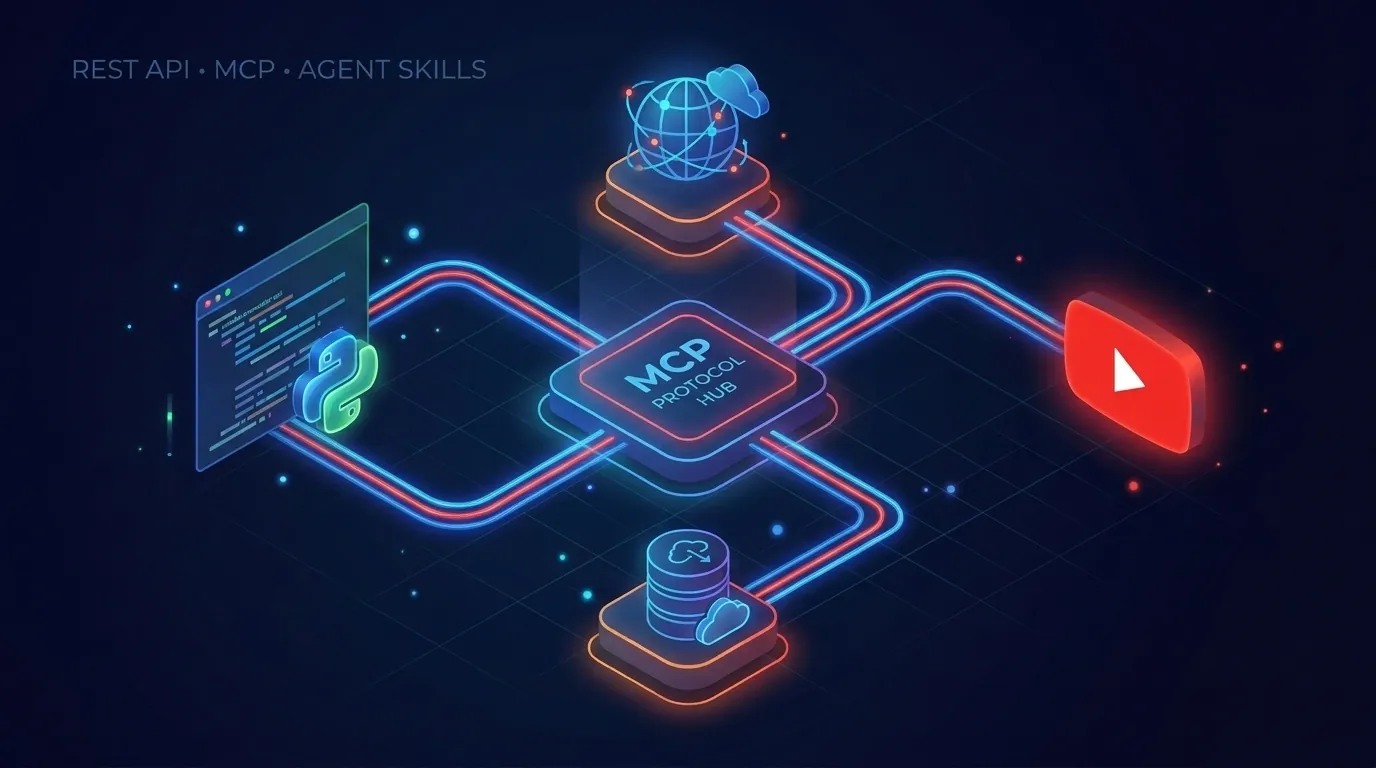
MCP stands for Model Context Protocol. Anthropic open-sourced it in late 2024. It's a small standard that lets AI editors talk to outside tools the same way LSP lets editors talk to language servers.
Cursor added native MCP support in early 2025. Windsurf and Claude Desktop did the same. One spec, many clients.
Here's why that matters for you: you no longer need a custom plugin per tool. Drop a JSON entry in ~/.cursor/mcp.json, restart, and Cursor's chat can call that tool whenever it helps answer your question.
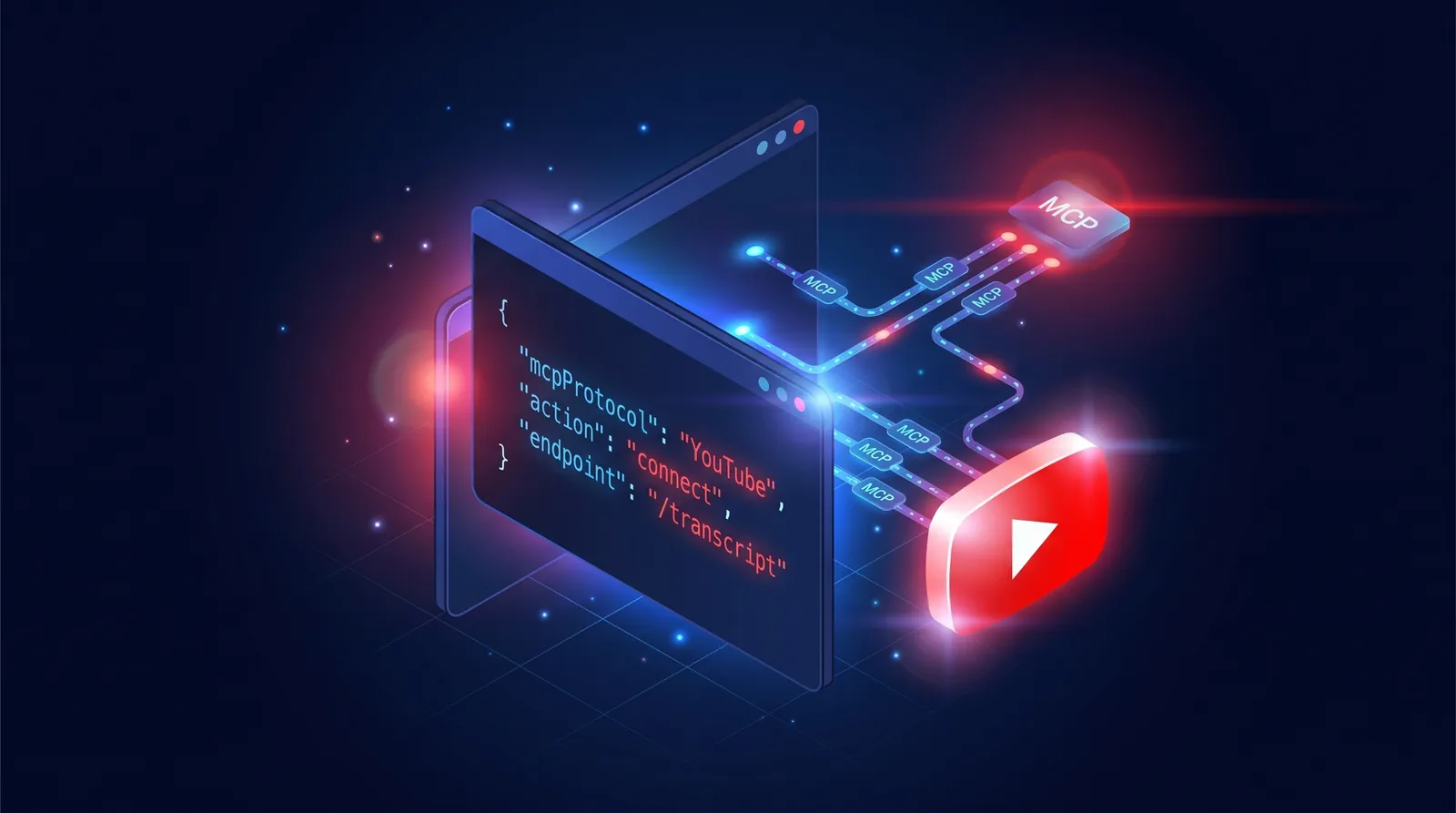
For YouTube transcripts, Cursor connects to TranscriptAPI's hosted MCP server at https://transcriptapi.com/mcp. There is nothing to install. The server fetches the transcript and hands the text back to Cursor's model. The model decides when to use it based on your prompt.
What you'll be able to do (preview the 5 use cases)
Once the cursor youtube transcript MCP is wired up, your editor can:
- Read a tutorial video and write the code into the right files
- Compare three videos on the same topic and pick the best approach
- Find the exact timestamp where a speaker explains a specific concept
- Convert a long talk into project notes saved next to your code
- Generate test cases from a conference talk on edge cases
These are not theoretical. Each one ships as a copy-paste prompt later in the article. Stay with me.
Setup in 3 minutes
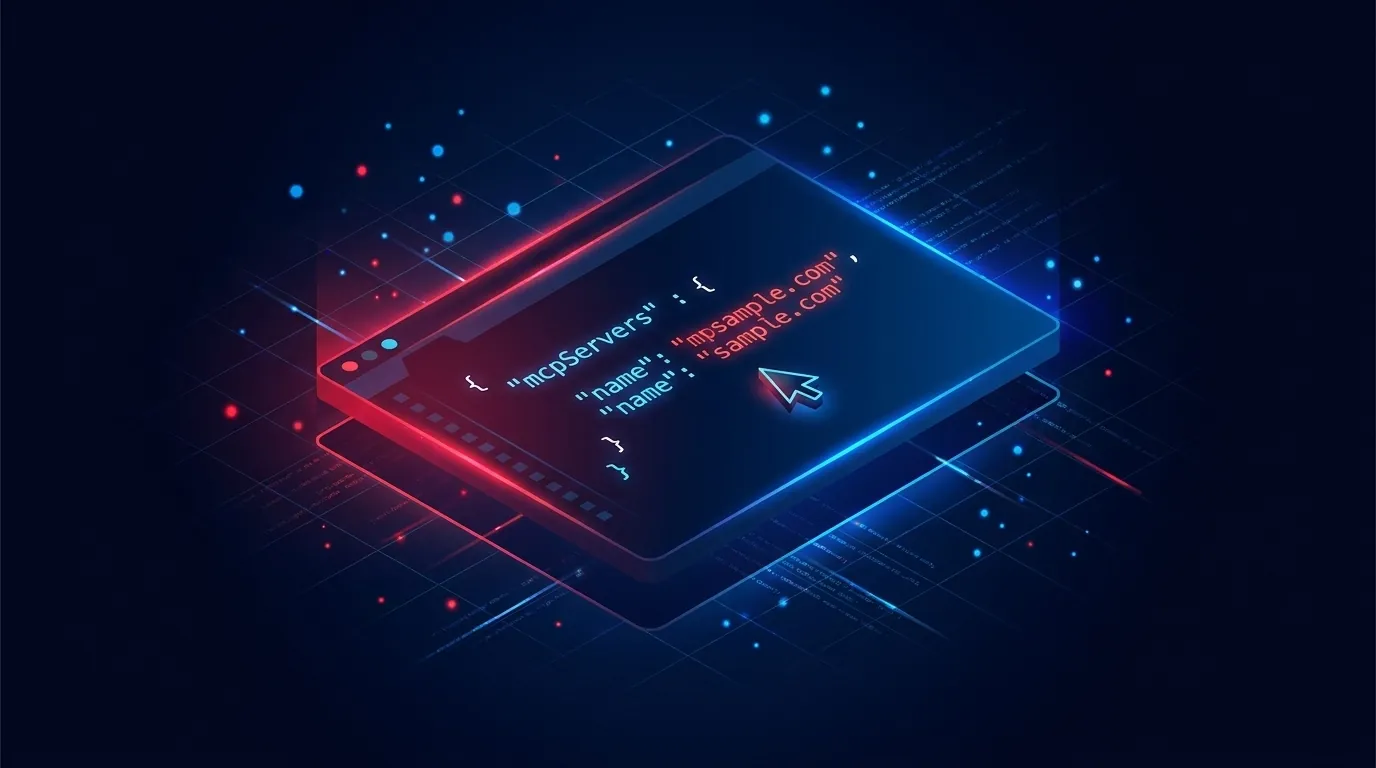
The whole setup is one API key, one JSON file, one restart, and one verify prompt. Total time: under three minutes if you can paste.
Step 1: Get a TranscriptAPI key (100 free credits)
Go to transcriptapi.com and sign up. No credit card. You get 100 credits the moment you confirm your email.
In the dashboard, click API Keys, then Create Key. Name it something like cursor-mcp. Copy the key. You'll paste it in the next step.
One credit equals one successful transcript fetch. Failed requests are never charged. So 100 credits gives you roughly 100 video reads inside Cursor before you owe a dollar.
Step 2: Add the MCP server to ~/.cursor/mcp.json
Open or create the file ~/.cursor/mcp.json in your home directory. On Windows the path is %USERPROFILE%\.cursor\mcp.json.
Paste this config:
{
  "mcpServers": {
    "transcriptapi": {
      "url": "https://transcriptapi.com/mcp",
      "headers": {
        "Authorization": "Bearer your_key_here"
      }
    }
  }
}
Replace your_key_here with the key you copied (it starts with sk_). Keep the word Bearer and the space before your key. Save the file. That's the whole config.
This is a remote MCP server. TranscriptAPI hosts it, so there is no package to install and no Node.js to set up. Cursor sends your key in the Authorization header on each request.
If you already have other MCP servers configured, add transcriptapi as a sibling key inside mcpServers. Don't replace the whole object.
Step 3: Restart Cursor
Quit Cursor fully. On macOS, use Cmd+Q, not the red close button. The close button leaves Cursor running in the background and the new MCP server won't load.
Reopen Cursor. The MCP server starts automatically the first time you open the chat panel.
Step 4: Verify the connection
Open Cursor's chat (Cmd+L on Mac, Ctrl+L on Windows). Paste this prompt:
Use the transcriptapi MCP tool to fetch the transcript of https://www.youtube.com/watch?v=dQw4w9WgXcQ and tell me the first sentence the singer says.
If it returns a sentence, you're done. If it says "no MCP server available," check the JSON for a missing comma or a wrong path. About 80% of failed setups are a typo in mcp.json.
5 example prompts that show off the integration
The prompts below are the real value. Each one is a copy-paste recipe. Tweak the URL and the goal.
"Read this YouTube tutorial and write the code for me"
Paste this into Cursor's chat with a tutorial URL:
Fetch the transcript of [VIDEO URL] using transcriptapi. The video shows how to set up Stripe webhooks in Next.js. Read the full transcript, then create the route handler at app/api/webhooks/stripe/route.ts based on what the speaker explains. Include error handling and signature verification.
Cursor reads the transcript, extracts the steps, and writes the file. You review the diff. If the speaker glossed over a detail, ask a follow-up.
I tried this with a 28-minute video on Drizzle ORM migrations. Cursor produced a working migration script in about 40 seconds. Not perfect on the first pass, but 90% there.
"Compare these 3 video tutorials"
When three creators teach the same thing, you want the best approach without watching three hours. Try this:
Fetch transcripts for these three videos: [URL1], [URL2], [URL3]. They all show how to deploy a FastAPI app on Railway. Compare the approaches and tell me which one has the cleanest deployment, which handles env vars best, and which I should follow. Cite specific quotes from each transcript.
Cursor pulls all three (3 credits) and gives you a comparison table inside the chat. Sound useful?
"Find the timestamp where they explain X"
Long videos hide their best 90 seconds. Skip the scrubbing:
Fetch the transcript of [VIDEO URL] with timestamps included. Find the exact timestamp where the speaker explains how authentication middleware works. Give me the timestamp and quote the relevant section.
The TranscriptAPI MCP server passes include_timestamp=true and Cursor returns something like "At 14:23, the speaker says..." with the actual quote. You jump straight to the moment that matters.
"Convert this YouTube tutorial into project notes"
Tutorials make great team docs once they're text:
Fetch the transcript of [CONFERENCE TALK URL]. Convert it into a markdown notes file at docs/notes/observability-2026.md. Use H2s for each major topic, bullet points for action items, and a quotes section at the bottom for any insights worth remembering.
Now the talk lives in your repo. Future-you searches Slack and finds nothing. Future-you greps docs/notes/ and finds gold.
"Generate test cases from this conference talk"
Conference talks on edge cases are unit test goldmines:
Fetch the transcript of [TALK URL] about JavaScript date handling pitfalls. Read every edge case the speaker mentions. Then write a Vitest test file at src/utils/date.test.ts that has one test per edge case. Use describe blocks for each category.
You get 15+ tests from one transcript fetch. One credit. Make sense?
Common issues and fixes
Setup goes wrong in predictable places. Here are the four issues that cover 95% of support questions.
MCP server not showing up. Quit Cursor completely. Cmd+Q on Mac, fully exit on Windows. The chat panel only loads MCP servers on cold start.
"Invalid API key" error. Open ~/.cursor/mcp.json and check for stray spaces inside the quoted key. Also confirm you copied the full key from the dashboard, not just the first 20 characters.
Server shows an error in Cursor's MCP settings. Check that url is exactly https://transcriptapi.com/mcp and that the Authorization value is Bearer, one space, then your key. A missing or mistyped key makes the server reject the connection.
Transcript fails for a specific video. Some videos have captions disabled. Some are members-only. The API returns a clear error and does not charge a credit. Try a different video to confirm the setup works.
If you hit something not on this list, the TranscriptAPI status page at transcriptapi.com/status shows live uptime. Median response time runs at 49ms.
Cost math: how many editor uses per credit
This is where most teams get the math wrong, so let's be specific.
One transcript fetch costs one credit. That's it. No per-minute charge. A 90-minute conference talk and a 3-minute tutorial both cost the same single credit.
Your free tier gives you 100 credits. That's about 100 video reads inside Cursor before you owe anything. For a side project or a learning sprint, that lasts weeks.
Heavier use? The numbers:
- Free: 100 credits, 0 dollars
- Monthly: 1,000 credits per month for $5
- Annual: 1,000 credits per month for $54 per year (40% cheaper, $4.50/mo equivalent)
If you read three tutorials per workday, that's 60 credits per month. Free tier covers it. If you build a content-comparison agent on top of Cursor and pull 30 transcripts per day, you'll need the $5 plan.
One credit. One request. One result. Failed requests never charged.
Same MCP server, other editors
The same TranscriptAPI MCP server at https://transcriptapi.com/mcp works in Claude Desktop and Windsurf. The setup differs slightly:
- Claude Desktop: add it as a custom connector in Claude's Settings, under Connectors, and sign in with OAuth. No key in a config file. See the Claude setup guide.
- Windsurf (its docs now sit under Devin Desktop):
~/.config/devin/mcp_config.jsonon macOS and Linux, or%APPDATA%\devin\mcp_config.jsonon Windows. To open it, use the...menu in the Cascade panel and choose Open MCP config file.
For Windsurf, use the same url and headers entry as the Cursor config above. Full details for every client are in the MCP docs.
Why this beats copy-pasting transcripts manually
You could open YouTube, click the three-dot menu, click "Show transcript," select all, copy, paste into Cursor's chat, then ask your question. People do this every day.
It works. It's also 12 clicks and a context switch. Multiply by 10 videos a week and you've burned an hour.
The MCP path is one prompt. Cursor handles the fetch, the cleanup, and the model context. You stay in your editor. You stay in flow.
How to put this into action
- Sign up at transcriptapi.com and grab your free 100 credits. No card.
- Create an API key named
cursor-mcpand copy it. - Open
~/.cursor/mcp.jsonand paste the config block from Step 2 above. Replace the placeholder key. - Quit Cursor with Cmd+Q (Mac) or full exit (Windows), then reopen.
- Run the verify prompt from Step 4 to confirm the MCP server responds.
- Save the five example prompts to a snippets file so you can paste them on demand.
Do steps 1 through 5 in one sitting. Step 6 is the one most people skip and then forget the prompts exist a week later. Don't be that person.
The bottom line
Cursor plus the YouTube transcript MCP turns every tutorial into code your editor can write for you. Setup is one JSON file and a restart. Cost is one credit per video, with 100 free to start. The five prompts above cover most of what you'll actually do day to day. So which YouTube tutorial have you been putting off watching, and what would you ship if Cursor read it for you tonight?
Frequently Asked Questions
- How do I add YouTube transcript access to Cursor through MCP?
- Add a TranscriptAPI entry to Cursor's MCP config file — on macOS and Linux it's the .cursor/mcp.json file in your home directory, and on Windows it's the same file under your user profile. The entry points Cursor at TranscriptAPI's hosted MCP server (https://transcriptapi.com/mcp) and sends your API key in an Authorization header. Restart Cursor and the transcript tool becomes available in chat; four short verification steps confirm it's working.
- What can I prompt Cursor to do once the YouTube MCP is connected?
- Useful prompts include: read a tutorial video and write its implementation code into a file; compare three videos on a topic and pick the best approach; find the exact timestamp where a speaker explains a concept; convert a video into project notes saved in your docs folder; and watch a video about edge cases and generate test cases for a function. Each is something you can ship the same day you get MCP running.
- What do the 100 free TranscriptAPI credits get me in Cursor?
- About 100 video transcript reads. One credit equals one successful transcript fetch, and failed requests are never charged — so 100 free credits is roughly 100 full YouTube videos read inside Cursor before you spend anything. After that, the monthly plan is $5 for 1,000 credits (about $0.005 a video) or $54/year (about $0.0015 a video).