YouTube MCP Server Setup: Connect Claude to Transcripts
Imagine asking Claude to summarize a 2-hour conference talk and getting back a structured breakdown in seconds. No tab switching. No copy-pasting. No transcript hunting. Just a prompt and a result.
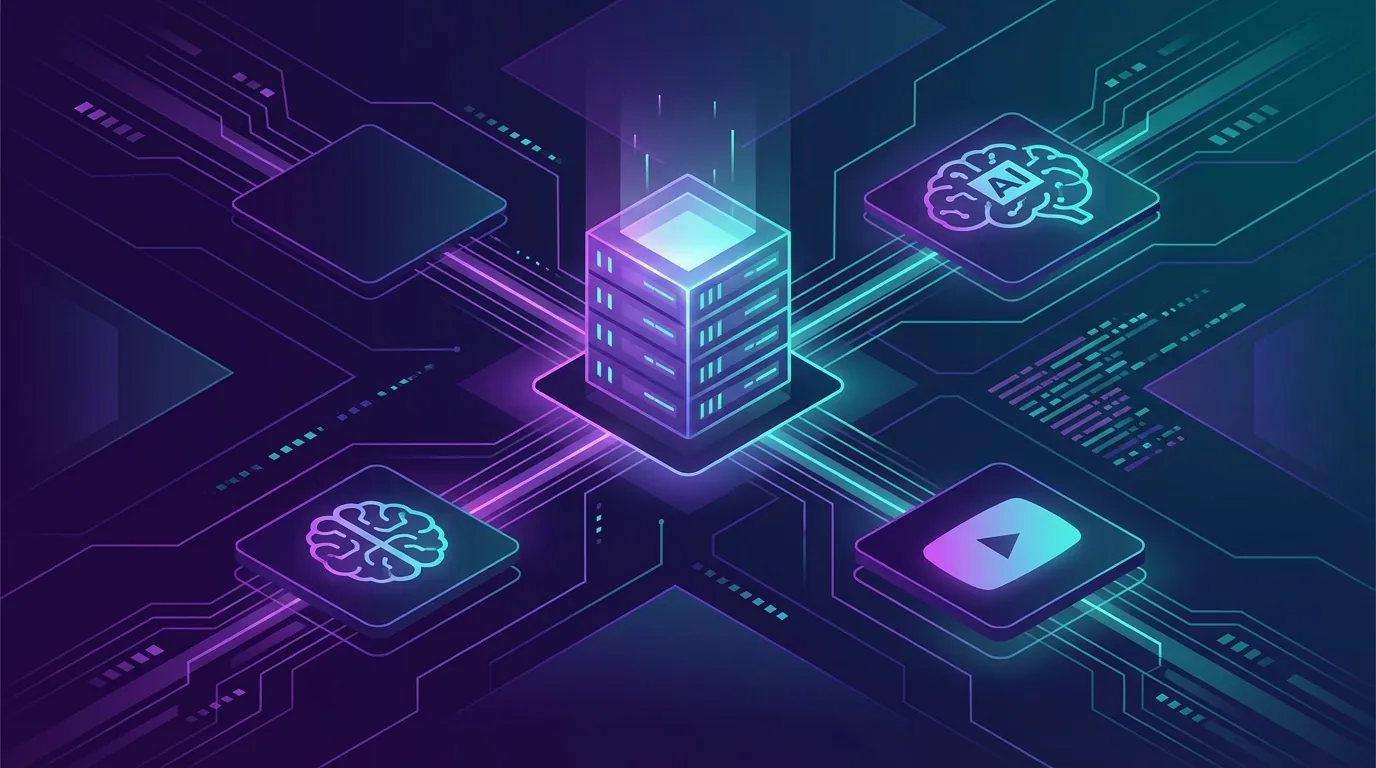
That's what the Model Context Protocol makes possible. MCP lets AI assistants like Claude reach out and grab data from external tools on their own. TranscriptAPI has a native MCP server that gives Claude direct access to YouTube transcripts, search results, channel data, and playlists.
This guide gets you set up in under 10 minutes. By the end, Claude will pull YouTube transcripts on command inside your chat window. I'll also walk you through five real workflows to try once everything is connected.

What is MCP and why should you care?
The Model Context Protocol explained
MCP is an open protocol that lets AI models connect to external data sources and tools. Anthropic developed it, and Claude Desktop has native support built in.
The best way to think about it: MCP is like USB for AI. It's a standard interface. Any tool can plug into it. Once connected, the AI uses that tool as naturally as it uses its own knowledge.
Without MCP, getting external data into Claude looks like this:
Open a browser tab
Navigate to YouTube
Find the video you want
Click the transcript button
Copy the text
Switch to Claude
Paste the transcript
Wait for Claude to process it
With MCP, you skip steps 1 through 7. You just ask Claude for what you want. The MCP server handles the data fetching in the background. It's the difference between giving someone directions and handing them a GPS.
Why YouTube data through MCP changes things
YouTube holds knowledge that genuinely doesn't exist anywhere else on the internet. Conference keynotes where industry leaders share unfiltered insights. Technical deep-dives too detailed for blog format. University lectures covering topics that textbooks won't touch for years. Product reviews with real demonstrations.
Most of this content has never been written down. It only exists as spoken words in videos. That makes it invisible to AI tools that can only read text.
Giving Claude access to YouTube data opens up workflows that used to be tedious or impossible:
Researchers can analyze hours of video content without manually copying transcripts
Developers can prototype YouTube-powered features by talking to Claude instead of writing code first
Content creators can repurpose video into articles, social posts, and summaries in a single conversation
Students can ask Claude to explain concepts from recorded lectures, with timestamps for reference
Marketers can analyze competitor video strategies across entire channels
Have you ever spent 20 minutes copying a transcript from YouTube just to paste it into an AI chat? MCP removes that friction completely. Once you set it up, you'll wonder how you worked without it.
Using Claude Code in the terminal instead of Claude.ai? Jump to set up the YouTube MCP server in Claude Code.
Prerequisites
Before we start, here's what you need:
Claude on the web (claude.ai) or the Claude Desktop app. TranscriptAPI connects as a custom connector, which works in both. A Free or Pro Claude account is enough.
A TranscriptAPI account with an API key. Sign up at transcriptapi.com and you'll get 100 free credits immediately. No credit card.
Got both? Good. There is nothing to install: TranscriptAPI hosts the MCP server. Let's set this up.

Step-by-step setup guide
Step 1: get your TranscriptAPI key
If you already have an account, skip to Step 2. If not:
Go to transcriptapi.com
Click Sign Up. The process takes about 30 seconds.
You'll get 100 free credits right away. No credit card required.
Go to the API Keys page in your dashboard
Copy your API key
Keep the key somewhere accessible. Claude signs in with OAuth in Step 3, so it doesn't need the key. You'll use it for the cURL check in the troubleshooting section and for any MCP client that takes an API key.
A quick note on credits: each MCP operation costs the same as a direct API call. Getting a transcript costs 1 credit. Searching YouTube costs 1 credit. Channel latest is free. Channel resolve is also free, but it's a REST endpoint (/youtube/channel/resolve), not an MCP tool. With 100 credits, you can test everything in this tutorial multiple times.
Step 2: copy the TranscriptAPI MCP server URL
There is nothing to install. TranscriptAPI hosts the MCP server, so you don't need Node.js, npm, or any package. All you need is the server URL:
https://transcriptapi.com/mcp
You can also copy it from the MCP Integration page in your TranscriptAPI dashboard.
Step 3: add TranscriptAPI as a custom connector in Claude
This is the core step. You add TranscriptAPI as a custom connector and approve access once. It works the same in claude.ai and in Claude Desktop.
Open Claude's Settings and go to Connectors (on the web: claude.ai/settings/connectors).
Click Add custom connector.
Enter
TranscriptAPIas the name and pastehttps://transcriptapi.com/mcpas the server URL. You don't need an OAuth Client ID or Secret.Click Add, then Connect.
You'll land on TranscriptAPI's OAuth authorization page. Sign in if needed, confirm that Claude will use your API credits, and click Authorize.
There's no config file to edit and no API key to paste. For a screenshot of each screen, see our Claude connector guide.
Using a different MCP client that reads a JSON config file? Point it at the same URL and send your API key as a Bearer token:
{
  "mcpServers": {
    "transcriptapi": {
      "url": "https://transcriptapi.com/mcp",
      "headers": {
        "Authorization": "Bearer your_api_key_here"
      }
    }
  }
}
Replace your_api_key_here with the key you copied in Step 1 (it starts with sk_). Keep the word Bearer and the space before your key.
Step 4: set tool permissions (optional)
By default, Claude asks before each tool call. To skip that, click Configure next to the TranscriptAPI connector and change "Always ask permission" to "Allow unsupervised". If you'd rather approve each call, leave it as it is.
Step 5: verify the connection
Look for the tools icon in the Claude chat input area. It might look like a hammer, wrench, or plug icon depending on your version. Click it and you should see TranscriptAPI listed as an available tool with several functions.
If you see it, type this into Claude:
Get the transcript of this YouTube video and summarize it in 3 bullet points: https://www.youtube.com/watch?v=dQw4w9WgXcQ
Claude will ask for permission to use the TranscriptAPI tool on your first request. Click "Allow" to let it proceed. After that, Claude will fetch the actual transcript from YouTube and give you a real summary based on the content.
If Claude responds with something generic instead of actual video content, the MCP connection isn't working. Jump to the troubleshooting section below.
That's it. Five steps. Under 10 minutes. Claude now has live access to YouTube's entire transcript library.
5 workflows to try right now
Setup is done. Here's where the real value shows up.
1. Video summarization and analysis
The most common use case. Also the most immediately useful.
Try these prompts:
"Summarize this video in 5 bullet points: [URL]"
"What are the main arguments made in this video? [URL]"
"Give me a technical breakdown of the concepts discussed in [URL]"
"Fact-check the key claims in this video and flag anything that seems wrong: [URL]"
"Extract all the statistics and data points mentioned in this video: [URL]"
Claude fetches the transcript, reads the full text (even if it's 10,000+ words), and gives you a structured response. For a 1-hour video, this takes just a few seconds.
I find the fact-checking prompt particularly useful. Claude will flag claims that seem inaccurate, unsupported, or contradicted by its training data. That saves a lot of manual verification work when you're researching a topic.
2. Content repurposing
Turn video content into other formats without watching the original video:
"Turn this video transcript into a 1,000-word blog post: [URL]"
"Create a Twitter/X thread with the 7 best takeaways from: [URL]"
"Write a LinkedIn post based on the insights from this video: [URL]"
"Generate podcast-style show notes with timestamps for: [URL]"
"Create an email newsletter summary of this video: [URL]"
This is a huge time-saver for creators who produce video and want to repurpose across platforms. Instead of watching your own 30-minute video and taking notes, hand Claude the URL and get a blog draft in 20 seconds.
3. Research and competitive analysis
This is where combining search and transcript tools gets powerful:
"Search YouTube for videos about 'kubernetes security best practices' and summarize the top 3 results"
"Get the latest videos from @ThePrimeagen and tell me what topics he's covering this month"
"Compare the main arguments from these two videos: [URL1] and [URL2]"
"Find all videos from this channel about pricing strategy and identify common themes: [channel URL]"
Claude can search YouTube, browse channels, and pull transcripts. You can do competitive research on an entire YouTube channel without opening YouTube once. That's a workflow that simply didn't exist before MCP.
Want this running automatically? Platforms like CRHQ can schedule competitive research agents that monitor channels daily and deliver findings to Slack — no manual prompting required.
4. Study and learning
Students and lifelong learners get enormous value from this:
"Explain the concept of backpropagation using this lecture as a reference: [URL]"
"Create 10 flashcards from the key terms and definitions in this video: [URL]"
"I didn't understand the section starting around 15 minutes. Can you explain that differently? [URL]"
"Generate a study guide from this 3-hour course video: [URL]"
The timestamp data means Claude can reference specific moments in the video. You can ask follow-up questions about particular sections and Claude knows exactly where to look.
5. Quote and clip finding
Need to locate where someone said something specific?
"Find every time the speaker mentions 'revenue growth' in this earnings call video, with timestamps: [URL]"
"What did the presenter say about API design? Include timestamps: [URL]"
"Find the funniest moments in this comedy special and give me timestamps: [URL]"
Claude searches through the entire transcript and returns exact quotes with their timestamps. You can jump directly to that moment in the video. This beats scrubbing through an hour of footage to find a 30-second clip.
Which of these workflows would save you the most time? Start with that one.
Troubleshooting common issues
MCP server not appearing in Claude Desktop
This is the most common problem. Work through this checklist:
Check the server URL. It must be exactly
https://transcriptapi.com/mcp. A typo or an extra path segment stops the connector from connecting.Check that the connector is connected. In Settings, under Connectors, TranscriptAPI should show as connected. If you see a Connect button, click it and finish the authorization.
Make sure the tool is enabled in your chat. Open the tools menu in the chat input and check that TranscriptAPI is switched on.
Remove the connector and add it again. This clears a half-finished setup.
Sign in to TranscriptAPI first. If you aren't logged in when the authorization page opens, sign in and approve access again.
API key or authentication errors
If Claude says it can't authenticate or gets an error from TranscriptAPI:
Copy your API key fresh from the TranscriptAPI dashboard. Don't type it manually.
In Claude, reconnect TranscriptAPI under Settings, then Connectors, to run the authorization again. In other clients, check that the header reads
Authorization: Bearer, one space, then your key.Make sure there are no extra spaces, newlines, or invisible characters in the key
Verify you still have credits. Log into transcriptapi.com and check your balance.
Try the key with a direct cURL command to rule out MCP-specific issues:
curl "https://transcriptapi.com/api/v2/youtube/transcript?video_url=dQw4w9WgXcQ" \
  -H "Authorization: Bearer YOUR_API_KEY"
If cURL works but MCP doesn't, the issue is in the connector or client setup, not the key.
Claude returns generic responses instead of real transcripts
If Claude responds with general information about a video instead of actual transcript content, the MCP tools aren't being activated. This can happen when:
The tools didn't load properly (restart Claude Desktop)
You haven't granted permission yet (look for the permission prompt)
Your prompt doesn't clearly indicate you want YouTube data
Try being explicit: "Use the TranscriptAPI tools to get the transcript of [URL]."
Server crashes or hangs
If the MCP server keeps crashing or timing out:
Remove the connector, add it again, and reconnect
Check Claude Desktop's developer console for error messages: Help > Toggle Developer Tools
Run the cURL command from the section above. If it returns a transcript, your account and key work, and the problem is in the client setup.
Check your internet connection. The MCP server runs at transcriptapi.com.
How credits work with MCP
MCP calls use the exact same credit system as direct API calls. There's no separate MCP pricing and no MCP surcharge.
OperationCreditsGet a transcript1Search YouTube1List channel videos (per page)1Search within a channel1Resolve a channel ID (REST endpoint only, not an MCP tool)FreeGet latest channel uploadsFreeList playlist videos (per page)1Failed requests0
When Claude makes multiple tool calls in a single conversation (like searching for videos and then pulling transcripts for each result), each call uses credits independently. A research workflow where Claude searches, finds 5 videos, and gets all their transcripts costs about 6 credits total.
The free tier's 100 credits give you plenty of room to explore. That's enough for about 15-20 research sessions. For regular daily use, the $5/month plan covers 1,000 operations. Most individual users won't hit that limit.
Set up the YouTube MCP server in Claude Code
Claude Code, the terminal version of Claude, adds MCP servers from the command line instead of the Connectors screen. There are two ways to give it YouTube access.
Option 1: add the TranscriptAPI MCP server
Run this in your project folder, with your TranscriptAPI key (it starts with sk_):
claude mcp add --transport http transcriptapi https://transcriptapi.com/mcp \
  --header "Authorization: Bearer YOUR_API_KEY"
That registers the hosted server for the current project. To make it available in every project, add --scope user:
claude mcp add --transport http --scope user transcriptapi https://transcriptapi.com/mcp \
  --header "Authorization: Bearer YOUR_API_KEY"
Then start Claude Code and run /mcp. transcriptapi should be listed as connected, with its 12 YouTube tools. claude mcp list shows the same from your shell. If it shows an error, check that the header is Bearer, one space, then your key.
Option 2: install the YouTube agent skills
TranscriptAPI also publishes YouTube skills for coding agents such as Claude Code, Cursor and Windsurf. One command installs the full set:
npx skills add ZeroPointRepo/youtube-skills --skill youtube-full
On first use, the skill creates a TranscriptAPI account for you and stores the API key, so there is no config to edit. You get the same 100 free credits to start. If you only need part of it, the repository also has single skills such as transcript, youtube-search, youtube-channels and youtube-playlist.
Check that it works
Ask Claude Code something like "Summarize this video: https://www.youtube.com/watch?v=…" or "What did @TED upload this week?". You should see a TranscriptAPI tool call before the answer. For long videos, ask for the transcript without timestamps; it uses fewer tokens.
Beyond Claude: other MCP-compatible tools
TranscriptAPI's MCP server isn't limited to Claude Desktop. It works with any MCP-compatible client. The same server URL works for all of them.
Cursor IDE -- reference YouTube tutorials while you write code. Ask Cursor to extract code examples from a video and apply them to your project.
Windsurf -- AI-powered development with YouTube data as context. Useful when building applications that involve video content.
ChatGPT -- access YouTube transcripts within ChatGPT conversations (with MCP support enabled).
OpenClaw -- extend any AI agent framework with YouTube data capabilities.
CRHQ -- deploy persistent AI agents with YouTube skills, scheduling, and memory built in. Ideal for automated content research and monitoring workflows that run on their own.
For clients that use a JSON config file, such as Cursor and Windsurf, add the url and headers entry from Step 3 with your API key. ChatGPT connects with OAuth; see our ChatGPT setup guide. For OpenClaw, see the OpenClaw guide.
Getting started today
Setting up TranscriptAPI's MCP server with Claude Desktop takes under 10 minutes. Once connected, you can summarize videos, repurpose content, do competitive research, find specific quotes, and analyze entire channels. All without leaving your Claude conversation.
The setup in review:
Get a TranscriptAPI key at transcriptapi.com (free, 100 credits)
Copy the MCP server URL:
https://transcriptapi.com/mcpAdd it as a custom connector in Claude's Settings and authorize access
Set tool permissions (optional)
Test with a real YouTube URL
Sign up, connect the MCP server, and try your first YouTube-powered Claude conversation. The whole process takes less time than watching a single YouTube video.
For a broader look at connecting other AI tools (Cursor, Windsurf, ChatGPT) to YouTube data, check out how to give AI agents access to YouTube data via MCP. For the complete API endpoint reference, see the YouTube Transcript API developer guide. And for use case inspiration, read 104 business ideas you can build with YouTube transcripts.
What's the first video you'll ask Claude to analyze?
Frequently Asked Questions
- What is MCP, and why does it change how Claude accesses YouTube data?
- MCP (Model Context Protocol) is a standard interface — often described as "USB for AI" — that lets Claude connect to external data sources. Without it, getting a YouTube transcript into Claude is a seven-step manual chore: open a browser, find the video, open the transcript panel, copy the text, switch to Claude, and paste. With MCP connected, you skip all of that: you ask Claude for what you want and it fetches the transcript in the background as a tool call.
- How long does the YouTube MCP setup take, and what are the steps?
- Under 10 minutes. Sign up for TranscriptAPI, add https://transcriptapi.com/mcp as a custom connector in Claude's Settings (claude.ai or Claude Desktop), authorize access with OAuth, and confirm it with a test prompt. There is nothing to install. After that, Claude can pull YouTube transcripts inside any conversation.
- What are some real workflows I can run after connecting Claude to YouTube?
- Five practical ones: summarize a conference talk into a structured breakdown with key insights; research a topic by pulling transcripts from several relevant videos at once; repurpose a video into a blog post, social copy, or newsletter section; ask Claude to explain a concept from a recorded lecture with timestamp references; and analyze a competitor's video strategy across an entire channel — work that used to take hours of manual copy-pasting.
- How do I add the YouTube MCP server to Claude Code?
- Run claude mcp add --transport http transcriptapi https://transcriptapi.com/mcp --header "Authorization: Bearer YOUR_API_KEY" (add --scope user to use it in every project), then run /mcp in Claude Code to confirm it is connected. Alternatively, install the agent skills with npx skills add ZeroPointRepo/youtube-skills --skill youtube-full, which sets up the account and key on first use.